9.1Initialize a Switching Platform
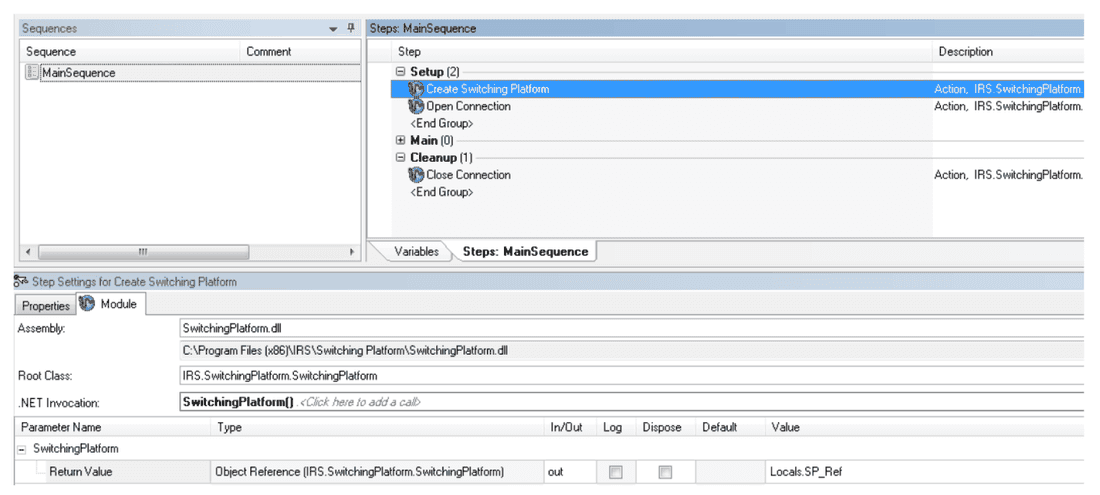
To initialize a Switching Platform, use the dotNET Adapter and insert an action step:
- Navigate to the “
SwitchingPlatform.dll” (installation folder) - Choose the Root Class “
IRS.SwitchingPlatform.SwitchingPlatform” - Choose the .NET Invocation “
SwitchingPlatform()” (Constructor for Switching Platform Object) - Save the Object Reference in a Variable
9.2Connect to SP-Mainframe / Rack
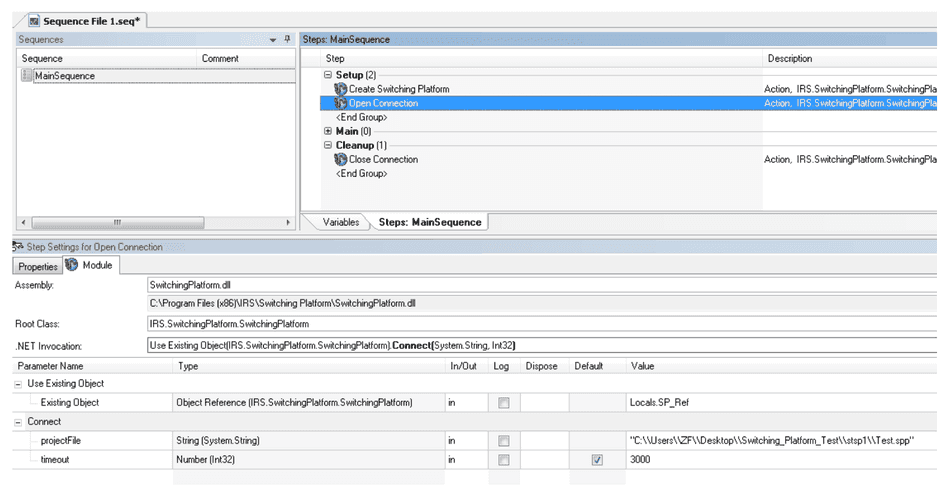
- Use the dotNET Adapter, insert an action step and navigate to the “
SwitchingPlatform.dll” - Choose the Root Class “
IRS.SwitchingPlatform.SwitchingPlatform” and the .NET Invocation “Use Existing Object(IRS.SwitchingPlatform.SwitchingPlatform).Connect(System.String, Int32)” - Refer to the Variable with the Switching Platform Object Reference
- Type in the path to your Project File (use “
\\” for path masking “C:\\TS\\Project”) - Type in Connection Timeout (recommended: “use default”)
9.3Disconnect SP-Mainframe / Rack
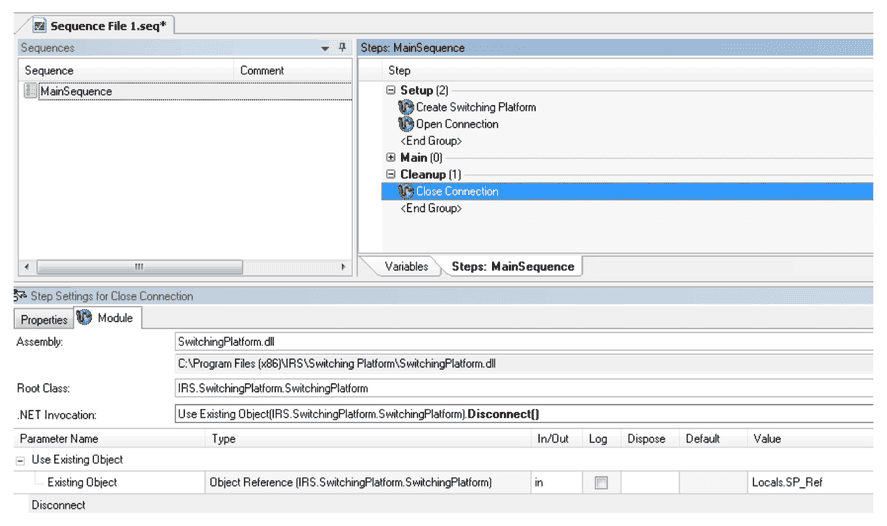
- Use the dotNET Adapter, insert an action step and navigate to the “
SwitchingPlatform.dll” - Choose the Root Class “
IRS.SwitchingPlatform.SwitchingPlatform” and the .NET Invocation “Use Existing Object(IRS.SwitchingPlatform.SwitchingPlatform).Disconnect()” - Refer to the Variable with the Switching Platform Object Reference
9.4Switch Relay via Request
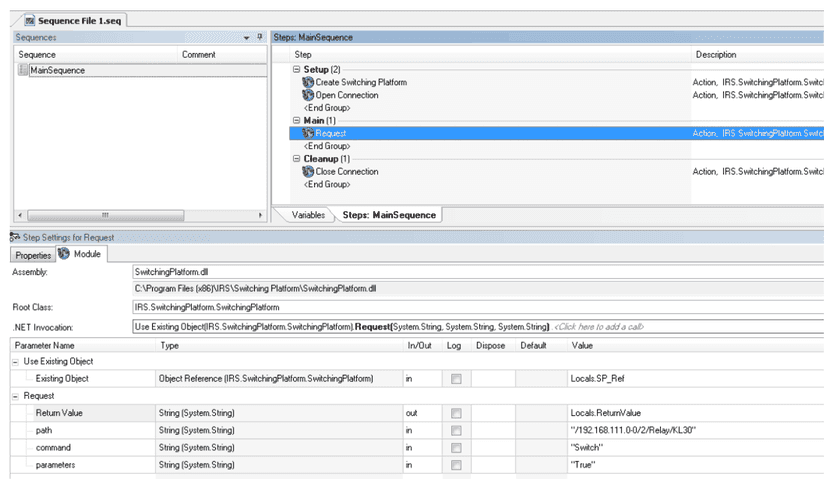
- Use the dotNET Adapter, insert an action step and navigate to the “
SwitchingPlatform.dll” - Choose the Root Class “
IRS.SwitchingPlatform.SwitchingPlatform” and the .NET Invocation “Use Existing Object(IRS.SwitchingPlatform.SwitchingPlatform).Request(System.String, System.String, System.String)” - Refer to the Variable with the Switching Platform Object Reference
- Type in the Path to the chosen relay “
/192.168.111.0-0/2/Relay/KL30”, the command “Switch” or “Read” and the parameters
Documents and downloads
Further documents and files for your IRS product are available on myIRS.