8.1Switching Platform Editor SW
- Access levels operator and developer by password (customer defined)
- Easy Configuration (drag and drop) of SP-Module population and configuration
- Auto-Setup functionality of connected and detected SP-Modules
- Definition of Alias-Names for switching channels and switching groups
- Access to modules EEPROM for custom defined specific data
- Testpanels to show switching states and ADC values and allow manual switching
- Execution of SP-Modules selftest incl. report (not all modules provide selftest)
- System settings (e.g. custom ID for SP modules)
- Project file definition for integration in Test Sequences
- 100% multithreading functionality support on Module level (threads access dedicated SP-Modules without resource sharing)
- .NET library (.NET Framework 4.6.2) and CVI wrapper function
8.2Switching Platform Startup
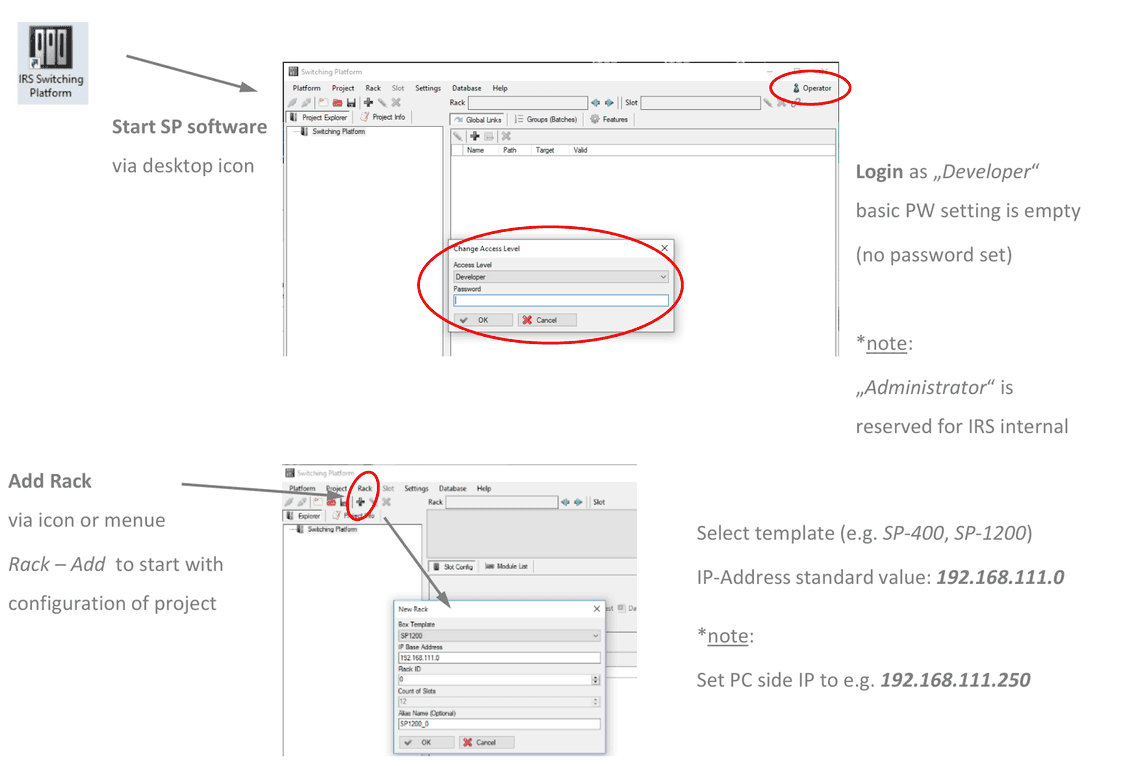
- Start SP software via desktop icon
- Login as „Developer“: basic PW setting is empty (no password set)
- Add Rack via icon or menu Rack – Add to start with configuration of project
- Select template (e.g. SP-400, SP-1200). IP-Address standard value:
192.168.111.0
8.3Database Reference
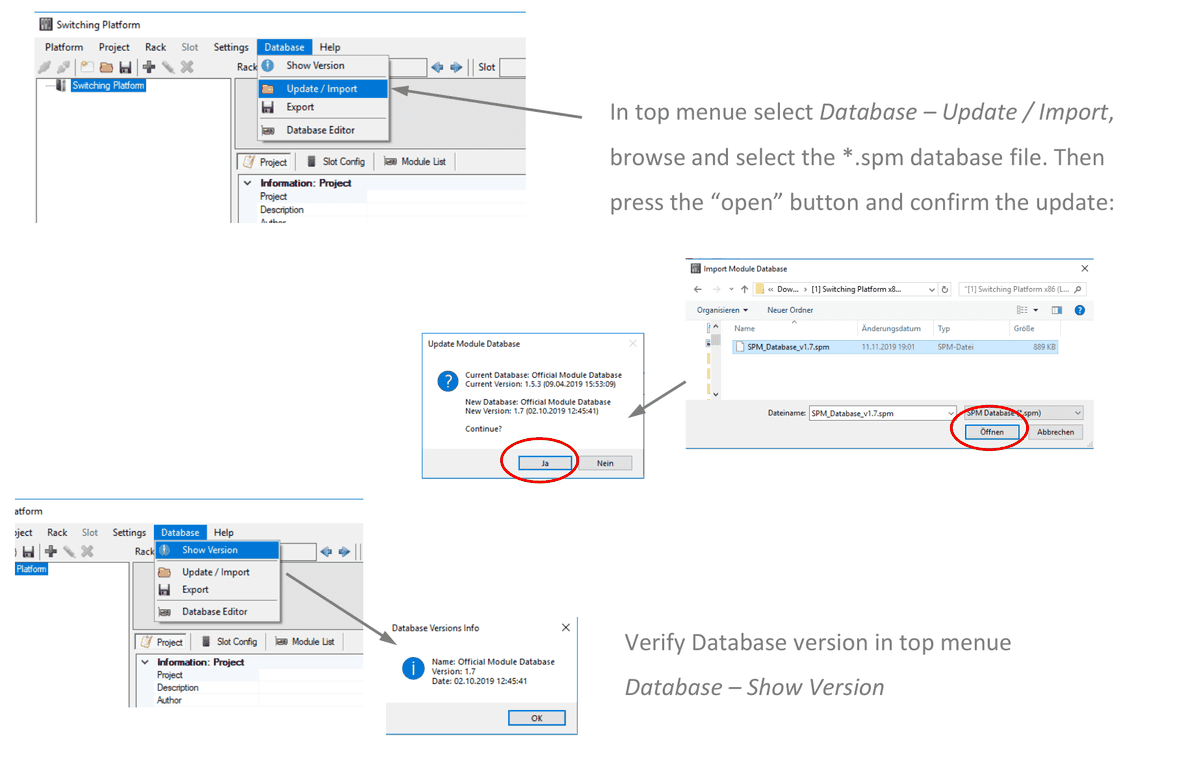
In top menu select Database – Update / Import, browse and select the *.spm database file. Then press the “open” button and confirm the update.
Verify Database version in top menu Database – Show Version.
8.4SP Mainframe Population
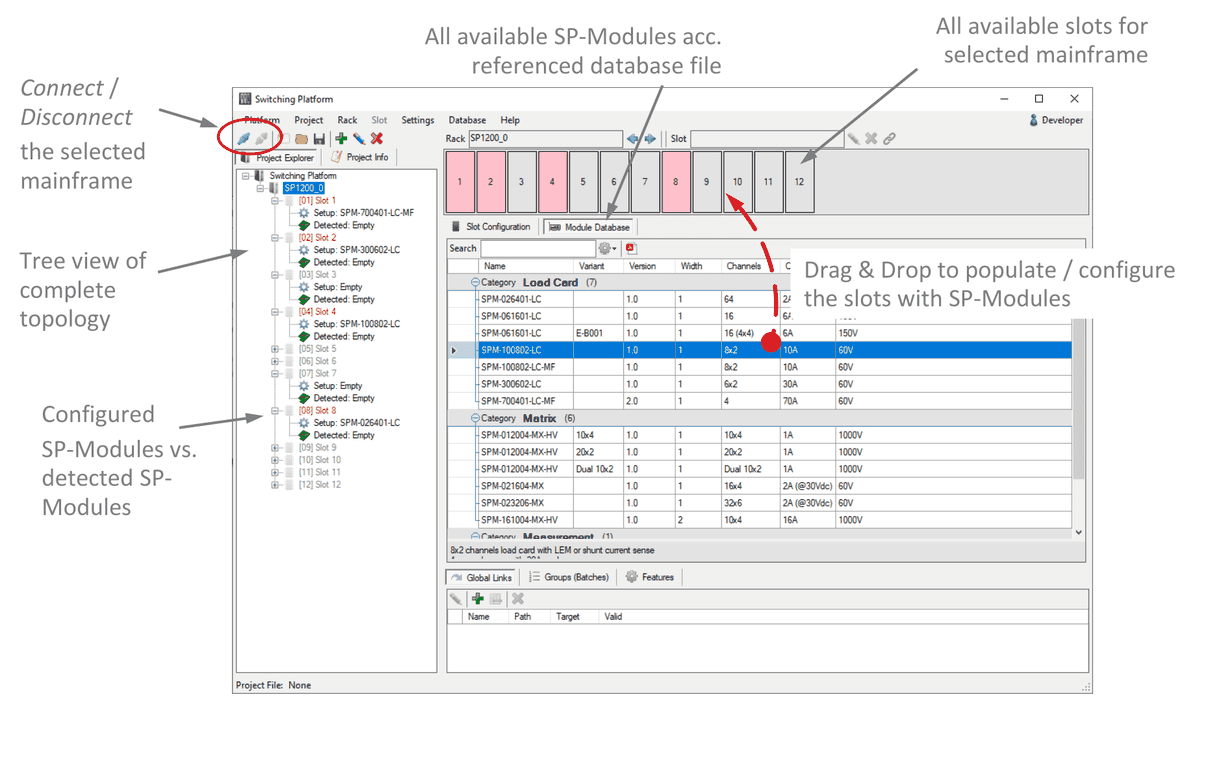
- Connect / Disconnect the selected mainframe
- Tree view of complete topology
- Configured SP-Modules vs. detected SP-Modules
- All available SP-Modules acc. referenced database file
- All available slots for selected mainframe
- Drag & Drop to populate / configure the slots with SP-Modules
8.5SP Mainframe Slot Properties
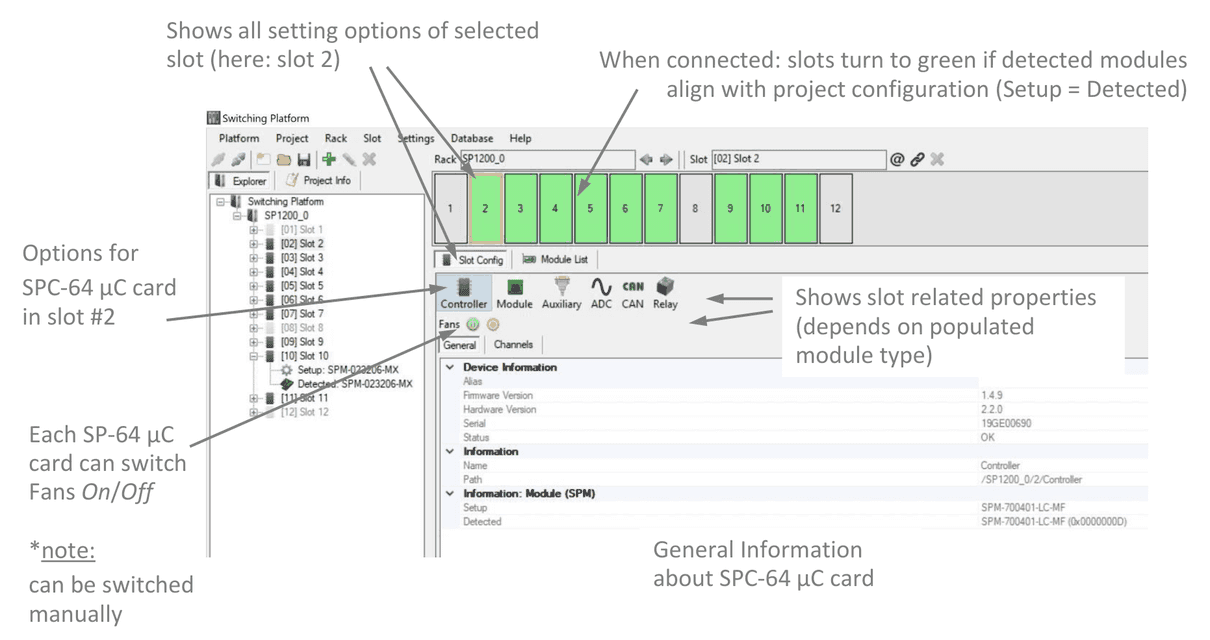
- Shows all setting options of selected slot (here: slot 2)
- When connected: slots turn to green if detected modules align with project configuration (Setup = Detected)
- Options for SPC-64 µC card in slot #2
- Shows slot related properties (depends on populated module type)
- General Information about SPC-64 µC card
- Each SP-64 µC card can switch Fans On/Off (note: can be switched manually)
8.6Auto Setup & Update Downloader
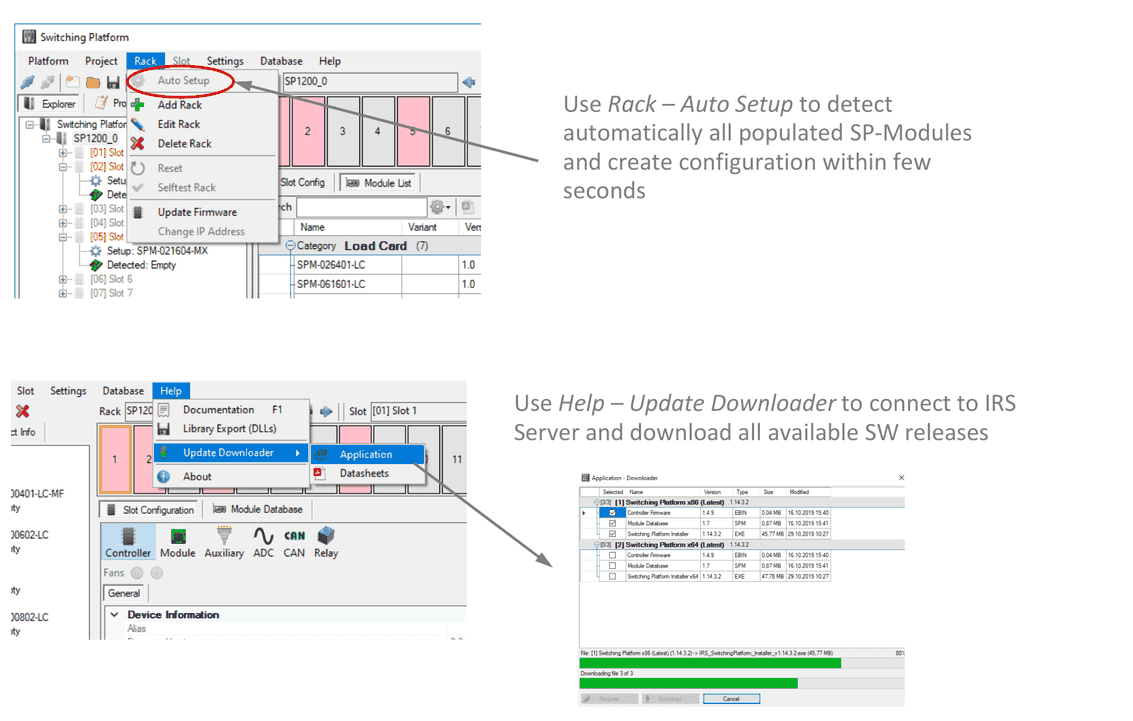
Use Rack – Auto Setup to detect automatically all populated SP-Modules and create configuration within few seconds.
Use Help – Update Downloader to connect to IRS Server and download all available SW releases.
8.7Test Panels & Selftest
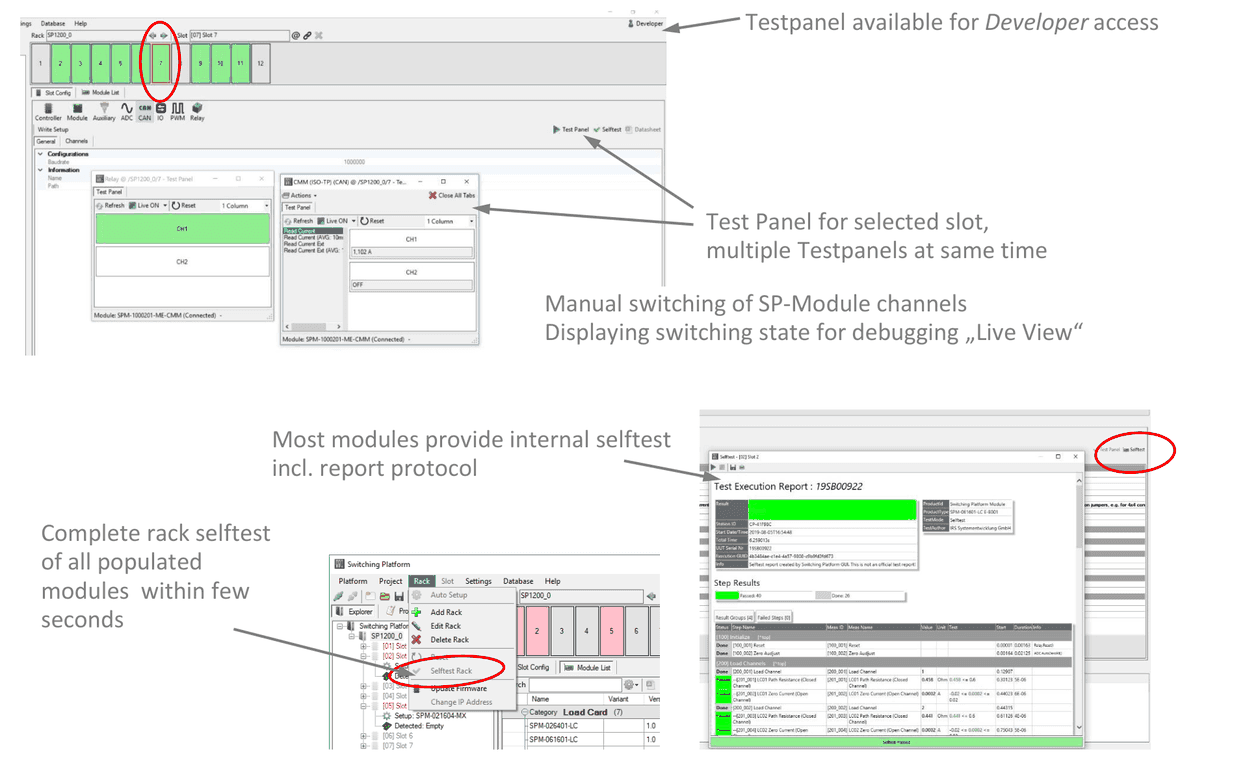
- Testpanel available for Developer access
- Test Panel for selected slot, multiple Testpanels at same time
- Manual switching of SP-Module channels
- Displaying switching state for debugging „Live View“
- Most modules provide internal selftest incl. report protocol
- Complete rack selftest of all populated modules within few seconds
8.8Project File & Configuration Report
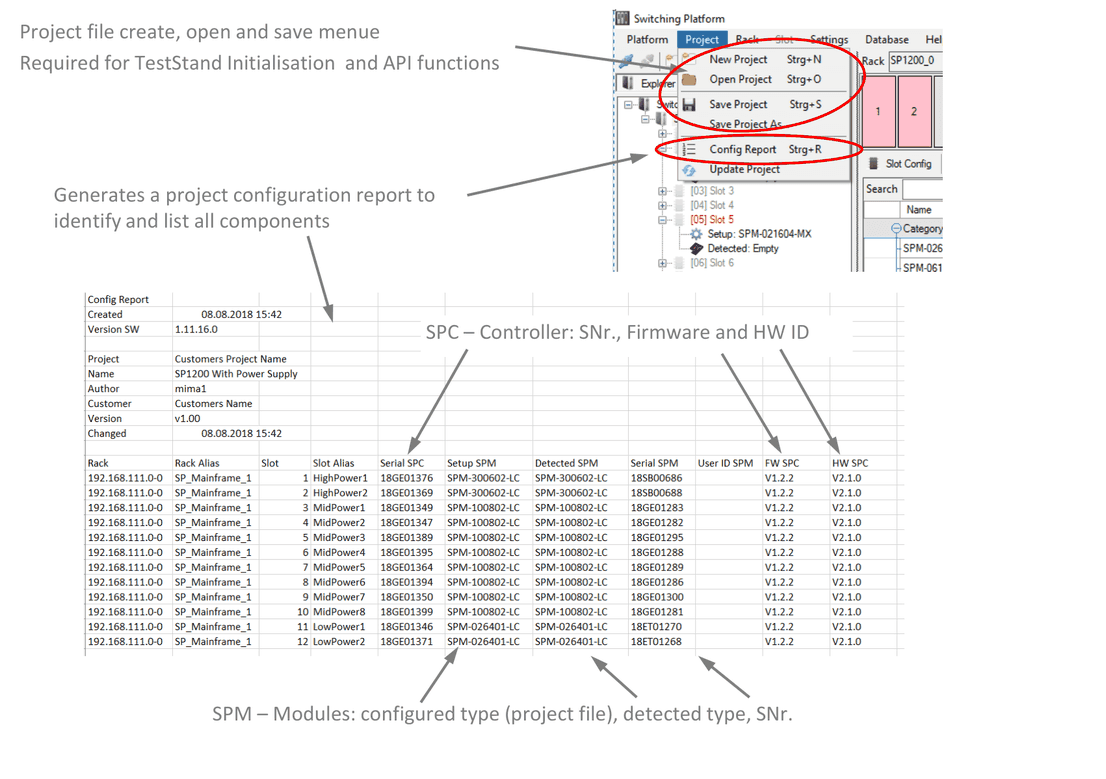
- Project file create, open and save menu: Required for TestStand Initialisation and API functions
- Generates a project configuration report to identify and list all components
- SPC – Controller: SNr., Firmware and HW ID
- SPM – Modules: configured type (project file), detected type, SNr.
8.9Request Builder
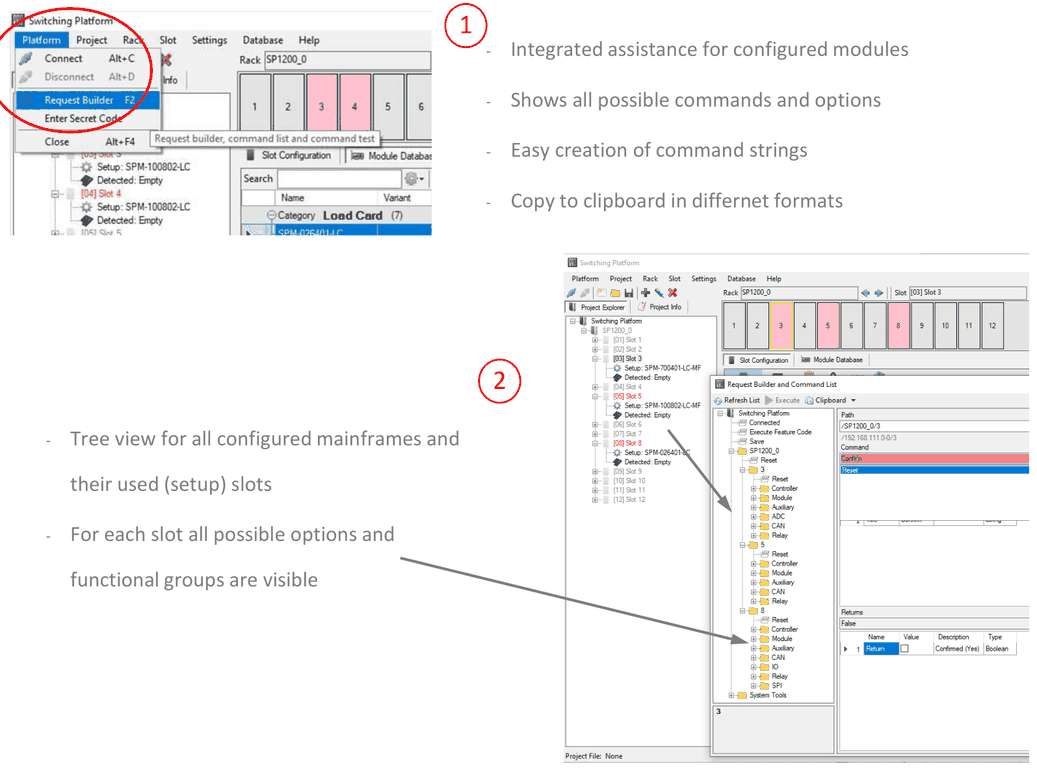
- Integrated assistance for configured modules
- Shows all possible commands and options
- Easy creation of command strings
- Copy to clipboard in different formats
- Tree view for all configured mainframes and their used (setup) slots
- For each slot all possible options and functional groups are visible
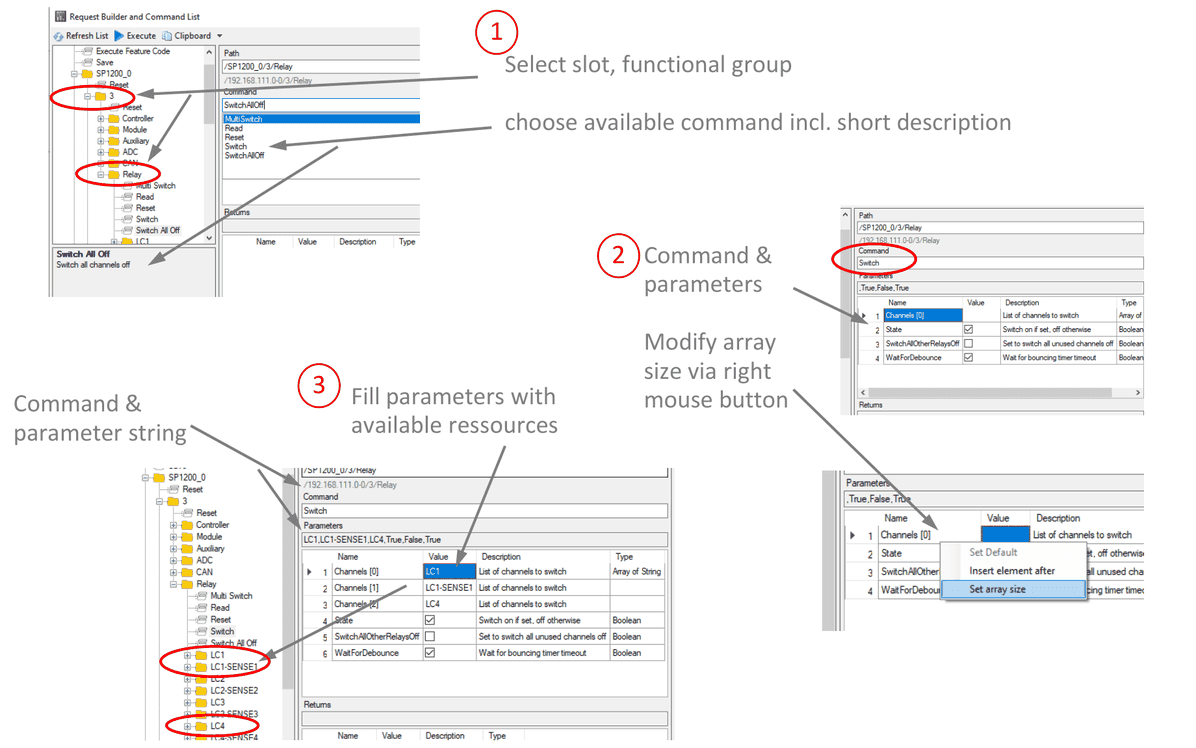
- Select slot, functional group; choose available command incl. short description
- Command & parameters; modify array size via right mouse button
- Fill parameters with available resources; command & parameter string
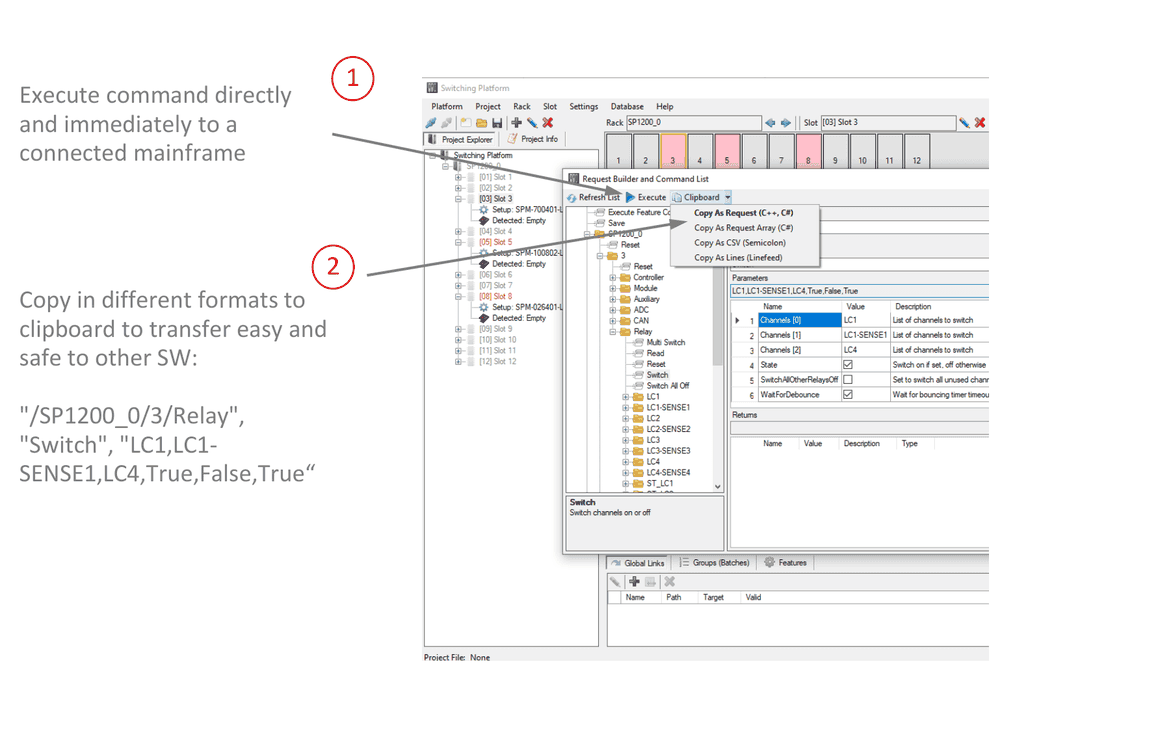
- Execute command directly and immediately to a connected mainframe
- Copy in different formats to clipboard to transfer easy and safe to other SW:
"/SP1200_0/3/Relay", "Switch", "LC1,LC1-SENSE1,LC4,True,False,True"
8.10Documentation
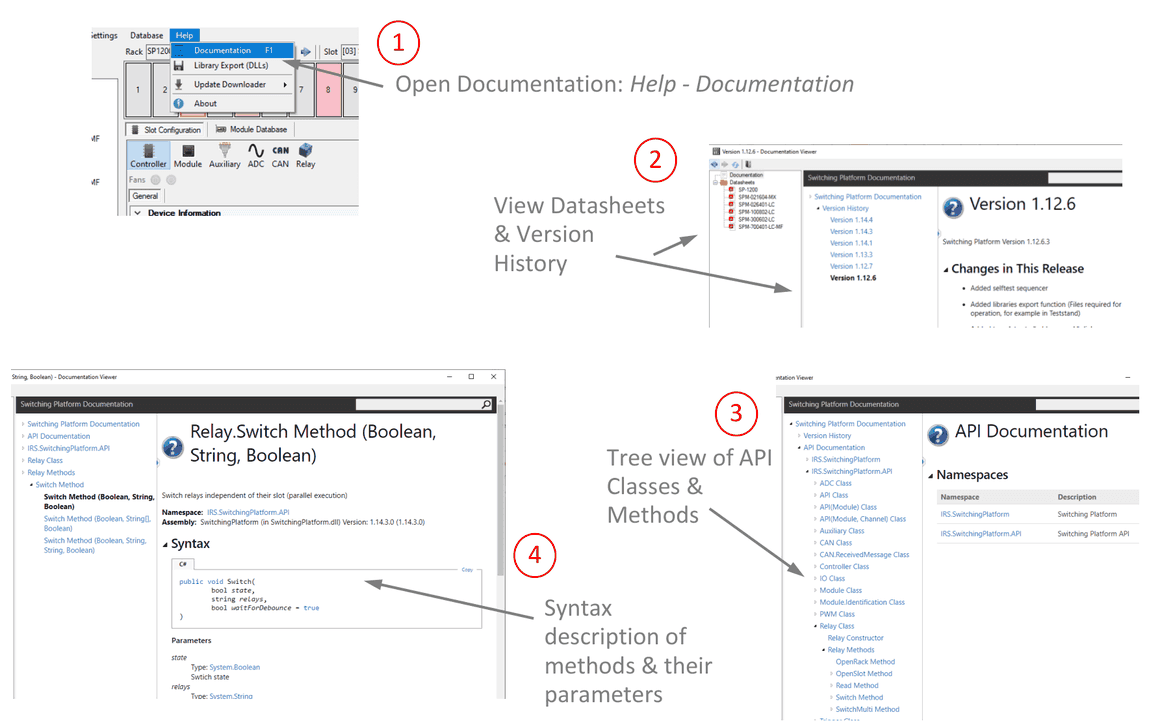
- Open Documentation: Help - Documentation
- View Datasheets & Version History
- Tree view of API Classes & Methods
- Syntax description of methods & their parameters
Documents and downloads
Further documents and files for your IRS product are available on myIRS.