In the following chapter the software concept is introduced. Starting with a general overview, block diagrams of SW subsystems, description of the communication between the SW subsystems, and finally a short functional description of the functional blocks.
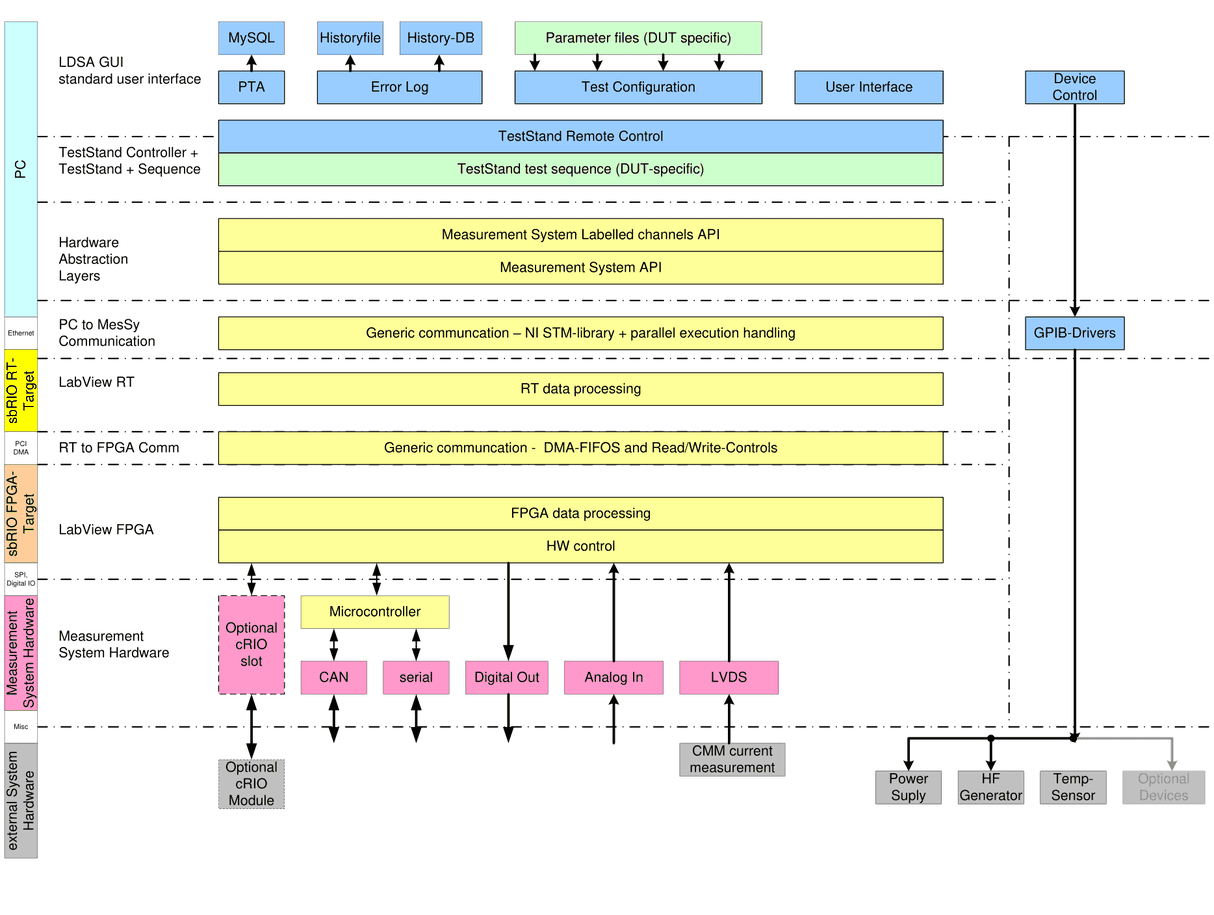
For lifetime testing, software for test configuration, data logging and test execution is necessary. These software parts are not described in this document. IRS provides a complete SW solution for lifetime testing which contain additionally to the software described in the following chapter:
- PC-Host-Software
- User interface (GUI)
- TestStand controller (TSC)
- TestStand including test procedure which accesses the measurement system API functions
For description of these software parts, contact IRS.
For the measurement system the following sub-systems are introduced in the following chapter:
- PC-Host-Software
- Base communication to measurement system (PC to RT communication)
- SW for controlling and querying the separate functional blocks
- Signal mapping for accessing analog, digital and communication channels by DUT specific signal name
- Measurement system Software:
- LabVIEW RT software running on sbRIO RT controller
- LabVIEW FPGA software running on sbRIO FPGA
- Microcontroller software running on communication board’s microcontroller
4.1Lifetime testing SW layers
Following block diagram illustrates the different software layers of typical lifetime test equipment, with focus on the measurement system software (yellow). The blue marked SW parts are the generic IRS user interface and TestStand from National Instruments.
4.2Measurement system embedded software
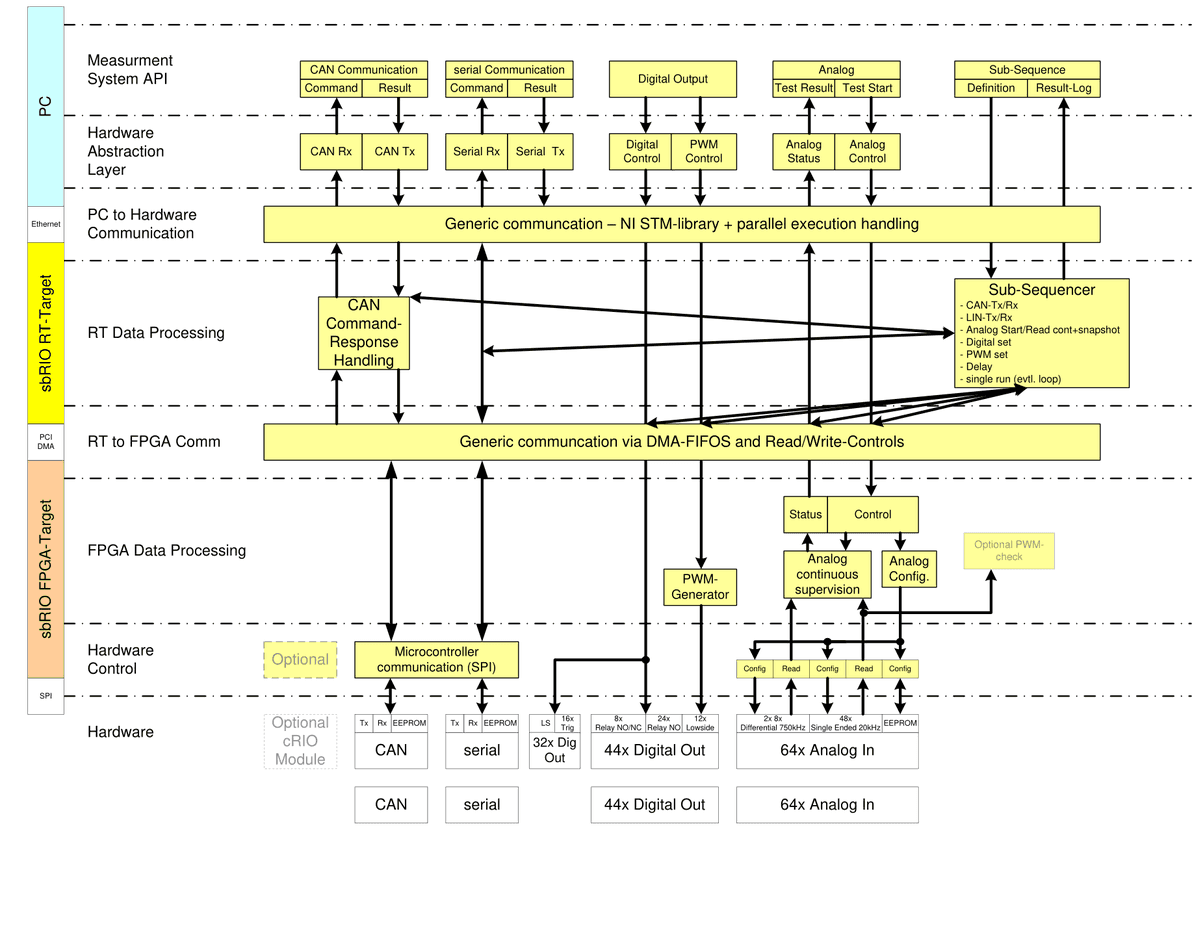
4.2.1Overview FPGA-SW
Next block diagram shows the entire FPGA design with its functional blocks, running on sbRIO FPGA:
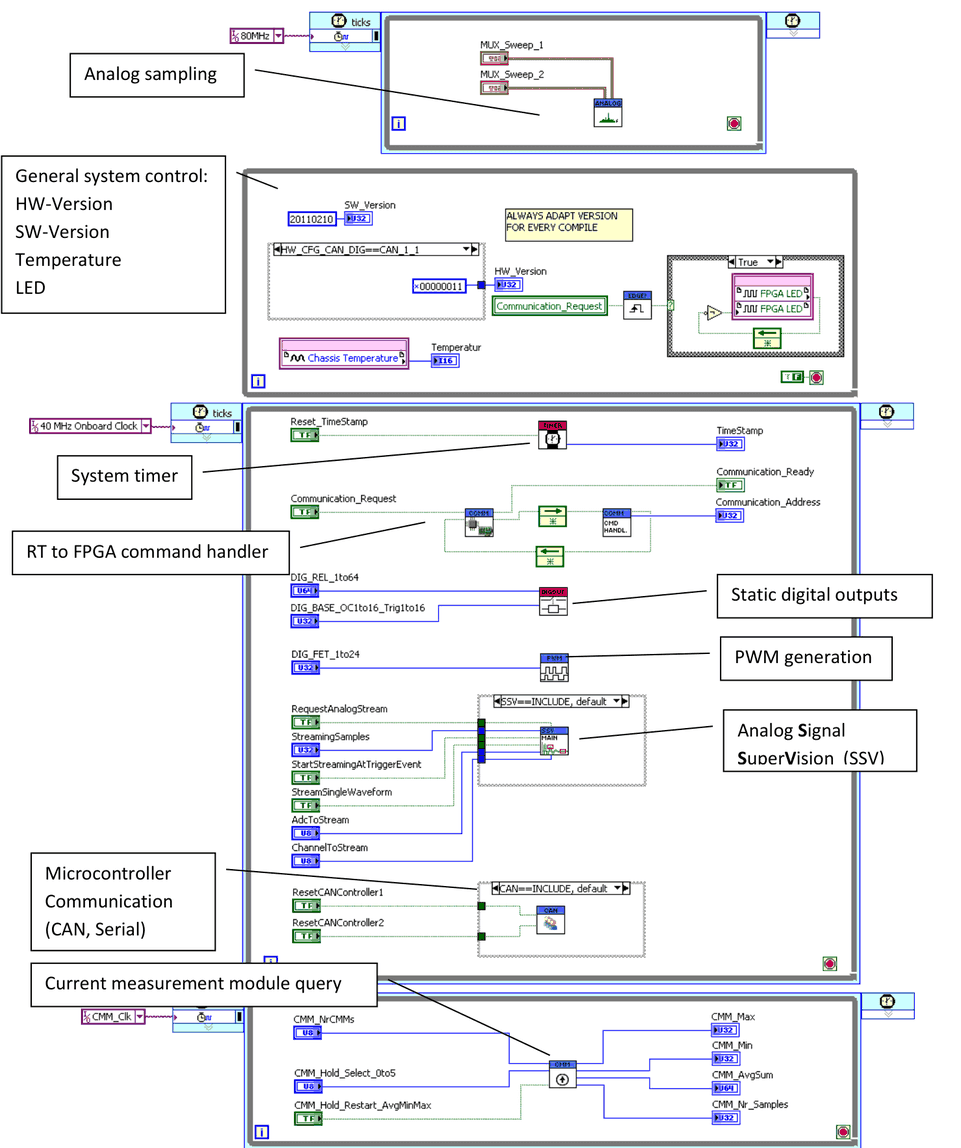
The block diagram contains several Sub-VIs, which handle all FPGA data processing according to the following VI hierarchy:
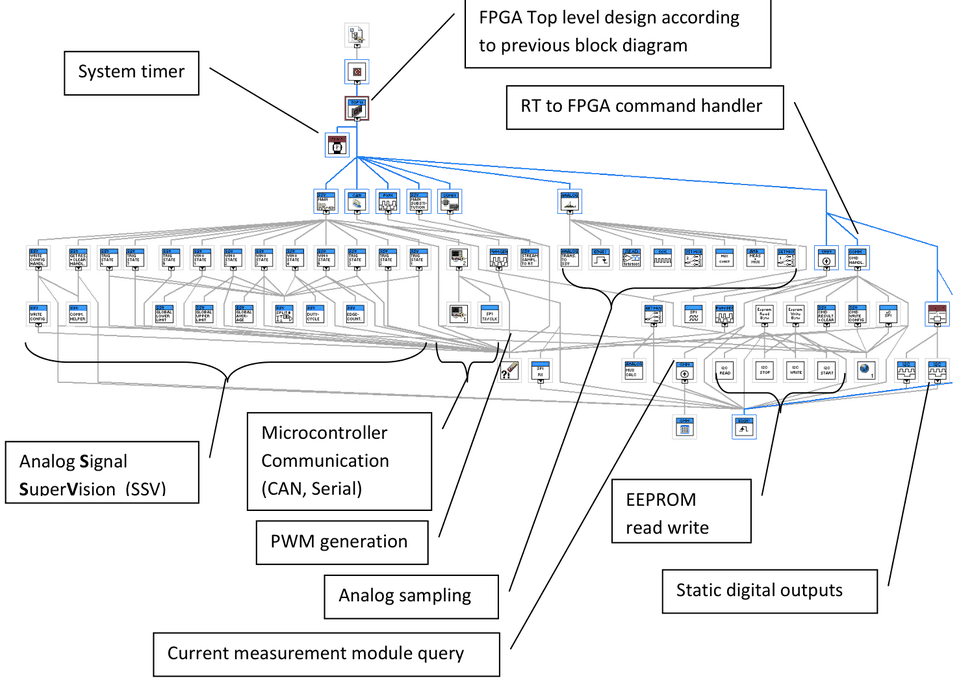
The Sub-VIs are not described in detail, since this would go beyond the scope of this document. To understand the functionality of the blocks, the source code should be investigated.
4.2.2Overview RT-SW
Following block diagram shows the top level RT-design running on the sbRIO RT controller:
After power up, RT-SW initializes the FPGA reference and performs all DMA channel settings for the communication with the FPGA.
Afterwards RT-SW waits for a connection request from the host PC. After connection has been established RT-SW always waits for a command from the host PC to execute.
With every command (e.g. setting digital outputs, request analog values, send CAN command, …) the following steps are performed:
- Call command handler
- Read parameters
- Execute command
- Return response
After the host PC closes the connection, the loop, while waiting for a command is aborted, Ethernet connection is closed, and RT-SW again waits for a new connection to the PC host.
At the moment no other tasks are necessary for RT-SW. There are several options to implement further extensions to this software, including parallel tasks for calculation, running models,….
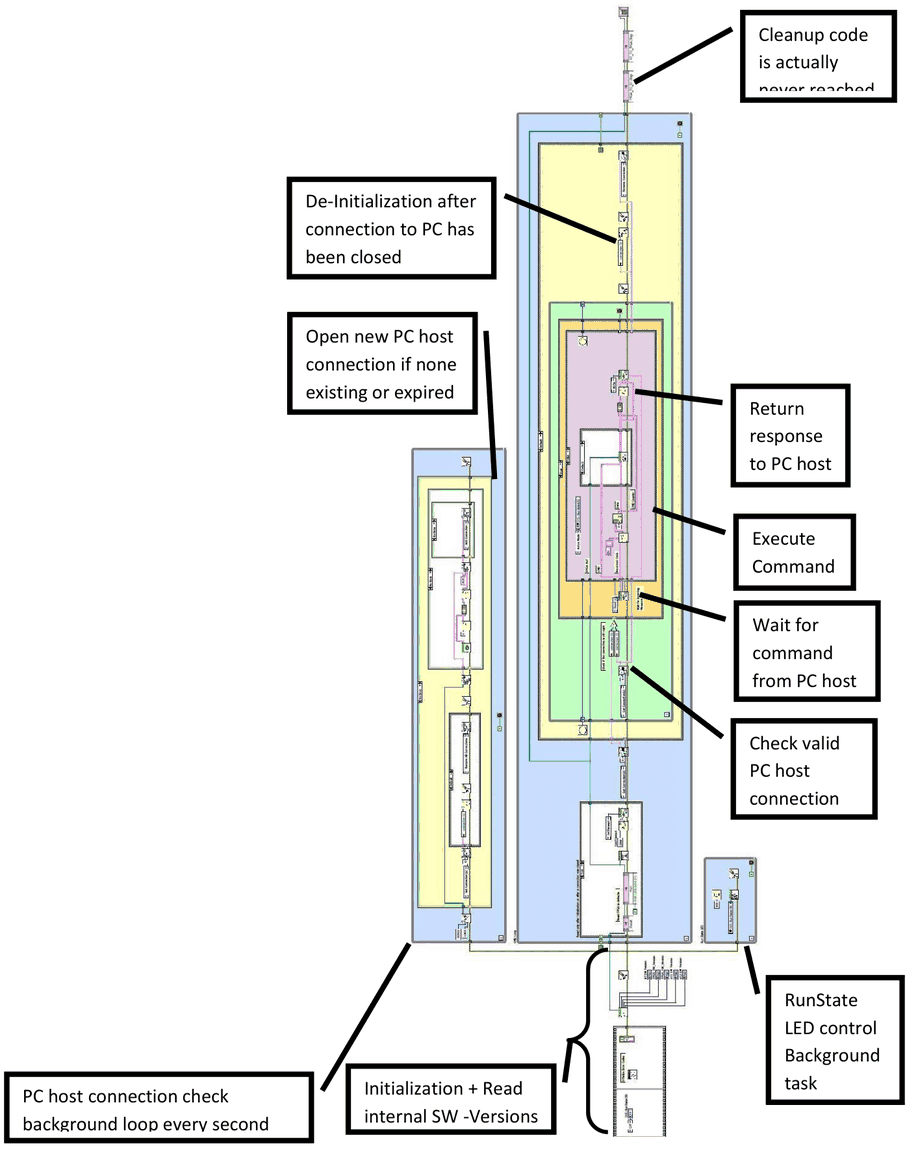
The block diagram contains several sub-VIs, which handle all RT data processing according to the following VI hierarchy:
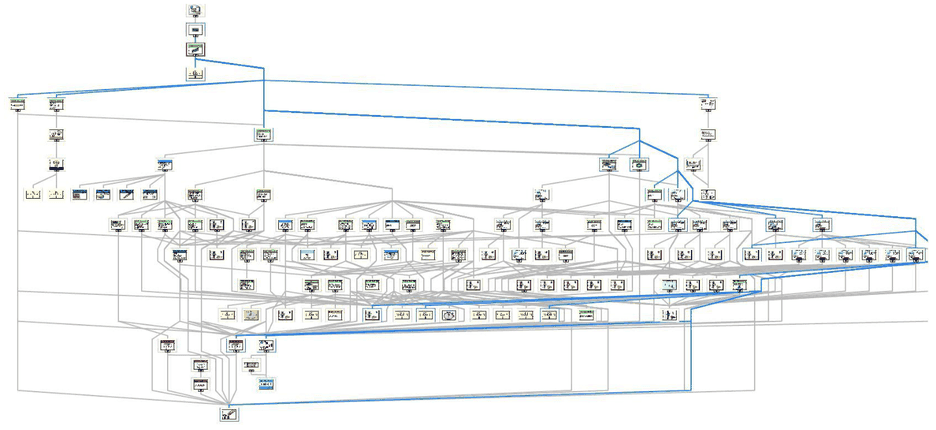
The sub-VIs are not described in detail, since this would go beyond the scope of this document. To understand the functionality of the blocks, the source code should be investigated.
4.2.3RT to FPGA communication
Communication via Read/Write-Controls
Commands which do not have to pass larger data blocks from RT to FPGA or vice versa, use simple read/write controls to send data to, or read data from FPGA. For example see the command handler case for setting digital outputs from the RT point of view:
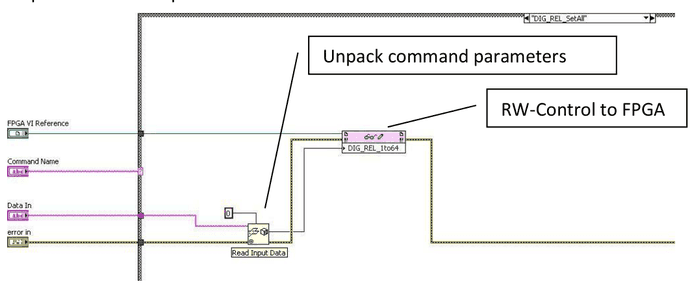
See also the FPGA block diagram in chapter 5.2.1 to see all available Read-Write Controls: (Temperature, digital outputs, Timestamp, Reset, CMM, …)
Communication via DMA from FPGA point of view
For passing larger data blocks from RT to FPGA or vice versa, DMA channels can be used. The following structure, which can be found in the figure of chapter 5.2.1, handles the DMA communication:
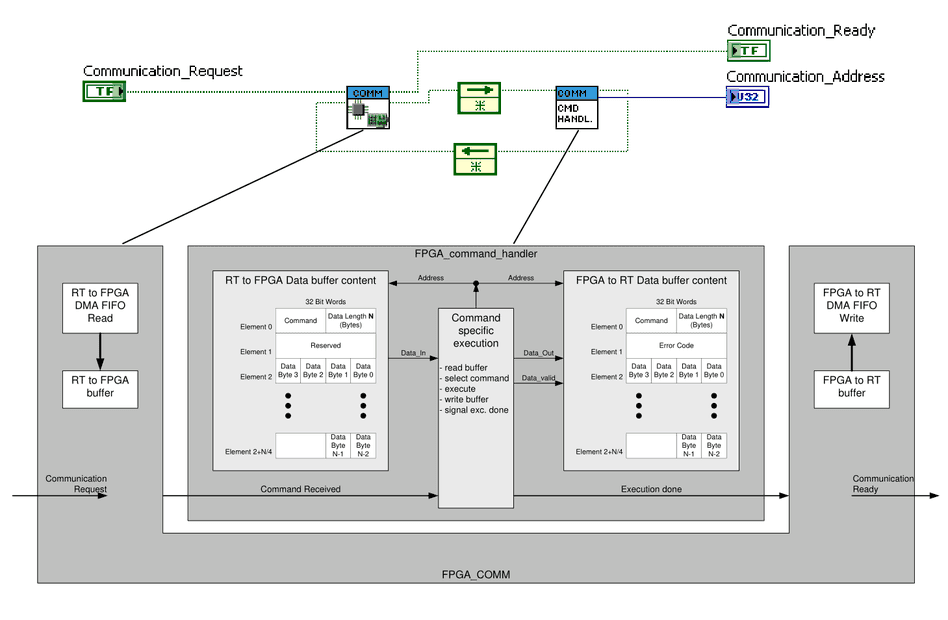
Communication via DMA from RT point of view
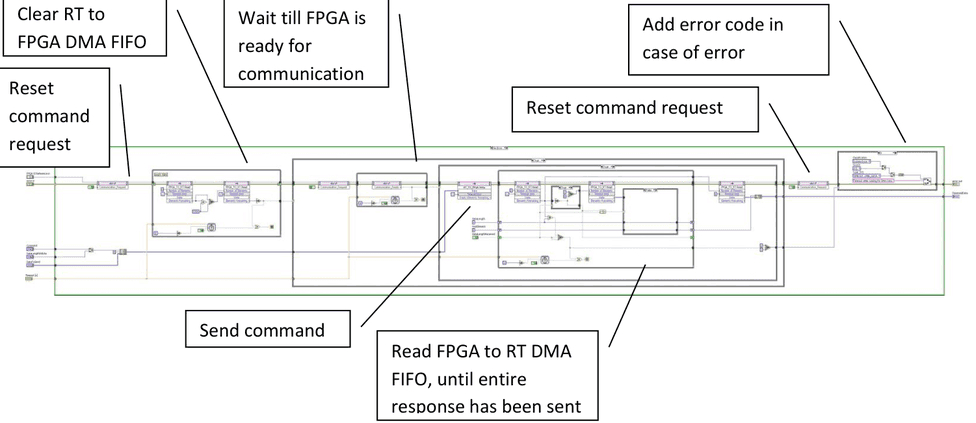
The following steps are performed for RT to FPGA communication:
4.3PC to RT communication
4.3.1STM library
Communication between the PC Host interface and the measurement system RT-controller is established by an Ethernet connection. A protocol is implemented, based on the National Instruments STM-library, using TCP/IP Protocol.
Every command or response packet handled by the STM library contains the following data string:

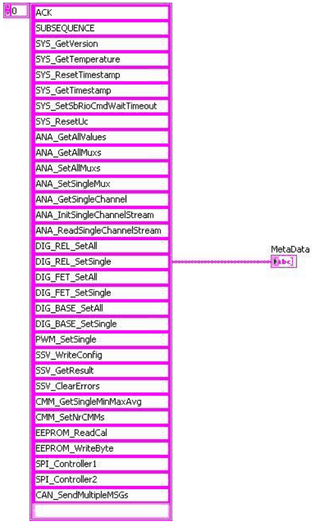
The command field “Metadata“, is an ID, which represents an element of the array of valid commands. The figure below shows an example of the used commands of the measurement system.
Meta data is transmitted once from the PC host to the RT target, after connection has been established by the host PC. This makes sure, that both PC and RT both know the same valid commands, using same IDs.
4.3.2Normal command execution from PC point of view
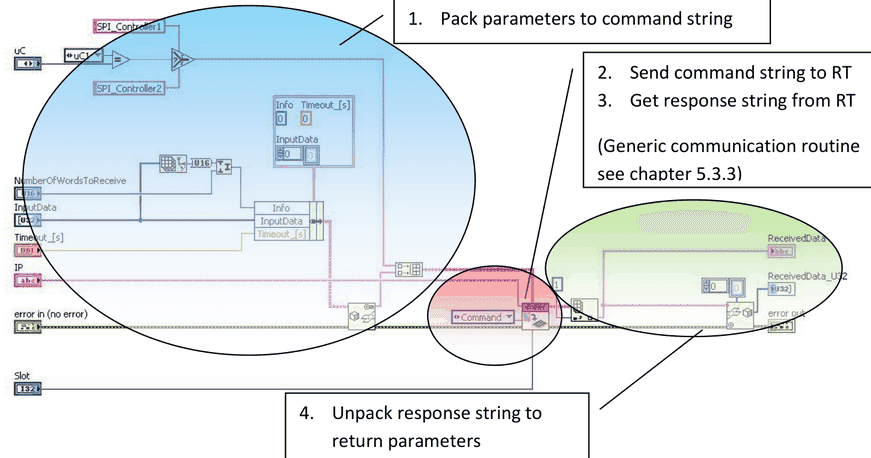
Normal command execution means that PC sends a command. RT executes the command and sends a response immediately. The following steps are performed from the PC side of view:
- Pack parameters to command string:
- This step is command specific, and means to pack any command parameters to a string
- Send command string to RT:
- This step is included in the generic communication routine, which sends the command string to the RT-Target
- Get response string from RT:
- This step is included in the generic communication routine, which waits for the response string from the RT-Target
- Unpack parameters from response string:
- This step is command specific, and means to extract any response parameters from string
4.3.3Slot addressing
Note that for every command a slot parameter is passed. The purpose of this parameter is to distinguish between several DUTs on one measurement system. I.e. for DUTs with only little amount of pins and functions, one measurement system can be used to handle up to 6 DUTs in parallel. In this case, when more than one test executions are connecting to the measurement system, the communication routine has to check the connections for every DUT’s test execution. It may not close the connection, until all test executions of all DUTs have closed the connection. Thus, the slot represents the DUT on the measurement system.
4.3.4Generic communication routine
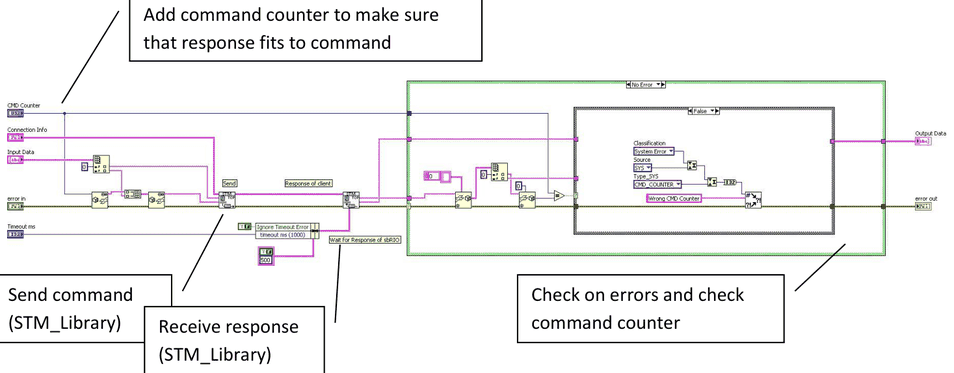
The generic communication routine is used for every command sent by the PC. Following figure illustrates the steps of this routine.
4.3.5Normal command execution from RT point of view
The following figure shows the loop for command reception, which is continuously running on RT:
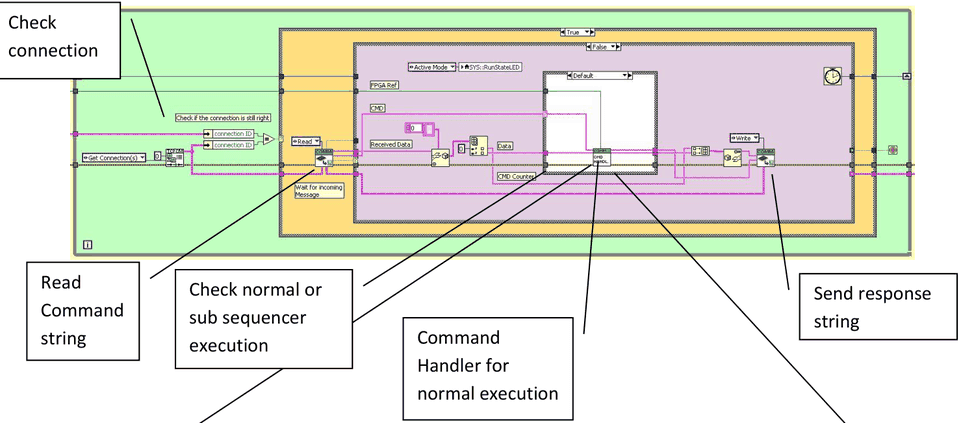
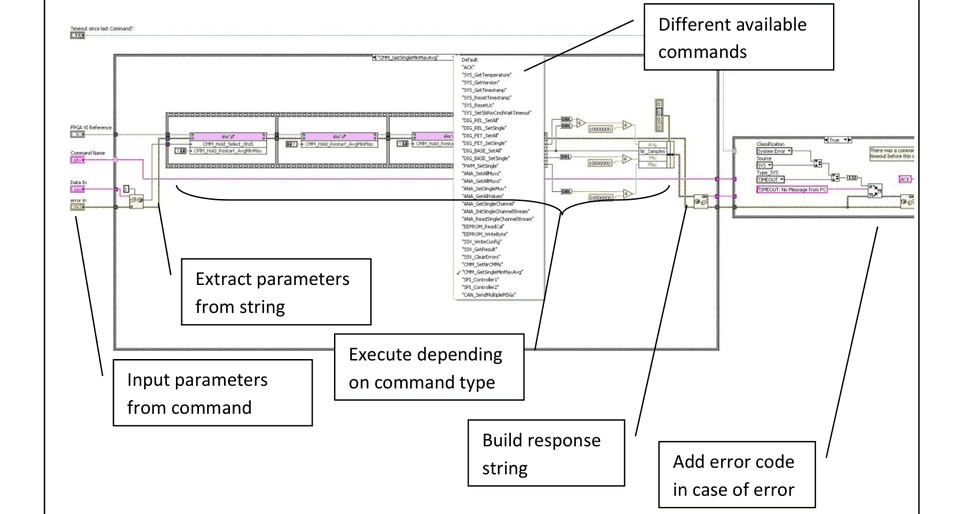
The command handler selects and executes the command:
4.4Command flow
4.4.1Normal command execution
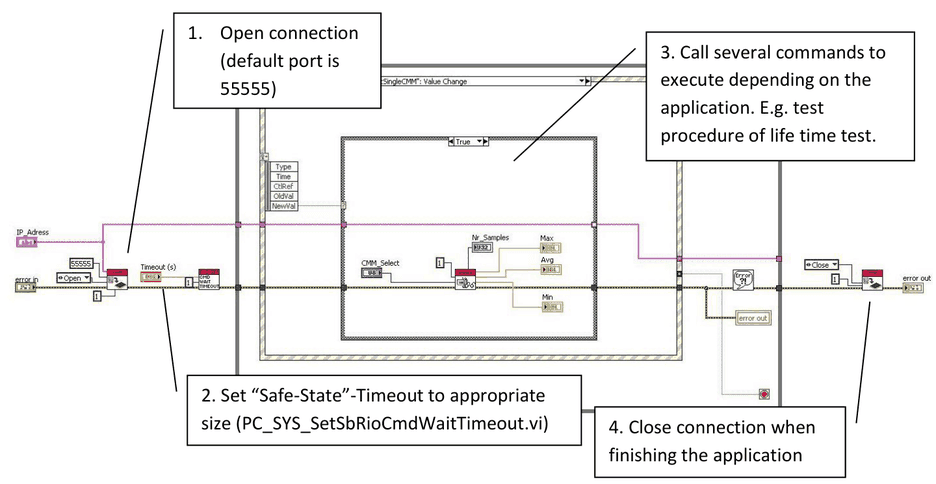
The following figure illustrates a typical command flow from PC side of view. In this case the measurement system functions are used within a LabVIEW Application:
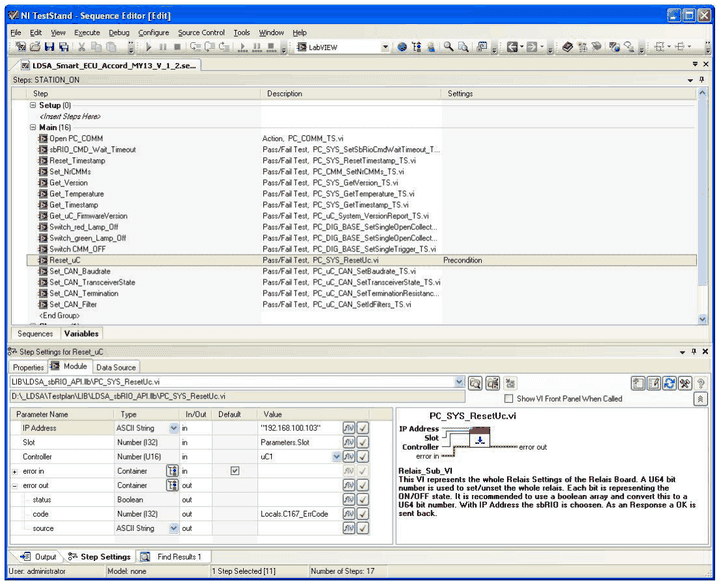
The same steps have to be taken, when accessing the measurement system from TestStand or other applications. Following figure shows a typical execution flow within TestStand
Step 1:
Open the connection to establish the TCP-IP connection, exchange Meta-data between PC and RT.
Step 2:
Call “PC_SYS_SetSbRioCmdWaitTimeout.vi” to set the “safe-state”-timeout to an appropriate size. This timeout means the following. If the measurement system (RT-SW) did not receive a valid command within this timeout period, the RT-SW will switch all outputs off, resets the CAN-Controllers, disconnects TCP-IP-connection and waits for a new open request. The purpose of this timeout is to make sure that the measurement system returns to an idle state and switches off the DUT when the PC had been crashed.
The default value of this timeout is 2 seconds. I.e. every 2 seconds a command has to be sent by PC. This cannot be achieved in all applications. Especially, when the user wants to send commands by triggering buttons, the timeout has to be set to higher values. A typical value for a non-sensitive device would be 60 seconds. Devices like window lifters, which could be damaged when be in an uncontrolled, active state require shorter timeouts, well below 5 seconds. The user may decide the appropriate timeout for his application.
Step 3: (can be repeated indefinitely)
Sending commands as listed in the API description in Measurement system API (CORE_API), or as in Lifetime testing API with labelled channels (TS_API) can be performed application specific in an arbitrary way.
Step 4:
Before closing the application, the connection should be closed. Otherwise the measurement system would still wait for a command, and run into the “safe-state”-timeout at any specified time. When the user tries to re-open the connection to the measurement system, while it is still running, an error would be reported. Thus close connection, before closing the application.
4.4.2Sub-Sequencer execution
The sub-sequencer is implemented to execute commands fast in a well-defined timing in the range of a few milliseconds. When sending commands using normal command execution, the timing between commands is dependent on the timing of the Windows operating system on the PC. With such a non-real-time operating system timing can vary between a few milliseconds up to seconds.
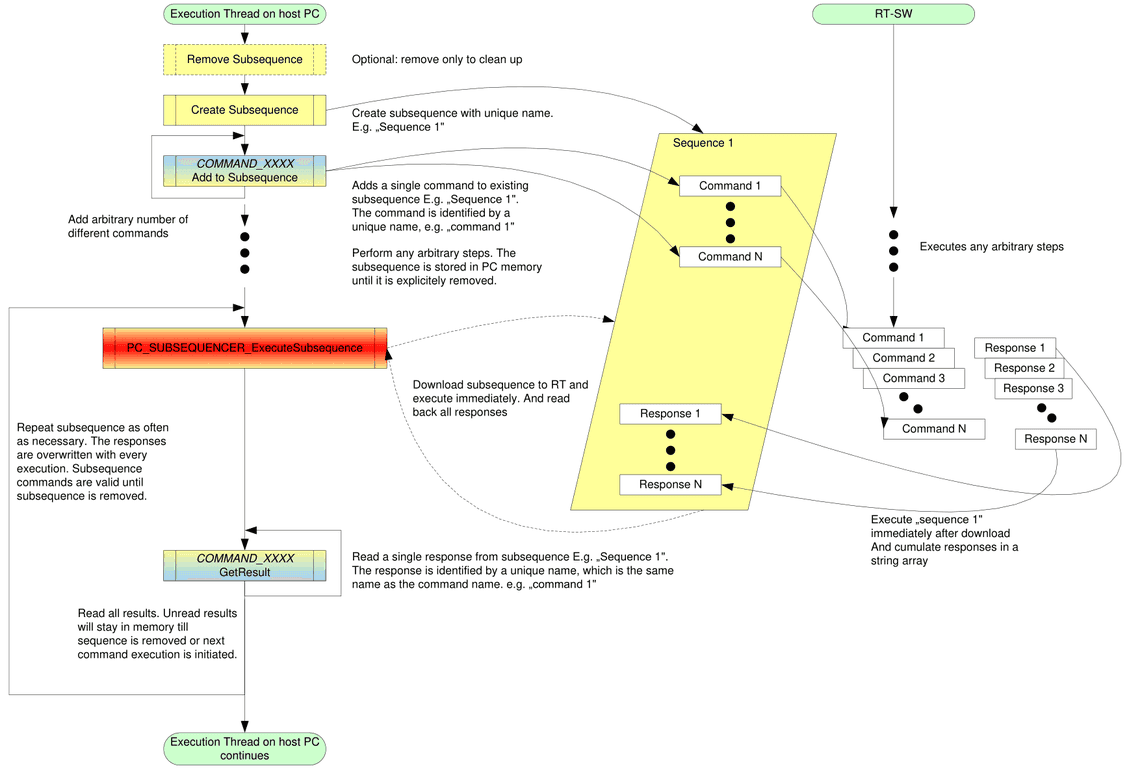
Sub-sequencer execution means to load several commands to RT, execute them without delays caused by the PC and return several responses to PC. The responses can be evaluated on the PC-SW with a non-critical varying timing.
Sub-sequencer command flow
The following command flow must be implemented to use a subsequence
Sub-sequencer command execution from RT point of view
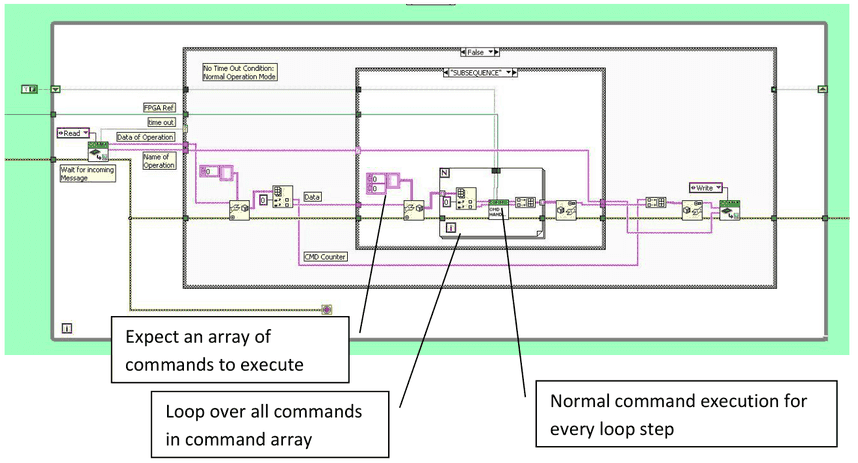
Sub-sequencer execution from RT point of view simply means to receive an array of command strings from PC. The array, containing single command strings to execute, is processed element by element. Responses of the single commands are cumulated in an array of strings and returned to the PC.
Sub-Sequencer command execution from PC point of view
Sub-Sequencer execution from the PC point of view means to split the command-response handling unit into three parts:
- add command to subsequence (repeatedly for several commands)
- Execute entire subsequence
- Get subsequence response (repeatedly for several commands)
The separation between normal command execution, sub sequencer-“load” and sub sequencer– “get result” is implemented, using polymorphic VIs. The sub-sequencer execution is explained in the following, using the example VI: “CAN_EOL_SendReceive.vi”:
In the first step the normal command execution of CAN_EOL_SendReceive.vi is illustrated to see the difference to sub sequencer-execution
CAN_EOL_SendReceive normal execution:
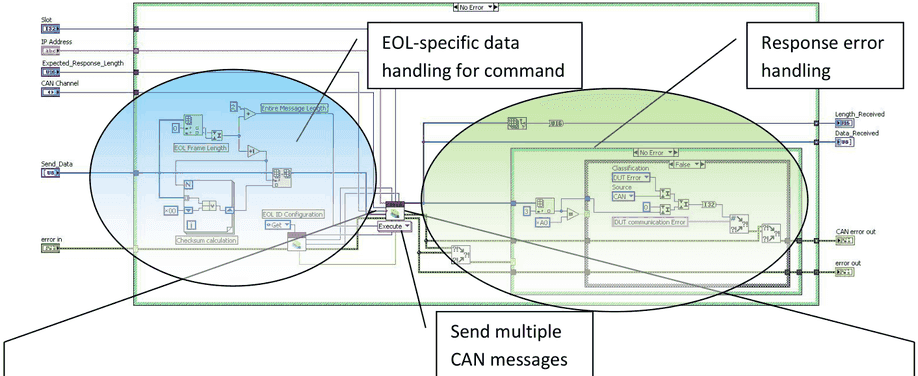
Can_SendMultipleMsgs:
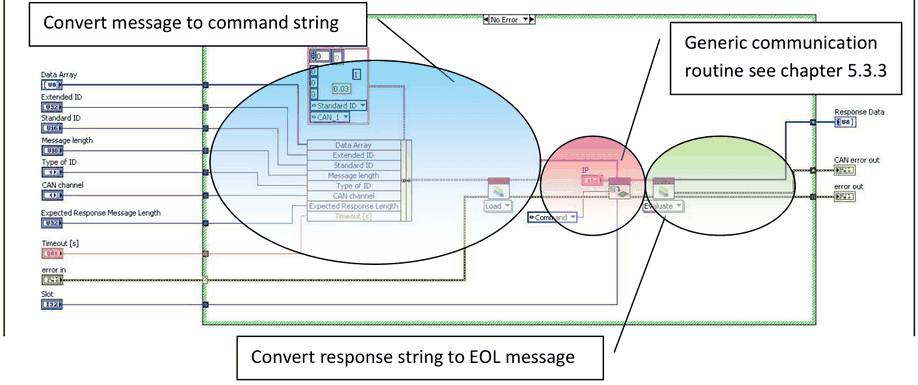
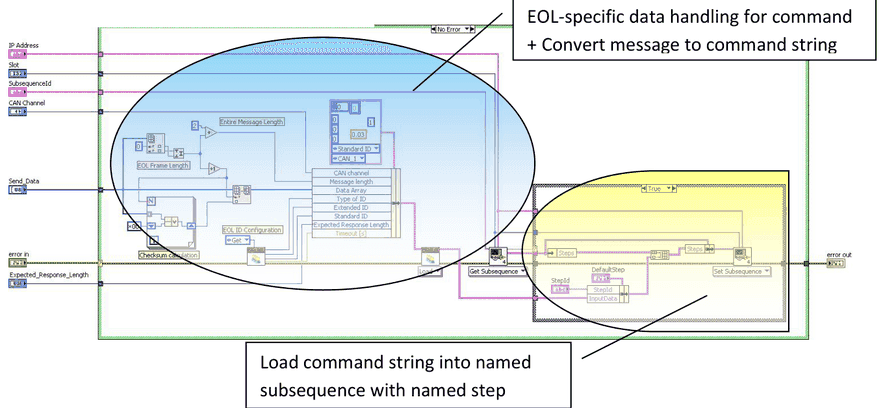
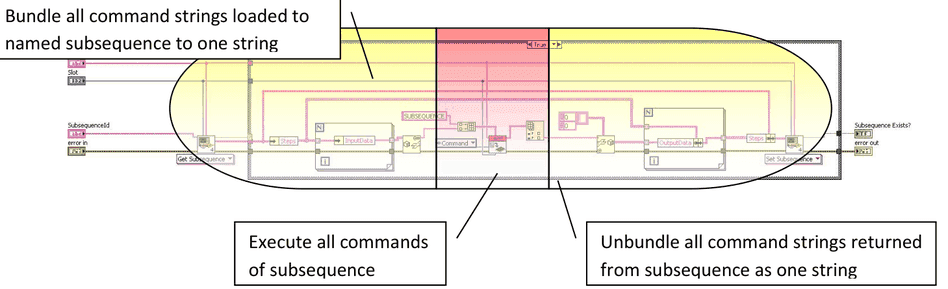
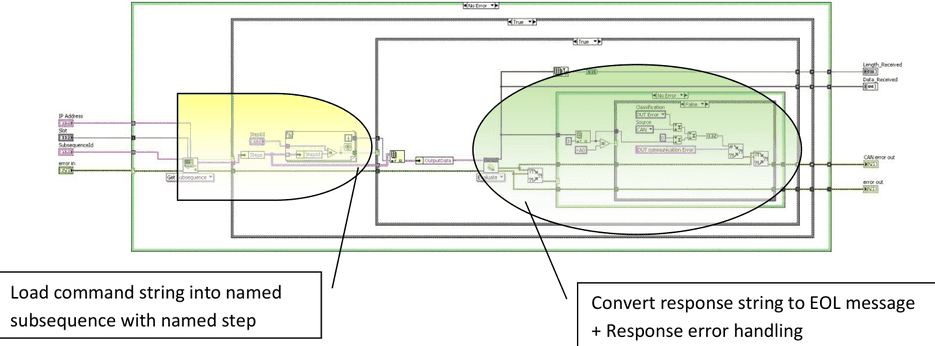
For sub sequencer execution the three coloured parts have to be separated into several VIs. The “Execute Subsequence” part is a generic one, and can be used from every command. But for every command the following parts have to be implemented separately, using polymorphic VI’s:
- COMMAND_XXX_AddToSubsequence
- contains the formatting of the command string, and save the command string in the identified subsequence command container
- COMMAND_XXX_GetResult
- Contains the reading of the response string of the identified sequence and step. The formatted response string is unpacked and converted to appropriate response parameters.
Add to Subsequence (command specific)
Execute Subsequence (one generic VI for all commands)
GetResult (command specific)
4.5Error Handling
4.5.1General error handling
Every implemented VI has an error input and output.
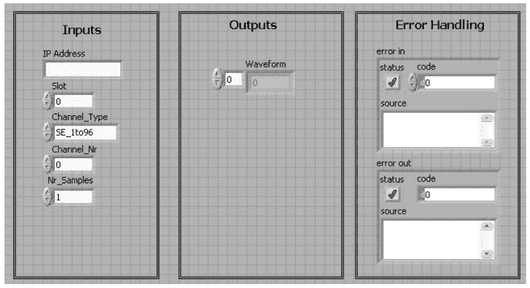
Error codes are returned by all VI’s in the “error out”-cluster.
If an error with a non-zero error code is passed to the VI on “error in”
- the VI’s code is not executed
- the error code is passed through to “error out”
It is recommended to wire the error input and output to any user defined error handler in the application. This makes sure that communication to MesSy and all Parameters are checked and the user of the application gets information about the MesSy and Software status.
4.5.2Error Codes
In the field “code” of “error out” an error code is returned, which is either generated by any VI of the standard LabVIEW library, or by the MesSy software. Values below 5000 including negative values are standard LabVIEW error codes. Values above are MesSy error codes.
The MesSy error codes use the following grouping:
| Bit 30..24 | Bit 23..16 | Bit 15…0 |
|---|---|---|
| Classification | Source | Type |
Classification defines the criticality of the error, where a system error is regarded as a severe error.
A DUT error means, that the MesSy system is still working, but for example a CAN message has not been answered by the unit under test.
A warning may be regarded only for information.
| Number | Classification |
|---|---|
0x10 | System Error |
0x20 | DUT Error |
0x30 | Warning |
Source means the software block, which has detected an error.
| Number | Source | Description |
|---|---|---|
0x00 | SYS | General system control, e.g. timestamp, IP-connection, … |
0x10 | CAN | CAN communication |
0x20 | PWM | Dynamic digital output generation |
0x30 | ANALOG | Analog input |
0x04 | SSV | Signal supervision |
0x05 | DIGOUT | Static digital output |
0x06 | SERIAL | Serial communication lines |
0x07 | MICROCONTROLLER | General microcontroller communication for serial or CAN. |
Type classifies some typical types of errors.
| Number | Error Type |
|---|---|
0x###A | |
0x###B | Parameter |
0x###C | Communication |
0x###D | Timeout |
0x###E | |
0x###F | Unknown |
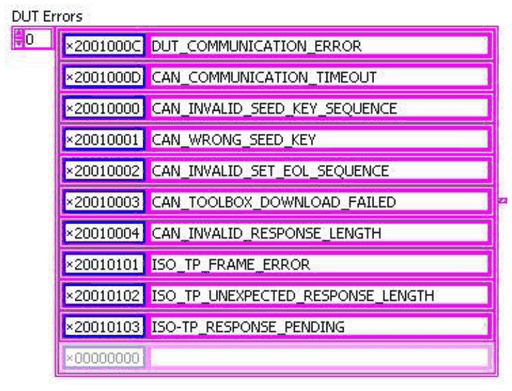
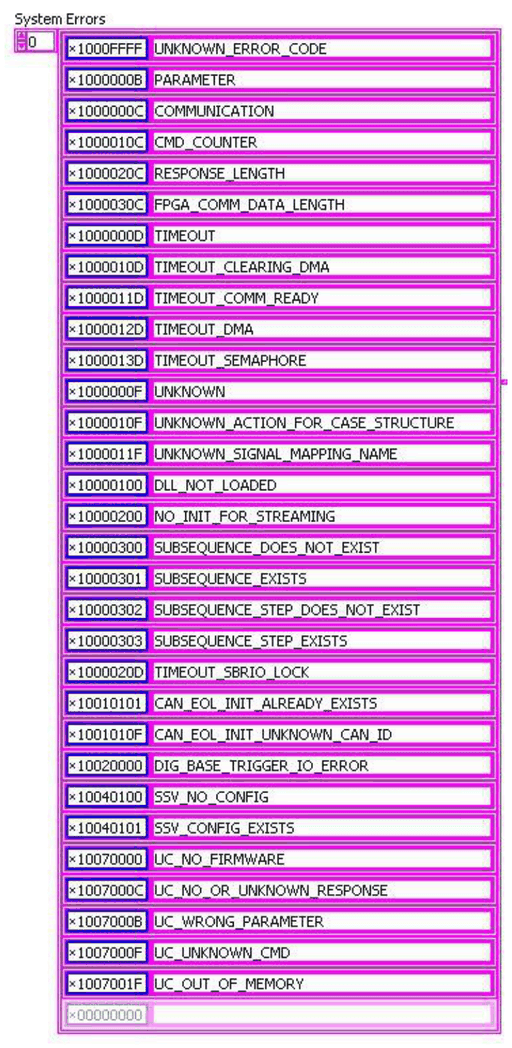
Following tables show the implemented error codes and the corresponding error text, which will be output on “source” on the “error out” cluster:
- DUT errors:
- System errors:
4.6Measurement system API (CORE_API)
A VI library (API) is available to access MesSy by a user application, typically designed in LabVIEW. The library’s functionality will be expanded in future. Because of this, the documentation of the library is available electronically.
The normal command for the CORE API is identical to the flow, described in chapter 5.4.1.
4.6.1Addressing modes for CORE_API
For addressing a specific MesSy the IP-Address of the respective MesSy is used. I.e. every VI of the library has a string input parameter called “IP Address”, which contains the IP-Address in form of a string (e.g. 192.168.101.2 – enter without double quotes)
Note that for every command a slot parameter is passed. The purpose of this parameter is to distinguish between several DUTs on one measurement system. I.e. for DUTs with only little amount of pins and functions, one measurement system can be used to handle up to 6 DUTs in parallel. In this case, when more than one test executions are connecting to the measurement system, the communication routine has to check the connections for every DUT’s test execution. It may not close the connection, until all test executions of all DUTs have closed the connection. Thus, the slot represents the DUT on the measurement system.
4.6.2Functional blocks
Different functional blocks are available in the API. Every VI has a prefix PC_xxx, where xxx is the Block according to the following table:
| Functional Block | Description | Examples |
|---|---|---|
| SYS | System Commands | Get Timestamp, Establish connection, EEPROM read and write, … |
| DIGOUT | Static digital output control | Set / Reset single relay, FET, set / reset all relays ,… |
| PATTERN | Dynamic digital output control (PWM, Pattern) | Set_PWM, Download digital pattern, Start pattern, … |
| ANALOG | Analog input general control | Set Multiplexer, Get single channel value, Get Waveform of one channel, … |
| SSV | Analog input signal supervision (SSV) | Set supervision configuration, read result since last readout. |
| CAN / uC_CAN | CAN communication | Conti EOL protocol, ISO-TP (ISO 15765-2), cyclic message transmission. |
| uC_UART | Serial communication | Serial configuration, send byte, configure serial repeater. |
| CMM | Current measurement module | Read Current Value of one CMM, Set number of CMMs in the chain. |
| SUBSEQUENCER | Subsequencer | Create subsequence, add step, execute subsequence, get step result |
4.7Lifetime testing API with labelled channels (TS_API)
A VI library (API) is available to access MesSy by TestStand more comfortable than using the CORE_API. This library is called TS_API. This additional software layer on top of the CORE_API provides the user a more convenient test procedure design, especially when several DUTs have to be tested either with one MesSy or several MesSy’s.
The normal command flow for TS_API is basically the same as in chapter 5.4.1. Differences are the addressing mode of the MesSy by “Bus” and “Slot” number and the signal mapping for addressing the physical analog, digital or communication channel.
The library’s functionality will be expanded in future as will be the CORE_API. Because of this, the documentation of the library is available electronically.
4.7.1Bus, Slot, signal name addressing
The difference of TS_API to the CORE_API is the addressing of the MesSy’s physical channels. While in the CORE_API every physical channel is addressed by the MesSy’s IP-Address and the physical channel number (e.g. 1…96 for single ended analog inputs SE_1to96, Serial_01 … SERIAL_10, 1…24 for FET, ... ), in TS_API there is an addressing via “Bus”, “Slot” and “Signal name”:
- Bus:
- Range = [0…255]
- Is the last number of the IP-Address.
- The rest of the IP-Address – the IP-address-range - is defined in the signal mapping file (see Signal mapping).
- E.g.: when Bus = 12, and the IP address range is “192.168.100.”, the addressed MesSy’s IP address will be: “192.168.100.012”,
- Slot:
- Range = [1…6]
- MesSy software is created in that way, that one MesSy can handle up to 6 DUTs.
- The Slot number represents the DUT number.
- The Slot selects the appropriate physical channel of one MesSy according to the signal mapping file (see Signal mapping).
- Signal name
- Signal name is an arbitrary Name that corresponds to a signal (typically the signal name of the DUT), which is connected either to analog input, digital output or a communication line.
- The mapping of physical channels to signal names is done in the signal mapping file (see Signal mapping).
E.g. if one MesSy handles three DUTs, the same signal name is present 3 times on one MesSy. The correct physical MesSy channel is selected by the respective Slot number.
4.7.2Signal mapping
In the signal mapping file first of all, the IP address range of all connected MesSy’s is included. The IP address range represents the first three numbers of the IP-addresses (e.g. 192.168.101.).
Furthermore the number of slots, i.e. number of attached DUTs and respective executions is included in this file. And finally the signal mapping from signal names to analog inputs, digital outputs, relays and communication lines for every slot respectively are defined in this file.
The signal mapping file is stored in form of an XML-file. The following XML example shows IP-Address range (common_ip=192.168.101.), number of slots = 2 (count=2) and all possible signal groups.
If a “name” is used more than once, either for the same type (Relay, Single ended input,…) or different types, add the property (as shown in the Analog input example)
resourcesharing = "1"
Otherwise an error will be reported, when the signal mapping file is loaded. This feature may help to avoid unwanted ambiguities.
<?xml version="1.0" encoding="utf-8"?>
<ldsa name="LDSA" count="2" common_ip="192.168.101.">
<modules>
<module name="ANALOG">
   <item name="Example_Signal_Name_Analog_1">
    <connector slot="1" name="SingIn_11" resourcesharing="1"/>
    <connector slot="2" name="SingIn_59" />
   </item>
   <item name="Example_Signal_Name_Analog_2">
    <connector slot="1" name="SingIn_12" />
    <connector slot="2" name="SingIn_60" />
   </item>

   <item name="Example_Signal_Name_Analog_Differential">
    <connector slot="1" name="DiffIn_01a" />
    <connector slot="2" name="DiffIn_09a" />
   </item>
</module>

<module name="RELAY">
   <item name="Relay_VBatt">
    <connector slot="1" name="REL_15" />
    <connector slot="2" name="REL_47" />
   </item>
</module>

<module name="TRIGGER">
   <item name="TRIG1">
    <connector slot="1" name="TRIG_01" />
    <connector slot="2" name="TRIG_04" />
   </item>
</module>

<module name="OPENCOLLECTOR">
   <item name="GREEN">
    <connector slot="1" name="OPEN_COLL_16" />
    <connector slot="2" name="OPEN_COLL_14" />
   </item>
</module>

<module name="FET">
   <item name="PWM_Out">
    <connector slot="1" name="FET_1" />
    <connector slot="2" name="FET_13" />
   </item>
</module>

<module name = "CMM">
  <item name ="CMM">
    <connector slot = "1" name = "CMM_1"/>
    <connector slot = "2" name = "CMM_2"/>
  </item>
</module>

<module name="CAN">
   <item name="COMM_CAN">
     <connector slot="1" name="CAN_1A" />
     <connector slot="2" name="CAN_2A" />
   </item>
   <item name="CAN_Second">
     <connector slot="1" name="CAN_1B" />
     <connector slot="2" name="CAN_2B" />
   </item>
</module>

<module name="SERIAL">
   <item name="K-Line">
     <connector slot="1" name="SERIAL_01" />
     <connector slot="2" name="SERIAL_06" />
   </item>
</module>

<module name="I2C"
  <item name="I2CName">
     <connector slot="1" name="0x42" /> <!-- name is the I2C address without the R/W bit -->
     <connector slot="2" name="0x13" />
  </item>
</module>
</modules>
<itemgroupslist />
</ldsa>
Documents and downloads
Further documents and files for your IRS product are available on myIRS.