After connecting all system components and the DUTs, and after power up, the motor emulator may be operated by software either manually by a remote panel but for most test systems by an automation software.
8.1Software packages
The Emulator comes by default with a LabVIEW library IRS.EME.TS.API including dependencies for integration in user specific automation software.
Alternatively, the user may use low-level TCP-IP communication with a command-response structure, based on JSON command description (see EME Example Communication.txt).
A test panel is provided to control EME manually. It contains most control functions of the LabVIEW library. Thus, in the following software functions are explained based on the test panel because of good illustration. The explanations for the test panel may be transferred to operation with automation software.
8.2Manual control via EME test panel
The EME_RemotePanel software may be used to control EME manually. It may be opened in parallel to the automation software.
The panel includes up to 8 functional sub-panels and controls to handle the IP-connection.
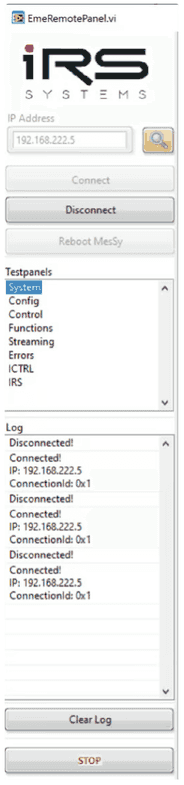
- System: general status (software version, temperatures, CPU-load)
- Config: general configuration (motor and sensor parameters)
- Control: operation parameter (“induced voltage”, speed,…)
- Function: operation parameter for fixed position
- Streaming: waveform measurements
- Errors: indicates error flags
- ICTRL: advanced settings for inverter operation, not for emulator.
- IRS: critical and advanced parameters only accessible by IRS
The respective functional sub-panel may be selected in the control “Testpanels”.
8.2.1Connection handling
The following controls and buttons are used for connection handling
- IP-Address: identifies a specific EME in the network
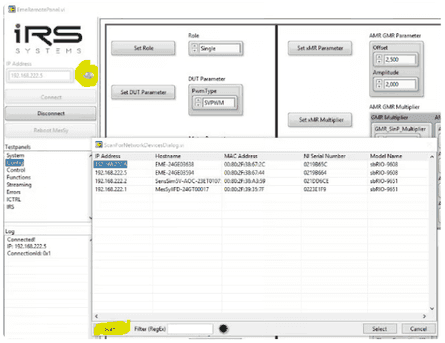
- Scan: searches for visible EME in the network
- Connect: establishes communication with one EME
- Disconnect: stops communication with one EME
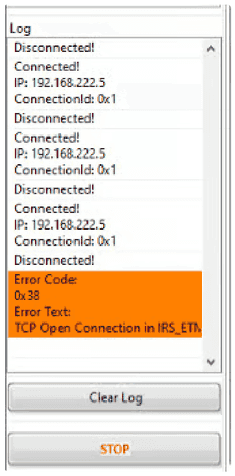
- Log: shows communication status with EME
orange items show errors
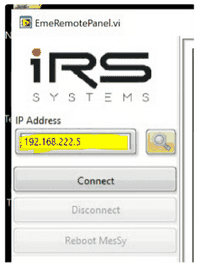
There may be several EME in one ethernet network. The respective EME is addressed by its IP-Address. You may either enter the known IP address directly in the yellow marked field:
Alternatively, you may search for existing EME in the network. By pressing the following two yellow marked buttons:
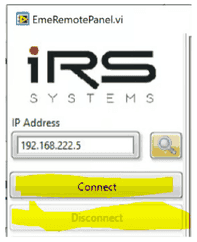
After pressing the “Connect” button all other functions in the sub-tabs are available.
After pressing “Disconnect” no operation is possible.
In the Log window the communication status is listed:
- Connect event
- Disconnect event
- Errors (marked in orange with error description)
The log window may be cleared with the button “Clear Log”.
After pressing the “STOP” button, the test panel will close.
8.2.2System
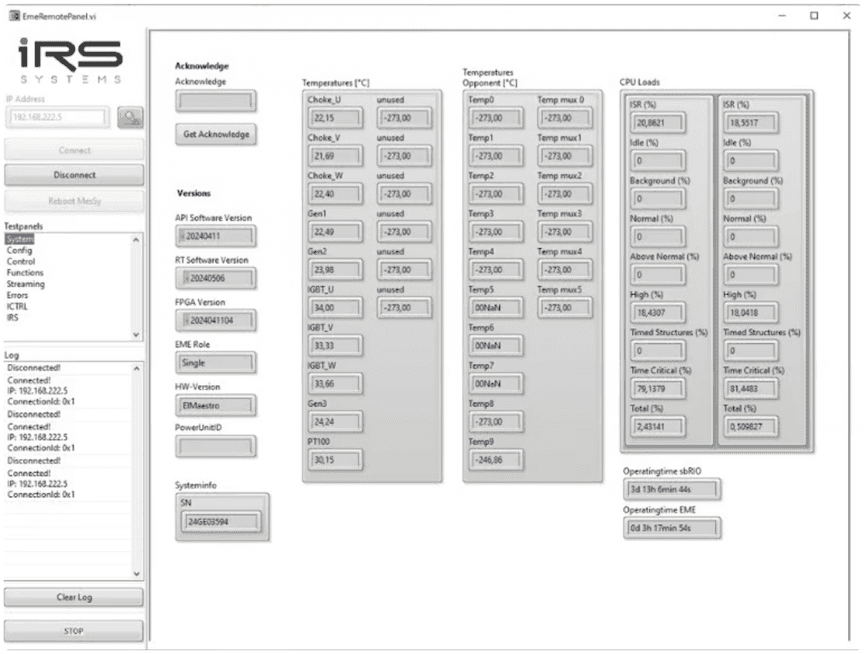
In the system status overview the following parameters are shown:
- General information:
- Software versions of
- EME-API (LabVIEW-library on PC)
- RT-Software (real-time firmware on EME)
- FPGA (lowest level firmware on EME)
- Control board
- HW-version
- Serial number
- Software versions of
- Internal temperatures
- Temperature values of EME
- Temperatures of “Opponent”
- in case of combined 6-phase system.
- In most cases all “Opponent” values may be ignored.
- CPU load
- Operating times of
- sbRIO (real-time controller + FPGA running time)
- EME (powered operation time while EME is active).
8.2.3Config
In the Config sub-panel, generic motor and position sensor parameters may be set. The order of configuration is not relevant. Settings in this window may be changed at any time while EME is not activated.
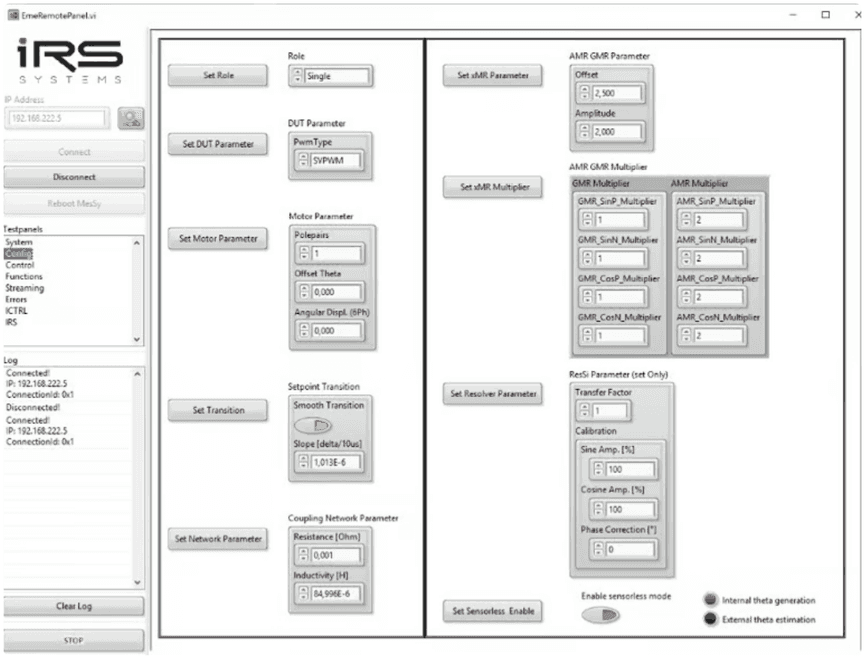
The configuration parameters on the left side describe the motor parameters and are as follows:
- Set Role
- “Single” for normal Emulator operation -> valid for most applications
- “Inverter Single” for Inverter operation -> typical use-case for sensor calibration
- …Master/Slave… Master- and Slave-Configurations are only used for 6-phase-systems. Please contact IRS for simulation of 6-phase motors.
- Set DUT Parameter
- “SPWM” pure sinusoidal modulation (usually not used)
- “SVPWM” standard Space-Vector-PWM (standard setting).
- Set Motor Parameter
- Polepairs: number of motor pole pairs (typical 3…4, must be >= 1)
- Offset: Theta offset of position sensor (Range +-1 for +-180°)
- Angular Displ (6ph): only used for 6-phase motors (0 by default)
- Set Transition
- Smooth Transition should always be enabled to avoid too fast change of modulation.
- Slope [delta/10µs] typical value in the range about 10-4…10-7
- Set Network Parameters
- Resistance [Ohm]: typical resistance of the setup (200µ … 1m)
- Inductivity [H]: typical applied inductance (85µH)
The configuration parameters on the right side describe the position sensor parameters and are as follows:
- Set xMR Parameter
- Offset: DC voltage of SIN/COS sensor signals (typical 2,5V)
- Amplitude: amplitude of SIN/COS sensor signals (typ. 2V)
- Set xMR Multiplier
- AMR/GMR_SIN/COS_P/N: factor between mechanical frequency and SIN/COS Signals (typ. 1…3)
- Set Resolver Parameter
- Transfer Factor: quotient between sine or cosine max. amplitude to excitation amplitude
- Calibration: usually default values (100%, 0°)
- Sine Amp [%] correction factor in case of symmetry difference
- Cosine Amp [%] correction factor in case of symmetry difference
- Phase Correction [°] phase shift correction between sine and cosine
- Set Sensorless Enable
- Enable sensorless mode: if set to True, the emulator ignores position sensor. And calculates current position from DUT PWM. Position sensor signals are generated nevertheless.
8.2.4Control
In the “Control” sub-panel, EME may be activated and the operation points may be set.
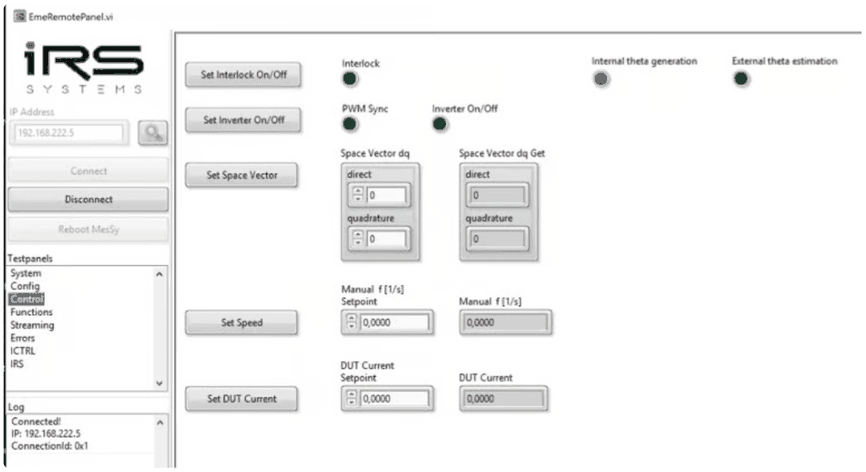
- Set Interlock On/Off
- Prepare EME for activation
- When set, some general parameters like “Role” may not and can’t be changed!
- Set Inverter On/Off
- When set, EME is activated:
- It starts synchronization to the DUT in case of emulator modes
- In Inverter role, it immediately activates the outputs to control current on the motor load
- The feedback flags
- “PWM sync”
- is immediately activated
- and remains active until “Set Inverter On/Off” is reset by the user.
- It indicates that EME “should be active”
- “Inverter On/Off”
- remains activated, as long as there is no error condition.
- I.e. it is reset as soon as an error occurs.
- “PWM sync”
- When set, EME is activated:
- Set Space Vector
- Sets the “induced voltage of the motor” relative to DC-link-voltage.
- Only use quadrature; do not use direct, because this leads to abnormal phase shifts.
- I.e. if quadrature set to 0
- there is no induced voltage from the motor
- no real power simulated
- I.e. if quadrature set to 0.9
- maximum induced voltage of the motor (90% of available DC-Voltage ½)
- maximum real power is simulated
- the limit of this parameter is 0.9.
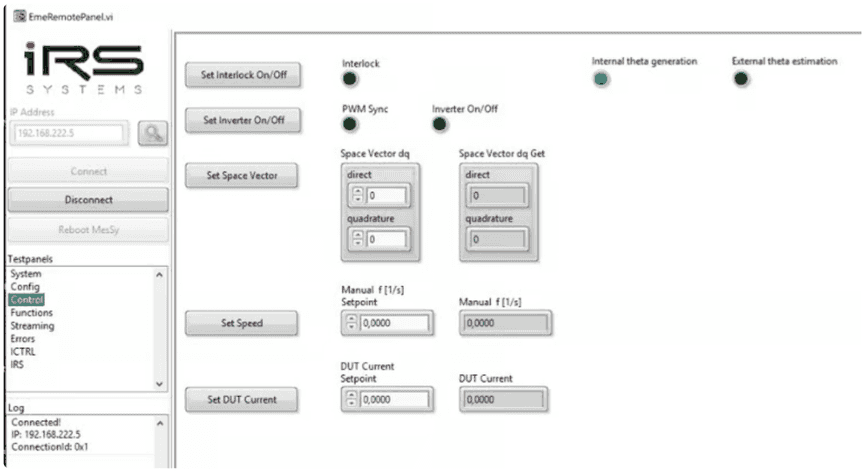
- Set Speed:
- Defines both
- position sensor signal frequency
- is generated independently from EME activity
- both for resolver and SIN/COS
- motor output frequency
- position sensor signal frequency
- Typical values are 0…500Hz.
- The motor output frequency is calculated as speed * polepairs.
- Defines both
- Set DUT Current
- Reserved, currently unused parameter.
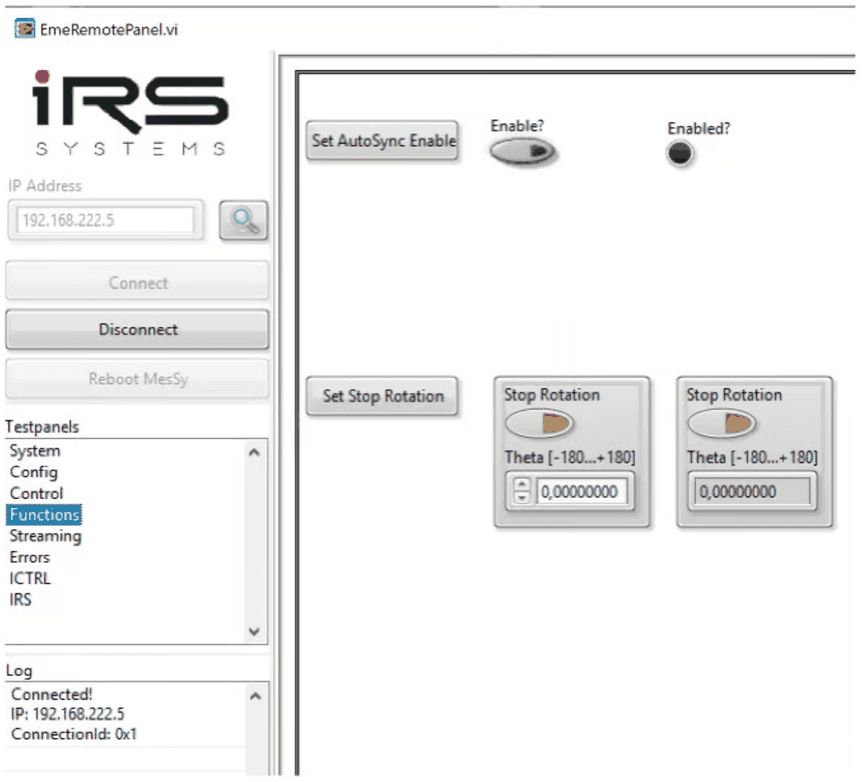
8.2.5Functions
Sub-panel “Functions” contains the following two functionalities:
- AutoSync Enable
- Set to True to enable easy synchronization.
- Explanation for this function see Synchronisation.
- Set Stop Rotation
- Stop Rotation:
- False: rotation motor is being simulated
- True: motor at fixed position is being simulated
- Theta [-180…+180°]
- In case of stopped rotation, this position will be set.
- Please note that the simulation may only move to the selected position, when speed is non-zero!
- Stop Rotation:
8.2.6Streaming
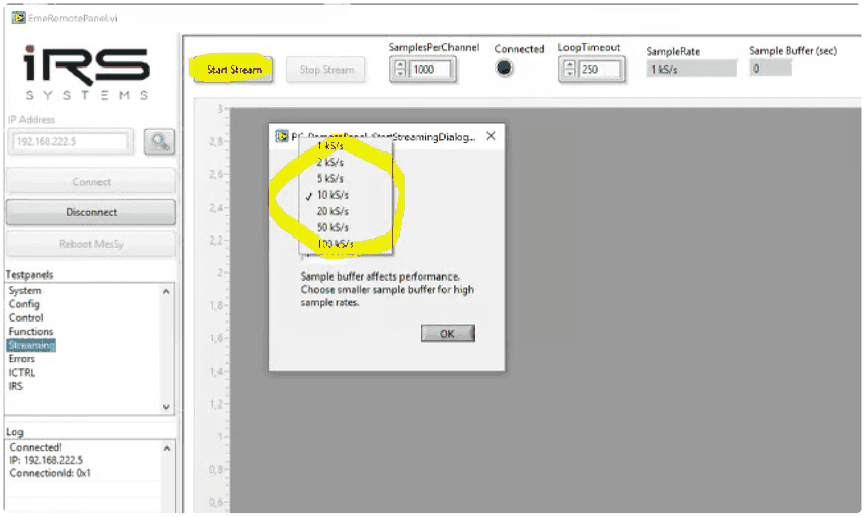
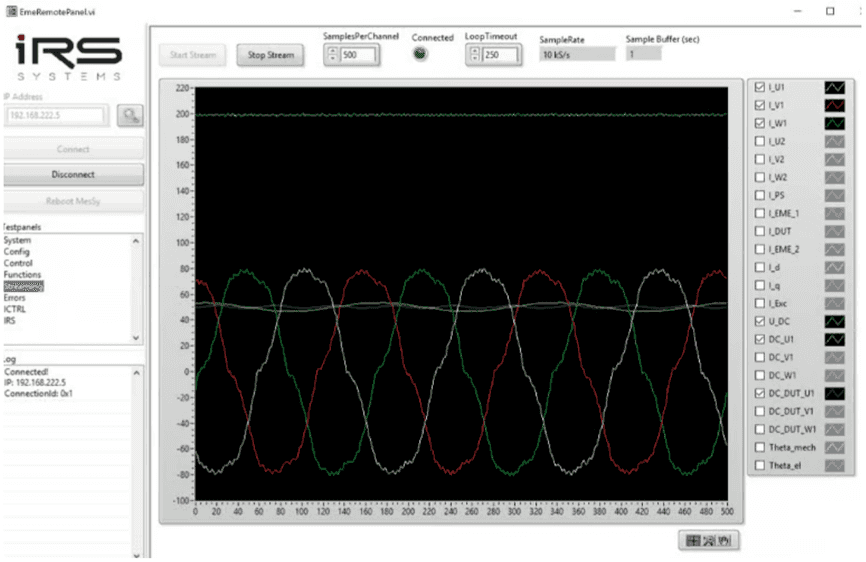
By using the “Streaming” sub-panel waveforms may be captured from EME. Waveform streaming is started after:
- Start Stream
- button is pressed -> window appears to adjust streaming sampling rate
- 100kS/s is the maximum sampling rate,
- 10kS/s is mostly sufficient and leads to higher performance on the PC.
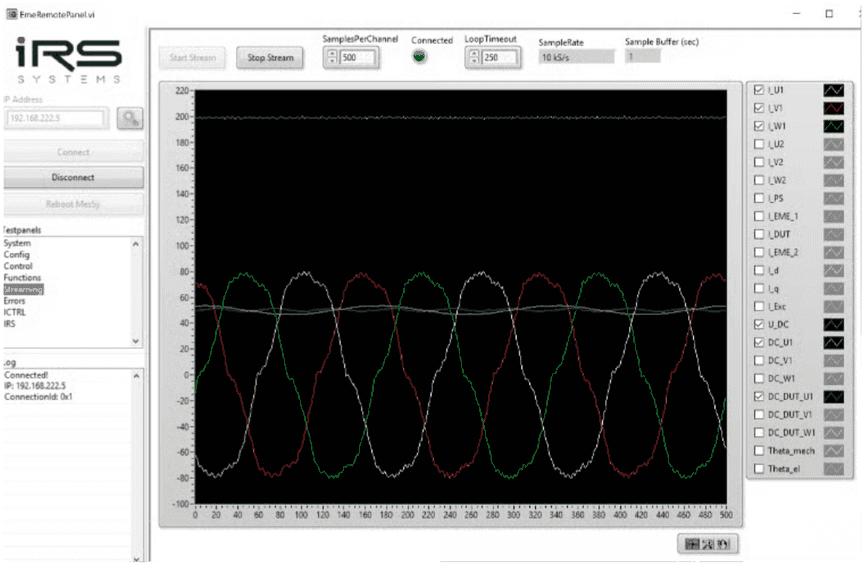
- When stream is active, different waveforms may be selected:
- With the LabVIEW API the user may additionally:
- Continuously stream data to file (TDMS format)
- Get characteristic values from stream (RMS phase currents, DC-voltage,…)
- See
Eme_STREAMING_MemoryStream_GetChannel_TS.vi
- The waveforms have the following meaning:
- I_U/V/W1
- phase currents of inverter phase U, V, W
- positive values mean direction into EME
- negative values out from EME
- I_U/V/W1
- The waveforms have the following meaning:
- I_PS
- DC current from HV power supply
- I_DUT
- DC current to DUT
- Positive values mean motor operation of EME
- Negative values indicate recuperation operation
- I_d/q
- Calculated value from phase currents in d/q-direction
- I_Exc
- Optional exciter current for simulation of externally excited motors
- U_DC
- DC-Link voltage
- DC_U/V/W1
- When EME is active: Duty cycle generated by EME on motor phases U,V,W
- When EME is inactive: represents a “theoretical” duty cycle, which would be applied when EME would be active
- DC_DUT_U/V/W1
- Measured duty cycle from DUT
- Theta_mech
- Current mechanical position
- Theta_el:
- Current electrical position ( = mechanical position * polepairs)
- I_U/V/W2
- Reserved for 6-phase systems
- I_EME_1/2
- Reserved for 6-phase systems
- I_PS
8.2.7Errors
“Errors” sub-panel indicates errors, which may occur:
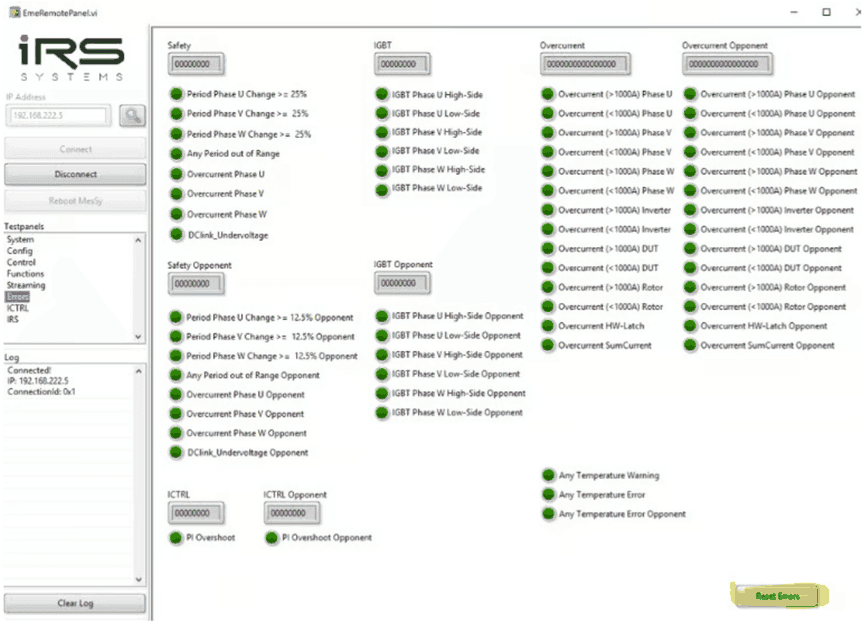
With the button “Reset Errors” errors flags may be reset as soon as the error is not present anymore. The error flags indicate:
- Safety:
- Period out of range:
- There was no PWM-signal from DUT
- either on specific phase U,V,W or on any phase
- Overcurrent Phase U/V/W
- Software overcurrent shut-down
- current on respective phase exceeded +1000A or -1000A.
- one sample (10µs sample time) is sufficient to trigger this error.
- DCLink_Undervoltage
- The DC link voltage fell below configured limit.
- The limit is configured in EME and may be adapted by IRS.
- Period out of range:
- IGBT Phase U/V/W High/Low side:
- If this error occurs, there is a hardware damage on IGBT power switch.
- Power stage must be repaired.
- Overcurrent (</> 1000A) Phase U/V/W/Inverter/DUT/Rotor
- Indicates that the HW overcurrent shutdown has been triggered by the respective current sensor
- There is a separate indicator for every phase and polarity
- Overcurrent Sum Current
- Software overcurrent detection for sum current of motor phases
- Any Temperature
- …Opponent:
- All error flags from second linked EME - reserved for 6-phase systems
8.2.8ICTRL
The sub-panel „ICTRL” may be used for inverter operation. It contains settings for using EME in current controlled mode.
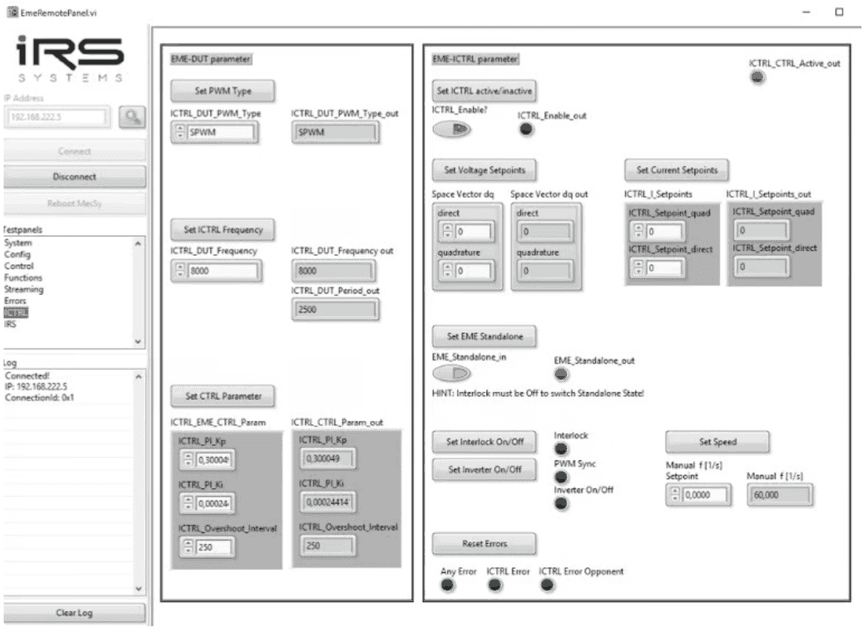
The following parameters need to be set for inverter operation:
- Set ICTRL Frequency switching frequency in Hz
- Set PWM Type
- SPWM sinusoidal modulation
- SVPWM standard space-vector-PWM
- Set CTRL parameters
- ICTRL_PI_Kp: proportional value of current controller
- ICTRL_PI_Ki: integral value of current controller
- ICTRL_Overshoot: max. difference between setpoint and actual current
- Set ICTRL active/inactive
- When False:
- use direct modulation via space vector d and q component
- When True: use
- When False:
- Set Voltage Setpoints
- Sets the “induced voltage of the motor” relative to DC-link-voltage.
- Only use quadrature; do not use direct, because this leads to abnormal phase shifts.
- I.e. if quadrature set to 0
- there is no induced voltage from the motor
- no real power simulated
- I.e. if quadrature set to 0.9
- maximum induced voltage of the motor (90% of available DC-Voltage ½)
- maximum real power is simulated
- the limit of this parameter is 0.9
- identical parameter as in Control (control sub-panel)
- Set Current Setpoints
- Sets the phase current to control in direct and quadrature direction in A
- Set EME Standalone
- Should be always active (default setting)
- Only used for IRS
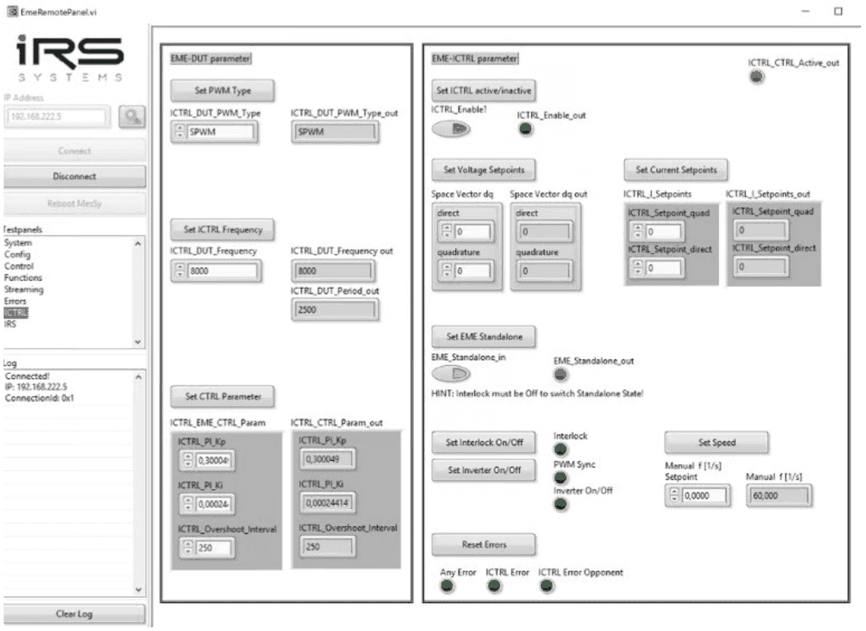
Furthermore, the same buttons and controls as in “Control” sub-panel are visible for easy operation (Set Interlock On/Off, Set Inverter On/Off, Set Speed, Reset Errors).
8.3Automated operation
In the following chapter typical programming flows are described for normal Emulator and Inverter operation.
8.3.1Inverter operation
The following figure illustrates a typical programming flow for inverter operation, especially as it is used for current sensor calibration of the DUT.
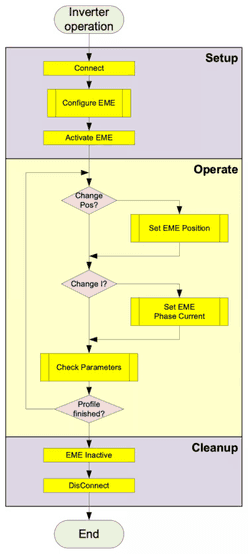
The following steps and parameters show a typical setting for inverter operation, especially for current sensor calibration, where DC currents are applied on the motor phases.
In the table,
- Absolutely necessary commands/parameters are marked in yellow and blue for environment
- recommended parameters are marked in green, they are set by default.
- while others are not relevant.
The order in the table should be regarded as order of commands, which should be sent one after another to EME.
Italic steps are environment settings. Bold written command name can be found in the JSON communication description file:
Setup
Setup environment
| Step | Parameters | Remarks | Marked |
|---|---|---|---|
| Connect Passive load | short EME output via DUT in active short circuit, while HV-DC supply of DUT is disconnected. | blue | |
| Disconnect DC from DUT | blue | ||
| Connect EME | IP-Address | Default = 192.168.222.5 | yellow |
EME configuration commands:
| Step (JSON command name) | Parameters | Remarks | Marked |
|---|---|---|---|
| SET_Role | Inverter Single | yellow | |
| SET_DutParameter | SVPWM | – | |
| SET_MotorParameter | Polepairs = 1 | Default parameter, other values possible | green |
| SET_MotorParameter | Offset Theta = 0 | green | |
| SET_MotorParameter | Angular Displ. = 0 | green | |
| SET_SetpointTransition | True @ 1e-6 | Other value possible | yellow |
| SET_CouplingNetworkParameter | R=0.001, L=85e-6 | Default parameters, recommended for standard setup | yellow |
| SET_ICTRL_DUT_PWM_TYPE | SPWM | Default parameters, recommended for standard setup | green |
| SET_ICTRL_DUT_Frequency | 8000 | Default parameters, recommended for standard setup | green |
| SET_ICTRL_EME_CTRL_Param | Kp=0.3, Ki=0,00025, Overshoot=250 | Default parameters, recommended for standard setup | green |
| SET_ICTRL_EME_Enable_CTRL | True | Must be active for current control | yellow |
| SET_ICTRL_Setpoints | direct=quadrature=0 | Must be 0 before activation | yellow |
| SET_EME_Standalone | True | Default, must be True | green |
| SET_ManualRevolutionSpeed | 60 | Other value possible, typ. 0…200 | yellow |
| SET_StopRotation | False | Must be false for rotating operation and sync. | yellow |
Activate Environment
| Step | Parameters | Remarks | Marked |
|---|---|---|---|
| Activate HV-Supply | 200V | Must be above undervoltage limit | blue |
| Activate Cooling | Typ. 5…10 l/min depending on current profile | blue |
Activate EME
| Step (JSON command name) | Parameters | Remarks | Marked |
|---|---|---|---|
| ERROR_ResetError | none | Action without parameters | yellow |
| SET_Interlock | True | yellow | |
| ACTION_PwmSync | True | yellow |
From now on, EME output is active and may be operated at different setpoints.
Operate
The following steps may be executed at any time during operation.
Operate rotation and apply current:
| Step (JSON command name) | Parameters | Remarks | Marked |
|---|---|---|---|
| SET_ManualRevolutionSpeed | 60 | Other value possible, typ. 0…200 | yellow |
| SET_ICTRL_Setpoints | Direct = 0, Quadrature = 0…600 | Please make sure that proper water cooling is active when applying currents >50A!!!! | yellow |
Operate at fixed position (necessary for current sensor calibration) while applying current:
| Step (JSON command name) | Parameters | Remarks | Marked |
|---|---|---|---|
| SET_StopRotation | True, Theta = -180 … 180 | Typical current sensor calibration positions: 0° / -120° / +120° | yellow |
| SET_ICTRL_Setpoints | Direct = 0, Quadrature = 0…600 | Please make sure that proper water cooling is active when applying currents >50A!!!! | yellow |
Reading measurement values from streaming data is available with LabVIEW library.
Cleanup
Deactivate EME
| Step (JSON command name) | Parameters | Remarks | Marked |
|---|---|---|---|
| SET_ICTRL_Setpoints | Direct = 0, Quadrature = 0 | yellow | |
| ACTION_PwmSync | False | yellow | |
| SET_Interlock | False | yellow |
Cleanup Environment
| Step | Parameters | Remarks | Marked |
|---|---|---|---|
| Shutdown HV-Supply | 0V | blue |
8.3.2Normal Motor Emulator operation
The following figure illustrates a typical programming flow for emulator operation. After configuration of EME and DUT, the synchronization of EME to DUT must happen. Afterwards the user may run a current profile, while EME parameters may be kept constant or may be changed at any time.
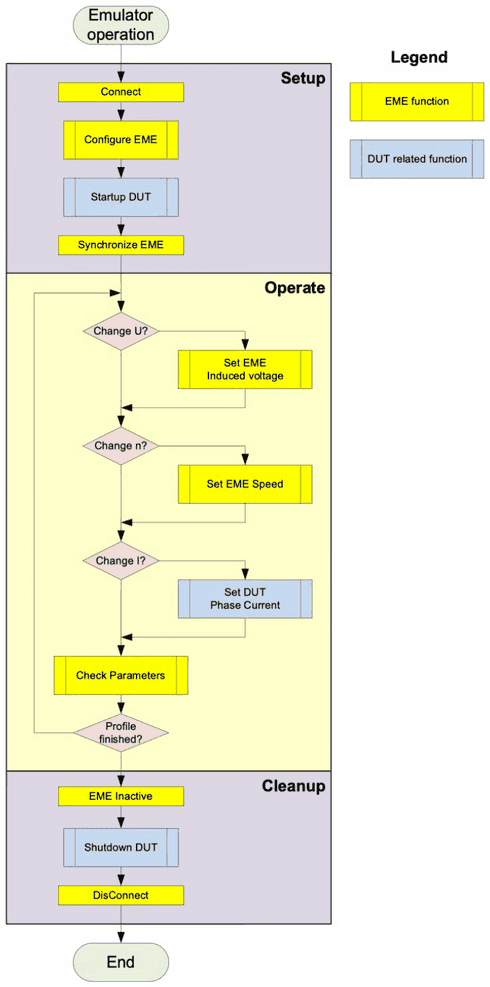
The following steps and parameters show a typical setting for normal emulator operation. In the table,
- Absolutely necessary commands/parameters are marked in yellow and blue for environment
- recommended parameters are marked in green, they are set by default.
- while others are not relevant.
The order in the table should be regarded as order of commands, which should be sent one after another to EME.
Italic steps are environment settings. Bold written command name can be found in the JSON communication description file:
Setup
Setup environment
| Step | Parameters | Remarks | Marked |
|---|---|---|---|
| Connect DUT Hardware | (phases, DC, position sensor, communication LV-supply) | Wrong connections may lead to critical currents and damage. | blue |
| Connect EME | IP-Address | Default = 192.168.222.5 | yellow |
EME configuration commands:
| Step (JSON command name) | Parameters | Remarks | Marked |
|---|---|---|---|
| SET_Role | Single | yellow | |
| SET_DutParameter | SVPWM | yellow | |
| SET_MotorParameter | Polepairs = according to DUT | Default = 1 | yellow |
| SET_MotorParameter | Offset Theta = accord. to DUT | Default = 0 | yellow |
| SET_MotorParameter | Angular Displ. = 0 | yellow | |
| SET_SetpointTransition | True @ 1e-6 | Other value possible | yellow |
| SET_CouplingNetworkParameter | R=0.001, L=85e-6 | yellow | |
| SET_EME_Standalone | True | Default, must be True | green |
| SET_ManualRevolutionSpeed | 60 | Other value possible, typ. 0…200 | yellow |
| SET_ManualSetpointDq | Direct=0, quadrature=0.05 | Should be low, but q > 0 is recommended | yellow |
| SET_AutoSyncEnable | True | Enabling is recommended. If DUT increases its duty cycle slowly before synchronization, it may also be set to False. | yellow |
| SET_StopRotation | False | Must be false for rotating operation and during synchronization. | green |
EME configuration commands depending on position sensor, either SIN/COS, resolver or sensorless.
In case of Resolver:
| Step (JSON command name) | Parameters | Remarks | Marked |
|---|---|---|---|
| SET_ResSiParameter | TransferFactor = 1, SineAmplitude = 100 [%], CosineAmplitude = 100 [%], PhaseCorrection = 0 [°] | Parameters according to DUT resolver parameters. Here, default parameters are shown | yellow |
In case of SIN/COS:
| Step (JSON command name) | Parameters | Remarks | Marked |
|---|---|---|---|
| SET_AMRGMRParameter | Offset = 2.5, Amplitude = 2.0 | Parameters according to DUT sensor parameters. Multiplier defines the ratio of signal frequency to mechanical speed. | yellow |
| SET_AMRGMRMultiplier | GMR_SinP_Multiplier = 1, GMR_SinN_Multiplier = 1, GMR_CosP_Multiplier = 1, GMR_CosN_Multiplier = 1, AMR_SinP_Multiplier = 2, AMR_SinN_Multiplier = 2, AMR_CosP_Multiplier = 2, AMR_CosN_Multiplier = 2 | Parameters according to DUT sensor parameters. Multiplier defines the ratio of signal frequency to mechanical speed. | yellow |
Activate Environment
| Step | Parameters | Remarks | Marked |
|---|---|---|---|
| Activate HV-Supply | According to DUT volt. | Must be above undervoltage limit, dep | blue |
| Activate Cooling | Typ. 5…10 l/min depending on current profile | blue | |
| Activate DUT | After this step, DUT must activate PWM output | blue |
Activate EME
| Step (JSON command name) | Parameters | Remarks | Marked |
|---|---|---|---|
| ERROR_ResetError | none | Action without parameters | yellow |
| SET_Interlock | True | yellow | |
| ACTION_PwmSync | True | Must be activated before DUT duty cycle is too high. | yellow |
From now on, EME output is active and may be operated at different setpoints.
Operate
The following steps may be executed at any time during operation.
Operate rotation and apply current:
| Step (JSON command name) | Parameters | Remarks | Marked |
|---|---|---|---|
| SET_ManualRevolutionSpeed | 60 | Other value possible, typ. 0…200 | yellow |
| SET_ManualSetpointDq | Direct=0, quadrature=0.1…0.9 | Higher quadrature -> means higher induced voltage -> higher real power -> higher DC-current. | yellow |
| Set DUT current | +-600A; Within the possible power ranges of the system!! | Negative current setpoints usually result in recuperation operation. Both d- and q-current may be applied, while q-current leads to real power and higher DC-current. | blue |
Reading measurement values from streaming data is available with LabVIEW library.
Cleanup
Deactivate EME
| Step (JSON command name) | Parameters | Remarks | Marked |
|---|---|---|---|
| Set DUT current | 0 | blue | |
| ACTION_PwmSync | False | yellow | |
| SET_Interlock | False | yellow |
Cleanup Environment
| Step | Parameters | Remarks | Marked |
|---|---|---|---|
| Shutdown HV-Supply | 0V | blue |