This chapter details the software part. The software of the simulation is mainly executed on a cRIO FPGA and can run on any Compact-RIO chassis. It is already compiled and tested for a NI-9074 and NI-9075 with the module at slot 1. The source code of the software is included in the module’s documentation and can also be included into a user specific LabVIEW project.
In the LabVIEW project, there is also an example code included, how to control the module from the PC with LabVIEW. This example code for execution on a computer may be easily ported to real-time execution on the Compact-RIO real-time controller.
Furthermore a DLL is available to control the module from applications, written in C-code. An example software is included in the documentation CD, which describes how to use the DLL. Please note, that the DLL will work only with the respective FPGA-bitfile, which is already compiled for a cRIO-9075 chassis including a single module on slot 1.
5.1General control
In the following chapter the general control parameters are described. Their names will be consequently used on different software layers, like FPGA top level design, PC control demo software or the DLL.
The amplitude control with programmable full scale transformation ratio is only available for HW version 2.0 or higher.
5.1.1Mode and speed control
The following parameters can be used to control the status and speed of the module by software
| Parameter | Type | Description |
|---|---|---|
| Mode = FixedPosition | Enumeration | Set to fixed position. When this mode is set, the module changes the actual position until it reaches the fixed position and holds this fixed position. |
| Mode = Rotate_Right | Enumeration | Rotate right with speed, specified by RPM_Set value |
| Mode = Rotate_Left | Enumeration | Rotate left with speed, specified by RPM_Set value |
| Mode = Rotate_Right_Sync | Enumeration | Rotate right with speed, specified by SYNC input |
| Mode = Rotate_Left_Sync | Enumeration | Rotate left with speed, specified by SYNC input |
| RPM_Set | Numeric Value to Set | Speed of rotation in RPM (rounds per minute) (only in Mode Rotate_xxx) |
| Position_Set [degrees] | Numeric Value to Set | constant position of the simulation in degree in the range 0…360° (only in Mode FixedPosition) |
| SYNC_Phase [degrees] | Numeric Value to Set | constant phase of the rotation relative to Sync input in the range 0…360° (only in Mode Rotate_xxx_Sync) |
| Speed_Gradient [RPMps] | Numeric Value to Set | Speed change rate in RPM per second, take new speed immediately, when 0 |
| RPM_Actual | Numeric Value to Read | Actual Speed of rotation in RPM (rounds per minute) |
| Position_Act [degrees] | Numeric Value to Read | Actual position of the simulation in degree in the range 0…360° |
| RPM_SYNC | Numeric Value to Read | Actual Speed of Sync input in RPM (rounds per minute) |
Table 6: Control Parameter description
The parameter RPM_Set has different meanings depending on the simulation state, as shown in the following table:
| RPM_Set Value | Mode | RPM_Set meaning |
|---|---|---|
| > 0 | FixedPosition | Defines the speed, how fast the module changes to the fixed position. |
| > 0 | Rotate_Right, Rotate_Left | Rotation speed |
| > 0 | Rotate_Right_Sync, Rotate_Left_Sync | Minimum rotation speed, when no SYNC signal is applied |
| = 0 | Any | Set position to fixed position immediately. |
Table 7: RPM meaning depending on current mode
5.1.2Amplitude control
The following interfaces can be used to control the transformation ratio of the module. Please note, that PGA_Set is only functional available for resolver simulation hardware version 2.0 or higher.
| Parameter | Type | Description |
|---|---|---|
| PGA_Set | Numeric value to set | Maximum transformation ratio when sine LUT is defined to full scale (Amplitude 100%): 0 = 0.078125, 1 = 0.15625, 2 = 0.3125, 3 = 0.625, 4 = 1.25, 5 = 2.5, 6 = 5, 7 = 10. Set this value to “2” for hardware version 1.3! |
| Write_LUT | Binary switch to initiate DMA transfer (see also DMA_FIFO) | Set “Write_LUT” to True, fill the DMA_FIFO. Reset “Write_LUT” to False after DMA has completed. |
| DMA_FIFO | DMA Buffer to write a sine wave lookup table | Write a sine wave amplitude waveform with 1024 elements as 14-Bit integer values as shown in the following figure |
Table 8: Amplitude Control description
With PGA_Set the transformation ratio range may be specified. When this value is set, the ratio may be additionally fine tuned by writing the sine wave LUT via the DMA_FIFO. The sine wave must be represented by 1024 integer values (i16) according to the following figure. This figure shows the sine wave for full scale - where the maximum value is 16383 for full amplitude.
Use the LabVIEW-VI “LUT_Init” to create a standard sine wave for the DMA_Buffer with an adjustable Amplitude-factor of 0…100% as input parameter.

5.2Control by DLL
The following functions are available to control the module with a DLL. The DLL requires that a Compact-RIO chassis is connected via Ethernet to the PC, where the DLL is running. The DLL has to be re-compiled using the Bitfile for the actual used chassis and module. The current DLL is available for cRIO-9075 with one module at slot 1.
Please note, that control by DLL is not implemented for all versions
To access the DLL by an application, the following files have to be included in the application:
cRIO_ResolverSimulation.dllcRIO_ResolverSimulation.hcRIO_ResolverSimulation.lib
All functions return an error code (unless stated otherwise):
- Zero => no error
- Negative => error
- Positive => Warning
5.2.1Communication control
Open connection
Following function opens the connection to the module:
int __stdcall cRIO_ResolverSim_Open (char* sRIO_Device_IP_Address);
sRIO_Device_IP_Address: Zero-Terminated String, which contains the IP address of the cRIO-chassis’s FPGA. A typical address string is as follows: “192.168.101.88”. The IP-address of the Compact-RIO chassis may be changed using the NI-MAX “Measurement and Automation Explorer”- Return Value: The function returns an error code
Read version
This function returns the compilation date of the FPGA design.
int __stdcall cRIO_ResolverSim_GetVersion (unsigned int* nVersion_Nr);
nVersion_Nr: compilation date of the FPGA code. Readable in hexadecimal representation 0xYYYYMMDD, e. g. 0x20130128- Return Value: The function returns an error code
Close connection
Following function closes the connection to the simulation module:
int __stdcall cRIO_ResolverSim_Close (void);
- Return Value: The function returns an error code
5.2.2Get error description
Following function converts the error code, returned by the DLL functions to a readable text.
int __stdcall cRIO_ResolverSim_GetErrorText (int nError_Code, char* sError_String);
nError_Code: in this parameter the application may pass the error code returned by a DLL functionsError_String: in this parameter the description of the error is returned by copying data to this buffer. The application must provide enough space in the buffer (>1024 elements)- Return Value: The function always returns 0
5.2.3Set simulation parameters
Following function sets the actual mode of the simulation
int __stdcall cRIO_ResolverSim_SetStatus (
    cRIO_ResolverSim_Mode eMode,
    double                fPosition_degrees_Set,
    double                fRPM_Set,
    double                fSync_Phase_Set,
    double                fTransformationRatio);
eMode: This enumeration parameter defines the current simulation state according to Table 6: Control Parameter description
typedef enum
{
    cRIO_ResolverSim_Mode_FixedPosition     = 0,
    cRIO_ResolverSim_Mode_Rotate_Right      = 1,
    cRIO_ResolverSim_Mode_Rotate_Left       = 2,
    cRIO_ResolverSim_Mode_Rotate_Right_sync = 3,
    cRIO_ResolverSim_Mode_Rotate_Left_sync  = 4,
} cRIO_ResolverSim_Mode;
fPosition_degrees_Set: This is the position to set in °. The range may be 0…360°. This value is only valid if the current simulation mode is “FixedPosition” (see also Mode and speed control)fRPM_Set: This rotating speed in rounds per minute (RPM) the meaning is depending on the actual mode as shown in the following table. The meaning of this value is dependent on the different modes (see Mode and speed control).fSync_Phase_Set: This function sets the phase of the rotation signal relative to the positive edge of the SYNC signal in°. The range may be 0…360°. This value is only valid if the current simulation mode is “Rotate_Right_Sync” or in mode “Rotate_Left_Sync”. (see also Mode and speed control)fTransformationRatio: This function sets the transformation ratio of the simulation. Transformation ratio is converted in the two parameters of Amplitude control: PGA_Setting and Amplitude setting of the LUT-Values- Return Value: The function returns an error code
See following table for the meaning of the speed parameter depending on the current mode:
| fRPM_SetValue | Mode | fRPM_Set meaning |
|---|---|---|
| > 0 | FixedPosition | Defines the speed, how fast the module changes to the fixed position. |
| > 0 | Rotate_Right, Rotate_Left | Rotation speed |
| > 0 | Rotate_Right_Sync, Rotate_Left_Sync | Minimum rotation speed, when no SYNC signal is applied |
| = 0 | any | Set position to fixed position immediately. |
Table 9: RPM Parameter meaning
5.2.4Set speed ramp
Following function sets the rate for speed change in RPM per second. If the rate is 0, new speed settings are applied immediately. Otherwise, the speed will change at the specified rate.
int __stdcall cRIO_ResolverSim_SetRampGrad (double fRPM_Gradient_Set);
fRPM_Gradient_Set: sets the actual ramp gradient in RPM per second- Return Value: The function returns an error code
5.2.5Get simulation status
Following function reads the current status of the simulation. The status is described in the current position, the current rotation speed and current SYNC input speed.
int __stdcall cRIO_ResolverSim_GetStatus (double* fSync_Frequency_RPM,
                                          double* fActual_Frequency_RPM,
                                          double* fPosition_degrees);
fSync_Frequency_RPM: This is the current speed of the synchronisation input in rounds per minutefActual_Frequency_RPM: This is the current speed of the simulation in rounds per minutefPosition_degrees: This is the current position in °. The range may be 0…360°- Return Value: The function returns an error code
5.2.6Save settings
Following function saves the current settings in the cRIO system. After finishing the boot process after power-up the settings are restored automatically.
int __stdcall cRIO_ResolverSim_SaveSettings (void);
- Return Value: The function returns an error code
5.2.7DLL test software
A debug panel is included to test the access to resolver simulation by DLL. This tool is included as an installer in the folder CRIO_ResolverSim_DLL_Test_Install in the bin folder on the documentation CD.
The following window appears after installation has been finished and software has been started:
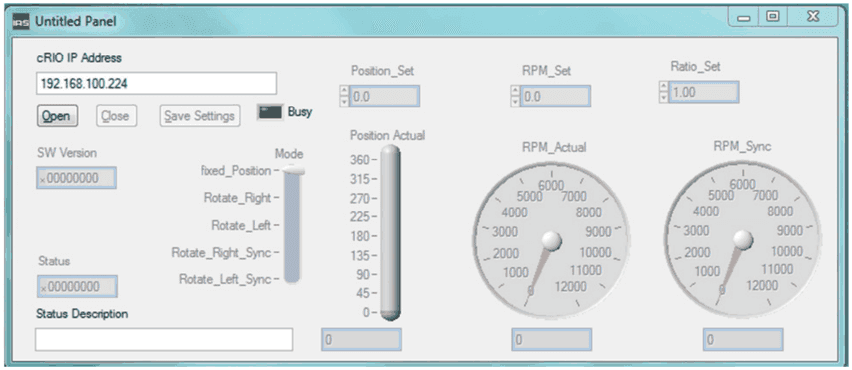
After
- the correct IP address has been entered,
- a resolver simulation system is present in the network
- and has finished boot process (approx. 1 minute),
the connection may be established by pressing the “Open” button. If the connection is established, the window will appear as follows. The user may access the simulation by the controls.
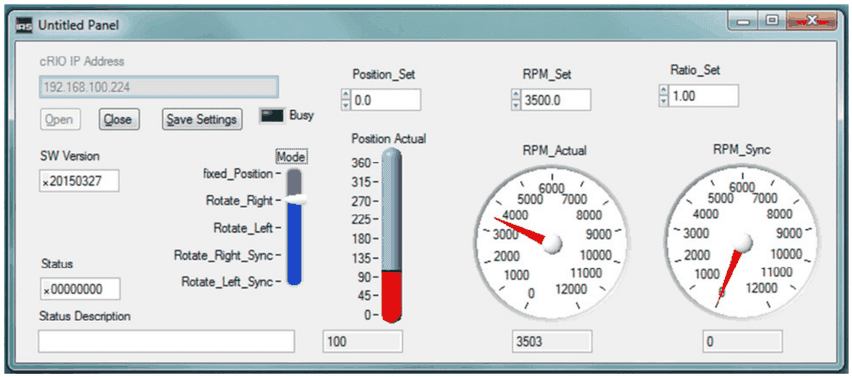
5.3GUI for stand-alone system
For changing application specific settings a custom graphical user interface (GUI) is implemented.
5.3.1Installation
To run the GUI, an executable “ResSi.exe” can be found on the documentation disc. The entire folder, which contains this executable should be copied to the PC.
Additionally, LabVIEW 2013 runtime has to be installed. The runtime is available on the documentation disc, but may be also downloaded at NI.com.
5.3.2Front panel
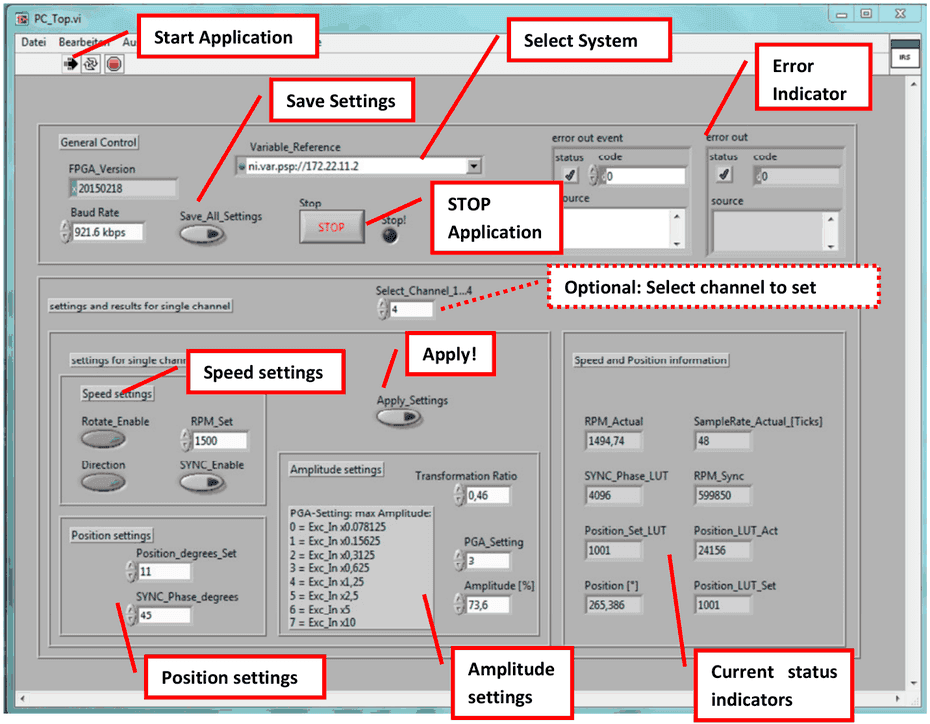
All changes of the settings are only applied, when:
- GUI is running (see Start/Stop GUI)
- System is properly selected (see Select system) – otherwise GUI stops with error.
5.3.3Start/Stop GUI
The GUI automatically starts, when “ResSi.exe” is executed.
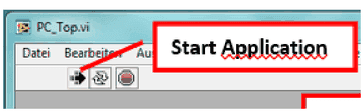
The “Start application” button is shown as in the following figure, when the GUI is running:
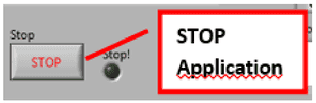
To stop the GUI, press the STOP-button.
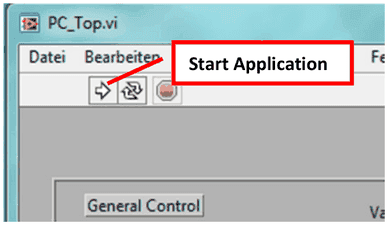
To restart GUI, press the “Start Application” button on the upper left corner.
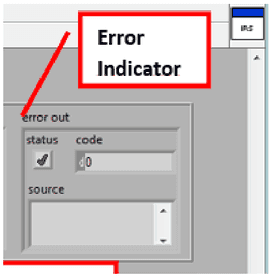
The GUI automatically stops, when an error occurs. An error is signalled and explained on the error_out indicator
If the system is not properly selected, an error occurs and the GUI is stopped. Select the system according to Select system and restart GUI by pressing the “Start Application” button.
5.3.4Select system
Accessing the settings of the system is achieved using NI-PSP shared variables. The variable server runs on the cRIO system. Since the IP-address of the system may vary, the user must select the correct system.
Press the “Variable Reference”:
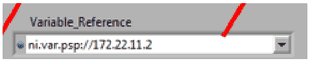
The following window should appear:
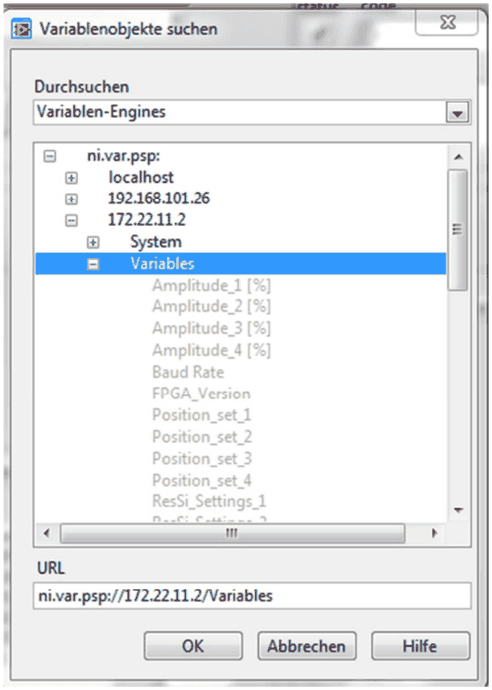
Select the item “Variables” on the system with the correct IP-address.
- 172.22.11.2 in case of USB devices
- For Ethernet depending on DHCP
If the system is properly selected, the GUI will run, if there is an error, the GUI stops and indicates an error. In the latter case, make sure that all connections are established and the system is powered. After selecting the system restart the GUI as described in Start/Stop GUI.
5.3.5Save all settings
Current settings may be saved to be active after reboot again. If the button “Save_All_Settings” is pressed, all settings are stored permanently in the system.
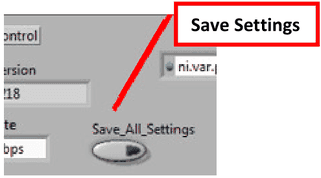
Please note, that current settings of the system are stored. I.e. the settings have to be applied before saving according to Change resolver settings.
5.3.6Change resolver settings
All following settings may be changed in the GUI. If several Resolver modules are applied, settings take effect only for a single selected channel, after the “Apply_Settings” button has been pressed.
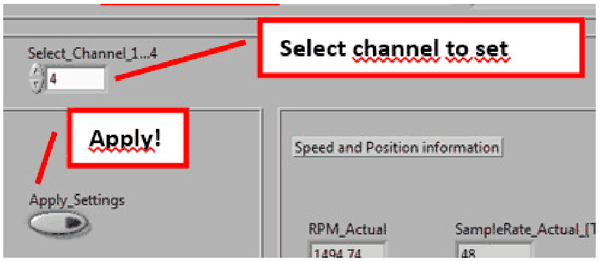
I.e. first “Select_channel_1…4” (Optional for several modules). Then change settings as described in the following sub-chapters. Then press “Apply_Settings”.
If settings should be stored permanently, press “Save_All_Settings”
Speed settings
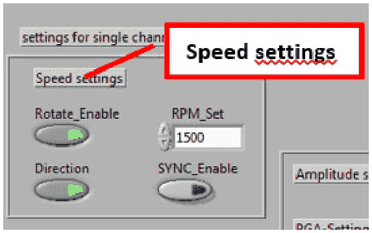
The speed settings include the following:
- Rotate_Enable:
- continuously rotate, when TRUE
- approach fixed position when FALSE.
- Direction:
- Rotate “left” with increasing angle when TRUE
- Rotate “right” with decreasing angle when FALSE
- RPM_Set:
- Sets the speed of rotation in “rounds per minute”, when SYNC_Enable is FALSE.
- When rotation is disabled, RPM_Set defines the maximum speed to approach a fixed position, when fixed position changes.
- SYNC_Enable:
- Use external synchronisation input when TRUE. Time between positive edges on SYNC input defines speed. Note, that the speed is limited to RPM_Set, when RPM_Set is higher than SYNC
- Use RPM_Set as speed value when FALSE.
Position settings
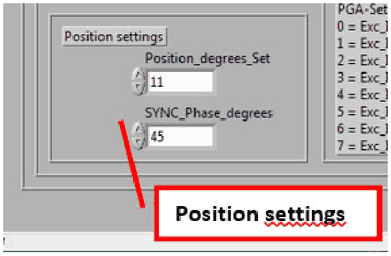
Position settings include the following:
- Position_degrees_Set:
- Position to set in the range 0…360°
- Only valid when rotation is disabled and no position is received on serial line for this channel.
- SYNC_Phase_degrees:
- Angle in the range 0…360°
Amplitude settings
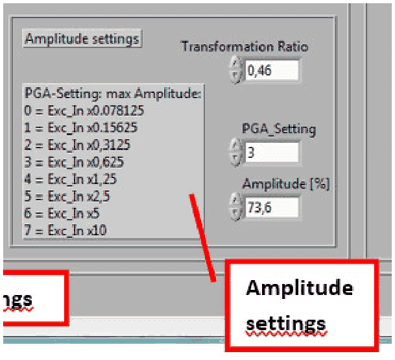
The transformation ratio of a channel may be changed by Amplitude settings. There are two values, which define the transformation ratio:
- PGA_Setting:
- programmable gain amplifier defines the maximum range of the transformation ratio
- Setting between 0…7 according to the table in the figure above
- Amplitude [%]:
- Defines the fine tuning within the current range, defined by the PGA
- Set in the range 0…100%.
These two values are written to the system and really define the transformation ratio.
To make amplitude settings easy, a Transformation ratio may be entered. When a new value for “Transformation_Ratio” is entered, “PGA_Setting” and “Amplitude [%]” are calculated automatically to an optimal value.
5.3.7Current status indicators
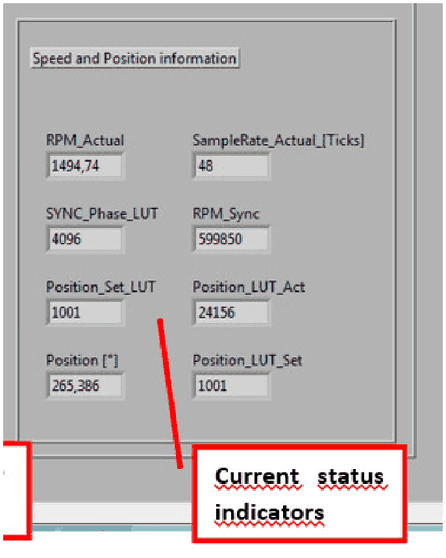
Current status indicators are as follows:
- RPM_actual: Current speed, depending on either RPM_Set or synchronisation input speed.
- SYNC_Phase_LUT: Internal representation of SYNC_Phase
- Position_Set_LUT: Internal representation of fixed position
- Current position [°]: Current Position in the range 0…360°
- Sample_Rate_Actual: Internal speed representation (=25ns-Ticks for a single step)
- RPM_Sync: Speed of the external SYNC input in RPM
- Position_LUT_Act: Current Position (internal value)
- Position_LUT_Set: Internal representation of fixed position. Either fixed setting or received data
5.4VIs for integration into user application
To set simulation parameters or read current status, two main VIs may be used to be integrated in a user application. Both VIs are available in the Stand-alone LabVIEW-example GUI.
These VIs don’t need an open or close VI. They may be called by any LabVIEW application or TestStand Sequence.
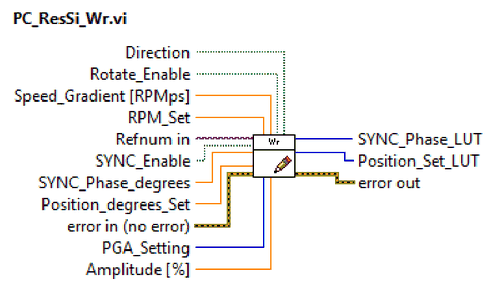
5.4.1PC_ResSi_Wr.vi
PC_ResSi_Wr.vi sets the new status of the resolver simulation. The input parameters are described in General control. The output parameters ..._LUT are internal representations of the settings. These outputs may be ignored.
For the “Refnum in”, please connect a valid reference to the device according to Select system
5.4.2PC_ResSi_Rd.vi
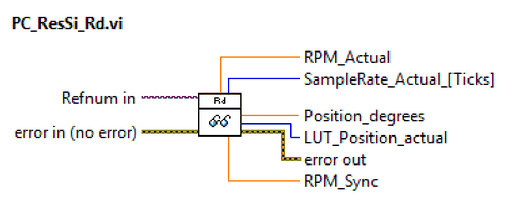
PC_ResSi_Rd.vi reads the current status of the resolver simulation. The output parameters are described in General control
For the “Refnum in”, please connect a valid reference to the device according to Select system