4.1Analysis Project
An SSV analysis project is a single configuration file that contains all information about hardware setup, channel settings, triggers, windows and functions.
4.2Device
A “device” is defined as combination of a National Instruments FlexRio FPGA card and an IRS SSV module. It enables true parallel sampling at defined sampling rates and numbers of channels (depends on the SSV module capabilities). The device resource equals the alias definition of the FlexRio base card in MAX, e.g. “Rio01”
A device is always created from a template, which completely defines the module capabilities and characteristics. To configure a device, use the Channel Explorer
4.2.1Device Properties
User defined settings
| Setting | Description |
|---|---|
| Device Name | User defined name |
| Enabled | Device is not used if disabled |
| Description | User defined description |
| Resource | Resource description string, required to locate the hardware in the system. Must match to either resource or alias definition in Measurement & Automation Explorer |
| Options | Device specific configuration string, refer to hardware documentation. Currently unused |
Fixed settings (read only)
| Setting | Description |
|---|---|
| Type | Hardware Type |
| Number of Channels | Number of channels supported by this device |
| Sample Rate | Fixed sample rate for each channel of this device (in samples per second) |
| Range Min | Voltage representing the minimum (maximum negative) value. Also used for scaling(!) |
| Range Max | Voltage representing the maximum (positive) value. Also used for scaling(!) |
| Resolution | Resolution in [Bit] for each channel. Note that 1 bit is used as sign, so a 14-bit device has a resolution of +/- 13bit |
| Windows per Channel | Maximum number of analysis windows per channel |
| Max Window Width [ms] | Maximum size of each window in milliseconds |
| Max Period Width [ms] | Maximum total period width in milliseconds |
4.3Channel
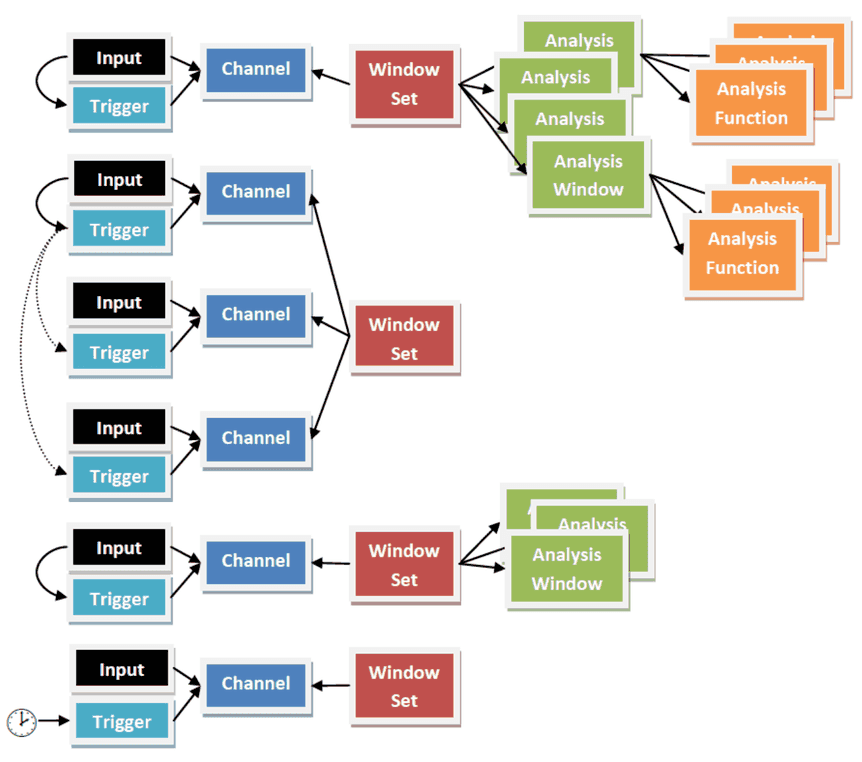
A channel represents an analog input of the device it belongs to. Each channel represents also one trigger source that can also be used by any other channel on the same device. Each channel has its own trigger settings. A window set can be assigned to multiple channels. The capabilities of the physical channel depend on the module, refer to hardware documentation for details.
To configure a channel, use the Channel Explorer
4.3.1Channel Properties
User defined settings
| Setting | Description |
|---|---|
| Channel Name | User defined name |
| Connector | Documents the channel's connector wiring in the project |
| Enabled | Enables/Disables evaluation of the channel's results. However, other channels can still use this channel's trigger! |
| Comment | User defined comment |
| Window Set | Defines which Window Set (collection of analysis windows and functions) should be applied to this channel |
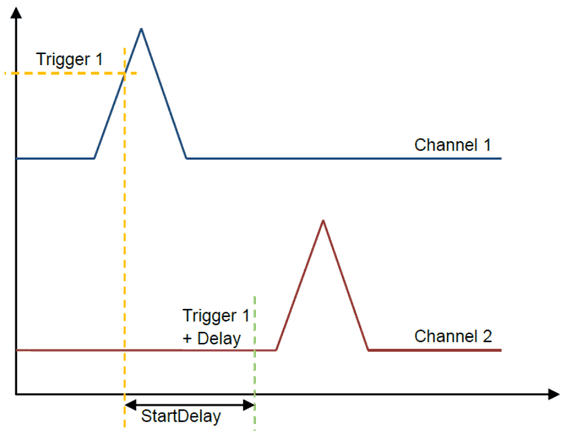
| Trigger Delay | Specifies the delay (in ms) that is applied to the sampling start after the reference trigger was received. Only evaluated for reference trigger type! |
| Channel Range Max | RPLUS only! Write down the maximal prospective voltage. Software will then choose optimal range for measurement channel. Possible ranges: 100 V, 50 V, 25 V, 12 V, 6 V, 3 V, 1.5 V. Note: Voltage range of SSV48RPLUS can only be configured in groups of channels. Channel groups are: ch0 to ch7, ch8 to ch15, ch16 to ch23, ch24 to ch31, ch32 to ch40, ch41 to ch47. For example, if you define Channel 0 to 1.5 V and Channel 5 to 100 V, Channel Range Max of ch0 to ch7 will be set to 100 V |
| Channel Range Min | RPLUS only! Write down the minimal prospective voltage. Software will then choose optimal range for measurement channel. Possible ranges: - 100 V, - 50 V, - 25 V, - 12 V, - 6 V, - 3 V, - 1.5 V. Note: Voltage range of SSV48RPLUS can only be configured in groups of channels. Channel groups are: ch0 to ch7, ch8 to ch15, ch16 to ch23, ch24 to ch31, ch32 to ch40, ch41 to ch47. For example, if you define Channel 0 to - 1.5 V and Channel 5 to - 100 V, Channel Range Min of ch0 to ch7 will be set to - 100 V |
| Scaling Factor | This factor will be multiplied with raw values (before adding offset) |
| Scaling Offset | This offset value will be added to raw values (after scaling with factor) |
| Scaling Unit | Specifies the unit for scaled values |
| Filter | Digital filter for this channel |
| Options | Channel specific option string, refer to documentation |
Run-time properties (not saved)
| Property | Description |
|---|---|
| Errors | Failed windows in last run |
| Error Info | Error information from last run |
Fixed settings (read only)
| Setting | Description |
|---|---|
| Trigger | The trigger name of this channel |
| Channel Nr | Number of this channel type within device |
| Channel Type | Type of channel |
4.4Trigger
A trigger is an event that causes its associated channel to start sampling or reset the trigger distance to 0 (starting a new measurement period). Any trigger can either use its channel (=self-trigger), another trigger (=reference trigger) or a timer as source. See Trigger Types for details.
To configure a trigger, use the Trigger Setup window.
4.4.1Trigger Properties
User defined settings
| Setting | Description |
|---|---|
| Label | User defined Label for trigger |
| Show TriggerCounter | A 'TriggerCounter' value is added to results if true |
| Master Trigger | Defines if this trigger is the master trigger. Note: there is only one master trigger allowed! Removing it will also remove all invalidated references |
| Trigger Type | Self: Trigger source is its own channel; Reference: use source from another channel. Trigger is directly fired [StartDelay] ms after Reference Trigger; Timer: software defined periodic self-triggering after ms |
| Comment | User defined additional information |
| Edge | Trigger edge direction (falling / rising) |
| Threshold | Trigger level. If this level is exceeded (in positive or negative direction, depends on edge) the trigger gets activated |
| Blackout Time | After triggering, any following trigger event is ignored for this time |
| Rearming LowerBound | Trigger is rearmed if the signal stays between RearmingLowerBound and RearmingUpperBound for at least RearmingTime [ms] |
| Rearming UpperBound | Trigger is rearmed if the signal stays between RearmingLowerBound and RearmingUpperBound for at least RearmingTime [ms] |
| Rearming MinTime | Trigger is rearmed if the signal stays between RearmingLowerBound and RearmingUpperBound for at least RearmingTime [ms] |
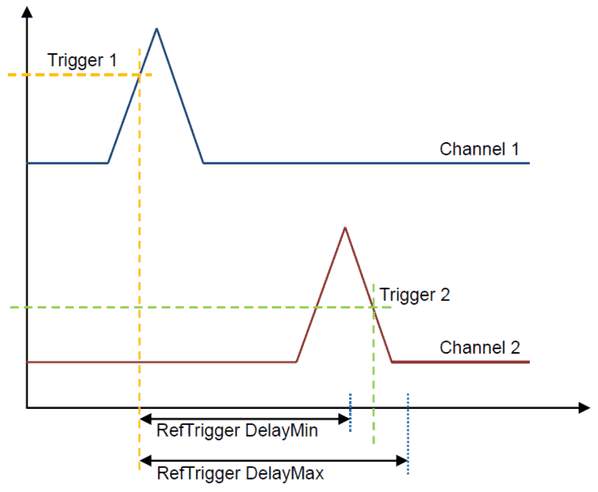
| RefTrigger Delay Min | Minimum allowed time between this and reference trigger event in [ms], used for validation. Only evaluated for reference trigger type! |
| RefTrigger Delay Max | Maximum allowed time between this and reference trigger event in [ms], used for validation. Only evaluated for reference trigger type! |
| Trigger Distance | Defines the software trigger rate in [ms] (only for Timer trigger type) |
| Trigger Distance Min | Minimum time between two trigger events in [ms], used for validation |
| Trigger Distance Max | Maximum time between two trigger events in [ms], used for validation |
| Reference Trigger | The trigger that will be used for this channel (only for Reference trigger type) |
Fixed settings (read only)
| Setting | Description |
|---|---|
| Trigger ID | Unique identifier |
| Source | Trigger hardware source (Channel ID) |
4.4.2Trigger Types
Each trigger can be configured as
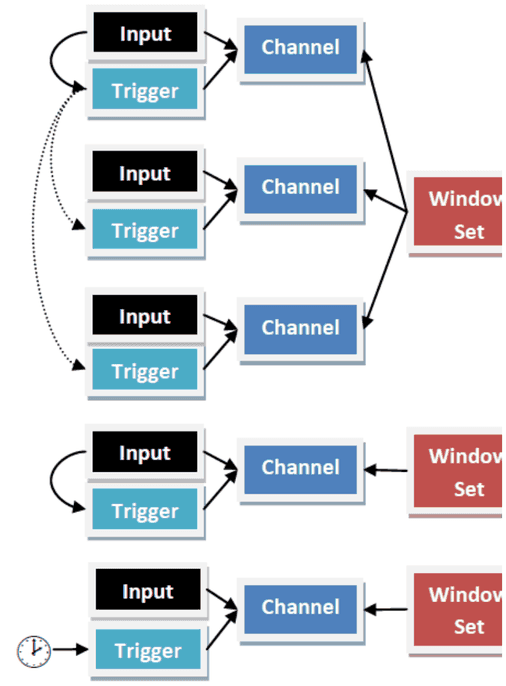
Example Setup
- Channel1: Self Trigger
- Channel2: Reference Trigger (Trg01)
- Channel3: Reference Trigger (Trg01)
- Channel4: Self Trigger
- Channel5: Timer Trigger
Self-Trigger
In Self Trigger type the trigger uses its associated channel input as trigger source. You need to specify edge direction, threshold, blackout time (optional), and rearming (optional). If also a reference trigger is defined in this mode, the reference trigger is only used for additional timing checks (see Trigger Test Functions).
Reference Trigger
When a reference trigger is used, the physical channel input is ignored and another (existing and configured) trigger signal is directly used instead. In this case the trigger event from another trigger source is used. A start delay can be applied to the channel to align similar signals on different channels with a known offset. Each channel can define a different [Trigger Delay] [ms], which is added to the original trigger time. Thus, it is possible to create a group of similar, but channel-wise delayed signals, that can share the same window set after this alignment. This is useful for dependent signals that should be captured synchronous relative to a special event.
Example: a motor control unit drives 6 cylinders with almost identical injection signals which are shifted by 60° per revolution. In this case you could use the first channel as reference and apply appropriate offsets to channels 2-6. Now you have similar triggered curves on all 6 channels and you could use a single window set of analysis functions.
Timer Trigger
Another option is to define a "Timer trigger", which periodically creates a trigger event every [Trigger Distance] ms. This is especially useful for static or unstable signals that could otherwise not be properly triggered and observed.
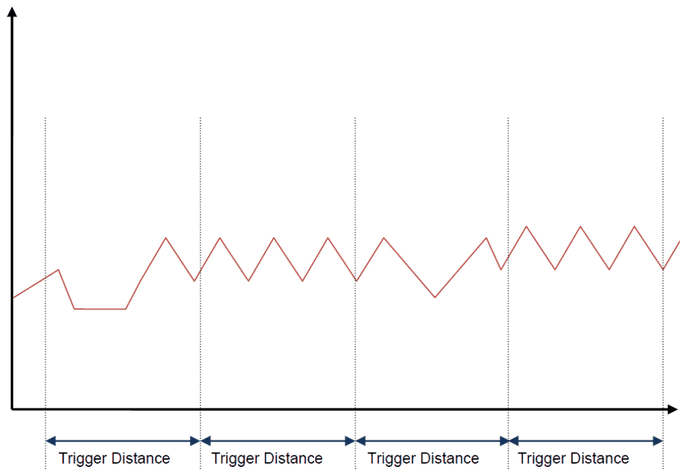
Blackout Time (hold off)
After a trigger event the trigger will ignore any further events for this time (in ms). A value of 0 deactivates this feature It is recommended to specify at least about 20% of expected cycle time to prevent false triggers due to noise etc.
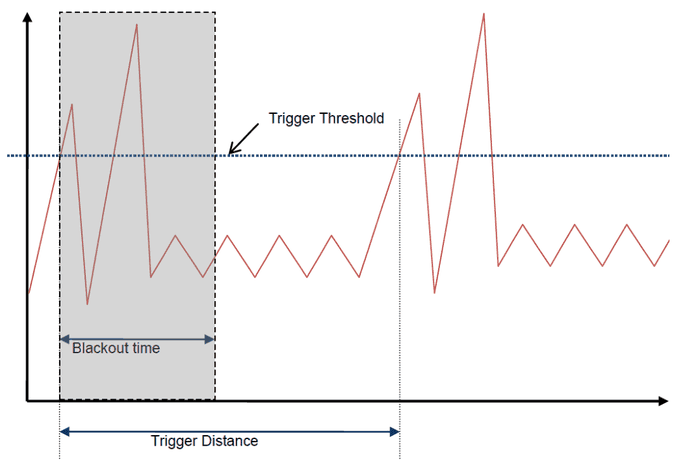
Trigger Rearming
Some signals have no characteristic trigger level that allows defined triggering at a certain point. In many cases, the rearming feature can help here. If the signal remains within a certain voltage range (Rearming LowerBound/UpperBound) for a defined minimum amount of time (Rearming min time) the trigger is armed and will fire on the next valid threshold/edge condition. Note that the trigger does not immediately fire when the rearming condition matches! It is just a precondition that “allows” the triggering.
If any rearming time is defined, the next trigger will not fire until the signal has passed the rearming conditions.
Reference Trigger Check
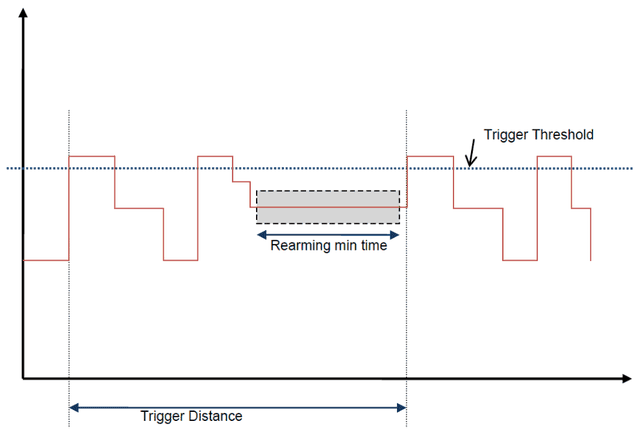
In this case two channels use their own trigger sources (Self Trigger). If also a reference trigger source is configured, it can be used to observe timing constraints between the own and reference trigger: In case the measured distance exceeds the limits, a "TriggerDelay" error is reported.
In this example the TriggerRefDelayMin and TriggerRefDelayMax parameters define an additional test.
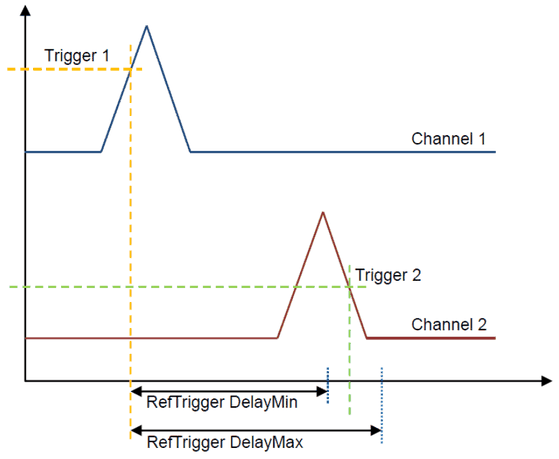
Trigger Distance Check
If the trigger parameters "Trigger Distance Min" and "Trigger Distance Max" are set unequal to 0, an additional check of the self-trigger period is performed to detect jitter or missing triggers. In case the measured period exceeds the limits, a "TriggerDistance" error is reported.
Trigger Counter
If the trigger parameter “Show Trigger Counter” is set “true” every trigger event is counted. This function is commonly used to check a “single event”.
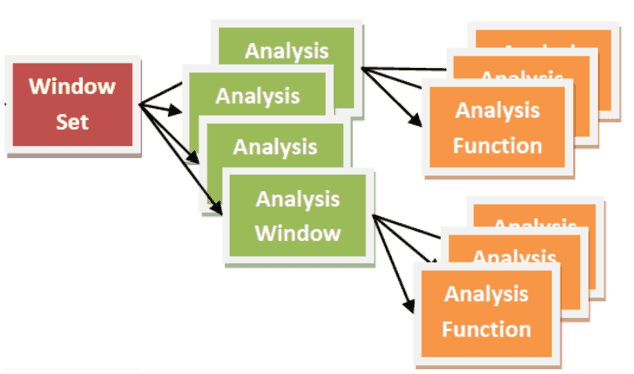
4.5Window Sets
A Window Set is a named collection of AnalysisWindows. Window Sets can be assigned to any number of channels, but all assigned channels must use the same device type. The number of windows per window set and analysis functions per window is limited by the device properties.
4.6Analysis Windows
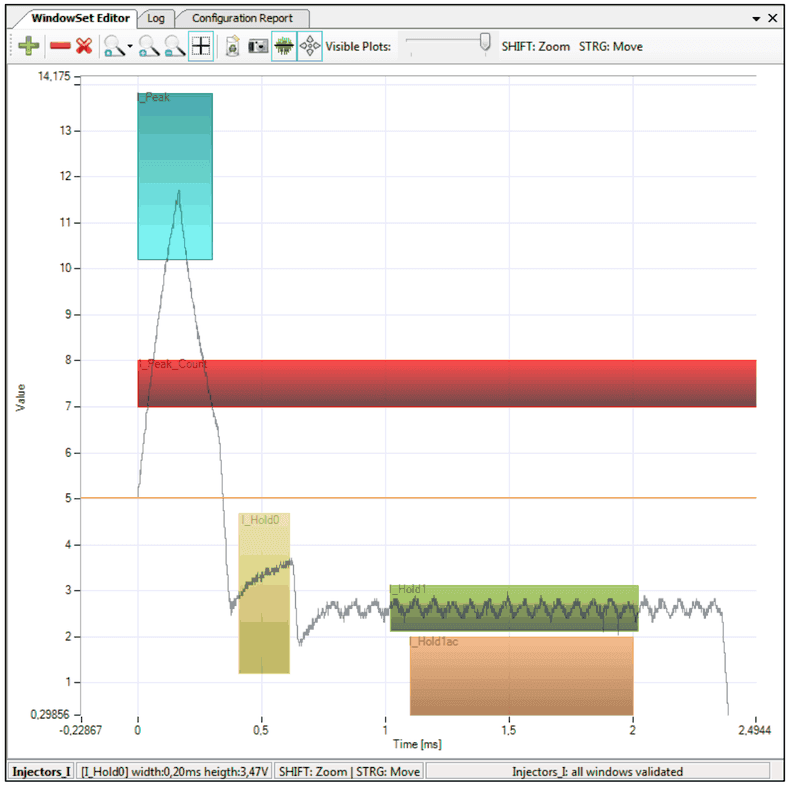
An Analysis Window defines a certain time period relative to a trigger event. An Analysis Window itself has no functionality at all, it acts as a container for the Analysis Functions it can host. It is represented as a rectangular area in WindowSet Editor (see sample below), however the upper and lower borders are only relevant to the UpperLimit and LowerLimit functions. All other functions just use the time period (left and right borders) and provide their own additional parameters.
AnalysisWindows are organized in WindowSets.
4.7Analysis Functions
Definition
Analysis functions perform real-time tests within one specific AnalysisWindow.
Characteristics
Each AnalysisWindow has a fixed set of (physically hard-wired) applicable AnalysisFunctions.
Each window may activate all available functions simultaneously without affecting overall performance. Only activated functions will be evaluated and reported at run-time.
Each function manages its own error counter (per channel and window). This counter is increased by 1 if the test conditions fails (even in case of multiple failures) within the window. The maximum number of failures is limited to 255. The value will remain at 255 if more errors are detected (no overflow).
Also, each function has one return value, which is usually used as measurement value, even if no error occurred. To return a valid value, the complete window has to be executed at least once. In other words, it is not possible to return a valid measurement value if no trigger occurred or at least one period of the signal was read. To support evaluation, each value has also a valid flag.
To reset all error counters, read the SSV results from the module (it is not possible to reset a single error counter)
Function Overview
4.7.1Average
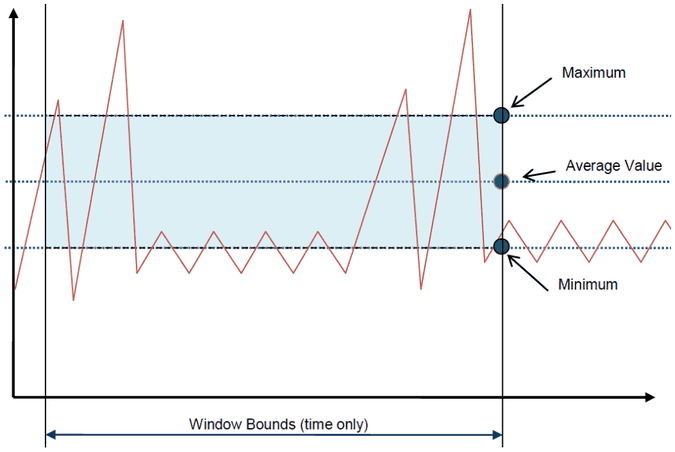
Average calculates the arithmetic average value of all samples within window (left and right) bounds. Limits are applied when the right border of the window is reached. If limits are exceeded, the "Average" error counter is increased by 1 (up to 255, then remains at 255)
Output Value
Arithmetic average value, evaluated 1 sample after window is completed
Parameters
Minimum
Lowest allowed value of calculated average value
Maximum
Highest allowed value of calculated average value
Example
4.7.2Area Check
Checks min/max time of consecutive samples between high and low threshold.
Test Result
The function is PASSED if the measured time is within the time limit min/max
Parameters
Time Limit Max
Max time (in milliseconds) of successive(!) samples in the area
Time Limit Min
Min time (in milliseconds) of successive (!) samples in the area
Upper Bound
Defines the upper level of detection area.
Lower Bound
Defines the lower level of detection area.
Entry Check Mode: Defines if each section of the signal, which is located between the Upper and Lower Bound must be within Time Limit Min and Max or just the largest section of consecutive samples.
- 1 = strict: each section must be within the time limits.
- 0 = tolerant: just the largest section must be within the time limits.
Area Check Scenarios
a) No pulse allowed
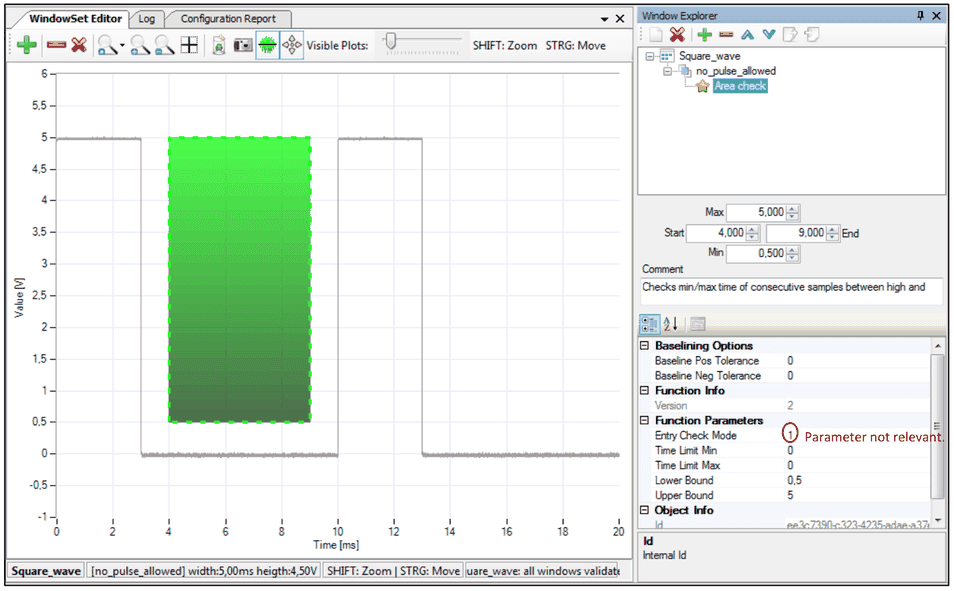
This mode is used to verify that no signal appears in the defined period of time. If there is a pulse then it is a failure. Therefore, min/max limits are set to 0.
b) 100% pulse
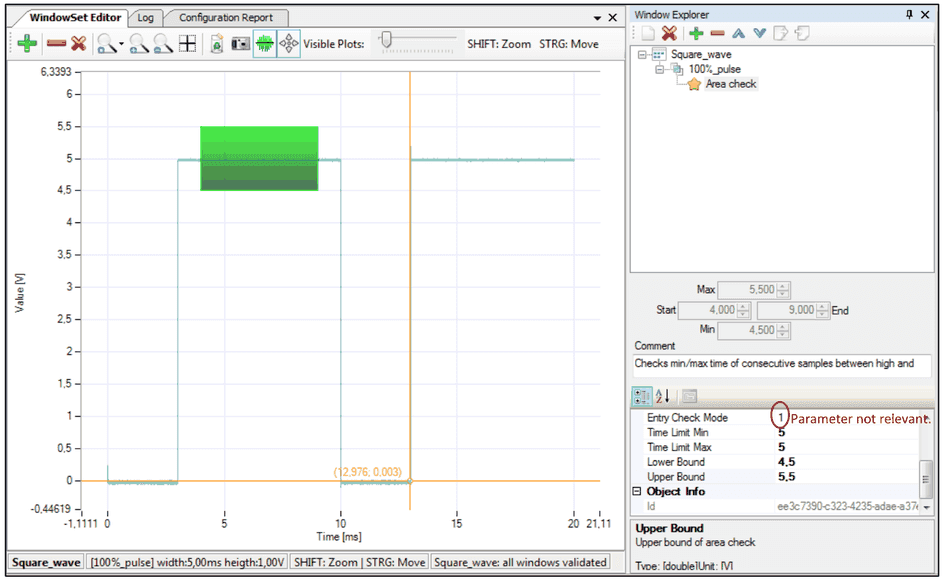
Signal appears entirely from start to finish in the defined period. Time Limit needs to be exactly as long as the window.
c) Every pulse between the limit
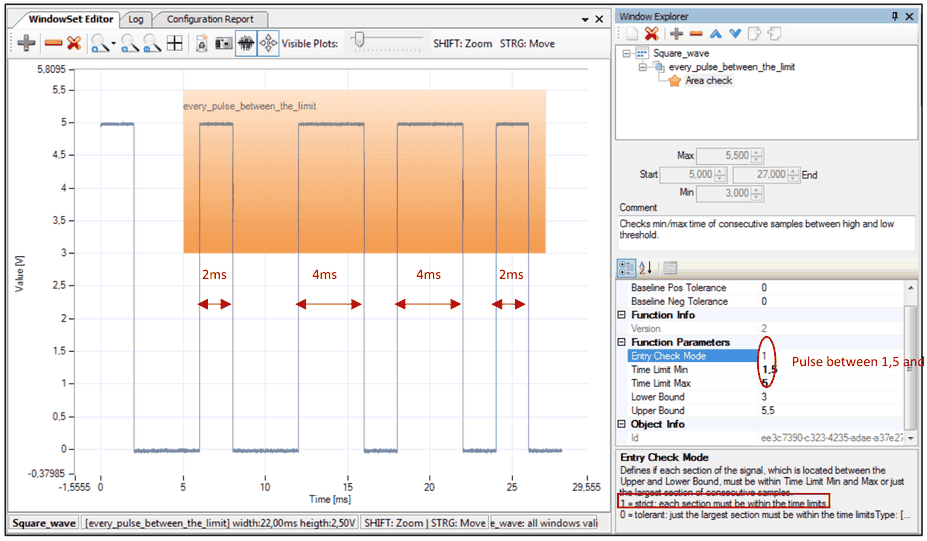
1 = strict: each section must be within the limit.
d) Maximum pulse between limit
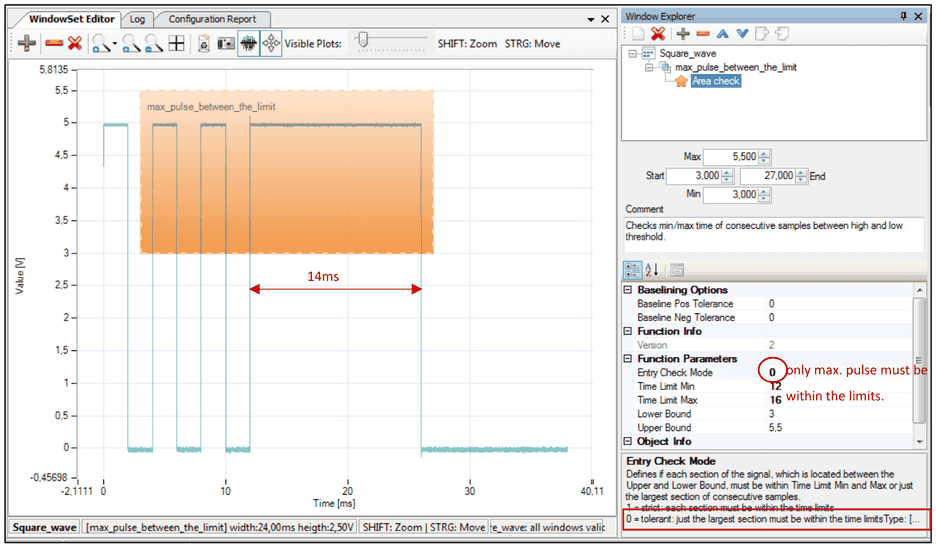
0 = tolerant: just the largest section must be within the time limits.
4.7.3Duty Cycle
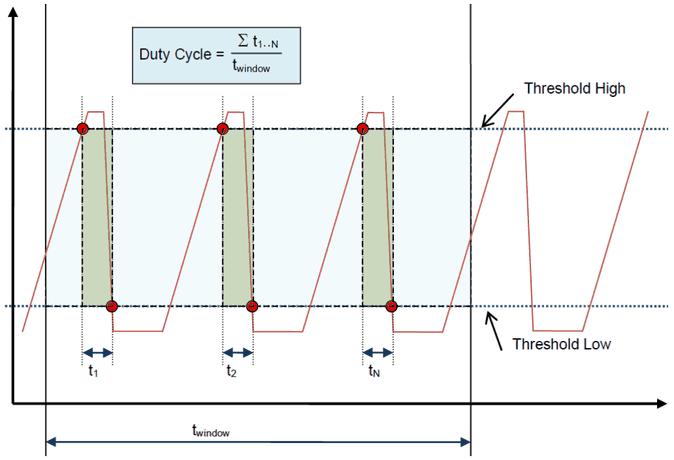
Duty cycle calculates the ratio of signal high time (time between high and low threshold transitions) compared to window total time.
The "High" phase starts when the signal transitions through high threshold in rising edge and remains until the signal passes low threshold in falling direction. The sum of high phases divided by the window total time is evaluated as duty cycle and will result in an output range of 0...100%
Output Value
Duty cycle (0...1)
Parameters
Minimum
Lowest allowed duty cycle (>=0%)
Maximum
Highest allowed duty cycle (<=100%)
Test Result
The function is PASSED, if duty cycle is between (or equal) minimum and maximum value. Otherwise the error counter is increased by 1 (up to 255)
Example
4.7.4Edge Counter
Duty cycle counts the transitions between high and low threshold detection within window timespan.
The "High" phase starts when the signal transitions through high threshold in rising edge and remains until the signal passes low threshold in falling direction. The sum of changes within window total time is evaluated as edge count.
Output Value
Edge count (max. 65536)
Parameters
Minimum
Minimum number of expected edges (>=0)
Maximum
Highest number of expected edges (<=65536)
Test Result
The function is PASSED, if edge count is between minimum and maximum value. Otherwise the error counter is increased by 1 (up to 255)
Example
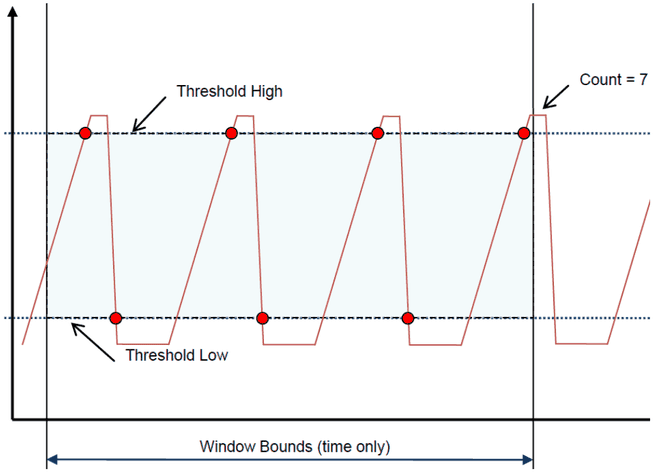
4.7.5Upper/Lower Limit
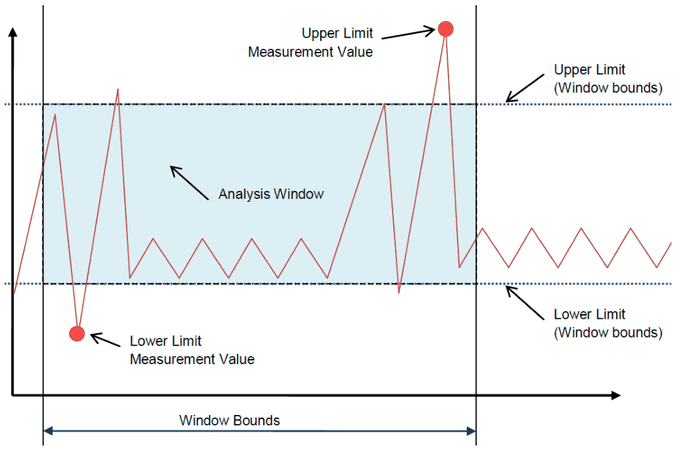
Upper Limit and Lower Limit detect violations to the respective border of the window. In contrast to most other functions, the errors are detected immediately after the first limit violation.
UpperLimit and LowerLimit are independent functions, both can be optionally and independently applied to each window. Each function has its own error counter and return value. If limits are exceeded, the "Average" error counter is increased by 1 (up to 255, then remains at 255).
Output Value
The min/max value within window time bounds.
Parameters
Check max (/min) value in window
If selected, the function also checks if the detected measurement value (lowest/highest value) is located within window bounds. Otherwise the function fails, even if the specified limit was not violated.
Minimum
Lowest allowed value within the window time bounds.
Maximum
Highest allowed value within the window time bounds.
Example
4.8Sources
Each single result has a unique source string in report. The project settings define, how the source string is built in report and evaluation
Signal Sources
Signal sources are built as a combination of <Device>/<Channel>/<WindowName>/<FunctionName>
(where <Device> and <Channel> content depends on ProjectSettings/Resource Lookup Mode)
e.g.
RIO0/INJ_0_Current/I_Hold0/Average
RIO0/INJ_0_Current/I_Peak/UpperLimit
Virtual Sources
Most measurement refer to a distinct combination of device/signal/window/function. There are some situations where an error or warning has to be reported that can't refer to a window function:
Device/Signal/TriggerCounterDevice/Signal/TriggerDelayDevice/Signal/TriggerDistance
e.g.
RIO0/INJ_0_Current/TriggerDistance
4.9Test results
After starting, all SSV modules will permanently observe analog inputs according to project settings. To get the current observation status, a "read results" call is required (API function).
This will
- return every measurement value
- return all error counters
- reset all error counters
A preview of this action is also available in the project editor, see Log Window
4.10API
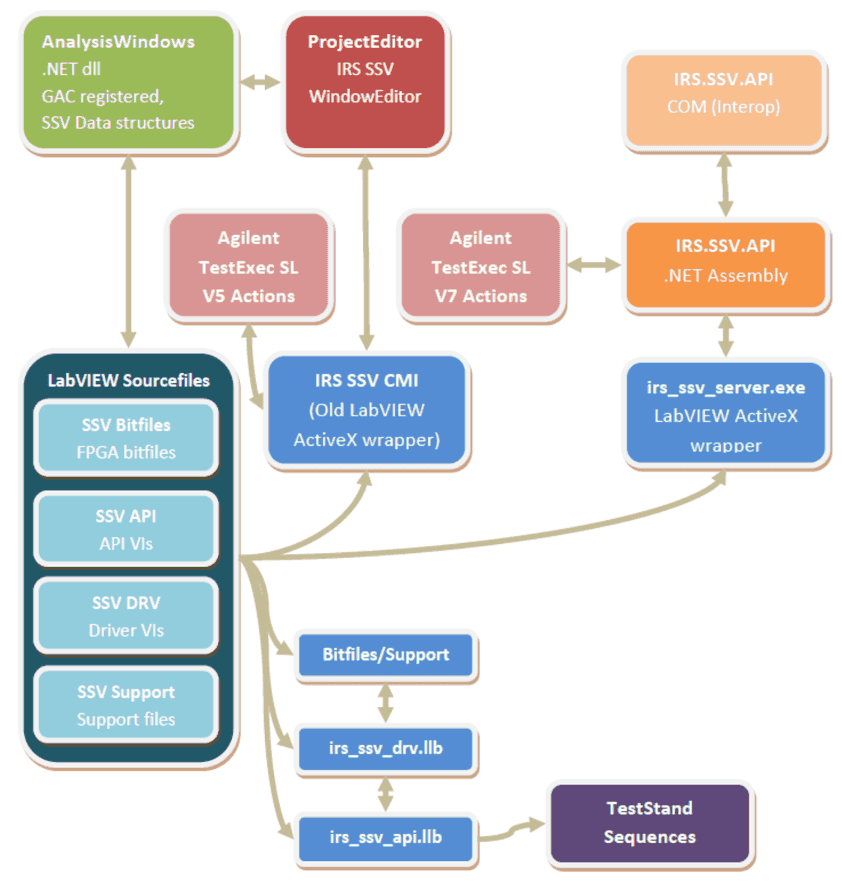
SSV Software Architecture Overview
4.10.1LabVIEW
See SSV API.LabVIEW.chm
4.10.2.NET
See SSV API.NET.chm
4.10.3Using the API
To use the project configuration file in your test environment, choose one of the available APIs (Application Programmer Interface):
The =>.NET API is intended for use in non-LabVIEW driven environments that support .NET. Because FlexRIO is heavily LabVIEW dependent, the core driver internally still uses LabVIEW and exposes its functionality to a .NET wrapper and built on that, also to COM (ActiveX). In other words, if your test environment supports the direct use of LabVIEW VIs (e.g. LabVIEW program, NI TestStand), you should prefer the =>LabVIEW API. The functionality is almost the same, however there are small differences in detail.
The installation requirements for both architectures are identical, as the LabVIEW driver internally also requires some .NET assemblies. LV and .NET requirements see System Requirements
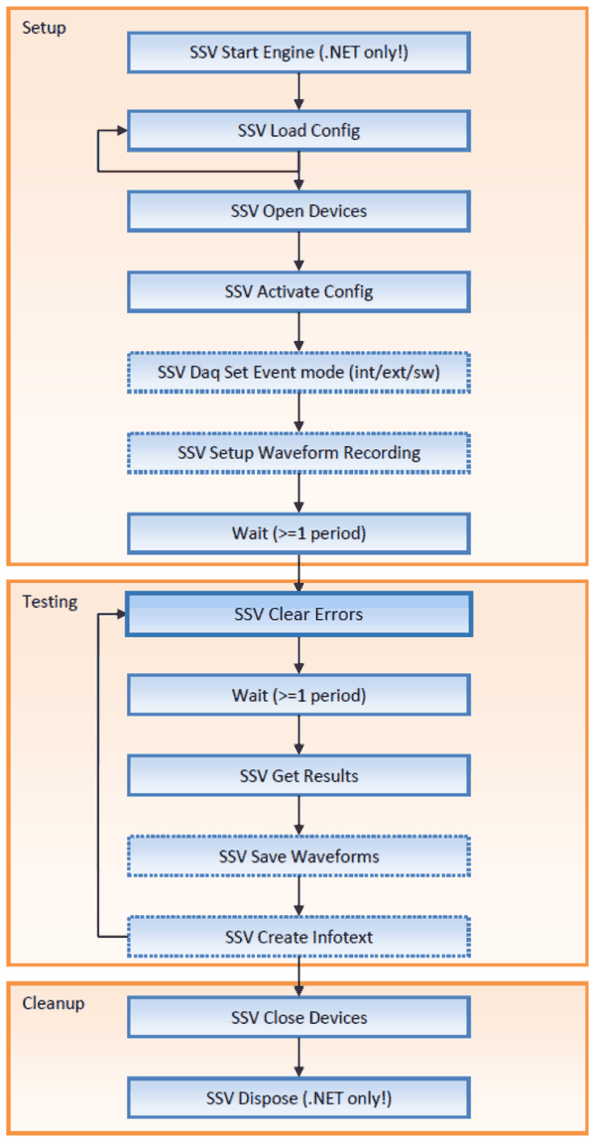
Overview
Whatever API you choose, the general handling is the same. The following chart shows the basic operation of SSV (without optional features functions like baselining, digital IO etc.) The following picture describes the most common use case of SSV modules in an observation loop. For more advanced features refer to the API documentation(s).
Result Evaluation
Read Results / Evaluate Results / Get Results / Get All Values?!
Get Results
Reads data from FPGA, evaluates the raw data according to user settings and returns all data in one step. This function should be preferred over the combination of ReadResults + Evaluate + GetAllValues if you don't need to re-evaluate the data. Calling this function also resets the SSV error counters of all devices. Recommended method for most use cases. Refer to “Evaluate Results” for description of data format.
Read Results
Reads a new result set from SSV FPGA and (optionally) evaluates the results into an internal collection, but does not return the evaluation results! You can read these values using GetAllValues or GetValue. It also resets all error counters Note that this older method does not provide the “Include Warnings” option for evaluation. Warnings are included if “Errors Only” is false. To get a result set with only errors but also warnings, use Get Results instead!
Evaluate Results
(Re-)Evaluates the raw measurement values from a previous “Read Results” call per activated device and activated channels. It does NOT read data or reset errors from hardware! Evaluate Results returns a human readable set of result items with the following elements:
- Name (Signal Name)
- Errors (number of detected errors since last read action)
- Source (unique data identifier e.g. device/signal/window/function)
- Infotext (usually applied limits)
- Value (Measurement value, meaning depends on function)
- Upper Limit (max inclusive limit for value)
- Lower Limit (min inclusive limit for value)
Get All Values
Returns all evaluated results or evaluates them, if not already done. No hardware access is performed! This function was introduced to extend the Read Results method with the additional parameter “Include Warnings”, while maintaining compatibility to older test code. Usually only called internally or to re-evaluate results with “Include Warnings”. => Use either “Read Results” or “Get All Values”, not both
Get Value
Returns a single result item by querying its source string. Note that this function doesn't access the SSV driver but fetches the value from the internally cached "Results" collection!
Include Warnings
If this option is selected, you will also get results that could not be evaluated as an error but might be a problem. A warning will report an error count of “-1” Possible warnings:
- Missing trigger
- Window results reported as invalid (e.g. window exceeds cycle time and could never completely evaluated)
Using multiple configuration files
The driver supports the loading of multiple configuration files. Because the loading of a configuration is relatively slow, all configuration data is internally cached. You need to load each configuration only once in your test environment.
Workflow for multiple project configuration files
- System setup
- Load configuration file A
- Load configuration file B
- Load configuration file C
- Load configuration file D
- Open Devices
- Activate configuration file A
- Clear Errors (?)
- Do some testing / Wait
- Read Results
- Activate configuration File B
- Do some testing / Wait
- Read Results
- same for files C and D…
- Repeat with 7. as needed
- Close Devices
- System Cleanup
4.11Baselining
Baselining is a method to narrow down liberally defined general limits to unit specific limits during measurement. This is accomplished by creating a so-called baseline, which collects average expectation values for each measurement during a calibration run. This baseline is project and unit specific and can only be applied as an addon to the original project file.
Based on these average values, a baseline tolerance can be (optionally) defined for each measurement value. During test run, these new tolerances will be combined with the window function limits and usually result in a smaller tolerance band. However, the resulting dynamic limits cannot exceed the original limits.
The test report will contain the used total limits (project limits + dynamic tolerance).
Using Baselining
- Load SSV Project configuration file
- Create a new baseline
- Create multiple measurements in desired environment
- Activate baseline (calculates the averages, modifies the original limits and writes it to FPGA)
- (optional) Cleanup baseline (removes measurement values and keeps the averages)
- Save the baseline to file (
ssv_api:baseline_Save)