Signal SuperVision means the permanent, lossless and real-time observation of an input signal against a defined set of rules. The rules can easily be defined in a comfortable editor. Evaluation is performed in real-time by FPGA modules, detected errors are counted internally. An auto-record feature can capture the waveforms around the first detected error as a waveform, including error and trigger positions.
SSV = Signal SuperVision
Key Features
- Multi-channel optical isolated analog input (16ch@1MS/s, 48ch@125kS/s per channel)
- Variable measurement range for higher accuracy (RPLUS modules only)
- FPGA based autonomous real-time signal analysis (0% CPU load)
- Lossless signal observation on all channels
- Independent trigger mode (self, reference, timer) and settings per channel
- Optional trigger constraints per channel and between channels (period check, reference trigger distance check)
- Waveform snapshot on error detection
- Integrated test functions and error counting
- Intuitive project configuration editor
- API for configuration and execution
IRS SSV products use an FPGA (field programmable gate array) for high speed, gap-less and autonomous real-time signal analysis and supervision for periodic signals. Depending on the selected module, up to 48 channels per module can be observed simultaneously. Each Signal SuperVision channel can apply built-in analysis functions to definable regions of a periodic signal (average, duty cycle, upper and lower limit, area-check, edge counter).
Because these functions are implemented as a programmable hardware circuit (FPGA), they are evaluated in real time and don't require any CPU time on the host system during execution. No single sample will be missed. Each function provides several parameters to setup the measurement and evaluation limits. Failed tests are stored and counted internally (up to 256 errors per function definition).
The host is only required to configure the modules, fetch the results, store waveform data and reset the error counters.
The evaluation window size depends on the module/carrier combination. All cards have at least a max period width of 1 second (48 channel low speed module: 8 seconds) and a maximum analysis window width of 250ms (48ch: 1s).
Version Information
This documentation refers to SSV drivers and applications version 4.2.0.0
SSV Hardware
Actual IRS SSV products are FlexRIO adapter modules for National Instruments PXI FlexRIO boards as carrier (which also contains the FPGA) and sbRIO SSV modules which include a National Instruments sbRIO System-On-Module.
1.1IRS SSV Adapter Modules (SSV 48, SSV 48 RPLUS, SSV16 and SSV16 RPLUS)


1.2sbRIO SSV

SSV Software
SSV ProjectEditor
Comfortable editor for configuring the SSV hardware and software setup, including sample preview and reporting.
SSV LabVIEW API
A collection of LabVIEW VIs to use your SSV hardware in a test system.
SSV .NET API
The .NET version of the API for easier integration in 3rd party products (e.g. HP TestExec SL).
SSV COM API
The ActiveX version of the API.
SSV Result Viewer
Viewer for SSV result files. Includes display of WindowSets, trigger and error positions and project information.
Installation
3.1System Requirements
IRS always recommends to use the latest Installer versions. The support of older versions can not be guaranteed.
3.1.1Version 4.2.0 or later
- Windows 10 or later
- Microsoft .NET Framework 4.8 or later
- NI LabVIEW Run-Time Engine 2017f2
- NI FlexRIO Runtime 17.0
3.1.2Version 4.0.0 and 4.1.0
- Windows 7 or later
- Microsoft .NET Framework 4.6.2 or later
- NI LabVIEW Run-Time Engine 2017f2
- NI FlexRIO Runtime 17.0
- IRS SSV Common Components (including NI TDMS)
3.1.3Version 3.0.0 or older
- Windows 7 or later
- Microsoft .NET Framework 4 or later
- NI LabVIEW Run-Time Engine
- 2014 (Application Software V2.2.0.6 up to V3.0.0.0, Driver Software V2.1.0.7 up to V3.0.0.0)
- 2011 (for all older versions)
- NI RIO driver installed (with FlexRIO support option selected. See figure below.)
- Version 14f1 (Application Software V2.2.0.6 up to V3.0.0.0, Driver Software V2.1.0.7 up to V3.0.0.0)
- Version 11 (for all older versions)
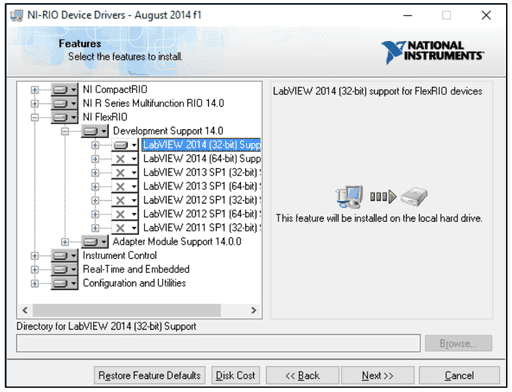
3.1.4Installation
The installation is divided into three packages:
IRS_SSV_Driver_Setup.exe
Contains the SSV drivers, installs the COM/.NET Server components.
IRS_SSV_Applications_Setup.exe
Installs the editor. Requires installation of drivers before!
IRS_SSV_ResultViewer_Setup.exe (optional)
Useful tool to open TDMS Files created by the SSV Applications.
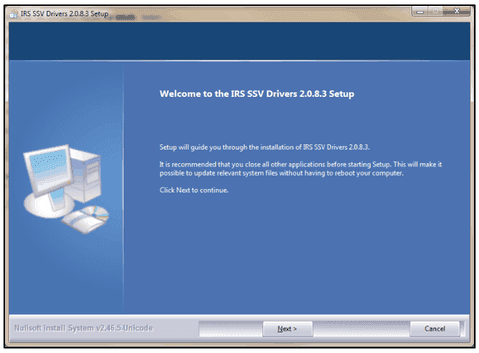
Installation is menu driven, just follow the instructions.
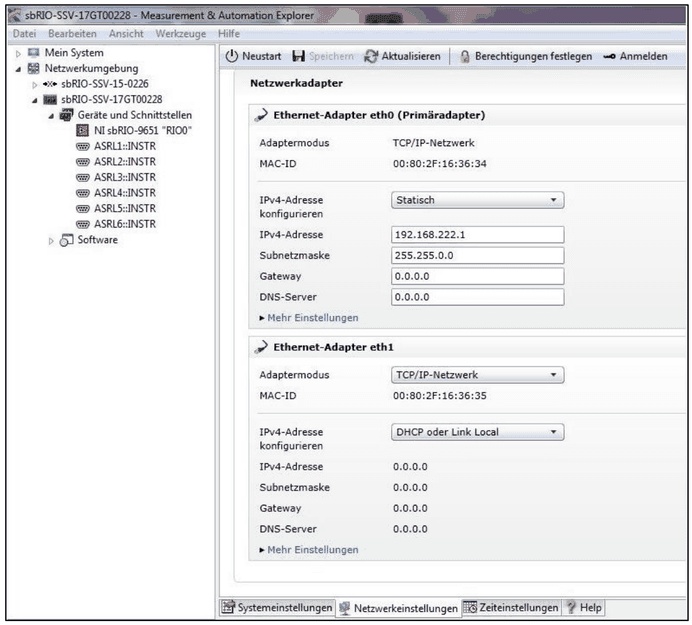
3.1.5Special Requirements sbRIO
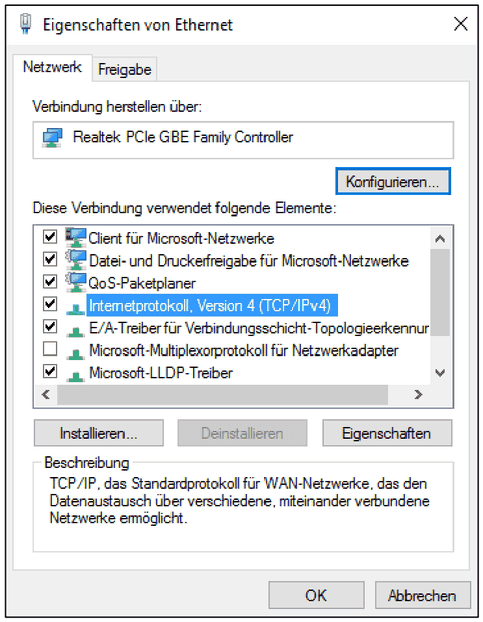
TCP/IPv4 needs to be checked.
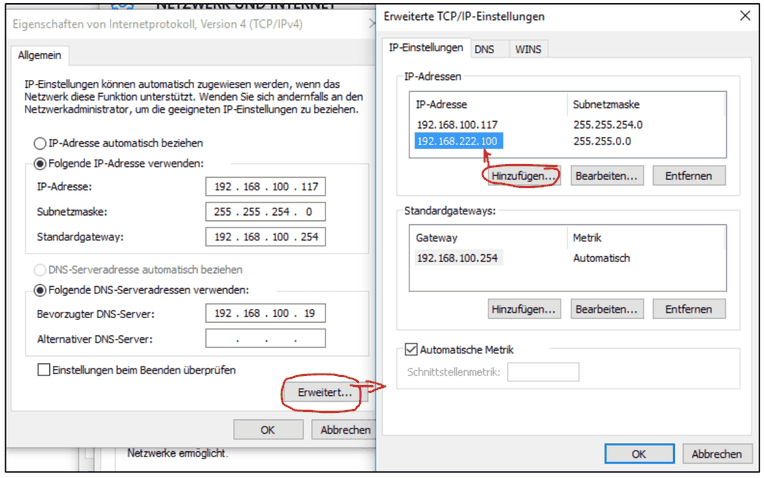
You can make changes to the IP addresses under advanced settings.
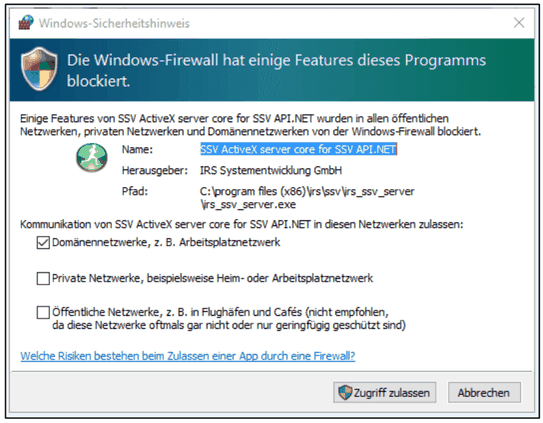
Change the firewall restrictions in case the SSV module gets blocked.
3.2Multiple sbRIO
In case there are multiple sbRIO modules in use within the same network, please pay attention: the first module can keep its IP address, all other modules need to be changed manually.
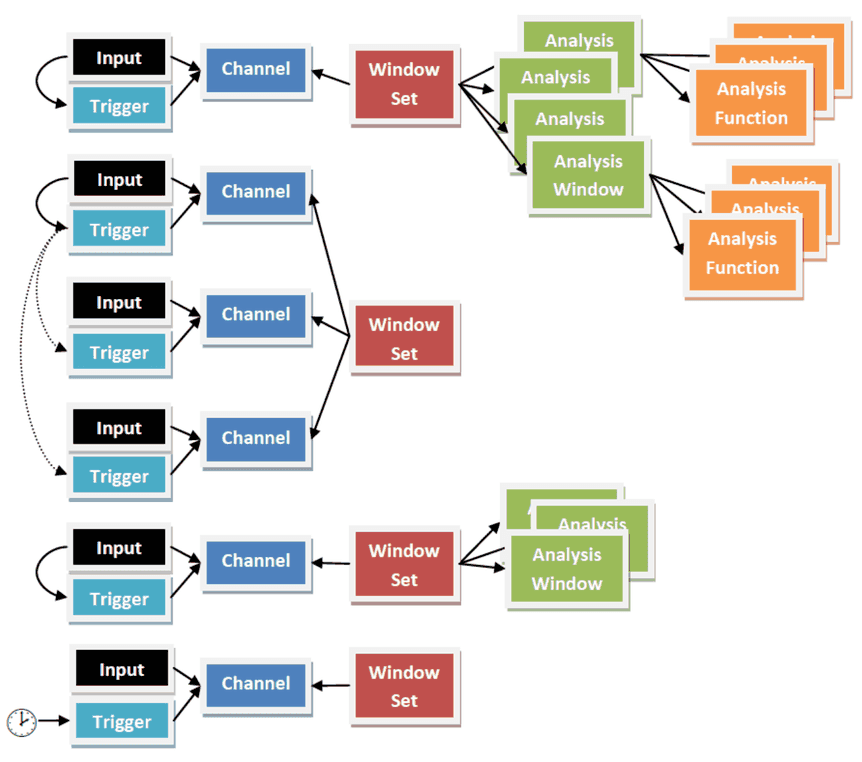
SSV Concept
4.1Analysis Project
An SSV analysis project is a single configuration file that contains all information about hardware setup, channel settings, triggers, windows and functions.
4.2Device
A “device” is defined as combination of a National Instruments FlexRio FPGA card and an IRS SSV module. It enables true parallel sampling at defined sampling rates and numbers of channels (depends on the SSV module capabilities). The device resource equals the alias definition of the FlexRio base card in MAX, e.g. “Rio01”
A device is always created from a template, which completely defines the module capabilities and characteristics. To configure a device, use the Channel Explorer
4.2.1Device Properties
User defined settings
| Setting | Description |
|---|---|
| Device Name | User defined name |
| Enabled | Device is not used if disabled |
| Description | User defined description |
| Resource | Resource description string, required to locate the hardware in the system. Must match to either resource or alias definition in Measurement & Automation Explorer |
| Options | Device specific configuration string, refer to hardware documentation. Currently unused |
Fixed settings (read only)
| Setting | Description |
|---|---|
| Type | Hardware Type |
| Number of Channels | Number of channels supported by this device |
| Sample Rate | Fixed sample rate for each channel of this device (in samples per second) |
| Range Min | Voltage representing the minimum (maximum negative) value. Also used for scaling(!) |
| Range Max | Voltage representing the maximum (positive) value. Also used for scaling(!) |
| Resolution | Resolution in [Bit] for each channel. Note that 1 bit is used as sign, so a 14-bit device has a resolution of +/- 13bit |
| Windows per Channel | Maximum number of analysis windows per channel |
| Max Window Width [ms] | Maximum size of each window in milliseconds |
| Max Period Width [ms] | Maximum total period width in milliseconds |
4.3Channel
A channel represents an analog input of the device it belongs to. Each channel represents also one trigger source that can also be used by any other channel on the same device. Each channel has its own trigger settings. A window set can be assigned to multiple channels. The capabilities of the physical channel depend on the module, refer to hardware documentation for details.
To configure a channel, use the Channel Explorer
4.3.1Channel Properties
User defined settings
| Setting | Description |
|---|---|
| Channel Name | User defined name |
| Connector | Documents the channel's connector wiring in the project |
| Enabled | Enables/Disables evaluation of the channel's results. However, other channels can still use this channel's trigger! |
| Comment | User defined comment |
| Window Set | Defines which Window Set (collection of analysis windows and functions) should be applied to this channel |
| Trigger Delay | Specifies the delay (in ms) that is applied to the sampling start after the reference trigger was received. Only evaluated for reference trigger type! |
| Channel Range Max | RPLUS only! Write down the maximal prospective voltage. Software will then choose optimal range for measurement channel. Possible ranges: 100 V, 50 V, 25 V, 12 V, 6 V, 3 V, 1.5 V. Note: Voltage range of SSV48RPLUS can only be configured in groups of channels. Channel groups are: ch0 to ch7, ch8 to ch15, ch16 to ch23, ch24 to ch31, ch32 to ch40, ch41 to ch47. For example, if you define Channel 0 to 1.5 V and Channel 5 to 100 V, Channel Range Max of ch0 to ch7 will be set to 100 V |
| Channel Range Min | RPLUS only! Write down the minimal prospective voltage. Software will then choose optimal range for measurement channel. Possible ranges: - 100 V, - 50 V, - 25 V, - 12 V, - 6 V, - 3 V, - 1.5 V. Note: Voltage range of SSV48RPLUS can only be configured in groups of channels. Channel groups are: ch0 to ch7, ch8 to ch15, ch16 to ch23, ch24 to ch31, ch32 to ch40, ch41 to ch47. For example, if you define Channel 0 to - 1.5 V and Channel 5 to - 100 V, Channel Range Min of ch0 to ch7 will be set to - 100 V |
| Scaling Factor | This factor will be multiplied with raw values (before adding offset) |
| Scaling Offset | This offset value will be added to raw values (after scaling with factor) |
| Scaling Unit | Specifies the unit for scaled values |
| Filter | Digital filter for this channel |
| Options | Channel specific option string, refer to documentation |
Run-time properties (not saved)
| Property | Description |
|---|---|
| Errors | Failed windows in last run |
| Error Info | Error information from last run |
Fixed settings (read only)
| Setting | Description |
|---|---|
| Trigger | The trigger name of this channel |
| Channel Nr | Number of this channel type within device |
| Channel Type | Type of channel |
4.4Trigger
A trigger is an event that causes its associated channel to start sampling or reset the trigger distance to 0 (starting a new measurement period). Any trigger can either use its channel (=self-trigger), another trigger (=reference trigger) or a timer as source. See Trigger Types for details.
To configure a trigger, use the Trigger Setup window.
4.4.1Trigger Properties
User defined settings
| Setting | Description |
|---|---|
| Label | User defined Label for trigger |
| Show TriggerCounter | A 'TriggerCounter' value is added to results if true |
| Master Trigger | Defines if this trigger is the master trigger. Note: there is only one master trigger allowed! Removing it will also remove all invalidated references |
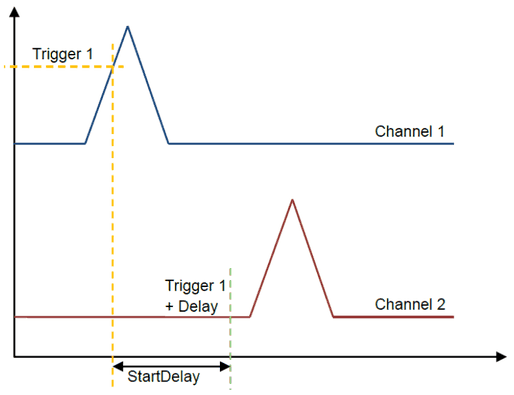
| Trigger Type | Self: Trigger source is its own channel; Reference: use source from another channel. Trigger is directly fired [StartDelay] ms after Reference Trigger; Timer: software defined periodic self-triggering after ms |
| Comment | User defined additional information |
| Edge | Trigger edge direction (falling / rising) |
| Threshold | Trigger level. If this level is exceeded (in positive or negative direction, depends on edge) the trigger gets activated |
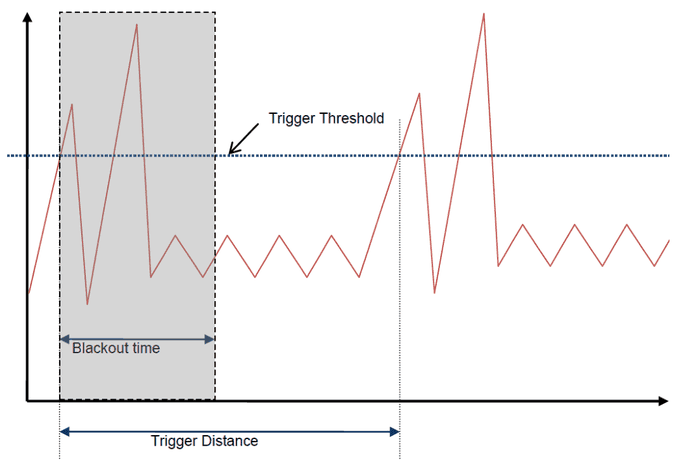
| Blackout Time | After triggering, any following trigger event is ignored for this time |
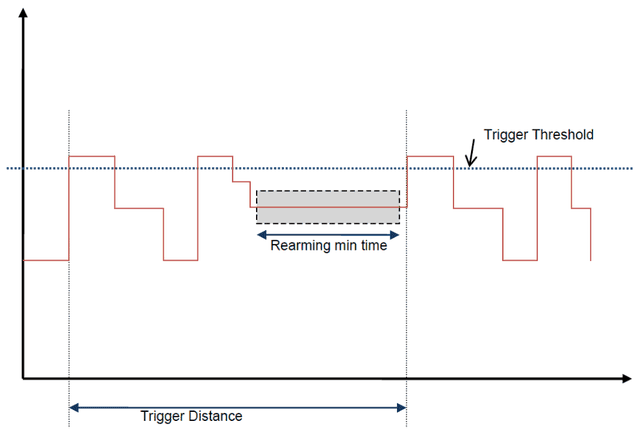
| Rearming LowerBound | Trigger is rearmed if the signal stays between RearmingLowerBound and RearmingUpperBound for at least RearmingTime [ms] |
| Rearming UpperBound | Trigger is rearmed if the signal stays between RearmingLowerBound and RearmingUpperBound for at least RearmingTime [ms] |
| Rearming MinTime | Trigger is rearmed if the signal stays between RearmingLowerBound and RearmingUpperBound for at least RearmingTime [ms] |
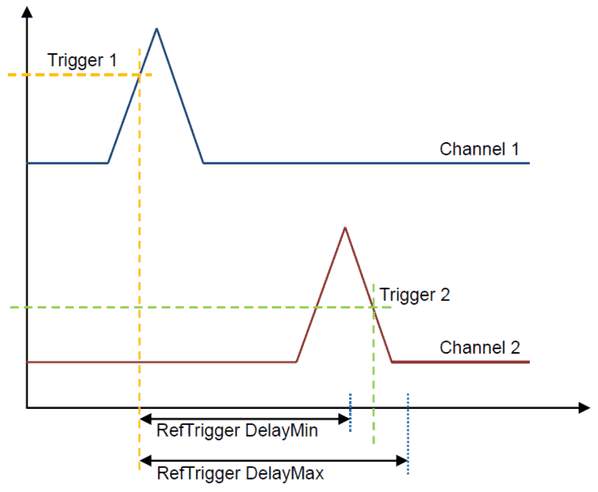
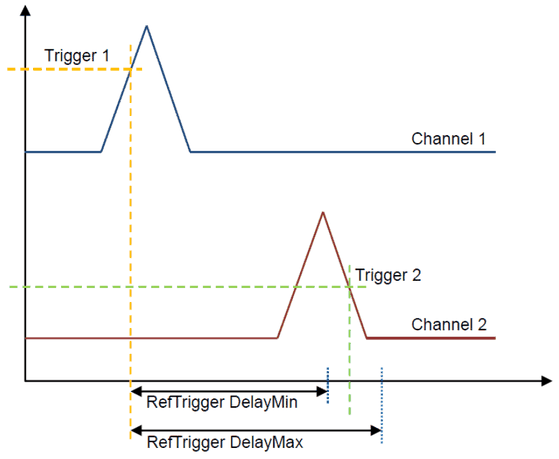
| RefTrigger Delay Min | Minimum allowed time between this and reference trigger event in [ms], used for validation. Only evaluated for reference trigger type! |
| RefTrigger Delay Max | Maximum allowed time between this and reference trigger event in [ms], used for validation. Only evaluated for reference trigger type! |
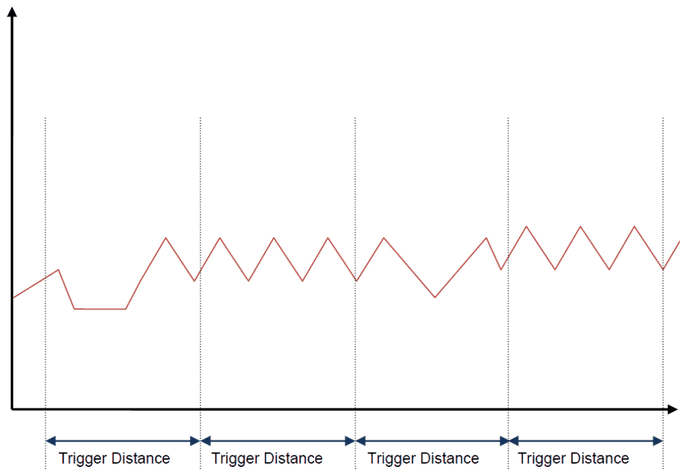
| Trigger Distance | Defines the software trigger rate in [ms] (only for Timer trigger type) |
| Trigger Distance Min | Minimum time between two trigger events in [ms], used for validation |
| Trigger Distance Max | Maximum time between two trigger events in [ms], used for validation |
| Reference Trigger | The trigger that will be used for this channel (only for Reference trigger type) |
Fixed settings (read only)
| Setting | Description |
|---|---|
| Trigger ID | Unique identifier |
| Source | Trigger hardware source (Channel ID) |
4.4.2Trigger Types
Each trigger can be configured as
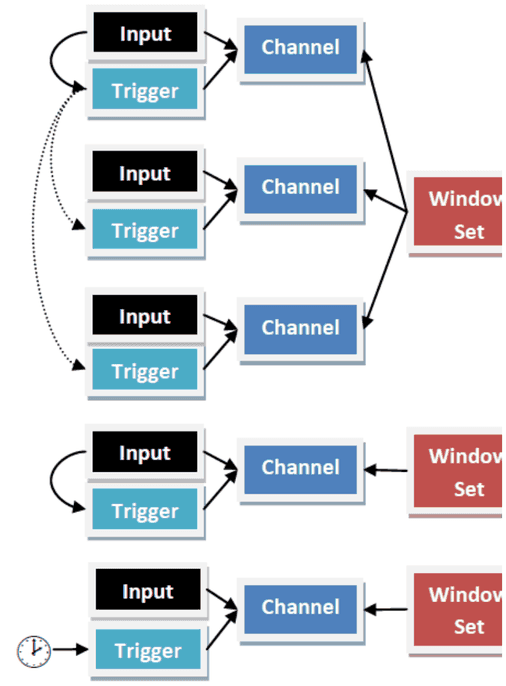
Example Setup
- Channel1: Self Trigger
- Channel2: Reference Trigger (Trg01)
- Channel3: Reference Trigger (Trg01)
- Channel4: Self Trigger
- Channel5: Timer Trigger
Self-Trigger
In Self Trigger type the trigger uses its associated channel input as trigger source. You need to specify edge direction, threshold, blackout time (optional), and rearming (optional). If also a reference trigger is defined in this mode, the reference trigger is only used for additional timing checks (see Trigger Test Functions).
Reference Trigger
When a reference trigger is used, the physical channel input is ignored and another (existing and configured) trigger signal is directly used instead. In this case the trigger event from another trigger source is used. A start delay can be applied to the channel to align similar signals on different channels with a known offset. Each channel can define a different [Trigger Delay] [ms], which is added to the original trigger time. Thus, it is possible to create a group of similar, but channel-wise delayed signals, that can share the same window set after this alignment. This is useful for dependent signals that should be captured synchronous relative to a special event.
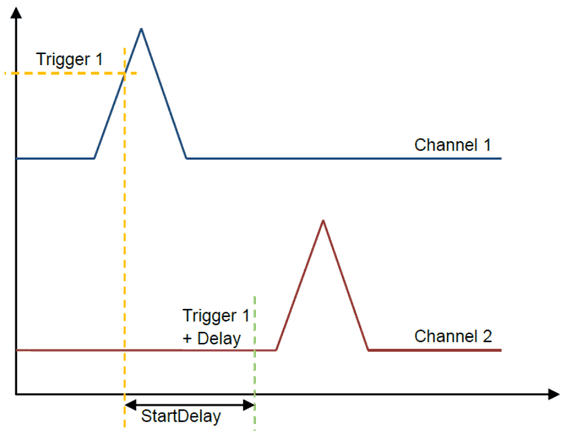
Example: a motor control unit drives 6 cylinders with almost identical injection signals which are shifted by 60° per revolution. In this case you could use the first channel as reference and apply appropriate offsets to channels 2-6. Now you have similar triggered curves on all 6 channels and you could use a single window set of analysis functions.
Timer Trigger
Another option is to define a "Timer trigger", which periodically creates a trigger event every [Trigger Distance] ms. This is especially useful for static or unstable signals that could otherwise not be properly triggered and observed.
Blackout Time (hold off)
After a trigger event the trigger will ignore any further events for this time (in ms). A value of 0 deactivates this feature It is recommended to specify at least about 20% of expected cycle time to prevent false triggers due to noise etc.
Trigger Rearming
Some signals have no characteristic trigger level that allows defined triggering at a certain point. In many cases, the rearming feature can help here. If the signal remains within a certain voltage range (Rearming LowerBound/UpperBound) for a defined minimum amount of time (Rearming min time) the trigger is armed and will fire on the next valid threshold/edge condition. Note that the trigger does not immediately fire when the rearming condition matches! It is just a precondition that “allows” the triggering.
If any rearming time is defined, the next trigger will not fire until the signal has passed the rearming conditions.
Reference Trigger Check
In this case two channels use their own trigger sources (Self Trigger). If also a reference trigger source is configured, it can be used to observe timing constraints between the own and reference trigger: In case the measured distance exceeds the limits, a "TriggerDelay" error is reported.
In this example the TriggerRefDelayMin and TriggerRefDelayMax parameters define an additional test.
Trigger Distance Check
If the trigger parameters "Trigger Distance Min" and "Trigger Distance Max" are set unequal to 0, an additional check of the self-trigger period is performed to detect jitter or missing triggers. In case the measured period exceeds the limits, a "TriggerDistance" error is reported.
Trigger Counter
If the trigger parameter “Show Trigger Counter” is set “true” every trigger event is counted. This function is commonly used to check a “single event”.
4.5Window Sets
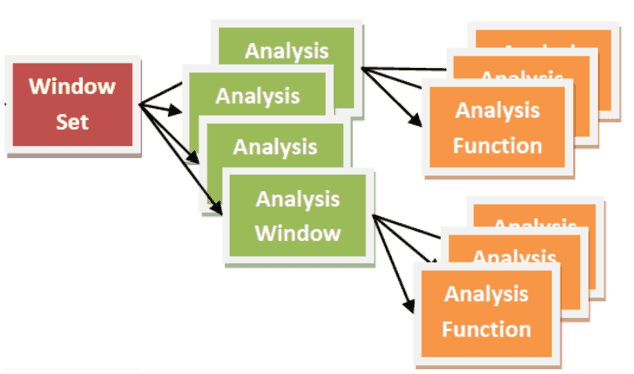
A Window Set is a named collection of AnalysisWindows. Window Sets can be assigned to any number of channels, but all assigned channels must use the same device type. The number of windows per window set and analysis functions per window is limited by the device properties.
4.6Analysis Windows
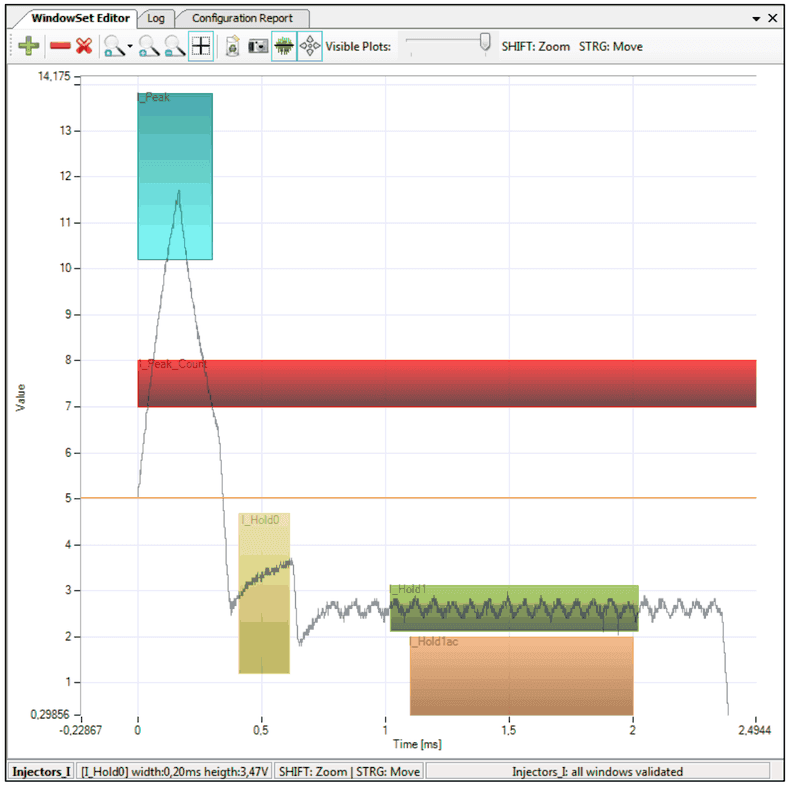
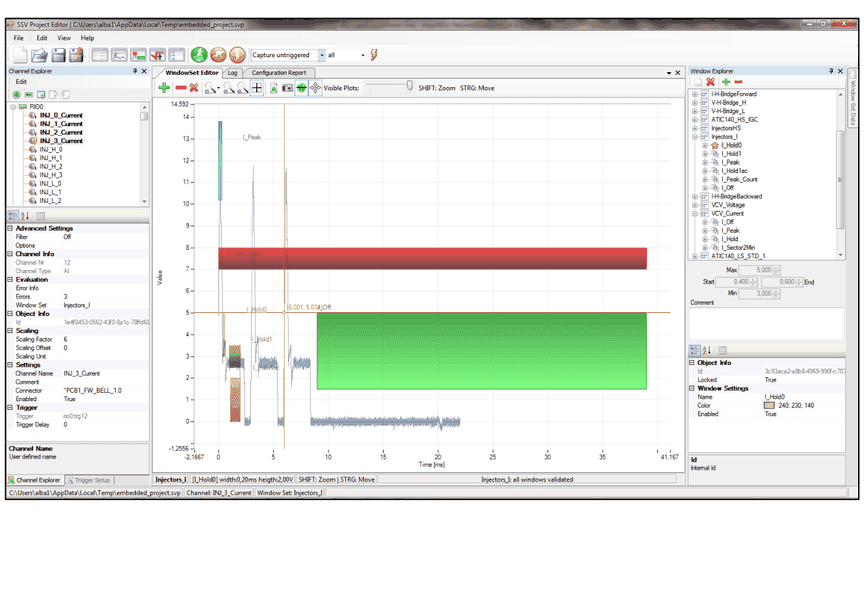
An Analysis Window defines a certain time period relative to a trigger event. An Analysis Window itself has no functionality at all, it acts as a container for the Analysis Functions it can host. It is represented as a rectangular area in WindowSet Editor (see sample below), however the upper and lower borders are only relevant to the UpperLimit and LowerLimit functions. All other functions just use the time period (left and right borders) and provide their own additional parameters.
AnalysisWindows are organized in WindowSets.
4.7Analysis Functions
Definition
Analysis functions perform real-time tests within one specific AnalysisWindow.
Characteristics
Each AnalysisWindow has a fixed set of (physically hard-wired) applicable AnalysisFunctions.
Each window may activate all available functions simultaneously without affecting overall performance. Only activated functions will be evaluated and reported at run-time.
Each function manages its own error counter (per channel and window). This counter is increased by 1 if the test conditions fails (even in case of multiple failures) within the window. The maximum number of failures is limited to 255. The value will remain at 255 if more errors are detected (no overflow).
Also, each function has one return value, which is usually used as measurement value, even if no error occurred. To return a valid value, the complete window has to be executed at least once. In other words, it is not possible to return a valid measurement value if no trigger occurred or at least one period of the signal was read. To support evaluation, each value has also a valid flag.
To reset all error counters, read the SSV results from the module (it is not possible to reset a single error counter)
Function Overview
4.7.1Average
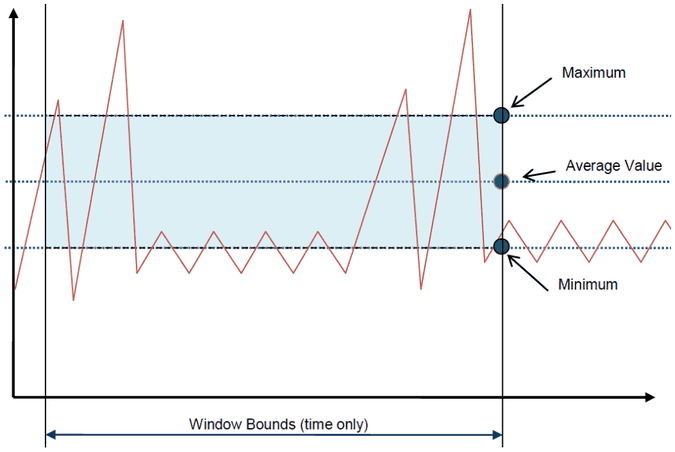
Average calculates the arithmetic average value of all samples within window (left and right) bounds. Limits are applied when the right border of the window is reached. If limits are exceeded, the "Average" error counter is increased by 1 (up to 255, then remains at 255)
Output Value
Arithmetic average value, evaluated 1 sample after window is completed
Parameters
Minimum
Lowest allowed value of calculated average value
Maximum
Highest allowed value of calculated average value
Example
4.7.2Area Check
Checks min/max time of consecutive samples between high and low threshold.
Test Result
The function is PASSED if the measured time is within the time limit min/max
Parameters
Time Limit Max
Max time (in milliseconds) of successive(!) samples in the area
Time Limit Min
Min time (in milliseconds) of successive (!) samples in the area
Upper Bound
Defines the upper level of detection area.
Lower Bound
Defines the lower level of detection area.
Entry Check Mode: Defines if each section of the signal, which is located between the Upper and Lower Bound must be within Time Limit Min and Max or just the largest section of consecutive samples.
- 1 = strict: each section must be within the time limits.
- 0 = tolerant: just the largest section must be within the time limits.
Area Check Scenarios
a) No pulse allowed
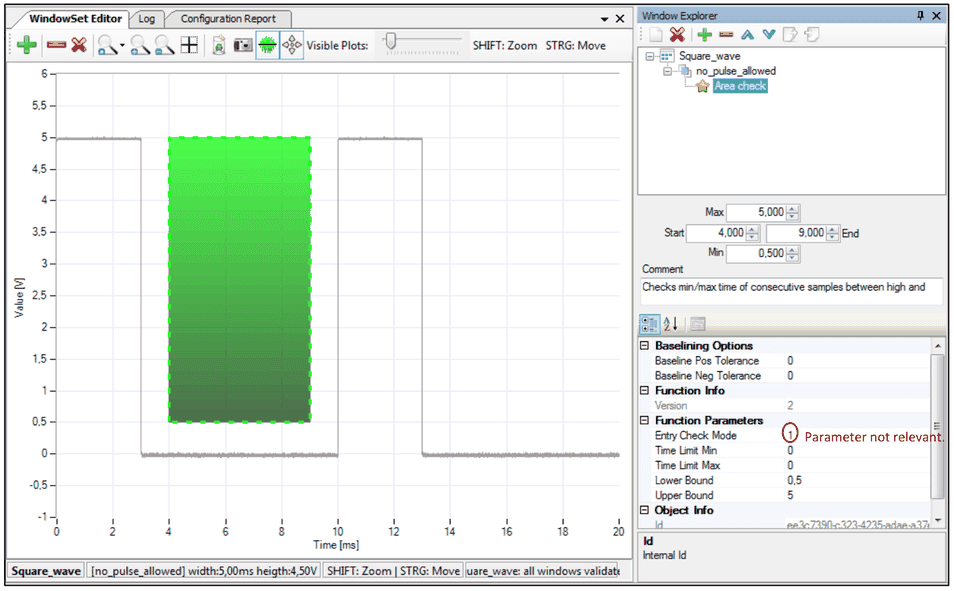
This mode is used to verify that no signal appears in the defined period of time. If there is a pulse then it is a failure. Therefore, min/max limits are set to 0.
b) 100% pulse
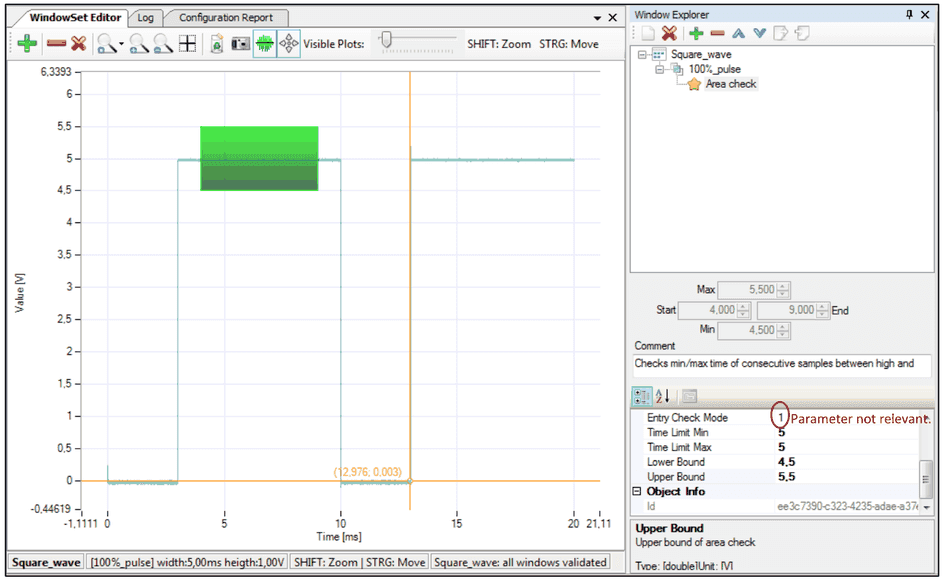
Signal appears entirely from start to finish in the defined period. Time Limit needs to be exactly as long as the window.
c) Every pulse between the limit
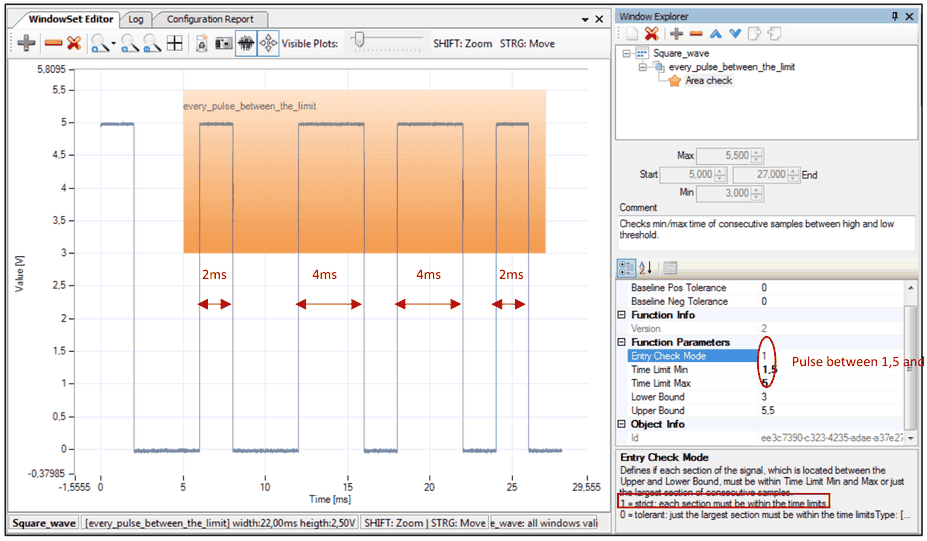
1 = strict: each section must be within the limit.
d) Maximum pulse between limit
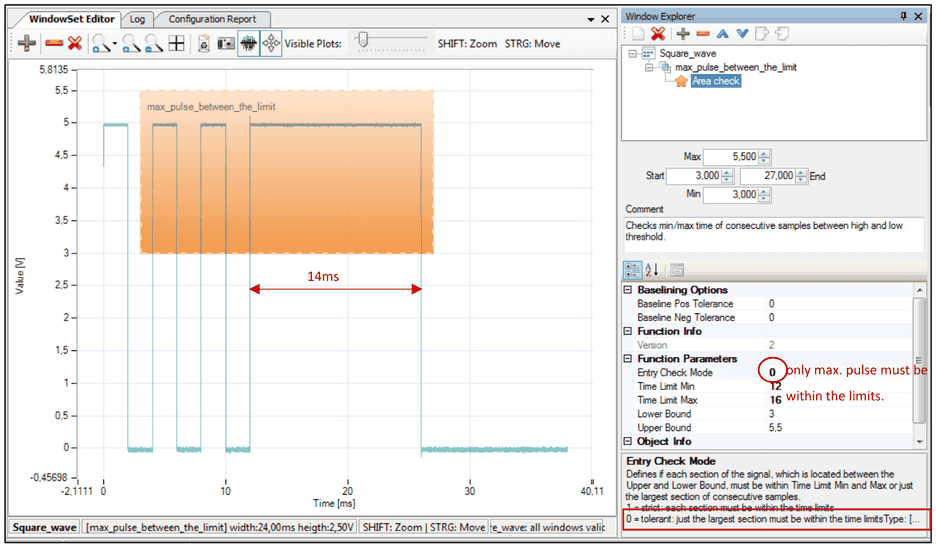
0 = tolerant: just the largest section must be within the time limits.
4.7.3Duty Cycle
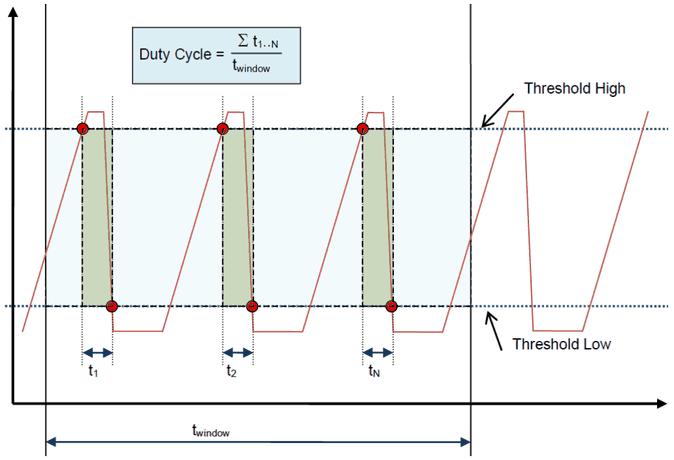
Duty cycle calculates the ratio of signal high time (time between high and low threshold transitions) compared to window total time.
The "High" phase starts when the signal transitions through high threshold in rising edge and remains until the signal passes low threshold in falling direction. The sum of high phases divided by the window total time is evaluated as duty cycle and will result in an output range of 0...100%
Output Value
Duty cycle (0...1)
Parameters
Minimum
Lowest allowed duty cycle (>=0%)
Maximum
Highest allowed duty cycle (<=100%)
Test Result
The function is PASSED, if duty cycle is between (or equal) minimum and maximum value. Otherwise the error counter is increased by 1 (up to 255)
Example
4.7.4Edge Counter
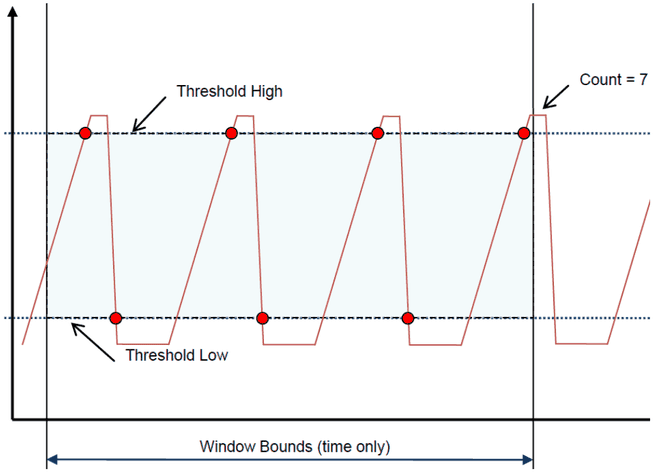
Duty cycle counts the transitions between high and low threshold detection within window timespan.
The "High" phase starts when the signal transitions through high threshold in rising edge and remains until the signal passes low threshold in falling direction. The sum of changes within window total time is evaluated as edge count.
Output Value
Edge count (max. 65536)
Parameters
Minimum
Minimum number of expected edges (>=0)
Maximum
Highest number of expected edges (<=65536)
Test Result
The function is PASSED, if edge count is between minimum and maximum value. Otherwise the error counter is increased by 1 (up to 255)
Example
4.7.5Upper/Lower Limit
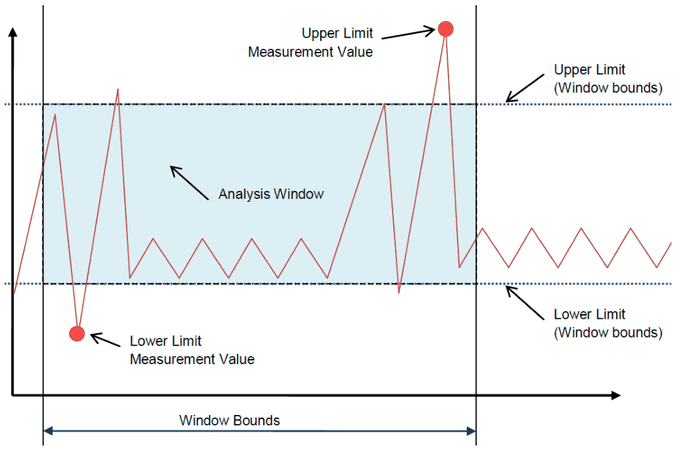
Upper Limit and Lower Limit detect violations to the respective border of the window. In contrast to most other functions, the errors are detected immediately after the first limit violation.
UpperLimit and LowerLimit are independent functions, both can be optionally and independently applied to each window. Each function has its own error counter and return value. If limits are exceeded, the "Average" error counter is increased by 1 (up to 255, then remains at 255).
Output Value
The min/max value within window time bounds.
Parameters
Check max (/min) value in window
If selected, the function also checks if the detected measurement value (lowest/highest value) is located within window bounds. Otherwise the function fails, even if the specified limit was not violated.
Minimum
Lowest allowed value within the window time bounds.
Maximum
Highest allowed value within the window time bounds.
Example
4.8Sources
Each single result has a unique source string in report. The project settings define, how the source string is built in report and evaluation
Signal Sources
Signal sources are built as a combination of <Device>/<Channel>/<WindowName>/<FunctionName>
(where <Device> and <Channel> content depends on ProjectSettings/Resource Lookup Mode)
e.g.
RIO0/INJ_0_Current/I_Hold0/Average
RIO0/INJ_0_Current/I_Peak/UpperLimit
Virtual Sources
Most measurement refer to a distinct combination of device/signal/window/function. There are some situations where an error or warning has to be reported that can't refer to a window function:
Device/Signal/TriggerCounterDevice/Signal/TriggerDelayDevice/Signal/TriggerDistance
e.g.
RIO0/INJ_0_Current/TriggerDistance
4.9Test results
After starting, all SSV modules will permanently observe analog inputs according to project settings. To get the current observation status, a "read results" call is required (API function).
This will
- return every measurement value
- return all error counters
- reset all error counters
A preview of this action is also available in the project editor, see Log Window
4.10API
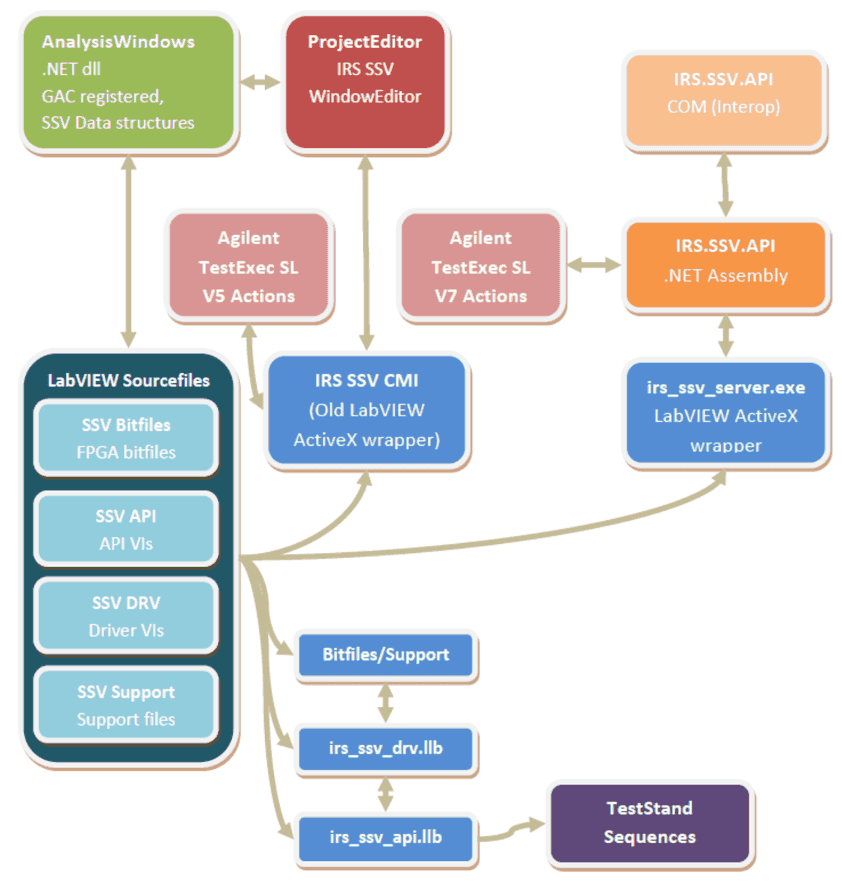
SSV Software Architecture Overview
4.10.1LabVIEW
See SSV API.LabVIEW.chm
4.10.2.NET
See SSV API.NET.chm
4.10.3Using the API
To use the project configuration file in your test environment, choose one of the available APIs (Application Programmer Interface):
The =>.NET API is intended for use in non-LabVIEW driven environments that support .NET. Because FlexRIO is heavily LabVIEW dependent, the core driver internally still uses LabVIEW and exposes its functionality to a .NET wrapper and built on that, also to COM (ActiveX). In other words, if your test environment supports the direct use of LabVIEW VIs (e.g. LabVIEW program, NI TestStand), you should prefer the =>LabVIEW API. The functionality is almost the same, however there are small differences in detail.
The installation requirements for both architectures are identical, as the LabVIEW driver internally also requires some .NET assemblies. LV and .NET requirements see System Requirements
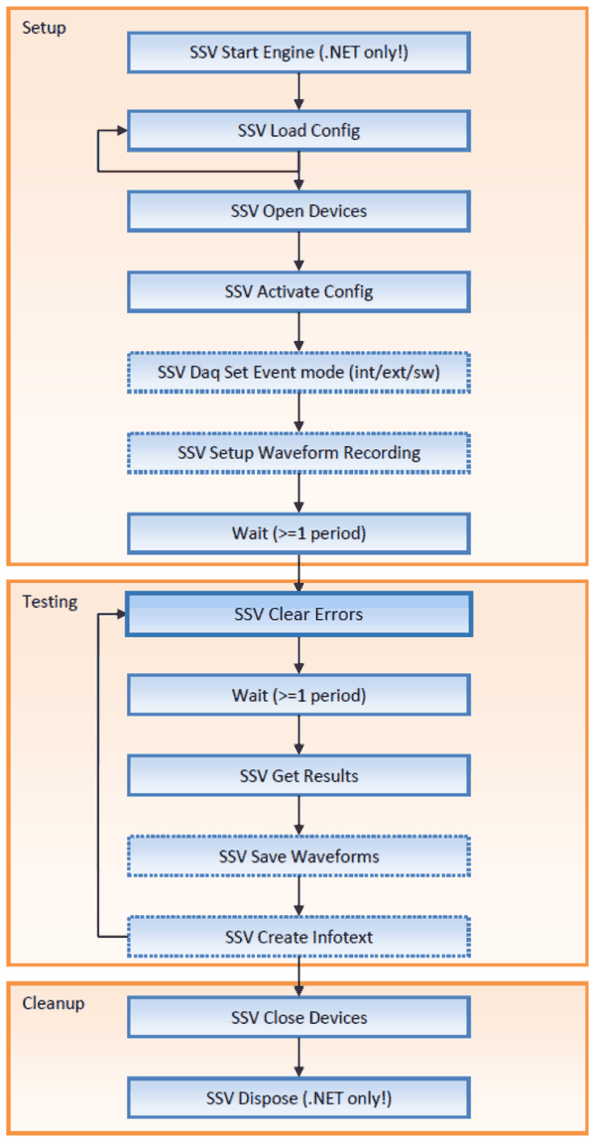
Overview
Whatever API you choose, the general handling is the same. The following chart shows the basic operation of SSV (without optional features functions like baselining, digital IO etc.) The following picture describes the most common use case of SSV modules in an observation loop. For more advanced features refer to the API documentation(s).
Result Evaluation
Read Results / Evaluate Results / Get Results / Get All Values?!
Get Results
Reads data from FPGA, evaluates the raw data according to user settings and returns all data in one step. This function should be preferred over the combination of ReadResults + Evaluate + GetAllValues if you don't need to re-evaluate the data. Calling this function also resets the SSV error counters of all devices. Recommended method for most use cases. Refer to “Evaluate Results” for description of data format.
Read Results
Reads a new result set from SSV FPGA and (optionally) evaluates the results into an internal collection, but does not return the evaluation results! You can read these values using GetAllValues or GetValue. It also resets all error counters Note that this older method does not provide the “Include Warnings” option for evaluation. Warnings are included if “Errors Only” is false. To get a result set with only errors but also warnings, use Get Results instead!
Evaluate Results
(Re-)Evaluates the raw measurement values from a previous “Read Results” call per activated device and activated channels. It does NOT read data or reset errors from hardware! Evaluate Results returns a human readable set of result items with the following elements:
- Name (Signal Name)
- Errors (number of detected errors since last read action)
- Source (unique data identifier e.g. device/signal/window/function)
- Infotext (usually applied limits)
- Value (Measurement value, meaning depends on function)
- Upper Limit (max inclusive limit for value)
- Lower Limit (min inclusive limit for value)
Get All Values
Returns all evaluated results or evaluates them, if not already done. No hardware access is performed! This function was introduced to extend the Read Results method with the additional parameter “Include Warnings”, while maintaining compatibility to older test code. Usually only called internally or to re-evaluate results with “Include Warnings”. => Use either “Read Results” or “Get All Values”, not both
Get Value
Returns a single result item by querying its source string. Note that this function doesn't access the SSV driver but fetches the value from the internally cached "Results" collection!
Include Warnings
If this option is selected, you will also get results that could not be evaluated as an error but might be a problem. A warning will report an error count of “-1” Possible warnings:
- Missing trigger
- Window results reported as invalid (e.g. window exceeds cycle time and could never completely evaluated)
Using multiple configuration files
The driver supports the loading of multiple configuration files. Because the loading of a configuration is relatively slow, all configuration data is internally cached. You need to load each configuration only once in your test environment.
Workflow for multiple project configuration files
- System setup
- Load configuration file A
- Load configuration file B
- Load configuration file C
- Load configuration file D
- Open Devices
- Activate configuration file A
- Clear Errors (?)
- Do some testing / Wait
- Read Results
- Activate configuration File B
- Do some testing / Wait
- Read Results
- same for files C and D…
- Repeat with 7. as needed
- Close Devices
- System Cleanup
4.11Baselining
Baselining is a method to narrow down liberally defined general limits to unit specific limits during measurement. This is accomplished by creating a so-called baseline, which collects average expectation values for each measurement during a calibration run. This baseline is project and unit specific and can only be applied as an addon to the original project file.
Based on these average values, a baseline tolerance can be (optionally) defined for each measurement value. During test run, these new tolerances will be combined with the window function limits and usually result in a smaller tolerance band. However, the resulting dynamic limits cannot exceed the original limits.
The test report will contain the used total limits (project limits + dynamic tolerance).
Using Baselining
- Load SSV Project configuration file
- Create a new baseline
- Create multiple measurements in desired environment
- Activate baseline (calculates the averages, modifies the original limits and writes it to FPGA)
- (optional) Cleanup baseline (removes measurement values and keeps the averages)
- Save the baseline to file (
ssv_api:baseline_Save)
Getting Started / Workflow
The configuration of SSV modules is best explained with a typical workflow in a test project:
- Select appropriate SSV modules for your test scenario
- Setup wiring
- Setup SSV software configuration using SSV Project Editor
- Use the created configuration with LabVIEW or .NET API in your test system:
- Load configuration file(s) (XML)
- Activate configuration (Download to FPGA => SSV starts)
- Execute test scenarios (or just wait)
- Periodically fetch evaluated results from SSV
- Check for errors
- Store recorded waveform in case of detected errors
- Evaluate measurements
- Clear SSV error counters
- Repeat with 4.
5.1Creating an SSV Project

To create a new project, use the menu "File/New Project" or the toolbar button Use menu "Edit/Project Settings" to define name, description and query mode.
5.2Configure Hardware
Register the installed hardware by adding a new device using Channel Explorer. Configure the new device (provide a label, assign the hardware resources and range) Repeat this step for all installed devices.
5.2.1Add device - SSV sbRIO module

To add a new device, click on the green plus button, then select the template matching to your hardware:


5.2.2Add device - SSV FlexRIO module
To add a new device, click on the green plus button, then select the template matching to your hardware:


5.2.3Remove device

To remove a device select it and click on the green minus button. This completely removes the selected device and all associated channel and trigger settings. Window settings will not be affected.
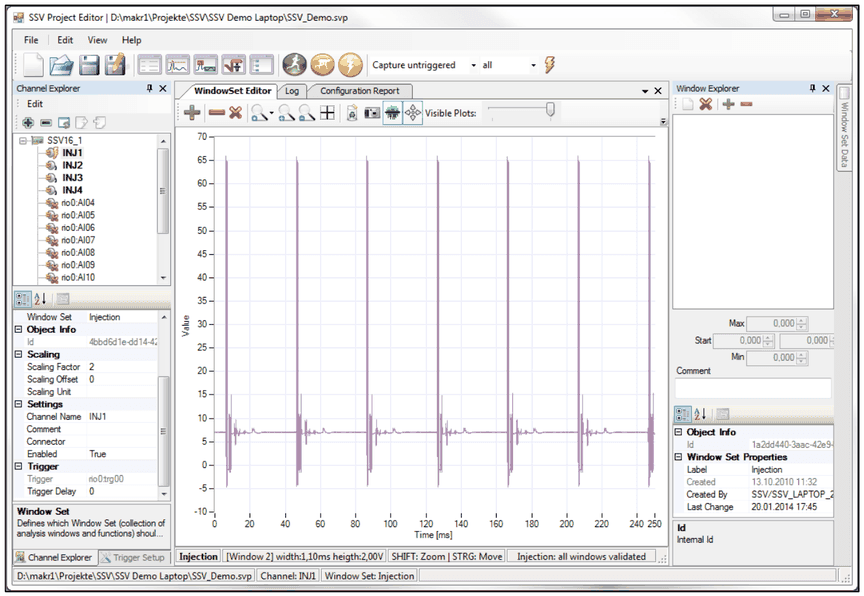
5.3Capture untriggered snapshot
Before first use, set the application options correctly (Edit/Options) to define the data acquisition tool, sample duration and path Perform “Capture untriggered” command from the toolbar. Each channel will show the capture data when clicked.
5.4Setup triggers
Having information about the signal curve, it is now time to analyze the signal and define appropriate triggers for each channel. Refer to “Triggers” chapter for details.
5.5Capture triggered snapshot
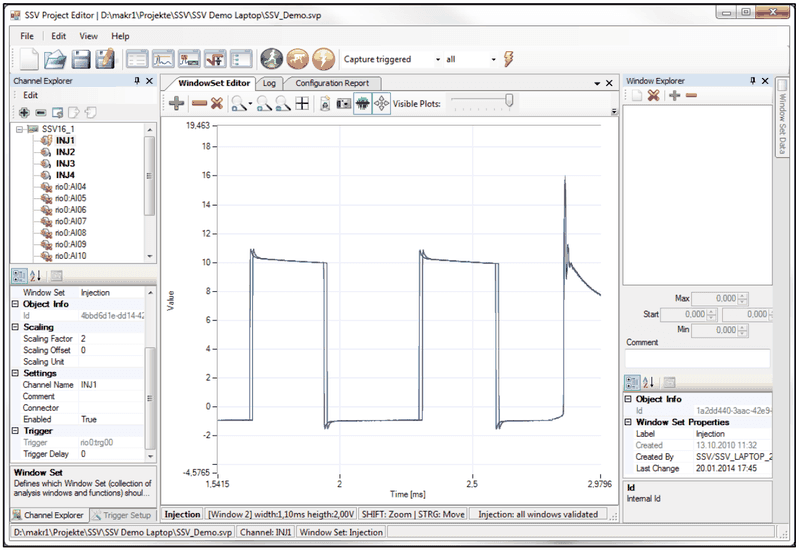
To test the triggering, perform a “Capture triggered” command. Ideally, each channel will now contain one or multiple cycles of the triggered signal. These iterations can also be overlaid (using the “Visible Plots” slider) to check the signal jitter.
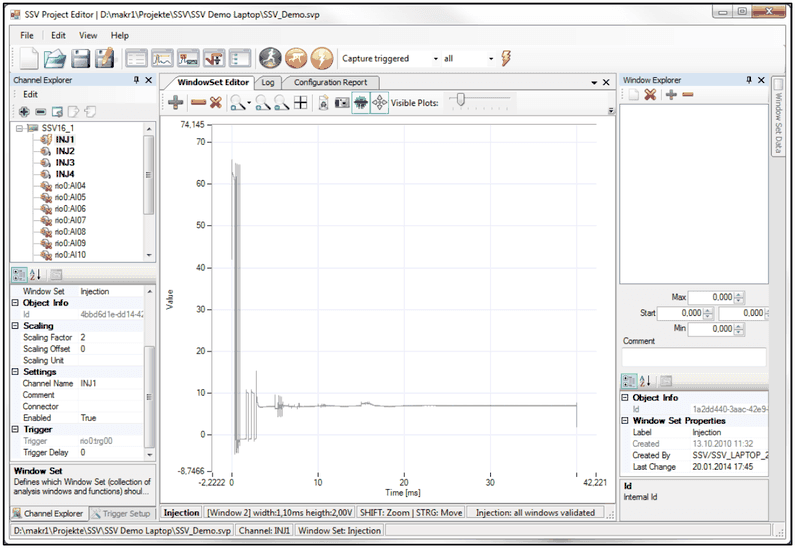
Comparing multiple periods and jitter of your signal using the "Visible Plots" slider:
5.6Create Window Sets
Before you can define AnalysisWindows for a measurement, you must define a WindowSet and assign this set to the channel. See also Window Sets.
Adding new window sets
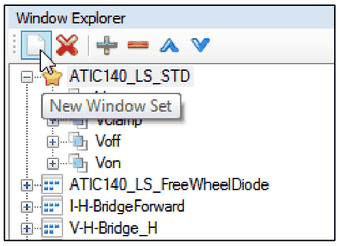
Click on the toolbar button to create a new window set:
Rename Window Set
Use the Property Editor or F2 to rename the new Window Set.
Deleting a window set
Click on the red cross in toolbar or use the context menu to remove a window set:
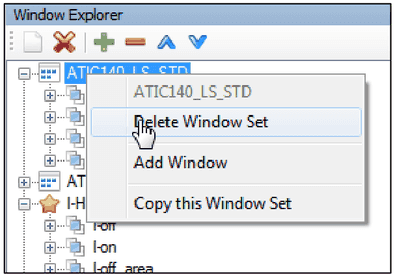
This will delete also all windows of this window set. Note that all existing references to channels will be removed before the window set is deleted. In order to just deactivate a window set, simply remove its reference in channel setup. It is not required to use every existing window set.
5.7Add Analysis Windows
When the trigger definition is finished, analysis windows and functions can be assigned.
Simply create a window set and add new windows upon the signal curve to define areas of interest. These analysis windows identify a start and end point relative to the trigger point. Each window set can contain up to 10 (depends on selected hardware) windows. Each channel can use its own window set or use an existing from another channel, if the signal is similar.
Repeat this for all relevant channels. As soon as a window set is assigned to a channel, some or all supported analysis functions can be added to the window. After configuration of the function parameters, your project setup is complete and ready to run. This configuration will be downloaded to the defined devices and perform autonomous real-time analysis according to your configuration.
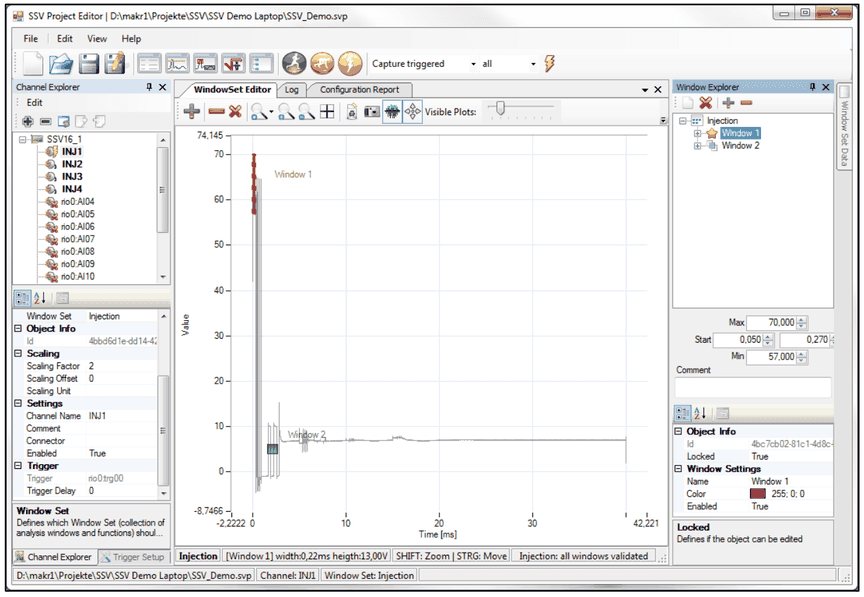
5.8Add Analysis Functions
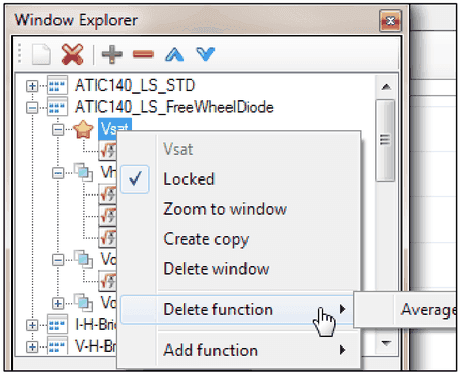
To add or remove functions to the window, use either Window Explorer or the Window Context menu. Each window has a fixed (hard wired) set of supported functions (defined by selected hardware). Adding a function in fact just activates the evaluation on the board.
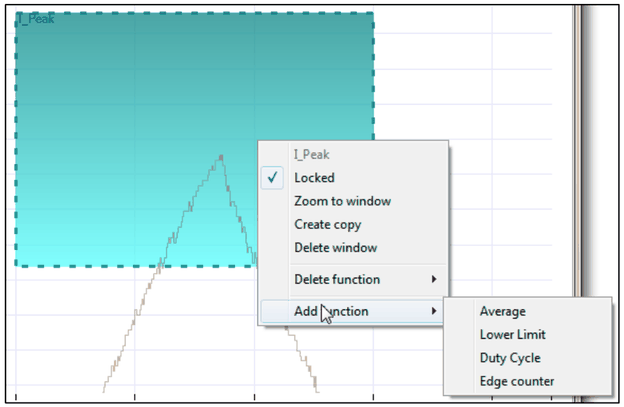
5.9Assign Window Set to channel(s)
To use a window set, simply select an existing window set name for the "Window Set" property in Channel Explorer. To remove the assignment, clear the text.
5.10Perform test
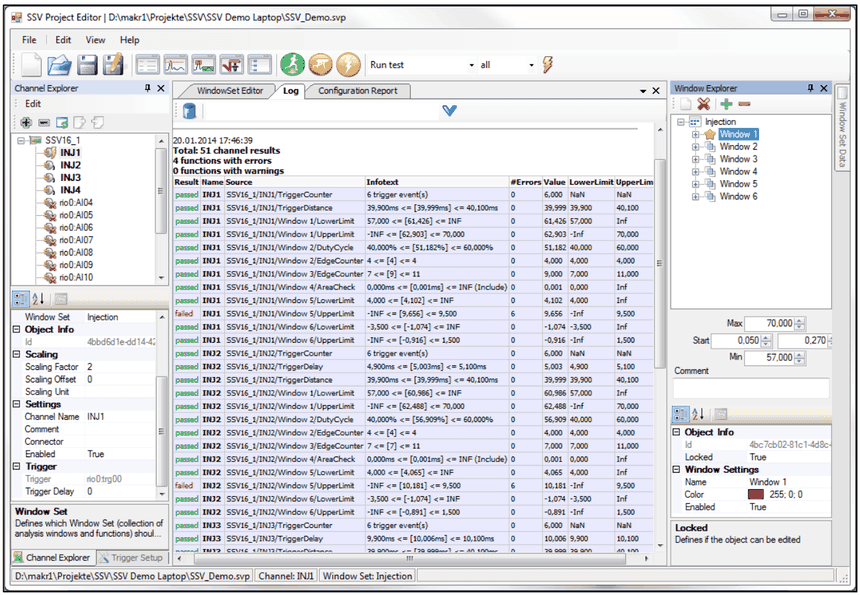
To get a preview of the analysis function results, the intermediate configuration can be tested at any time during setup. Perform a “Run test” command to try out the configuration. This will do another data acquisition as well as adding the evaluated results to the “Log” window.
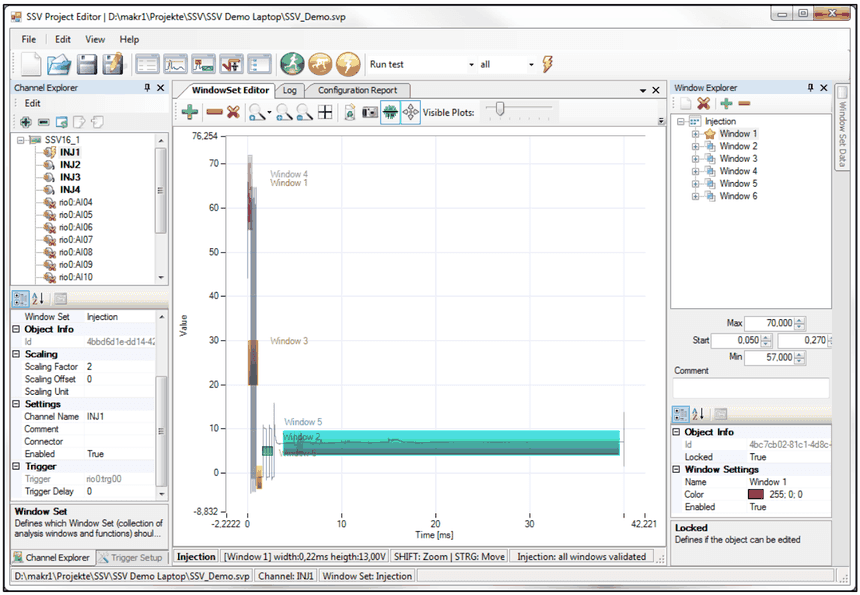
5.11Check Report
The "Run Test" function will also generate a report including all test functions, including measurement values and limits. Analyze the report to find critical issues:
5.12Save Project
Use “Save configuration (as…)” to save the complete configuration data as a single (XML) file. The saved project file can now be used e.g. in a test sequence using the provided SSV API.
SSV Editor User Interface
6.1Dock Panels
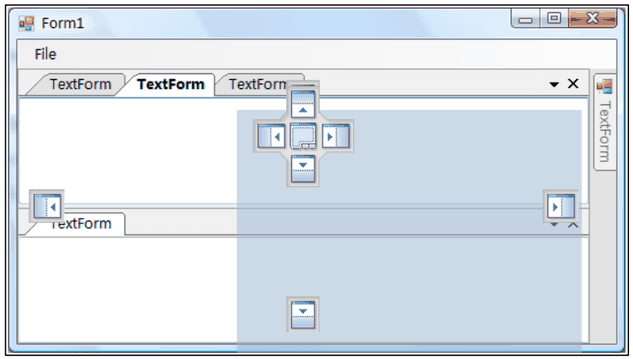
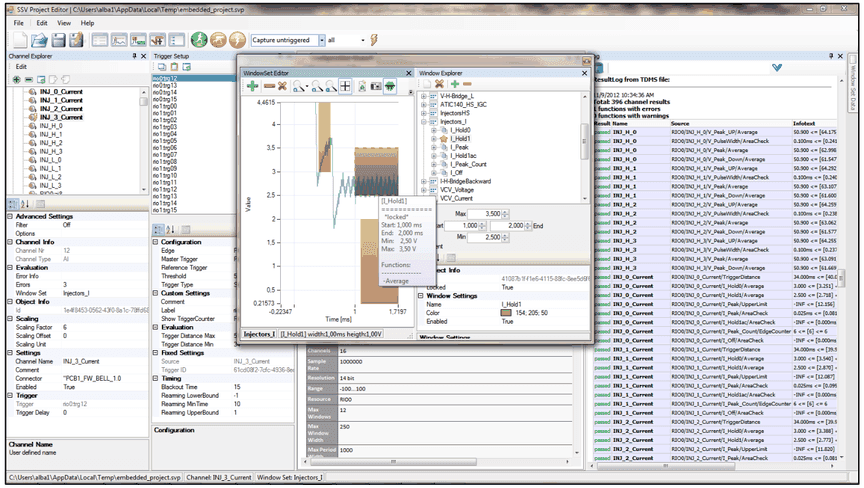
The user interface uses a dock panel system, which allows the user to customize it to adapt to different use cases or screen resolutions. Almost every pane (sub-window) can be dragged around, made floating, dock to each other or over another: simply drag the title bar of a pane and drag it to its destination. If no other window is under the cursor, the window will become floating. You will see a cross of blue icons when dragging over another window. Drop the window on the appropriate icon to dock it to the left, right, top or bottom side or drop it in the middle to create a tab overlay.
Example
In this picture, the window explorer is floating with the window explorer docked on its right side. The Trigger Setup pane is docked to the right of the Channel Explorer and also Log right to Configuration Report.
6.2Toolbar

(from left to right)
New Project
Creates a new project
Open Project
Opens an existing project
Save Project
Save the current project
Save Project As...
Save the current project to a new location and keeps that location
Channel Explorer
Opens the Channel Explorer pane, if not already open
Trigger Setup
Opens the Trigger Setup pane, if not already open
WindowSet Editor
Opens the Window Set Editor pane, if not already open
Window Set Data
Opens the Window Set Data pane, if not already open
Window Explorer
Opens the Window Explorer pane, if not already open
Capture untriggered data
Creates a snapshot of all enabled channels in project (see Options for default setting) without applying any trigger settings
Capture triggered data
Creates a snapshot of all enabled channels in project (see Options for default setting) with actual trigger settings
Run test
Activates the current project settings to hardware, waits the specified delay time and returns the test results and recorded channel data
Command
Selects the command to perform when pressing the "Execute" button
Channel Selection
Selects the channels that will be included in the recorded TDMS file (all / selected)
Execute button
Executes the selected command (same like pressing Capture (un)triggered / Run Test buttons)
6.2.1Channel Explorer
The Channel Explorer allows you to add new hardware to your project and to configure all relevant settings for each device and channel. Only whole devices can be added or removed, adding a single channel is (also physically) not possible. Channels are displayed in a tree view under their devices and sorted either by name or channel number. Press the sort button to change the sort order.

Select a channel or device from the tree view and use the property editor to configure details. When selecting a channel, the window editor will also automatically update the display to show the associated window set (if any) and recorded channel preview data (if available)
Status information
The channel name is displayed in different styles for special status values:
- Bold: highlights channels that use the currently displayed window set
- Italic: channel is unused (has no window set assigned)
- Red: recorded channel (open TDMS file) has reported an error
- Green: recorded channel (open TDMS file) has no error
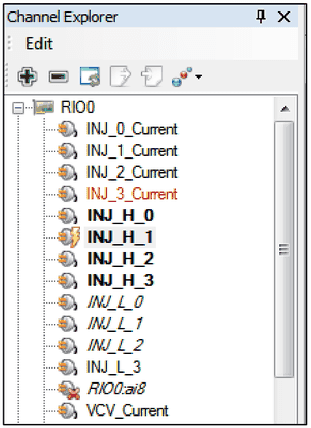
The Property Editor allows you to edit certain channel parameters. Read only properties are grayed out. For a detailed description of all available properties, see chapters Device and Channel
Editor view samples


Export channel settings

Generates a text file with channel settings for editing in an external tool (e.g. Excel) Refer to Import channel settings for syntax definition.
Import channel settings
Press the import button to import channel settings from a text file

Expected file format:
One line per channel, consisting of semicolon separated columns:
<DeviceName>:<ChannelNr><ChannelName><Connector><Comment>
Only matching rows will be changed, unknown or missing channels will be ignored
Example
RIO0:0;RIO0:AI00;A85;PinMatrix:3A3, AUX:1c
RIO0:1;RIO0:AI01;A2;PinMatrix:3A9, AUX:3c
RIO0:2;RIO0:AI02;A43;PinMatrix:3A15, AUX:5c
RIO0:3;RIO0:AI03;A1;PinMatrix:3A21, AUX:7c
RIO0:4;RIO0:AI04;A64;PinMatrix:3A27, AUX:9c
RIO0:5;RIO0:AI05;A22;PinMatrix:3A33, AUX:11c
RIO0:6;RIO0:AI06;A65;PinMatrix:3A39, AUX:13c
RIO0:7;RIO0:AI07;A23;PinMatrix:3A45, AUX:15c
RIO0:8;RIO0:AI08;;PinMatrix:3A51, AUX:17c
RIO0:9;RIO0:AI09;PCB1_FW_BELL_1.0;
RIO0:10;RIO0:AI10;PCB1_FW_BELL_1.1;
RIO0:11;RIO0:AI11;PCB1_FW_BELL_1.2;
6.2.2Trigger Setup
Navigation
Use Trigger Setup to configure the highlighted trigger. When the channel selection changes, the corresponding trigger is also selected automatically

Toolbar buttons
To copy settings between triggers, use the copy and paste toolbar buttons. Every user defined setting is transferred to the new trigger, except fixed properties like id, channel nr, trigger source etc.
Select the source trigger and press copy (1st button) to copy the settings to the clipboard
Select the destination trigger press paste (2nd button)
Use the third toolbar button to automatically adapt the generic trigger labels to their corresponding channel labels (plus additional trg_ prefix).
Property Editor
For a detailed description of all available trigger parameters see chapter Trigger. Depending on the selected trigger type, the property editor will show a different set of parameters:


6.2.3Window Explorer
The window explorer is used to configure Window Sets, Analysis Windows and Analysis Functions
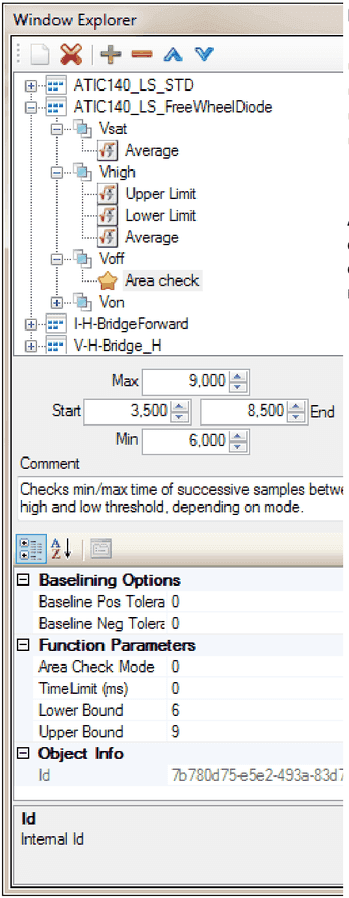
It is divided into four sections:
All controls are generally bidirectionally data bound to the currently selected WindowSet/Window/Function, that means any change from outside (e.g. moving window by mouse) is instantly reflected in the associated controls and vice versa.
Toolbar
Window Explorer Toolbar functions
(from left to right)
New Window Set
Creates a new window set
Delete Window Set
Deletes the selected window set and removes all windows
New Window
Creates a new window to the currently selected window set in the center of the current view
Delete Window
Deletes the selected window and all of its functions
Move item up
Moves the selected WindowSet / Window / Function one position upwards, if it is not already the topmost. Note that the selection may change after this action!
Move item down
Moves the selected WindowSet / Window / Function one position downwards, if it is not already the last. Note that the selection may change after this action!
Window Set Tree
The window set tree displays the hierarchy of all available window sets, windows and functions in a tree view.
Context Menus
The context menu depends on the selected item
Window Set Context Menu
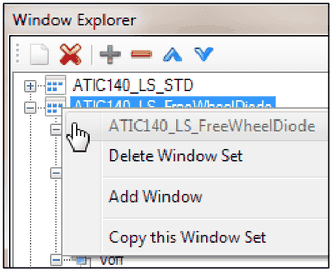
Delete Window Set
Deletes the selected Window Set
Add Window Set
Adds a new Window Set
Copy this Window Set
Creates a deep copy of the selected window set and creates also copies of all contained windows and functions
Window Context Menu
Locked
Toggles the window locking (see Locking Windows)
Zoom to window
Zooms the current view to this window
Create copy
Creates a copy of the selected window including all functions. Copy will have the same name plus "_copy"
Delete function
Deletes the selected function from the window Note: only available if any function is already assigned
Add function
Adds the selected function to the window Note: only available if WindowSet is assigned to a channel and if not, already all available functions were assigned to the window
Window Boundary Controls
The window boundary controls allow a more exact positioning of the window than via mouse control. However, please note that due to hardware restrictions and internal rounding errors, the defined times and levels cannot be guaranteed to exactly fit to real life situation (e.g. setting a limit to exactly 10.000 V may have a small offset due to hardware ADC resolution)
Comment Editor
This window allows adding a comment for this window for reporting purposes
Property Editor
The upper part of the property editor allows detailed editing of the selected item (WindowSet / Window / Function) The lower part of the property editor shows context help for the selected property.
6.2.4WindowSet Editor
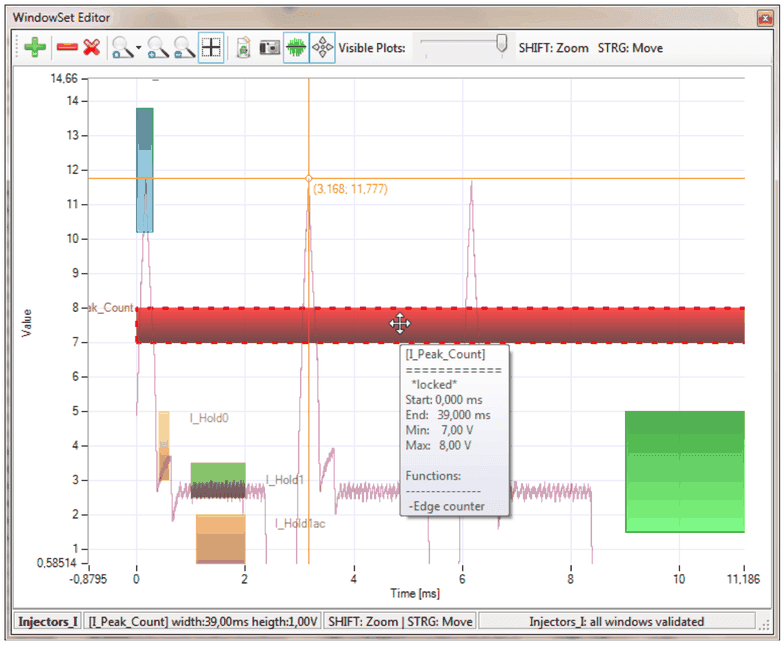
The WindowSet Editor is a graph view combined with a window editor overlay. It is used to preview channel data and configure window regions. The editor can show one channel including one window set simultaneously. Channel and/or window set change accordingly to the last selection in Channel Explorer or Window Explorer.
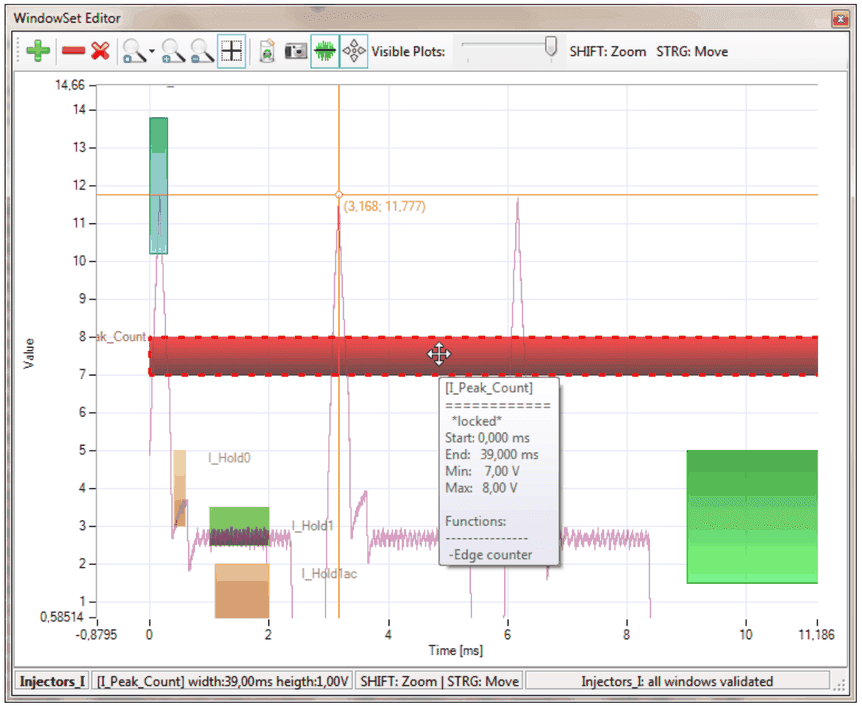
Toolbar Buttons
(from left to right)

Add window
Adds a new window with default size in the center of the visible area
Remove window
Removes the currently selected window
Remove all windows
Removes all windows of the currently displayed window set
Zoom (auto fit) (multiple modes)
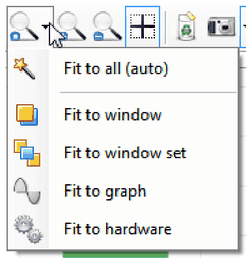
Fit to all (auto)
Zooms automatically to a view where all windows and the complete measured signal are visible
Fit to window
Zooms to currently selected window (also available from Window Explorer)
Fit to window set
Zooms to a view where all windows of the current window set are visible, regardless to graph data dimensions
Fit to graph
Zooms to a view where the recorded data fits completely, even if not all windows are visible
Fit to hardware
Zooms to hardware capabilities (max sample buffer size and voltage range)
Zoom in
Zooms in by factor 2
Zoom out
Zooms out by factor 0.5
Show/Hide Cursor (toggle)
Shows or hides the graph cursor (only applicable if graph data exists)
Reset all view settings
The last zoom action is internally stored for each channel. This button removes all of these view settings and auto fit will be applied next time the channel is viewed.
Save screenshot
Creates a screenshot of the current view and saves it to a file. Note that this differs from a normal screenshot tool, as you can define the output resolution in Options / Report Settings.
Overlay plots (toggle)
Show data points
Visible plots slider
Zooming and moving the graph
The graph view can easily be moved and zoomed by the mouse while holding the shift / ctrl key. Note that the window editor pane must be already active.
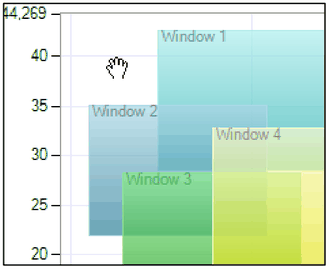
Moving visible area
Hold the Ctrl key (mouse cursor will change to hand symbol), then drag the graph.
Zooming by selection
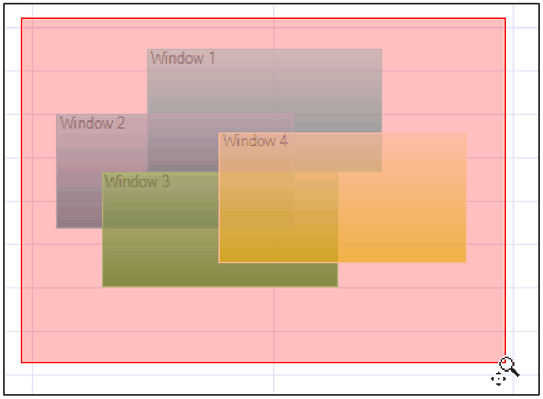
Hold the Shift key (mouse cursor will change to magnifying glass), then select a rectangle area with the mouse. After releasing the button, the graph will zoom to this selection.
Zooming by mouse wheel
Move the mouse wheel while holding the Shift key will zoom in/out by 20% per step around the current mouse position.
Zooming by buttons
Zooming is also possible using the zoom buttons of the toolbar. Refer to WindowSet Editor for details.
Resize Windows
Resizing windows is performed by clicking the window at its border or corner. This works even if the destination window is not selected or behind another overlaid window. A selection algorithm automatically selects the window whose border has the lowest distance to the cursor position! Windows can also be resized by using the numeric controls of Window Explorer.
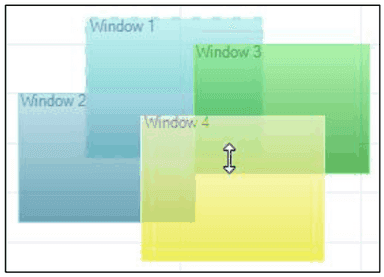
Move Windows
Moving windows is performed by clicking the window in its center(!). This works even if the destination window is not selected or behind another overlaid window. A selection algorithm automatically selects the window which center has the lowest distance to the cursor position! Windows can also be moved by using the numeric controls of Window Explorer.
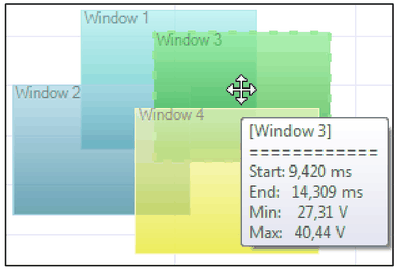
Context Menu
Right click a window to open the context menu:
The context menu provides some frequently used tasks for the currently selected window:
Lock
Click to toggle locked status
Zoom to window
Click to zoom around this window
Create copy
Creates a copy of this window including all functions and parameters at the current position, but with new unique Ids for window and functions.
Delete Window
Removes the window
Delete function
Removes an existing window function (if any defined)
Add function
Adds a window function. Note that no function will be displayed until the window set is applied to a channel (because the available functions are defined by the device)
Locking Windows
To avoid unintended editing of windows by mouse, each window can be protected against movement (=Locked).
To lock a window, use the window context menu and check the "Locked" option, or set the lock in the Window Explorer
Enabling / Disabling Windows
Enabling / Disabling a window can only be performed from Window Explorer. A disabled window remains in the configuration but will not perform any function. Disabled windows are displayed with a "bricked" fill:
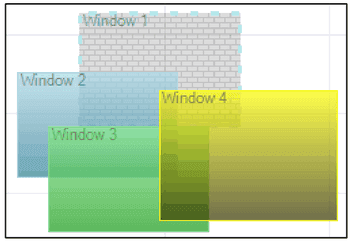
Cursor
Cursors allow the user to select points on a plot and obtain coordinate information. An activated cursor will show up as orange cross over the complete graph and can be dragged along the currently active plot (if any). It is bound to the graph. Drag it either directly at the crossing or a single axis. An indicator at the crossing displays information about X and Y coordinates (time in ms and measurement value)
The cursors can be switched on / off using the toolbar button.
Creating Screenshots
Press the camera button to save a bitmap picture (PNG format) of the current view. The picture resolution can be configured in project settings.
Plot Overlays
Depending on the multi plot mode (overlay/single), the "Visible Plots" slider defines either how many captured periods of the signal are shown simultaneously or selects the current period, if more than one is recorded.
6.2.5Log
The log window is used to output system and progress messages and test result reports: Depending on the global setting "Source Query Mode", the "Source" column is either reported as resource specification or using the channel labels.
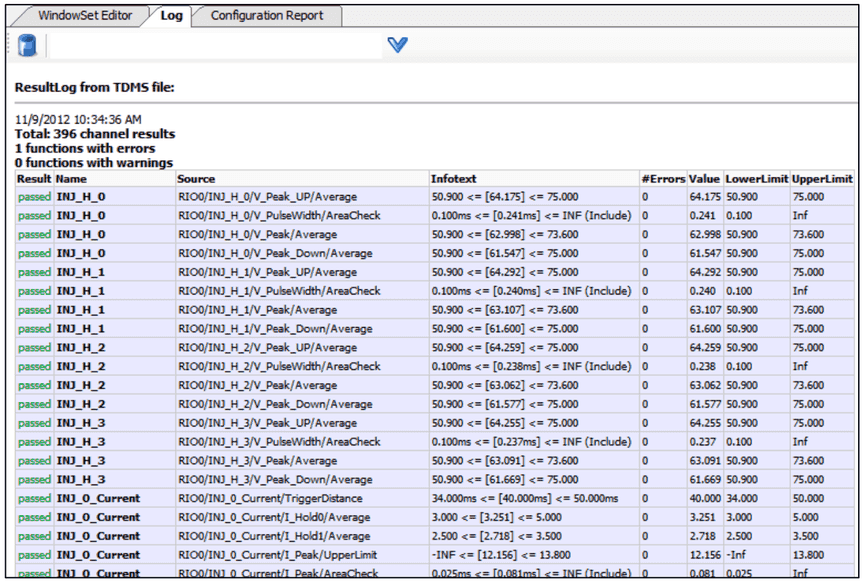
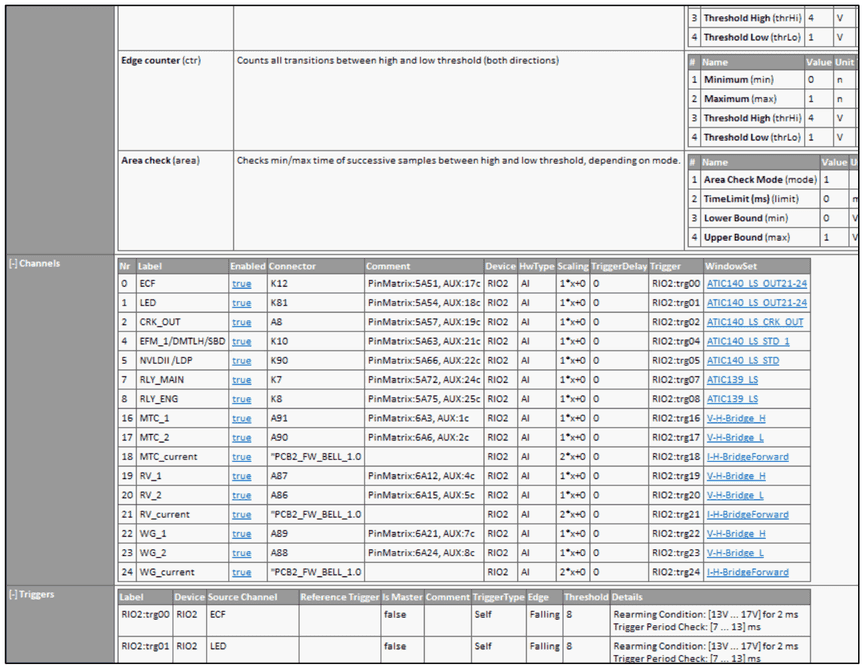
6.2.6Configuration Report
The Configuration report creates an HTML report of the current project configuration, including information about all
- Devices
- Available Functions
- Channels
- Trigger Settings
- Window Sets
- Windows
- Functions
To provide a better overview, many items are collapsed and hidden. Click on the [+] link in front of an item to expand the details tables. Click on [expand all] or [collapse all] to do this for all switchable content of the report.
You can also copy and paste the content to e.g. MS Word or Excel and also save and print the report.
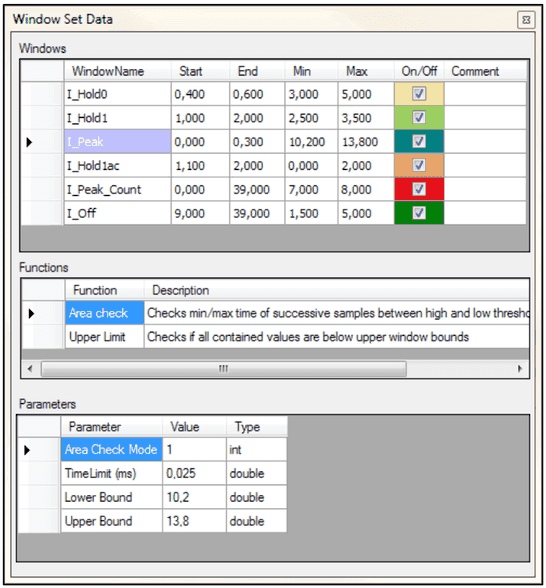
6.2.7Window Set Data
The window set data editor provides a hierarchic tabular view of a single window set. Changing the selection will also update the content for the table below.
6.2.8Project Settings
Allows definition of project settings and attributes.
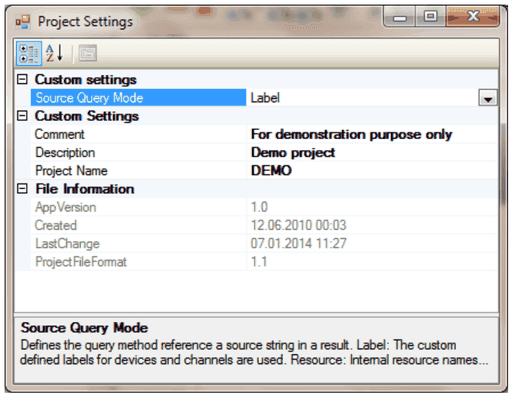
Source Query Mode
Defines the query method reference a source string in a result.
- Label: The custom defined labels for devices and channels are used.
- Resource: Internal resource names are used, labels will have no impact
6.2.9Options
This dialog configures application wide settings (per windows user!)
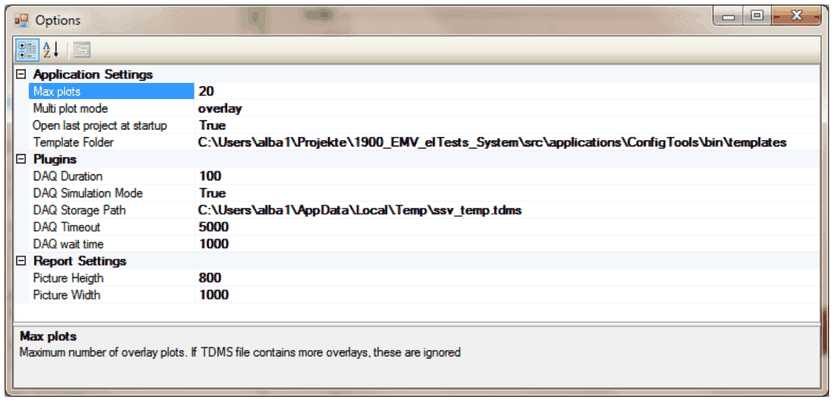
Application Settings
Max Plots
Specified maximum number of overlaid plots to avoid performance problems e.g. when inappropriate trigger settings are applied
Multi plot mode
Specifies how multiple periods of a recorded signal are displayed. "Overlay" shows (up to) all periods simultaneously, "Single" shows only one period, depending on the current position of the "Visible Plots" slider
Open last project at startup
If true, the last project is always loaded at startup. Otherwise the editor starts with an empty project.
Template Folder
Path to device templates. This path is usually set by the installation tool and doesn't need to be changed.
Plugins
DAQ Duration
Defines the recording time for all channels (preview functions).
DAQ Simulation Mode
If true, the data acquisition is simulated without hardware access.
DAQ Storage Path
Full path to temporary TDMS file for preview data
DAQ Timeout
Sets the maximum time allowed to fetch data to prevent application hang in case of hardware issues.
DAQ wait time
Defines the delay that is applied between activation of configuration and start of sampling. Set this value to match at least one period of your measurement signal, otherwise the window functions will contain no data for the first cycles (or report an error).
Report Settings
Picture Height
Picture height in pixels for report generator and screenshot tool.
Picture Width
Picture width in pixels for report generator and screenshot tool.
Important Information
7.1Warranty
The media on which you receive IRS software are warranted not to fail to execute programming instructions, due to defects in materials and workmanship, for a period of 90 days from date of shipment, as evidenced by receipts or other documentation. IRS will, at its option, repair or replace software media that do not execute programming instructions if IRS receives notice of such defects during the warranty period. IRS does not warrant that the operation of the software shall be uninterrupted or error free.
IRS believes that the information in this document is accurate. The document has been carefully reviewed for technical accuracy. In the event that technical or typographical errors exist, IRS reserves the right to make changes to subsequent editions of this document without prior notice to holders of this edition. The reader should consult IRS if errors are suspected. In no event shall IRS be liable for any damages arising out of or related to this document or the information contained in it.
EXCEPT AS SPECIFIED HEREIN, IRS MAKES NO WARRANTIES, EXPRESS OR IMPLIED, AND SPECIFICALLY DISCLAIMS ANY WARRANTY OF MERCHANTABILITY OR FITNESS FOR A PARTICULAR PURPOSE. CUSTOMER'S RIGHT TO RECOVER DAMAGES CAUSED BY FAULT OR NEGLIGENCE ON THE PART OF IRS SHALL BE LIMITED TO THE AMOUNT THERETOFORE PAID BY THE CUSTOMER. IRS WILL NOT BE LIABLE FOR DAMAGES RESULTING FROM LOSS OF DATA, PROFITS, USE OF PRODUCTS, OR INCIDENTAL OR CONSEQUENTIAL DAMAGES, EVEN IF ADVISED OF THE POSSIBILITY THEREOF. This limitation of the liability of IRS will apply regardless of the form of action, whether in contract or tort, including negligence. Any action against IRS must be brought within one year after the cause of action accrues. IRS shall not be liable for any delay in performance due to causes beyond its reasonable control. The warranty provided herein does not cover damages, defects, malfunctions, or service failures caused by owner's failure to follow the IRS installation, operation, or maintenance instructions; owner's modification of the product; owner's abuse, misuse, or negligent acts; and power failure or surges, fire, flood, accident, actions of third parties, or other events outside reasonable control.
7.2Copyright
Under the copyright laws, this publication may not be reproduced or transmitted in any form, electronic or mechanical, including photocopying, recording, storing in an information retrieval system, or translating, in whole or in part, without the prior written consent of IRS. IRS respects the intellectual property of others, and we ask our users to do the same. IRS software is protected by copyright and other intellectual property laws. Where IRS software may be used to reproduce software or other materials belonging to others, you may use IRS software only to reproduce materials that you may reproduce in accordance with the terms of any applicable license or other legal restriction.
7.3Trademarks
Refer to the NI Trademarks and Logo Guidelines at ni.com/trademarks for more information on National Instruments trademarks. Other product and company names mentioned herein are trademarks or trade names of their respective companies. Members of the National Instruments Alliance Partner Program are business entities independent from National Instruments and have no agency, partnership, or joint-venture relationship with National Instruments.
7.4Warning regarding use of IRS products
(1) IRS PRODUCTS ARE NOT DESIGNED WITH COMPONENTS AND TESTING FOR A LEVEL OF RELIABILITY SUITABLE FOR USE IN OR IN CONNECTION WITH SURGICAL IMPLANTS OR AS CRITICAL COMPONENTS IN ANY LIFE SUPPORT SYSTEMS WHOSE FAILURE TO PERFORM CAN REASONABLY BE EXPECTED TO CAUSE SIGNIFICANT INJURY TO A HUMAN.
(2) IN ANY APPLICATION, INCLUDING THE ABOVE, RELIABILITY OF OPERATION OF THE SOFTWARE PRODUCTS CAN BE IMPAIRED BY ADVERSE FACTORS, INCLUDING BUT NOT LIMITED TO FLUCTUATIONS IN ELECTRICAL POWER SUPPLY, COMPUTER HARDWARE MALFUNCTIONS, COMPUTER OPERATING SYSTEM SOFTWARE FITNESS, FITNESS OF COMPILERS AND DEVELOPMENT SOFTWARE USED TO DEVELOP AN APPLICATION, INSTALLATION ERRORS, SOFTWARE AND HARDWARE COMPATIBILITY PROBLEMS, MALFUNCTIONS OR FAILURES OF ELECTRONIC MONITORING OR CONTROL DEVICES, TRANSIENT FAILURES OF ELECTRONIC SYSTEMS (HARDWARE AND/OR SOFTWARE), UNANTICIPATED USES OR MISUSES, OR ERRORS ON THE PART OF THE USER OR APPLICATIONS DESIGNER (ADVERSE FACTORS SUCH AS THESE ARE HEREAFTER COLLECTIVELY TERMED "SYSTEM FAILURES"). ANY APPLICATION WHERE A SYSTEM FAILURE WOULD CREATE A RISK OF HARM TO PROPERTY OR PERSONS (INCLUDING THE RISK OF BODILY INJURY AND DEATH) SHOULD NOT BE RELIANT SOLELY UPON ONE FORM OF ELECTRONIC SYSTEM DUE TO THE RISK OF SYSTEM FAILURE. TO AVOID DAMAGE, INJURY, OR DEATH, THE USER OR APPLICATION DESIGNER MUST TAKE REASONABLY PRUDENT STEPS TO PROTECT AGAINST SYSTEM FAILURES, INCLUDING BUT NOT LIMITED TO BACK-UP OR SHUT DOWN MECHANISMS. BECAUSE EACH END-USER SYSTEM IS CUSTOMIZED AND DIFFERS FROM IRS' TESTING PLATFORMS AND BECAUSE A USER OR APPLICATION DESIGNER MAY USE IRS PRODUCTS IN COMBINATION WITH OTHER PRODUCTS IN A MANNER NOT EVALUATED OR CONTEMPLATED BY IRS, THE USER OR APPLICATION DESIGNER IS ULTIMATELY RESPONSIBLE FOR VERIFYING AND VALIDATING THE SUITABILITY OF IRS PRODUCTS WHENEVER IRS PRODUCTS ARE INCORPORATED IN A SYSTEM OR APPLICATION, INCLUDING, WITHOUT LIMITATION, THE APPROPRIATE DESIGN, PROCESS AND SAFETY LEVEL OF SUCH SYSTEM OR APPLICATION
7.5Technical support
For technical support, contact IRS Systementwicklung GmbH.