Common Functions
Some functions are not limited to a single module but are available in many tables and views of the Report Analyzer. They are described centrally in this chapter. General table functions such as the column chooser, sorting, filters and conditional formatting are described in the chapter General.
1.4.3.1Table context menu
Right-click inside a table (not on the header row) to open a context menu with the following entries:
- Export: Exports the table (see Table export)
- Copy (to clipboard): Copies the table to the clipboard (see Copying to the clipboard)
- Show Statistics: Opens the statistics dialog for the test executions of the table (see Statistics dialog). This entry is only available in tables containing test executions (Import, Grouping, Error Distribution).

1.4.3.2Table export
Almost all tables can be exported to many different formats via the Export entry of the context menu. A dialog with a preview opens, in which you can adjust the page setup (A4 landscape by default) and select the output format. The table can also be printed from here.

With a few exceptions, the exported columns correspond to the current view. Filters and sorting are applied. In most cases, formatting is also retained, depending on the selected output format.
1.4.3.3Copying to the clipboard
The Copy (to clipboard) entry of the context menu copies all visible (not filtered out) rows of the table including the column headers to the clipboard, including rows outside the visible area. The data can then be pasted into an Excel worksheet or a text file, for example.
Alternatively, you can select individual cells or rows in any table and copy them with Ctrl + C. Ctrl + A selects the entire table.
1.4.3.4Reports and export formats
Many modules create reports that are first displayed in a preview window, for example:
- Execution reports of several test executions (Import)
- Report Wizard and Report Current View in History & Statistics
- Report and Table Export in Error Distribution
- Export of the current view in the Profiler
In the preview window, you can adjust the page setup, print the report and save it in various formats via the Export drop-down button (e.g. PDF, Word, Excel, HTML, CSV).
The default paths of the export files, the export path expression, the author of the reports and a custom logo are defined on the Export tab of the Settings.
1.4.3.5Statistics dialog
(New in 1.7)
A statistics dialog can be opened from the context menu of many tables (Import, Grouping, Error Distribution) via Show Statistics. It provides a statistical overview of the test executions in the table:

- If no row or only one row is selected, all rows of the table are evaluated. An active filter is taken into account.
- If several rows or a group row are selected, only the selected rows or all rows of the group are evaluated.
Test executions that occur more than once (e.g. several test steps of the same execution in the error distribution) are counted only once.
The dialog is also available via the Show Statistics button on the home screen, where it shows the statistics of the entire loaded data set. The same key figures are shown per group in the Group Statistics module.

| Field | Meaning |
|---|---|
| Total | Total number of test executions |
| Passed | Total number of executions with the result 'Passed' |
| Failed | Total number of executions with the result 'Failed' |
| Error | Total number of executions with the result 'Error' |
| Terminated | Total number of executions with the result 'Terminated' |
| FPY | First pass yield: percentage of individual UUTs (grouped by SerialNr) with the result 'Passed' in their first execution |
| Serial Numbers | Number of distinct 'SerialNr' values found in all selected executions |
| First Start | First (oldest) execution start timestamp found in the selected executions |
| Last Start | Last (most recent) execution start timestamp found in the selected executions |
| Shortest Test | Minimum execution time in seconds found in the selected executions |
| Longest Test | Maximum execution time in seconds found in the selected executions |
| Avg exec time | Average execution time in seconds of the selected executions |
| First pass | Total number of individual UUTs (grouped by SerialNr) with the result 'Passed' in their first execution |
| UUTs finally passed | Total number of individual UUTs (grouped by SerialNr) with the result 'Passed' in any of their executions |
| UUTs never passed | Total number of individual UUTs (grouped by SerialNr) that did not reach the result 'Passed' in any of their executions |
| Part Numbers | Number of distinct 'PartNr' values found in all selected executions |
| Product IDs | Number of distinct 'ProductId' values found in all selected executions |
| Product Types | Number of distinct 'ProductType' values found in all selected executions |
| Sockets | Number of distinct 'SocketNr' values found in all selected executions |
| Total (steps) | Total number of steps in the selected executions |
| Measurement IDs | Number of unique measurement IDs found in all selected executions |
| Attributes | Total number of step attributes (additional results etc.) found in all steps of all selected executions |
| Attribute per step | Average number of attributes per step across all executions, steps and step attributes found |
| Steps per execution | Average number of steps per execution |
| Min Steps | Smallest number of steps found in a single execution across all selected executions |
| Max Steps | Largest number of steps found in a single execution across all selected executions |
1.4.3.5.1List of related test executions
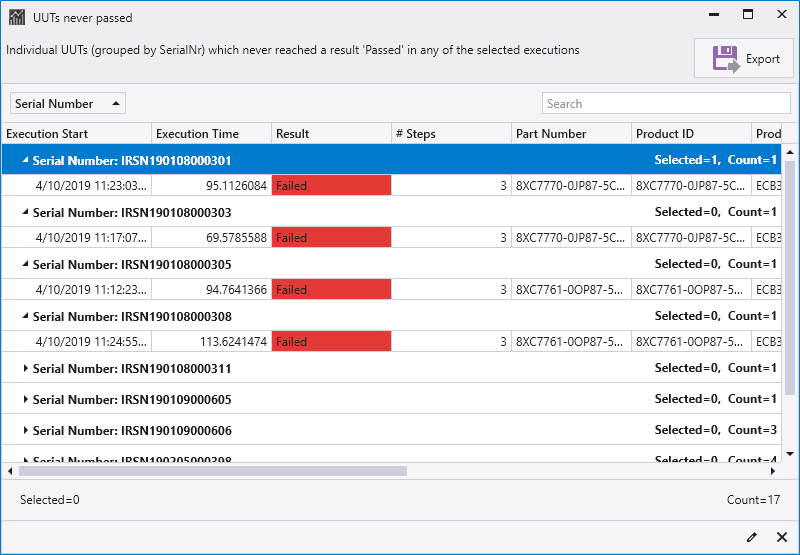
The underlined values in the statistics dialog are links. Clicking one of the values Passed, Failed, Error, Terminated, First pass, UUTs finally passed or UUTs never passed opens another window that lists the related test executions. For First pass, UUTs finally passed and UUTs never passed, the list is grouped by SerialNr. Double-click an execution to open its report in the Report Viewer; use the Export button to export the list.
Documents and downloads
Further documents and files for your IRS product are available on myIRS.