IRS cRIO resolver simulator can be used in a National Instruments Compact-RIO chassis to simulate the signal of the resolver sensor of electric motors.
Purpose
This document describes the hardware functionality and the usage of the software interface for IRS resolver simulation module.
Resolver sensor
Resolver sensors are often used in the power-train of electrical or hybrid vehicles. Following figure shows the principle of a typical resolver, where the Excitation winding “R” is rotating. The two stator windings receive the energy from the excitation and generate a signal with an amplitude, depending on the rotor position.

When the Excitation winding is rotating, the two stator windings will show a signal similar to the following figure.

Resolver simulation
For component testing of the power stages of the motor driver, it is often not desired to include an original motor with its sensors in the tester. On the other hand the resolver signal should be generated for both functional test, End-Of-Line test or for lifetime tests during design validation.
Especially for lifetime testing IRS provides test systems which simulate the original motor by means of passive inductive loads. With this setup high phase currents of 400Arms can be generated, while the power loss is very low, since the energy is stored as reactive power in the load coils.
The inverter, which is tested and generates the phase currents through the load coils, must “see” the same conditions as it would see with a real electric motor in the car. Thus, the sensor signal of the electric machine must be emulated. At this point the Resolver simulation comes into play.
The resolver simulation can simulate the sensor signal of a rotating machine or may emulate specific positions of the electric motor. The module can be controlled by software to stop at certain positions or perform continuous modulation, like a rotating electric motor does. Following figure shows a typical waveform of the resolver simulator:

RVDT sensor
RVDT (rotary variable differential transformer) is a transformer used for measuring angular displacements. Following figure shows the principle of a typical sensor, where the metal core is rotatable in a limited angular range. The two windings on side “B” receive the energy from the excitation on side “A” and generate a signal with an amplitude depending on the core position. The displacement direction (sign) can be determined by the phase of the output signal compared to the excitation signal (positive angle -> 0°; negative angle -> 180°).

Abbreviations
| Abbreviation | Description |
|---|---|
| cRIO | Compact reconfigurable input output module |
| FIFO | First in first out |
| FPGA | Field programmable gate array |
| LUT | Look-up table |
| MAX | Measurement & Automation Explorer |
| PGA | Programmable gain amplifier |
| RPM | Revolutions per minute |
| RT | Real time |
| SPI | Serial peripheral interface |
| VI | Virtual instrument |
| ResSi | Resolver Simulation |
| RVDT | Rotary Variable Differential Transformer |
Table 2: Abbreviations
Hardware
The following chapter highlights the hardware of the module.
1.1Block diagram
The following figure shows the block diagram of the module. The signals on the right are accessible to the user. The signals on the left represent the Compact-RIO interface and are not described in detail in this manual.

All input and output signals are isolated from the Compact-RIO. The Excitation reference input, sine and cosine outputs are isolated by means of transformers. The SYNC input is digitally isolated by means of optocoupler.
1.2Interfaces
The user interface Signals have the following functionality. Every signal has a positive and negative terminal.
- Excitation reference In:
- Input signal from the power converter to be tested
- Typical sine wave signal of about 10Vpp is applied
- Sine / Cosine Out:
- Output signals from the simulation, which is an Amplitude-modulated representation of the excitation signal. Modulation is performed by software.
- In RVDT mode the output signal is taken between Sin+ and Cos+ (Sin- and Cos- needs to be tied together) -> Difference output signal:
- SYNC input (ResSi only):
- This signal can be used to synchronize the modulation frequency of sine and cosine outputs to a speed signal (not used in RVDT mode).
- I.e. RPM (speed) of the motor can be applied here.
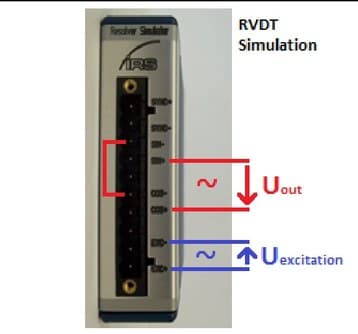
1.3Pin out
The following table shows the pin out of the front connector.
| Pin | Description |
|---|---|
| 0 | SYNC + |
| 1 | SYNC - |
| 2 | Sine OUT - |
| 3 | Sine OUT + |
| 4 | - |
| 5 | Cosine OUT - |
| 6 | Cosine OUT + |
| 7 | - |
| 8 | Excitation reference IN - |
| 9 | Excitation reference IN + |
Table 4: Pin out front connector
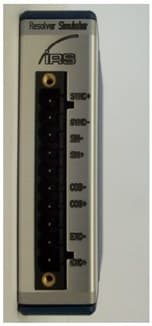
An input sine wave will be modulated depending on the requested sense of rotation and motor speed. The modulated signals will be output as a damped sine wave and a damped (and phase shifted) cosine wave. The attenuation can be configured by software.
It is also possible to set a static rotor angle.
Furthermore a synchronization input is available which can be used to measure an external frequency for example.
1.4Technical data
| Signal | Item | Min | Typical | Max | Unit |
|---|---|---|---|---|---|
| Supply voltage | Supply voltage (provided by cRIO chassis, no external voltage required) | 4,5 | 5,5 | V | |
| Supply voltage | Power consumption (provided by cRIO chassis) | 50 | mA | ||
| Excitation reference input | Excitation reference voltage range | 20 | Vpp | ||
| Excitation reference input | Excitation reference input resistance (@10 kHz, inductive) | 2000 | Ohm | ||
| Excitation reference input | Excitation reference input frequency | 2 | 10 | 20 | kHz |
| SYNC input | SYNC input voltage range (peak voltage) | 5 | 50 | Vpeak | |
| SYNC input | SYNC input detection threshold | 3 | V | ||
| SYNC input | SYNC input frequency | 1 | 200 | Hz | |
| SYNC input | SYNC input current (U > 3V ) | 2 | 7 | mA | |
| Sine / Cosine output | Sine/ Cosine Output level (depends on software settings) | 0 | 20 | Vpp | |
| Sine / Cosine output | Output resistance (@2,5 … 10 kHz ) | 5 | 7 | 20 | Ohm |
Table 5: Technical data
1.5Example waveforms (Resolver)
The next screenshots illustrate the functionality (channel 1: excitation, channel 2: sine output, channel 3: cosine output).


1.6Example waveforms (RVDT)
The next screenshots illustrate the functionality (channel 3: excitation; channel M: differential output signal; max. angle (setup): 30°).


LabVIEW Project and FPGA
2.1LabVIEW project
2.1.1General
The project contains the complete software for the target:
- FPGA
- Real Time System: RT_ResSi & RT_RVDT
- Computer: PC_ResSi & PC_RVDT
The targets cRIO-9074, cRIO-9075 and sbRIO-9602 are already predefined and precompiled for one channel, but it’s easy to add further targets and/or channels to the project.
Note 1: The PC software is for demonstration purposes only.
Note 2: The RT system is not necessary required but recommended. The FPGA can also be directly controlled by a computer, but this manual will only handle the recommended way (FPGA <-> RT <-> Network Shared Variables <-> PC).
2.1.2Adding a new RIO target
Adding a new RIO target is very simple. Following a short description:
- Create a new target device
- Right click on project -> New -> Targets and Devices…
- Select the target
- The new target is appears in project explorer
- Copy required elements from old targets to the same location in the new target
- Folders: RT, RT_ResSi, RT_RVDT
- Add the FPGA target (Right click on new Chassis -> New -> FPGA Target)
- Copy FPGA Elements: “[0]_ResSi” (Folder & Device), “FPGA”, “Memory”, “SPI_Resolver_Clock”
- Create new build specifications for FPGA, RT_ResSi and RT_RVDT by using the old ones as templates (modify just the “Name” [1], “Target Directory” [2] and update the “Source Files” [3])
- Build the FPGA build specification and wait until finish (takes some time) -> Bit File
- Add the new bit file to “RT_ResSi/RT_OpenFPGA.vi”:
- Duplicate Subdiagram
- Set the Symbol to “DeviceCode” and the value to the target device code, then hit “OK” (to get the device code right click on new target -> Properties -> Conditional Disable Symbols -> DeviceCode)
- Configure the “Open FPGA VI Reference” to point to the new generated FPGA bit file
- Build the required RT build specification (“Run as startup”)


2.2FPGA
This part handles the code for the FPGA. It’s setup for one device on slot 1 (channel 0) and is already prepared for extending with further channels.
2.2.1Top VI & FPGA interface
The top vi includes all input and output variables which are needed for operation.

Inputs
LUT Update Section (see: Sine & Cosine lookup tables)
Controls for updating the sine and cosine lookup tables. Use DMA_FIFO for writing new values.
| Parameter | Description |
|---|---|
| LutUpdate_ChannelNb | Channel number for LUT write (only channel 0 is predefined) |
| LutUpdate_WriteSine | Set to start writing to sine LUT (DMA_FIFO). |
| LutUpdate_WriteCosine | Set to start writing to cosine LUT (DMA_FIFO). |
ResSi_Settings[x], Speed_Set_[RPM][x], Speed_Gradient_Set_[RPM/s][x]
Resolver simulation control values (Arrays where index x represents the channels number).
| Parameter | Description |
|---|---|
| SampleRate_[Ticks] | ResSi Mode: Update rate of the output samples to define the rotating speed. When RPM is the desired speed in rounds per minute: SampleRate[Ticks] = (40^6 * 60) / (RPM * 1024). RVDT Mode: Angle changing speed rate. When [delta_phi/sec] is the desired angle changing rate per second: SampleRate[Ticks] = (abs(phi_max) * 40^6) / ([delta_phi/sec] * (1023 >> 1)) |
| Position_fixed_LUT | Sets a constant position of the simulation. The value is in the range 0…1023. ResSi Mode: Range = 0° … 360°. RVDT Mode: Range = -phi_max … 0° … phi_max (0° -> Position = 1023>>1 = 511) |
| SYNC_Phase_LUT | ResSi Mode: Sets the 0° simulation value, relative to the positive edge of the SYNC input signal. The value is in the range 0…1023, representing an angle of 0…360°. SYNC_Phase_LUT = Angle * 1024/360 |
| PGA_Setting | Maximum transformation ratio when sine/cosine LUT is defined to full scale (Amplitude 100%). Û_OUT = 0.078125 * 2^PGA * Û_LUT where PGA = 0…7. Set this value to “2” for hardware version 1.3! |
| Direction | ResSi Mode: Sets sense of rotation. FALSE: Left. TRUE: Right |
| Rotate_Enable | ResSi Mode: TRUE: a rotating machine is simulated. FALSE: a fixed position is simulated |
| SYNC_Enable | ResSi Mode: TRUE: rotating speed derived from the SYNC input frequency. FALSE: rotating speed derived from the Sample_Rate[Ticks] input |
| RVDT_Mode_(Rotation) | TRUE: RVDT mode. FALSE: Resolver simulation mode (default) |
| Speed_Set_[RPM] | ResSi Mode: Speed ramp target speed in RPM |
| Speed_Gradient_Set_[RPM/s] | ResSi Mode: Speed change rate in RPM per second, take new speed immediately, when 0. Otherwise 1 RPM/s up to 16e6 RPM/s |
Outputs
- LUT_Size-1: Constant: The value represents the last index of the sinus and cosine lookup tables.
- FirmwareVersion: Constant: FPGA Firmware versions date (HEX-Format: yyyymmdd)
- ResSi_Values[x]: Resolver simulation status values (Array where index x represents the channels number).
| Parameter | Description |
|---|---|
| Sync_Period_[Ticks] | ResSi Mode: Number of ticks between two positive edges on SYNC input (Ticks of 25ns) |
| Position_actual_LUT | Actual position of the simulation (see: “Position_fixed_LUT”). |
| SampleRate_Actual_[Ticks] | ResSi Mode: Current update rate of the output samples defining the rotating speed. |
| Sync_PosEdge | ResSi Mode: Sync external speed signal to positive edge. |
2.2.2Sine & Cosine lookup tables
The output waveforms are saved in two lookup tables with 1024 16-bit signed integer elements each. One LUT is responsible for the sine output and the second one for the cosine output. These tables can (should) be updated by the user. For this purpose there are three controls and one DMA available.
For updating, the developer can use “RT_PC_LUT_Write.vi” located in “RT_Share”. It does the following steps:
- Write the desired channel number to “LutUpdate_ChannelNb”. In default state there is just one channel available.
- Set “LutUpdate_WriteSine” or “LutUpdate_WriteCosine” to true to initiate a new transfer.
- Write 1024 values to the DMA “DMA_FIFO” and wait some milliseconds after.
- Reset the binary write value to false.

2.2.3Adding a new channel
- Create a new slot
- Right click on the FPGA target -> New -> C Series Module -> New target or device -> C Series Module
- Name: “[x]_ResSi” where x = channel number (in this example x = 1)
- Type: cRIO-generic. Remark: If this option is not available, the following line must be added to the LabVIEW.ini file (LabVIEW must be closed):
cRIO_FavoriteBrand=generic - Location: Slot number

- Create a copy of all memories except DMA_FIFO (Change the name of each memory to represent the new channel number, in this case 1).

- The following changes needs to be made:
- FPGA_Top.vi -> SPI Handlers: Duplicate frame and set the new port pins (“[1]_ResSi/...” in this case).
- FPGA_Top.vi -> Speed Ramp Generator: Increase array size of the two input variables by one (in this case to 2): Right click on variable -> Properties -> Size -> Fixed. Duplicate frame, set the new memory (“[1]RampSampleRate[Ticks]” in this case) and connect the vi to the next array elements (by extending the “Index Array” elements)
- FPGA_LutUpdate.vi: Duplicate case element and update the memories (“[1]_LUT_Sine” and “[1]_LUT_Cosine” in this case).
- FPGA_ResolverSim.vi: Increment the size of “ResSi-Settings” by one (in this case to 2) and repeat this step also on the top vi. Duplicate frame and update all constants (“[1]_...” in this case). Connect the input and output variable to the new array entry.
- Rebuild the FPGA target
- If you use the real time system, you need to create a copy of the network variables for the new channel. For further information see Real Time System – Adding a new channel.
Real Time System
The software for the real time system controls the device according to the values it gets from network interface (Shared Network Variables).
Note: It is also possible to control the FPGA without using the real time system. The user may design his own application.
3.1Network interface (Shared Network Variables)
To control the simulation the real time system is communicating with the host application by using a technique called “Shared Network Variables”. These are containers of variables which can be accessed by a special network address. The containers are located in the RT folders (“RT_ResSi” or “RT_RVDT”):
- ResSi_Variables.lvlib / RVDT_Variables.lvlib: Contains non channel related variables like FPGA version
- ResSi_Variables_x.lvlib / RVDT_Variables_x.lvlib: Contains channel related variables where x represents the channel number (each channel will have its own file).
3.1.1Access a variable from host computer
To access a variable from a remote system, the developer can use the VI “RT_PC_ResSi_NetVarPathGen.vi” (“RT_PC_RVDT_NetVarPathGen.vi” respectively) located in “RT_ResSi/Share” (“RT_RVDT/Share” respectively) together with a “Read Variable” or “Write Variable” control.
PC example for reading the actual angle and for writing a new angle in RVDT simulator mode:


- TargetIP: RIO ip address or hostname
- Angle_Actual / Angle: Name of the desired variable in “RVDT_Variables_x.lvlib”
- ChannelNb: Channel number -> x (if x = 255, access goes to “RVDT_Variables.lvlib”)
3.1.2Adding a new channel
Example for RVDT channel 1:
- If not done, add the new channel to the FPGA code (see FPGA – Adding a new channel)
- Create copy of “ResSi_Variables_0.lvlib” and rename to “ResSi_Variables_1.lvlib” (this step cannot be done in project explorer, instead use windows explorer)
- Update FPGA reference
- Open “RT_RVDT/RT_RVDT_Thread.vi”
- Right click on “RefnumIn” and select “Open Type Def.”
- Right click on “Reference” and choose “Configure FPGA VI Reference…”
- Click on “Import from bitfile…”, browse to the required bit file located in “FPGA Bitfiles” and open it
- Save everything
- Update build specification and rebuild
- Right click on “RIO-System/Build_Specification/RT_RVDT” -> Properties
- Select “Source Files” on right side
- Browse to “RT_RVDT/RVDT_Variables_1.lvlib” and add it to section “Always Included”
- Rebuild and flash (“Run as startup”)
3.2Resolver simulation (RT_ResSi)
Not described in manual V3.0. See Resolver Mode Software (from manual V2.2).
3.3RVDT simulation (RT_RVDT)
This section describes the real time system for RVDT simulation mode.
3.3.1Control interface (RVDT_Variables)
Like told in section Network interface the RVDT simulation will be controlled by network shared variables. The following table describes them:
| Variable | Type | Access | Description | Unit |
|---|---|---|---|---|
| FPGA_Version (common) | UInt32 | r | HEX coded FPGA compilation date: Format: 0xYYYYMMDD | |
| Angle | Double | r/w | Simulation angle in degree | ° |
| Angle_Actual | Double | r | Current simulation angle in degree | ° |
| Angle_DegreePerSec | Double | r/w | Moving speed to new angle position | °/sec |
| Angle_Max | Double | r/w | Maximum angle swing (absolute value): Angle where the difference output signal is at his maximum amplitude set up by “LUT_Amplitude” and PGA. | ° |
| LUT_Amplitude | Double | r/w | Maximum amplitude of the differential output signal relative to the excitation signal amplitude multiplied with PGA (see “LUT_Write”). | % |
| LUT_Calibration | CTL[1] | r/w | Calibration settings (see “LUT_Write”) | |
| LUT_Write | Boolean | r/w | Set to update the lookup tables with new data calculated with the values in “LUT_Amplitude” and “LUT_Calibration”. True: Start update process (set by user). False: Update process finished (set by RT) | |
| PGA | UInt8 | r/w | PGA setting (Range: 0…7): Û_OUT = 0.078125 * 2^PGA * Û_LUT | |
| SaveConfig | Boolean | r/w | Set to permanently save current configuration and angle setup in real time system flash memory (it will be loaded on every start up). True: Start saving process (set by user). False: Saving process finished (set by RT) |
CTL[1] -> RT_PC_RVDT_LUT_Calibration.ctl
| Variable | Type | Description | Unit |
|---|---|---|---|
| SineAmplitude_%, CosineAmplitude_% | Double | Amplitude correction factors for lookup table (see “LUT_Amplitude”): Amplitude_LUT = "LUT_Amplitude" * x | % |
| SineDCOffset_%, CosineDCOffset_% | Double | LUT DC offset correction amplitude relative to the excitation signal amplitude multiplied with PGA: Amplitude_LUT = "LUT_Amplitude" + x | % |
3.3.2RT_RVDT_Top.vi
Top vi of the real time system in RVDT simulation mode.

3.3.3RT_RVDT_Thread.vi
This vi is responsible for controlling the FPGA. It is called cyclic (100ms) from top vi for each available channel on FPGA (parallel as multi thread).
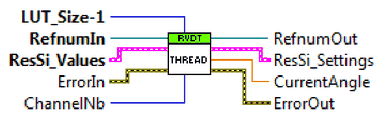
- LUT_Size-1: Last index of the lookup tables (get it from FPGA)
- ChannelNb: Channel number
- ResSi_Values: Connect to FPGA “ResSi_Values” array element at index defined by “ChannelNb”
- ResSi_Settings: Connect to FPGA “ResSi_Settings” array element at index defined by “ChannelNb”
3.3.4RT_RVDT_SaveCfg.vi & RT_RVDT_LoadCfg.vi
These are used for saving the current configuration to flash memory and for loading it again.
3.3.5RT_PC_RVDT_LUT_ValueWrite.vi
With this vi the update data for the lookup tables will be created. It takes the amplitude (LUT_Amplitude) and the calibration settings (LUT_Calibration) as input parameters and generates the lookup table data for both tables. The following diagram shows example data (LUT-Size = 1024; Max. Angle = +-30°; LUT_Amplitude = 100%):

PC Software
The Software for PC is mostly for demonstrations and test purposes only, however many of its components (vi’s) can be used also in own software implementations. This makes the developing of customer applications faster and easier.
Note: The PC software included in this project is not suitable for direct FPGA control without using the real time system!
4.1Execution of demo software
To start the software there are two possibilities available. The first approach is to open the desired top vi (“PC_ResSi_Top.vi” or “PC_RVDT_Top.vi”) and push the run button. The second possibility is to build the predefined build specification (if not already done) and then to start the compiled executable located in sub folder “PC_EXE”. The advantage of second method is that it needs just the run time installed on the target machine.
4.2Resolver simulation
Not described in manual V3.0. See Resolver Mode Software (from manual V2.2).
4.3RVDT simulation
4.3.1Demo & Test GUI

- Basic configuration
- Target IP / Hostname -> RIO target address
- FPGA Versions (Date) -> FPGA compile date (Format: YYYYMMDD)
- Channel Number -> Current selected channel to control
- Angle Control
- Angle [°] -> Desired simulation angle in degree
- Set / Update -> Start moving to position defined by “Angle [°]”
- Act. Angle [°] -> Actual simulation position in degree
- Device Setup
- Set Config. -> Write configuration to target
- Get Config. -> Read current configuration from target
- Save Config. -> Save current configuration permanently to target flash memory
- Max. Angle [°] -> Maximum angle swing (see Control interface)
- Angle Speed [°/sec] -> Moving speed to new angle position (see Control interface)
- Amp. Transfer Factor -> Transfer factor between excitation signal and differential output signal
- Calibration -> Calibration settings (see Control interface > RT_PC_RVDT_LUT_Calibration.ctl)
- Application Control
4.3.2VIs for integration into user application
There are some vi’s for communicating with the real time system. These vi’s can be used in any user application:
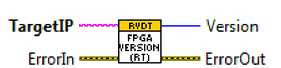
- PC_RVDT_FPGAVersion.vi -> Read the FPGA compilation date
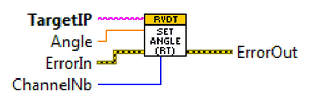
- PC_RVDT_SetAngle.vi -> Set new simulation angle
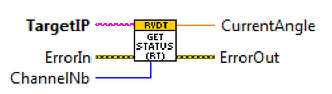
- PC_RVDT_GetStatus.vi -> Read current status (actual angle)
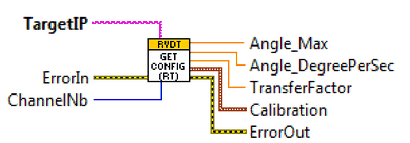
- PC_RVDT_GetConfig.vi -> Get current configuration
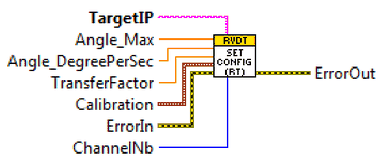
- PC_RVDT_SetConfig.vi -> Set a new configuration
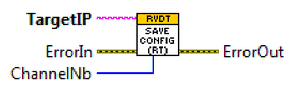
- PC_RVDT_SaveConfig.vi -> Save configuration permanently to flash memory (boot config)
Resolver Mode Software
This chapter details the software part. The software of the simulation is mainly executed on a cRIO FPGA and can run on any Compact-RIO chassis. It is already compiled and tested for a NI-9074 and NI-9075 with the module at slot 1. The source code of the software is included in the module’s documentation and can also be included into a user specific LabVIEW project.
In the LabVIEW project, there is also an example code included, how to control the module from the PC with LabVIEW. This example code for execution on a computer may be easily ported to real-time execution on the Compact-RIO real-time controller.
Furthermore a DLL is available to control the module from applications, written in C-code. An example software is included in the documentation CD, which describes how to use the DLL. Please note, that the DLL will work only with the respective FPGA-bitfile, which is already compiled for a cRIO-9075 chassis including a single module on slot 1.
5.1General control
In the following chapter the general control parameters are described. Their names will be consequently used on different software layers, like FPGA top level design, PC control demo software or the DLL.
The amplitude control with programmable full scale transformation ratio is only available for HW version 2.0 or higher.
5.1.1Mode and speed control
The following parameters can be used to control the status and speed of the module by software
| Parameter | Type | Description |
|---|---|---|
| Mode = FixedPosition | Enumeration | Set to fixed position. When this mode is set, the module changes the actual position until it reaches the fixed position and holds this fixed position. |
| Mode = Rotate_Right | Enumeration | Rotate right with speed, specified by RPM_Set value |
| Mode = Rotate_Left | Enumeration | Rotate left with speed, specified by RPM_Set value |
| Mode = Rotate_Right_Sync | Enumeration | Rotate right with speed, specified by SYNC input |
| Mode = Rotate_Left_Sync | Enumeration | Rotate left with speed, specified by SYNC input |
| RPM_Set | Numeric Value to Set | Speed of rotation in RPM (rounds per minute) (only in Mode Rotate_xxx) |
| Position_Set [degrees] | Numeric Value to Set | constant position of the simulation in degree in the range 0…360° (only in Mode FixedPosition) |
| SYNC_Phase [degrees] | Numeric Value to Set | constant phase of the rotation relative to Sync input in the range 0…360° (only in Mode Rotate_xxx_Sync) |
| Speed_Gradient [RPMps] | Numeric Value to Set | Speed change rate in RPM per second, take new speed immediately, when 0 |
| RPM_Actual | Numeric Value to Read | Actual Speed of rotation in RPM (rounds per minute) |
| Position_Act [degrees] | Numeric Value to Read | Actual position of the simulation in degree in the range 0…360° |
| RPM_SYNC | Numeric Value to Read | Actual Speed of Sync input in RPM (rounds per minute) |
Table 6: Control Parameter description
The parameter RPM_Set has different meanings depending on the simulation state, as shown in the following table:
| RPM_Set Value | Mode | RPM_Set meaning |
|---|---|---|
| > 0 | FixedPosition | Defines the speed, how fast the module changes to the fixed position. |
| > 0 | Rotate_Right, Rotate_Left | Rotation speed |
| > 0 | Rotate_Right_Sync, Rotate_Left_Sync | Minimum rotation speed, when no SYNC signal is applied |
| = 0 | Any | Set position to fixed position immediately. |
Table 7: RPM meaning depending on current mode
5.1.2Amplitude control
The following interfaces can be used to control the transformation ratio of the module. Please note, that PGA_Set is only functional available for resolver simulation hardware version 2.0 or higher.
| Parameter | Type | Description |
|---|---|---|
| PGA_Set | Numeric value to set | Maximum transformation ratio when sine LUT is defined to full scale (Amplitude 100%): 0 = 0.078125, 1 = 0.15625, 2 = 0.3125, 3 = 0.625, 4 = 1.25, 5 = 2.5, 6 = 5, 7 = 10. Set this value to “2” for hardware version 1.3! |
| Write_LUT | Binary switch to initiate DMA transfer (see also DMA_FIFO) | Set “Write_LUT” to True, fill the DMA_FIFO. Reset “Write_LUT” to False after DMA has completed. |
| DMA_FIFO | DMA Buffer to write a sine wave lookup table | Write a sine wave amplitude waveform with 1024 elements as 14-Bit integer values as shown in the following figure |
Table 8: Amplitude Control description
With PGA_Set the transformation ratio range may be specified. When this value is set, the ratio may be additionally fine tuned by writing the sine wave LUT via the DMA_FIFO. The sine wave must be represented by 1024 integer values (i16) according to the following figure. This figure shows the sine wave for full scale - where the maximum value is 16383 for full amplitude.
Use the LabVIEW-VI “LUT_Init” to create a standard sine wave for the DMA_Buffer with an adjustable Amplitude-factor of 0…100% as input parameter.

5.2Control by DLL
The following functions are available to control the module with a DLL. The DLL requires that a Compact-RIO chassis is connected via Ethernet to the PC, where the DLL is running. The DLL has to be re-compiled using the Bitfile for the actual used chassis and module. The current DLL is available for cRIO-9075 with one module at slot 1.
Please note, that control by DLL is not implemented for all versions
To access the DLL by an application, the following files have to be included in the application:
cRIO_ResolverSimulation.dllcRIO_ResolverSimulation.hcRIO_ResolverSimulation.lib
All functions return an error code (unless stated otherwise):
- Zero => no error
- Negative => error
- Positive => Warning
5.2.1Communication control
Open connection
Following function opens the connection to the module:
int __stdcall cRIO_ResolverSim_Open (char* sRIO_Device_IP_Address);
sRIO_Device_IP_Address: Zero-Terminated String, which contains the IP address of the cRIO-chassis’s FPGA. A typical address string is as follows: “192.168.101.88”. The IP-address of the Compact-RIO chassis may be changed using the NI-MAX “Measurement and Automation Explorer”- Return Value: The function returns an error code
Read version
This function returns the compilation date of the FPGA design.
int __stdcall cRIO_ResolverSim_GetVersion (unsigned int* nVersion_Nr);
nVersion_Nr: compilation date of the FPGA code. Readable in hexadecimal representation 0xYYYYMMDD, e. g. 0x20130128- Return Value: The function returns an error code
Close connection
Following function closes the connection to the simulation module:
int __stdcall cRIO_ResolverSim_Close (void);
- Return Value: The function returns an error code
5.2.2Get error description
Following function converts the error code, returned by the DLL functions to a readable text.
int __stdcall cRIO_ResolverSim_GetErrorText (int nError_Code, char* sError_String);
nError_Code: in this parameter the application may pass the error code returned by a DLL functionsError_String: in this parameter the description of the error is returned by copying data to this buffer. The application must provide enough space in the buffer (>1024 elements)- Return Value: The function always returns 0
5.2.3Set simulation parameters
Following function sets the actual mode of the simulation
int __stdcall cRIO_ResolverSim_SetStatus (
    cRIO_ResolverSim_Mode eMode,
    double                fPosition_degrees_Set,
    double                fRPM_Set,
    double                fSync_Phase_Set,
    double                fTransformationRatio);
eMode: This enumeration parameter defines the current simulation state according to Table 6: Control Parameter description
typedef enum
{
    cRIO_ResolverSim_Mode_FixedPosition     = 0,
    cRIO_ResolverSim_Mode_Rotate_Right      = 1,
    cRIO_ResolverSim_Mode_Rotate_Left       = 2,
    cRIO_ResolverSim_Mode_Rotate_Right_sync = 3,
    cRIO_ResolverSim_Mode_Rotate_Left_sync  = 4,
} cRIO_ResolverSim_Mode;
fPosition_degrees_Set: This is the position to set in °. The range may be 0…360°. This value is only valid if the current simulation mode is “FixedPosition” (see also Mode and speed control)fRPM_Set: This rotating speed in rounds per minute (RPM) the meaning is depending on the actual mode as shown in the following table. The meaning of this value is dependent on the different modes (see Mode and speed control).fSync_Phase_Set: This function sets the phase of the rotation signal relative to the positive edge of the SYNC signal in°. The range may be 0…360°. This value is only valid if the current simulation mode is “Rotate_Right_Sync” or in mode “Rotate_Left_Sync”. (see also Mode and speed control)fTransformationRatio: This function sets the transformation ratio of the simulation. Transformation ratio is converted in the two parameters of Amplitude control: PGA_Setting and Amplitude setting of the LUT-Values- Return Value: The function returns an error code
See following table for the meaning of the speed parameter depending on the current mode:
| fRPM_SetValue | Mode | fRPM_Set meaning |
|---|---|---|
| > 0 | FixedPosition | Defines the speed, how fast the module changes to the fixed position. |
| > 0 | Rotate_Right, Rotate_Left | Rotation speed |
| > 0 | Rotate_Right_Sync, Rotate_Left_Sync | Minimum rotation speed, when no SYNC signal is applied |
| = 0 | any | Set position to fixed position immediately. |
Table 9: RPM Parameter meaning
5.2.4Set speed ramp
Following function sets the rate for speed change in RPM per second. If the rate is 0, new speed settings are applied immediately. Otherwise, the speed will change at the specified rate.
int __stdcall cRIO_ResolverSim_SetRampGrad (double fRPM_Gradient_Set);
fRPM_Gradient_Set: sets the actual ramp gradient in RPM per second- Return Value: The function returns an error code
5.2.5Get simulation status
Following function reads the current status of the simulation. The status is described in the current position, the current rotation speed and current SYNC input speed.
int __stdcall cRIO_ResolverSim_GetStatus (double* fSync_Frequency_RPM,
                                          double* fActual_Frequency_RPM,
                                          double* fPosition_degrees);
fSync_Frequency_RPM: This is the current speed of the synchronisation input in rounds per minutefActual_Frequency_RPM: This is the current speed of the simulation in rounds per minutefPosition_degrees: This is the current position in °. The range may be 0…360°- Return Value: The function returns an error code
5.2.6Save settings
Following function saves the current settings in the cRIO system. After finishing the boot process after power-up the settings are restored automatically.
int __stdcall cRIO_ResolverSim_SaveSettings (void);
- Return Value: The function returns an error code
5.2.7DLL test software
A debug panel is included to test the access to resolver simulation by DLL. This tool is included as an installer in the folder CRIO_ResolverSim_DLL_Test_Install in the bin folder on the documentation CD.
The following window appears after installation has been finished and software has been started:
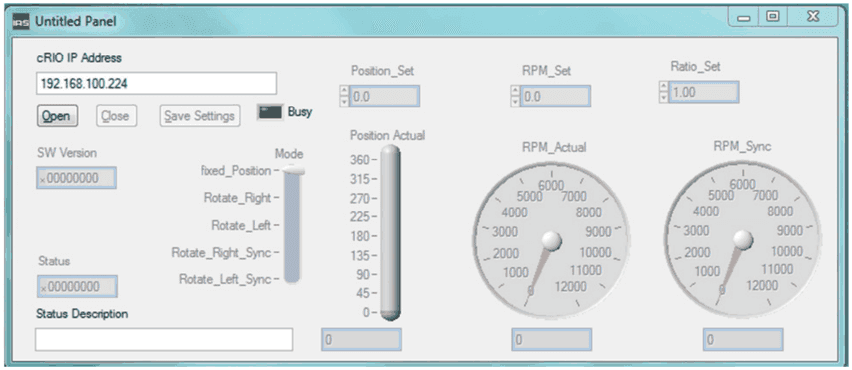
After
- the correct IP address has been entered,
- a resolver simulation system is present in the network
- and has finished boot process (approx. 1 minute),
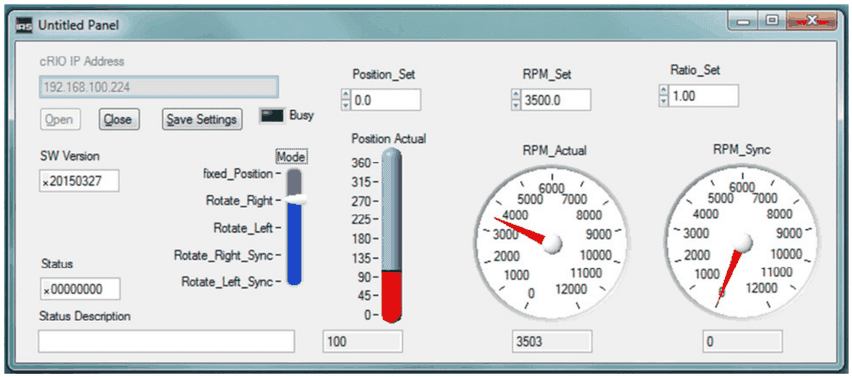
the connection may be established by pressing the “Open” button. If the connection is established, the window will appear as follows. The user may access the simulation by the controls.
5.3GUI for stand-alone system
For changing application specific settings a custom graphical user interface (GUI) is implemented.
5.3.1Installation
To run the GUI, an executable “ResSi.exe” can be found on the documentation disc. The entire folder, which contains this executable should be copied to the PC.
Additionally, LabVIEW 2013 runtime has to be installed. The runtime is available on the documentation disc, but may be also downloaded at NI.com.
5.3.2Front panel
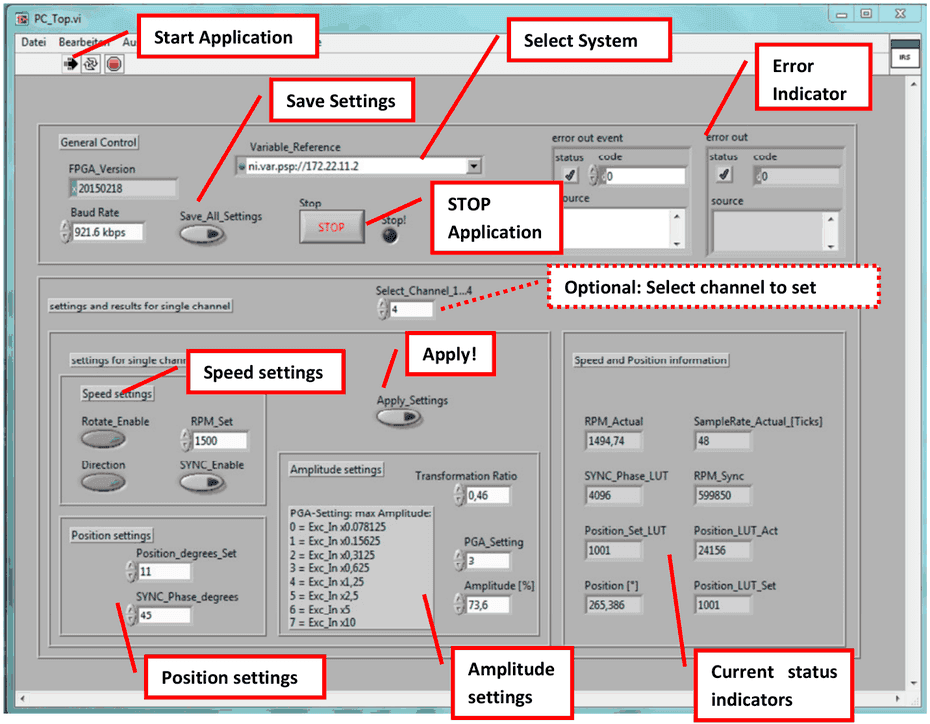
All changes of the settings are only applied, when:
- GUI is running (see Start/Stop GUI)
- System is properly selected (see Select system) – otherwise GUI stops with error.
5.3.3Start/Stop GUI
The GUI automatically starts, when “ResSi.exe” is executed.
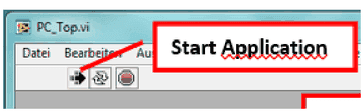
The “Start application” button is shown as in the following figure, when the GUI is running:
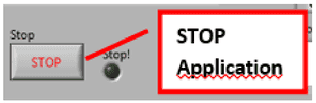
To stop the GUI, press the STOP-button.
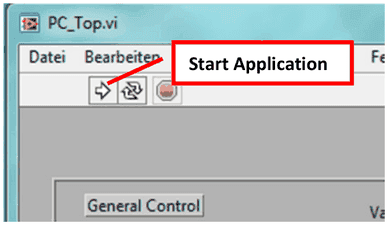
To restart GUI, press the “Start Application” button on the upper left corner.
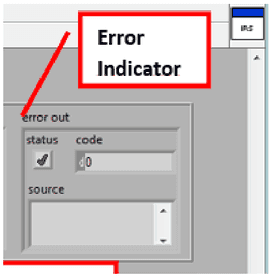
The GUI automatically stops, when an error occurs. An error is signalled and explained on the error_out indicator
If the system is not properly selected, an error occurs and the GUI is stopped. Select the system according to Select system and restart GUI by pressing the “Start Application” button.
5.3.4Select system
Accessing the settings of the system is achieved using NI-PSP shared variables. The variable server runs on the cRIO system. Since the IP-address of the system may vary, the user must select the correct system.
Press the “Variable Reference”:
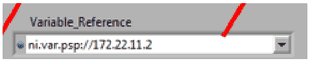
The following window should appear:
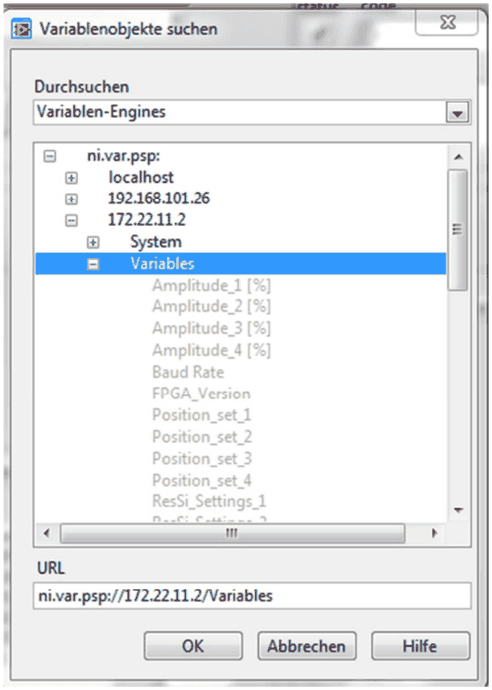
Select the item “Variables” on the system with the correct IP-address.
- 172.22.11.2 in case of USB devices
- For Ethernet depending on DHCP
If the system is properly selected, the GUI will run, if there is an error, the GUI stops and indicates an error. In the latter case, make sure that all connections are established and the system is powered. After selecting the system restart the GUI as described in Start/Stop GUI.
5.3.5Save all settings
Current settings may be saved to be active after reboot again. If the button “Save_All_Settings” is pressed, all settings are stored permanently in the system.
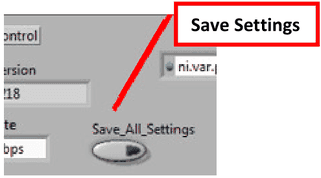
Please note, that current settings of the system are stored. I.e. the settings have to be applied before saving according to Change resolver settings.
5.3.6Change resolver settings
All following settings may be changed in the GUI. If several Resolver modules are applied, settings take effect only for a single selected channel, after the “Apply_Settings” button has been pressed.
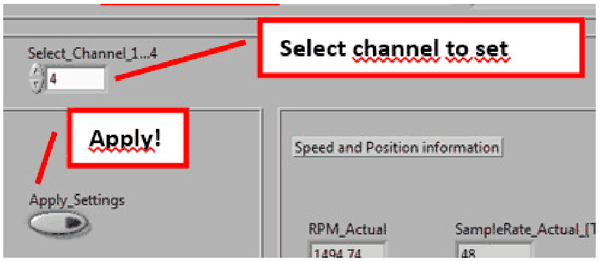
I.e. first “Select_channel_1…4” (Optional for several modules). Then change settings as described in the following sub-chapters. Then press “Apply_Settings”.
If settings should be stored permanently, press “Save_All_Settings”
Speed settings
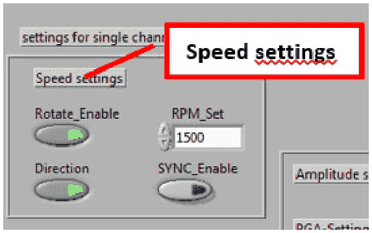
The speed settings include the following:
- Rotate_Enable:
- continuously rotate, when TRUE
- approach fixed position when FALSE.
- Direction:
- Rotate “left” with increasing angle when TRUE
- Rotate “right” with decreasing angle when FALSE
- RPM_Set:
- Sets the speed of rotation in “rounds per minute”, when SYNC_Enable is FALSE.
- When rotation is disabled, RPM_Set defines the maximum speed to approach a fixed position, when fixed position changes.
- SYNC_Enable:
- Use external synchronisation input when TRUE. Time between positive edges on SYNC input defines speed. Note, that the speed is limited to RPM_Set, when RPM_Set is higher than SYNC
- Use RPM_Set as speed value when FALSE.
Position settings
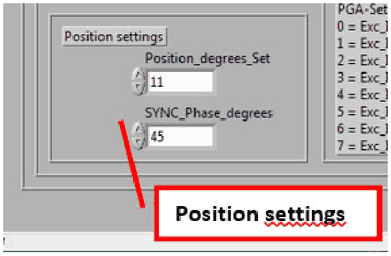
Position settings include the following:
- Position_degrees_Set:
- Position to set in the range 0…360°
- Only valid when rotation is disabled and no position is received on serial line for this channel.
- SYNC_Phase_degrees:
- Angle in the range 0…360°
Amplitude settings
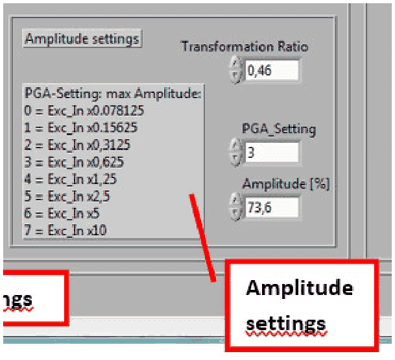
The transformation ratio of a channel may be changed by Amplitude settings. There are two values, which define the transformation ratio:
- PGA_Setting:
- programmable gain amplifier defines the maximum range of the transformation ratio
- Setting between 0…7 according to the table in the figure above
- Amplitude [%]:
- Defines the fine tuning within the current range, defined by the PGA
- Set in the range 0…100%.
These two values are written to the system and really define the transformation ratio.
To make amplitude settings easy, a Transformation ratio may be entered. When a new value for “Transformation_Ratio” is entered, “PGA_Setting” and “Amplitude [%]” are calculated automatically to an optimal value.
5.3.7Current status indicators
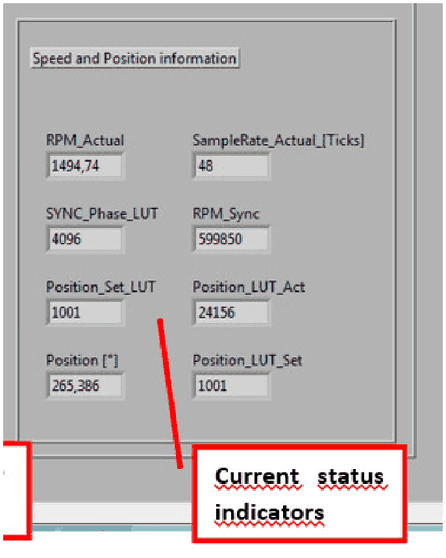
Current status indicators are as follows:
- RPM_actual: Current speed, depending on either RPM_Set or synchronisation input speed.
- SYNC_Phase_LUT: Internal representation of SYNC_Phase
- Position_Set_LUT: Internal representation of fixed position
- Current position [°]: Current Position in the range 0…360°
- Sample_Rate_Actual: Internal speed representation (=25ns-Ticks for a single step)
- RPM_Sync: Speed of the external SYNC input in RPM
- Position_LUT_Act: Current Position (internal value)
- Position_LUT_Set: Internal representation of fixed position. Either fixed setting or received data
5.4VIs for integration into user application
To set simulation parameters or read current status, two main VIs may be used to be integrated in a user application. Both VIs are available in the Stand-alone LabVIEW-example GUI.
These VIs don’t need an open or close VI. They may be called by any LabVIEW application or TestStand Sequence.
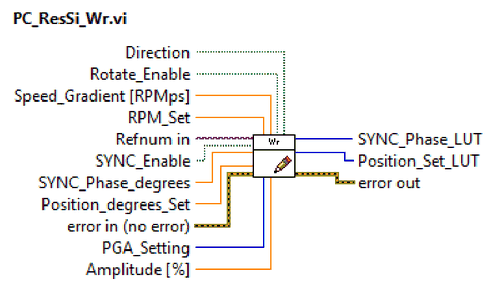
5.4.1PC_ResSi_Wr.vi
PC_ResSi_Wr.vi sets the new status of the resolver simulation. The input parameters are described in General control. The output parameters ..._LUT are internal representations of the settings. These outputs may be ignored.
For the “Refnum in”, please connect a valid reference to the device according to Select system
5.4.2PC_ResSi_Rd.vi
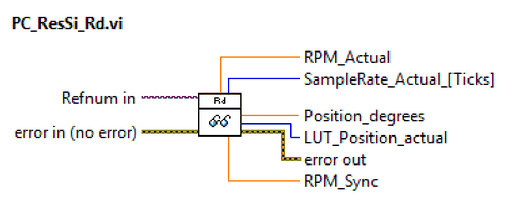
PC_ResSi_Rd.vi reads the current status of the resolver simulation. The output parameters are described in General control
For the “Refnum in”, please connect a valid reference to the device according to Select system
Analog Control
cRIO_Resolver_Simulation_V31_LV15_1_Channel_AnalogControl
- NI9201 8-Channel +-10 V
- Calculated SampleRate: 50 Hz
- Calculated Resolution: 488 µV
| Input | Function | Mapping |
|---|---|---|
| AI0 | Rotate | >= 3V (recommended 5V) (2,9V hysteresis) -> „True“ |
| AI1 | SampleRate | 0 – 10 V -> 0 – 20000 RPM; min. 0,00976 V -> 20 RPM; off < 0,00585 V; Resolution 0,00391 V -> 8 RPM |
| AI2 | Direction | >= 3V (recommended 5V) (2,9V hysteresis) -> „Clockwise“ |
| AI3 | Position | 0 – 10 V -> 0 – 360 °; min. 0,00976 V -> 1 °; off < 0,00585 V; Resolution 0,00391 V -> 0,4 ° |
| AI4 | Gradient | 0 – 10 V -> 0 – 10000 RPM/s; min. 0,00976 V -> 10 RPM/s; off < 0,00585 V; Resolution 0,00391 V -> 4 RPM/s |
| AI5 | Not Used | |
| AI6 | Not used | |
| AI7 | Modus | >= 3V (recommended 5V) (2,9V hysteresis) -> „AnalogControl“ |