National Instrument TestStand is the underlying test execution system used by the LTT GUI.
This chapter is by no means an introduction or documentation of National Instruments TestStand itself. At this point you should already have basic knowledge about basic TestStand concepts such as sequence files, sequences, steps and variables. If not, maybe you want to read the TestStand help document.
Within the LTT folder structure all TestStand related files are located below [Install Location]\50_LTT_SW\LTT TS\. The TestStand sequence file which represents your LTT testplan must be located there. There is a LTT sequence file template (\50_LTT_SW\LTT TS\LTT Template.seq) if you want or need to begin from scratch. This sequence file template contains all necessary structures needed for a LTT testplan.
The LTT template sequence file is different for MesSy II or MesSy II FD. Depending on what you have selected during installation, the template file is for that MesSy version. If you want to switch to the other MeSy version read chapter MesSy Version Setup.
A TestStand sequence file must meet certain criteria in order to be used for LTT. We call TestStand sequence file a LTT testplan, when it fulfills all required criteria.
The required criteria for a TestStand sequence file to be a LTT testplan are as follows:
- it need to have a specific process model
- it need to contain some predefined sequences
- it need to contain some predefined variables
During this chapter the terms execution, socket, DUT and (test)station may be used. They are interchangeable in most cases. Execution or socket are NI TestStand jargon. An execution / socket means a single DUT / test station.
Setup
When you run the LTT installer, you usually do not need to take care of setting up TestStand for the needs of the LTT software. This chapter only provides some background knowledge in case anything goes wrong or you want to do a manual setup, for whatever reason. You can skip this chapter if you are not interested yet.
There is a tool located at
[Install Location]\50_LTT_SW\LTT GUI\IRS.TS.Tools.exewhich helps you to configure TestStand. Please close TestStand and LTT GUI before you use this tool!
For the LTT software to work properly the following things need to be setup correctly:
TestStand configuration directory
The default TestStand configuration directory is at C:\ProgramData\National Instruments\TestStand\. Within this directory there are files storing all vital TestStand settings like search paths, StationGlobals, model plugins, report configuration and so on. To not interfere with an existing TestStand configuration the LTT software sets the TestStand configuration directory to [Install Location]\50_LTT_SW\LTT TS\config. It is important to set the configuration directory first, before applying any other changes, as otherwise those changes would affect your previous TestStand configuration.
TestStand search paths
There are 2 necessary paths, which need to be added to the TestStand search paths.
[Install Location]\50_LTT_SW\LTT TS\lib\[Install Location]\50_LTT_SW\LTT GUI\
TestStand type palette paths
There are 3 INI files, which need to be added to the TestStand type palette paths.
[Install Location]\50_LTT_SW\LTT TS\config\IRS.LTT.Types.ini[Install Location]\50_LTT_SW\LTT TS\lib\IRS.MesSy\V1\IRS.MesSyI.Types.ini[Install Location]\50_LTT_SW\LTT TS\lib\IRS.MesSy\IRS.MesSyII.Types.ini
Those files will add custom step types to your TestStand insertion palette.
1.1.4.1.1IRS.TS.Tool.exe
Luckily this tool will help you with the setup task. It is normally run during installation, but in case anything went wrong just start it manually after installation.
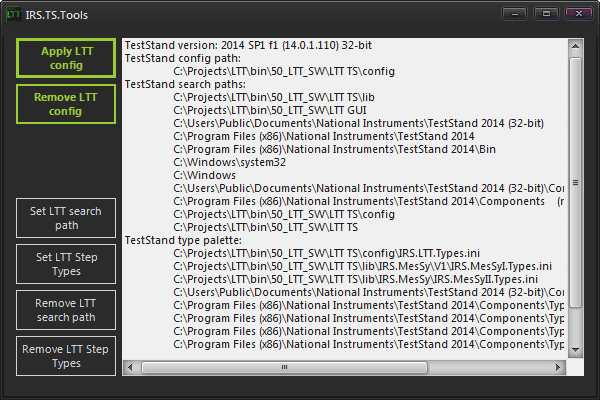
Simply click on "Apply LTT config" to setup everything.
Folder Structure
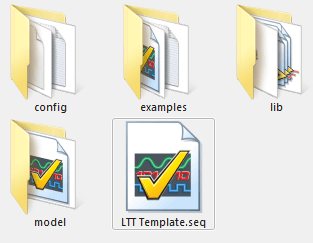
The LTT TS directory is the root of the LTT test execution system. At top level it contains the actual TestStand sequence file implementing your specific LTT testplan (and/or the template sequence file). It also contains the following sub folders:
| Folder | Content |
|---|---|
| config | Contains the TestStand configuration like StationGlobals, search paths, type definitions and so on. During installation of the LTT software the TestStand configuration directory will be set to this location. The default TestStand configuration directory is at C:\ProgramData\National Instruments\TestStand\ and stays untouched. |
| examples | Contains MesSy examples sequences for both MesSy V1 and V2. You can copy those sequences into your own testplan as needed. |
| lib | Contains code modules (LabView, .NET) needed to operate the LTT. Specifically you will find there:ddd |
| model | Contains the LTT process model |
1.1.4.2.1The lib folder
The lib folder contains some standard sub folder and files, which will be explained here. But it is also the place to put in your project specific assets, like additional DLL's or LabView VI's. Feel free to add more sub folders / LLB's / DLL's or VI's. But do not place your specific assets into one of the existing standard sub folders, since they get replaced by each LTT software update!
| Item | Description |
|---|---|
| IRS.MesSy | |
| IRS.MesSyFD | |
| IRS.Mod | |
| IRS.LTT.Mod.API.lvlibp | |
| IRS.LTT.Mod.Loader.lvlibp | |
| IRS.LTT.Mod.Test.exe | |
| IRS.LTT.TS.API.lvlibp | |
| IRS.LTT.TS.UserLib.lvlibp | |
| IRS.Rendezvous.lvlibp |
Predefined Variables
There are certain variable structures in FileGlobals and StationGlobals, which need to be present for a LTT testplan to work properly. A LTT testplan need to have an item named LTT and of type LTT_Client_Data placed in its FileGlobals.
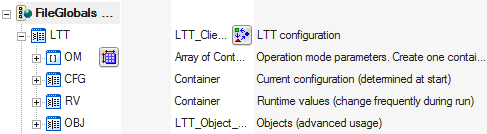
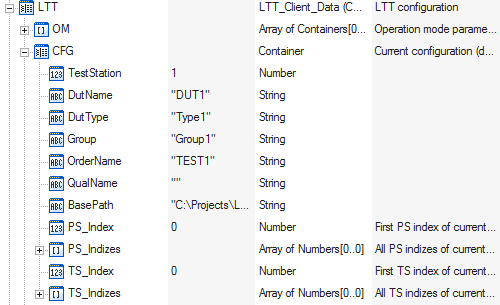
The FileGlobals.LTT.CFG container contains variables representing the current test configuration. Those variables are automatically filled at start.
TestStation, DutName, DutType, Group, OrderName, QualName
Those variables are filled with the data entered in F11 dialog of LTT GUI.
BasePath
Path to the directory where your LTT sequence file is located.
PS_Index, PS_Indizes, TS_Index, TS_Indizes
A DUT belongs to a test group and a test group can have one or more power supplies and temperature sensors assigned. The X_Index variable holds the zero based (!) index of the assigned power supply/temperature sensor, whereas the X_Indizes array holds all assigned indexes. You rarely need to use those since the assigned PS and TS are automatically controlled and usually do not need your further assistance.
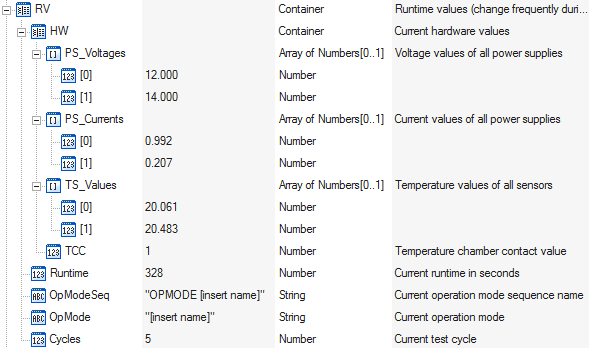
The FileGlobals.LTT.RV container contains variables representing various runtime values which get updated frequently during testplan execution.
Runtime, Cycles
The current runtime of this test in seconds. The current cycles of this test.
OpModeSeq, OpMode
The currently executing operation mode. Note that the variable OpModeSeq holds the exact sequence name, whereas the variable OpMode holds the name of the operation mode (without the sequence prefix).
HW
FileGlobals.LTT.RV.HW contains voltages and currents of all configured power supplies as well as the temperatures of all configured temperature sensors. Use the FileGlobals.LTT.CFG.XX_Index variables to determine which PS/TS is relevant for that particular DUT.
HW.TCC
The current TCC value. Please note that this value is not masked. It represents the value of all 8 bits of the TCC input.
A LTT testplan need to have an item named LTT and of type LTT_Global_Settings placed in its StationGlobals.
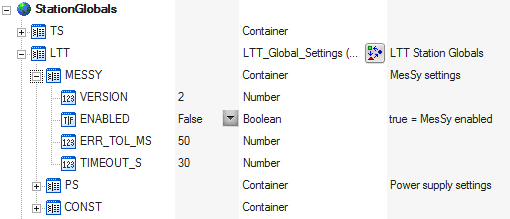
The StationGlobals.LTT container is mainly used for internal parameters which you do not need to know or modify, nor should you. An exception is the StationGlobals.LTT.MESSY container. In that you will find some variables of relevance.
| Variable | Description |
|---|---|
| ENABLED | If false no MesSy setup is performed in LTT process model. This can be used to run a LTT testplan without MesSy. Be aware that if you have MesSy API calls in your testplan those will fail. You can, however, check this variable as a precondition in every MesSy step. |
| ERR_TOL_MS | TODO: description. (for MesSy V1 compatibility) |
| TIMEOUT_S | MesSy communication timeout. |
| VERSION | MesSy version: 1 or 2. This is set by GUI! |
Predefined Sequences
A LTT testplan need to have certain predefined sequences.
See chapters order of execution, operation modes and process model for a better understanding.
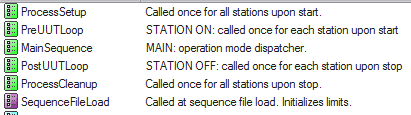
The green and purple sequences at the top are predefined mandatory TestStand sequence callbacks triggered by the process model. They will be triggered in the following order.
- SequenceFileLoad: called at sequence file load. Initializes limits.
- ProcessSetup: called one time after start for all stations. Use this to perform initializations per LTT and not per DUT.
- PreUUTLoop: called one time after start for each DUT.
- MainSequence: main sequence entry point. Do not make any changes here. It serves as a dispatcher to the various operation mode sequences.
- PostUUTLoop: called one time during stop for each DUT.
- ProcessCleanup: called one time during stop for all stations. Use this to perform cleanup per LTT and not per DUT.
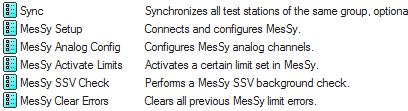
Additionally to the standard TestStand sequence callbacks there are a couple of other, optional sequences.
| Sequence | Outcome |
|---|---|
| Sync | Synchronizes the execution of all stations at this point. Optionally sets the power supply to a different voltage level. |
| MesSy Setup | Performs the MesSy setup. |
| MesSy Analog Config | Configures MesSy analog channels (scaling, offset). |
| MesSy Activate Limits | Activates a given limit set on MesSy. |
| MesSy SSV Check | Performs a SSV check on a given limit set. |
| MesSy Clear Errors | Clears any previous SSV check results. |
Besides those standard and optional sequences above, there are so called operation mode sequences, which are important for the LTT.
A LTT testplan need to contain at least one operation mode sequence.
Operation Modes
See chapters predefined sequences, order of execution and process model for a better understanding.
In LTT terminology an operation mode is a sequence of operations, which is executed under certain conditions. Those conditions can be different voltage levels, temperatures or DUT states (sleep, normal).
A LTT sequence file contains some predefined sequences, together with various other arbitrary sequences and so called operation mode sequences. An operation mode sequence's name need to start with the prefix OPMODE or OM.
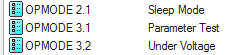
You can think of an operation mode sequence as the main entry point for that operation mode. From there on it calls other sequences to do whatever the operation mode should do.
There is, however, a main entry point for the whole LTT sequence file. This entry point is called MainSequence and is responsible for switching to one of the defined operation mode sequences, depending on the current temperature chamber contact state (TCC) and the configuration you made in GUI's F10 dialog.
Do not make any changes to the MainSequence.
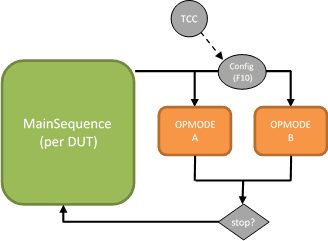
The MainSequence will call an operation mode in a continuous cycle, which only exits as a result of a stop condition.
If there is no operation mode defined for the current TCC value, the testplan will execute a fallback sequence which does nothing but displaying a status in GUI, that there is no valid operation mode mapping.

Parameters
Although not mandatory it is common for an operation mode to have parameters.
Operation mode parameters are defined as FileGlobal variables in TestStand.
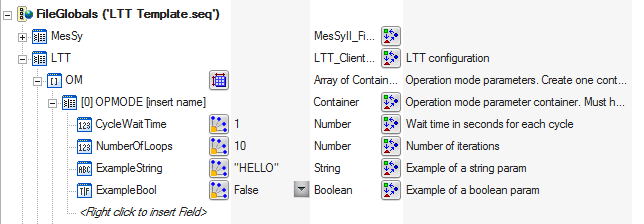
The FileGlobals.LTT.OM structure is an array of containers. Each container represents the parameters for a single operation mode sequence. The container must be named exactly like the operation mode sequence itself. Within each operation mode parameter container you can add as many variables as needed. Only variables of type string, bool and numeric are supported.
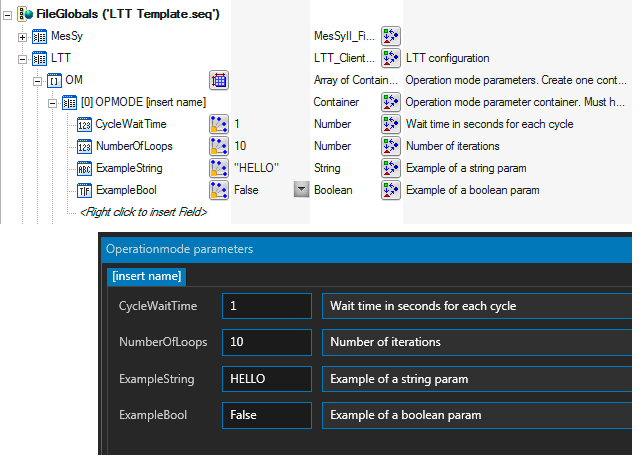
For each operation mode parameter variable you set a name, a default value and a description (as variable comment). When the testplan is loaded in GUI you can see a list of all operation modes with their parameters in F10 dialog. There you can modify individual parameters, even during the testplan is running. The default parameter values entered in TestStand remain untouched. If you run without GUI you work with the default parameters. You need to change the values in TestStand if they do not fit your current need.
Process Model
TestStand stores its sequences in so called sequence files. A sequence file usually has a so called process model attached. TestStand ships with 3 standard process models: sequential model (default), parallel model and batch model. In TestStand the normal sequence file is also called client sequence file, whereas the process model is called process model sequence file. For the LTT we call the client sequence file testplan. The testplan represents the project specific collection of sequences.
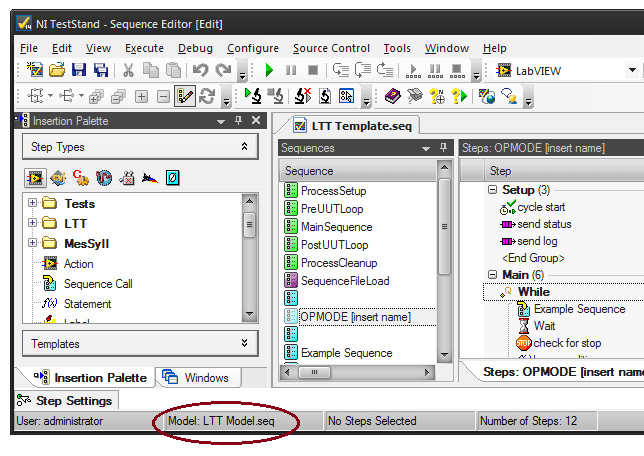
Each LTT testplan needs to have the LTT process model assigned. It is located at
\50_LTT_SW\LTT TS\model\LTT Model.seq. Do not modify the LTT process model as it gets overwritten by the next update.
The LTT process model specifies the frame sequence for each LTT testplan. It determines the order, in which each of those standard sequences are called and also provides some execution logic, initialization, error handling and so on. The LTT process model is the same for every LTT testplan, hence it is not project specific.
The LTT model is derived from the standard TestStand parallel model. It is therefore able to handle multiple DUT's in parallel. The LTT model also contains features of the standard TestStand batch model.
When running multiple DUT's in parallel, you need to be aware that parallel execution has some limitations / drawbacks.
- You cannot access hardware simultaneously, which exists only once for all DUT's. Therefore you need some kind of locking to make sure that the hardware is accessed serially.
- Since parallel DUT's run independently, some are faster than others. At some point in your testplan you might need to wait for all DUT's before you continue. You will need this kind of synchronization especially if you want to change the voltage level of your power supply, if it supplies more than one DUT.
Use the SYNC sequence to change your DUT's voltage level and/or wait for the other DUT's to continue.
Order of Execution
See chapters predefined sequences, operation modes and process model for a better understanding.
When starting a LTT testplan it follows the following basic order of sequence calls.
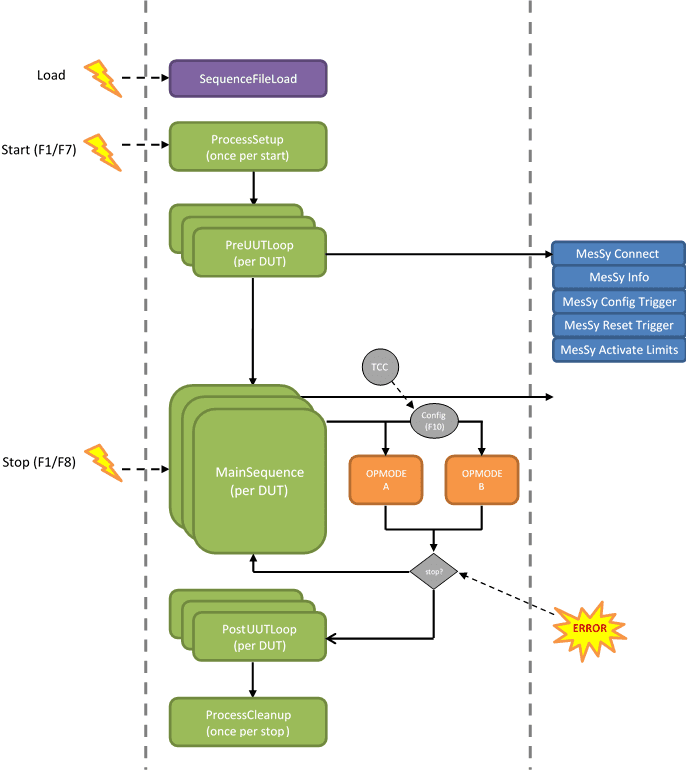
A LTT testplan can be started by GUI (F1/F7) or by TestStand itself (without GUI).
- ProcessSetup is executed. This sequence may be used to initialize shared components, which exist only once and not per DUT.
- Teststand starts a parallel execution for every station. PreUUTLoop typically performs a per DUT setup for each test station / execution.
- MainSequence is called after PreUUTLoop. All stations are synchronized at this point, guaranteeing that all stations start the operation mode at the same time. This also makes sure that all stations run an equal number of cycles.
- MainSequence calls an operation mode sequence, depending on current TCC value and configuration (F10). The OpMode is executed in parallel for each station.
- When running with GUI, the testplan will endlessly call the current operation mode sequence until a stop condition is met. When running in TestStand the behavior is slightly different.
- When a stop condition is met, the process model will execute the PostUUTLoop sequence per DUT and the ProcessCleanup sequence once.
1.1.4.6.1.1Stop conditions
- Active stop: the testplan issues a stop request by itself (how to).
- TestStand error: If a TestStand step returns an error (for example if a VI call returns an error in the "Error Out" cluster) the execution will terminate.
- TCC input change: The testplan need to actively check for this stop condition (how to). By default a TCC change check is performed only at the beginning of an operation mode sequence. It is up to the user to perform additional TCC change checks during the execution of the operation mode.
- User request (GUI ONLY): by pressing F1 or F7 in GUI. The testplan need to actively check for this stop condition (how to). By default a stop request check is performed only at the beginning of an operation mode sequence. It is up to the user to perform additional stop request checks during the execution of the operation mode.
Note: if there are no more intermediate stop checks, it may take a long time between the stop request and the actual stop! - Limit error max reached (GUI ONLY): when a limit test for a specific limit has failed the number of times configured in F6, the GUI will stop the test.
- Max. runtime reached (GUI ONLY): when the test ran for the time configured in F10 the GUI will stop the test.
Running Without GUI
You can run your testplan without GUI.
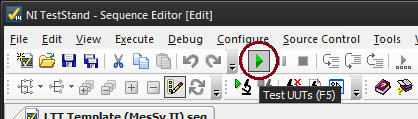
Just press the green arrow button in TestStand after you have loaded your testplan.
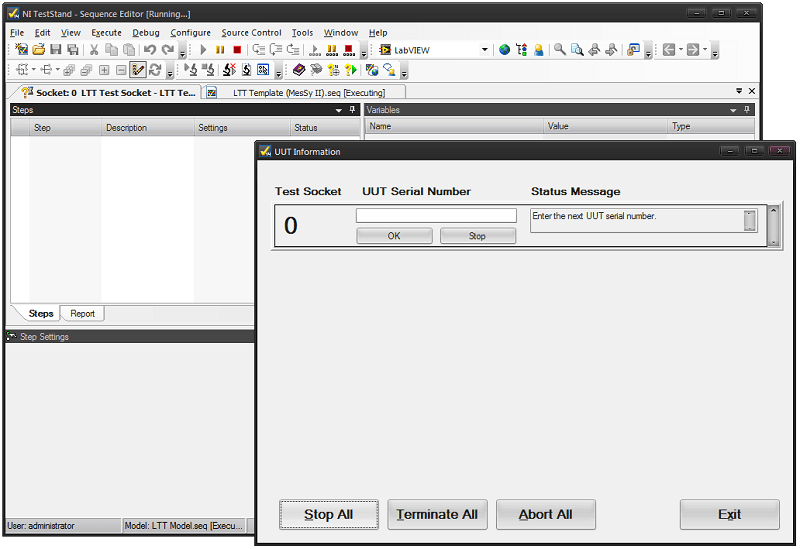
First the ProcessSetup and PreUUTLoop sequences will execute. The latter one will connect to your MesSy (only if MesSy is enabled in StationGlobals). After a while the default TestStand UUT Information dialog will appear. You are limited to one DUT. You can ignore the UUT Serial Number input and just press OK to go on with your testplan.
Now the MainSequence will run. It will call one of your existing operation mode sequences depending on the current TCC value and how you have mapped it (read chapter Order of execution for more details). After a fresh installation there is a default mapping to the one and only operation mode [insert name] when the (simulated) TCC returns 0.
To make your testplan execute a certain operation mode when running standalone in TestStand you need to configure a mapping in LTT GUI F10 dialog and make sure that your TCC (simulated or real) returns the correct value.
For a correct operation some variables also need to be set, which will normally be done by LTT GUI. You need to set the MesSy V2 StationID or MesSy V1 Bus/Slot variables manually (read chapter MesSy integration).
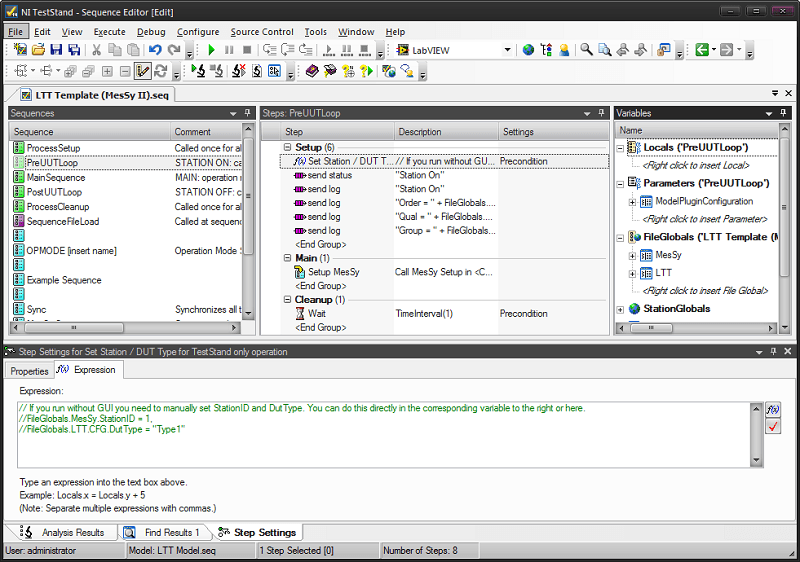
The best place for setting variables manually is in PreUUTLoop. There is already a Statement step placed, with some commented out code. Just uncomment it and set the variables according your needs.
When the operation mode sequence has finished, the execution will pause and you need to manually resume it again in the UUT Information dialog or terminate the execution.
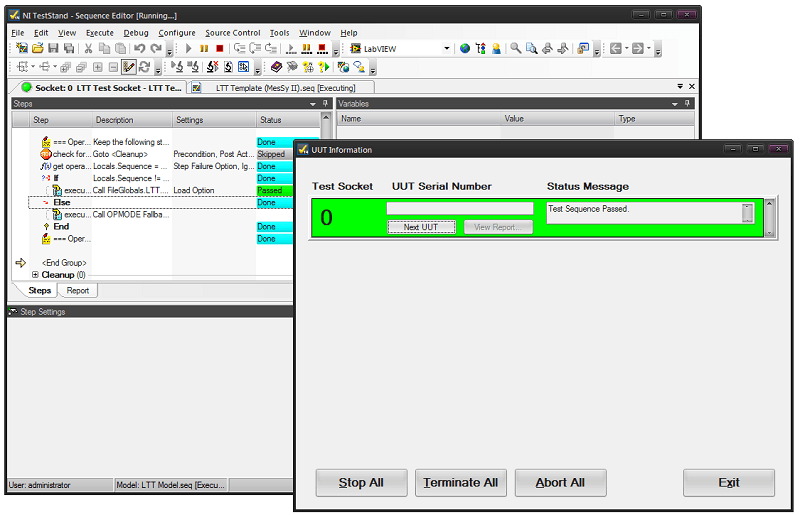
When you press Next UUT and then OK, the operation mode will start again. You can change the TCC value in between to switch to another operation mode as long as you have mapped it in LTT GUI.
When you press Exit the PostUUTLoop and ProcessCleanup sequences are called and the execution stops.
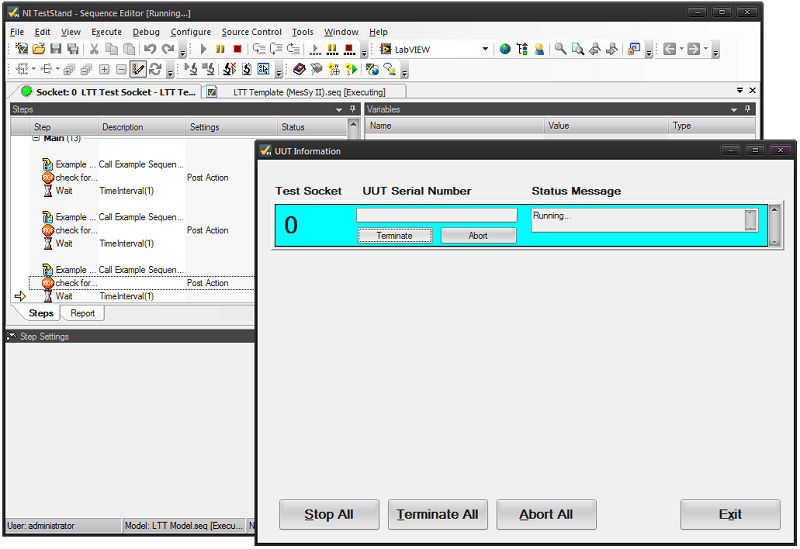
If you want to stop the execution during an operation mode you can press Terminate in the UUT Information dialog.
Synchronization
Limit Tests
The purpose of a LTT testplan is to test DUT outputs (signals) against certain limits. Hence, the limit test is the most important TestStand concept for LTT.
TestStand offers 3 standard limit test types:
- numeric limit test
- string limit test
- pass/fail test
The LTT software adds a fourth type of limit test - the LTT limit test. The LTT limit test is a combination of the numeric and string limit tests and allows limits to be configured by XML file. That way it is easily possible to change limits without changing the the testplan itself. Additionally the LTT limit test step provides a limit selection panel in TestStand, where you can easily select the signal and limit you want to test.
LTT Limit Tests
You first need to configure signals and limits in GUI before you can use the TestStand limit selection panel.
For this chapter we assume the following configuration:
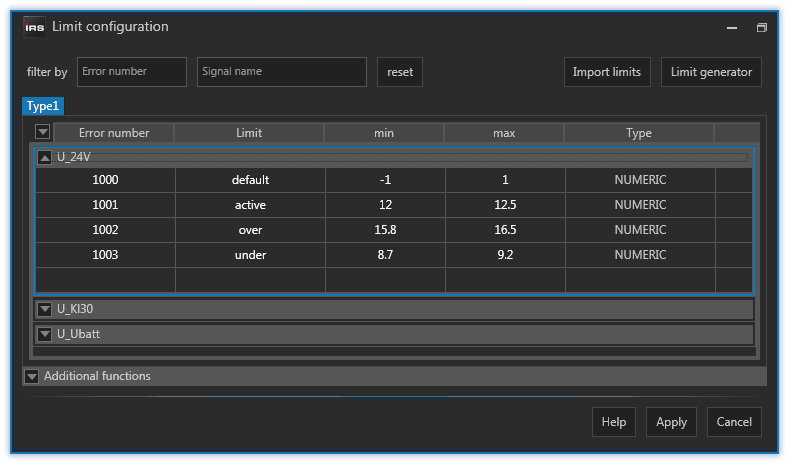
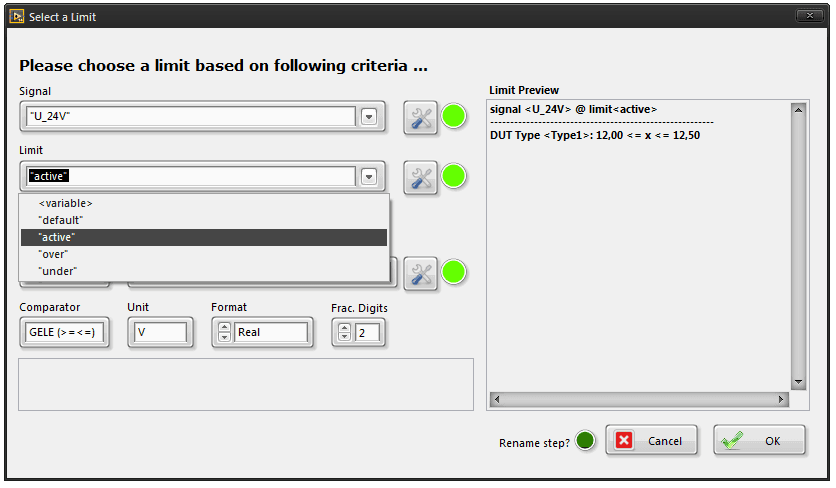
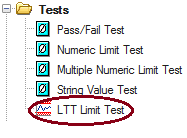
In TestStand you can place a LTT Limit Test step. A dialog will appear.
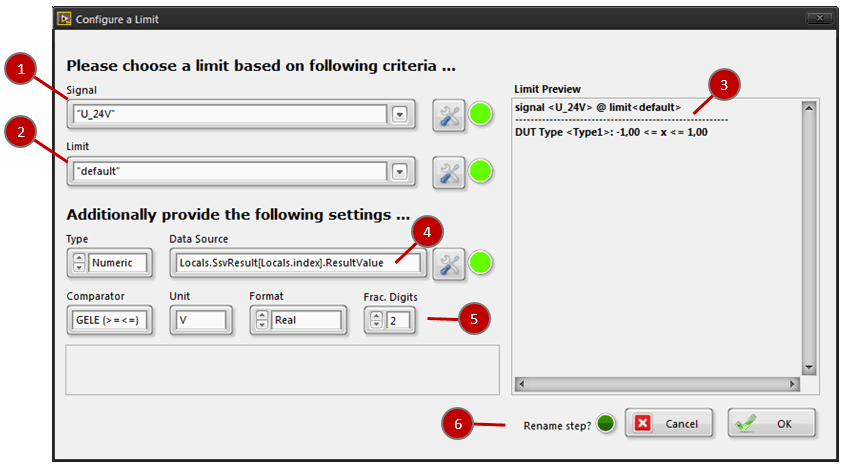
A dialog will appear where you:
- Select a signal from the drop down box
- Select a limit from the drop down box
- See a preview of the selected limit for the selected signal for each DUT type
- Provide a data source, typically a TestStand variable holding the value to be tested
- Optionally provide unit, precision and comparator, just like in the standard TestStand numeric limit test
- Check the "Rename Step?" (recommended) and click OK
The inserted step will be renamed to the selected signal/limit. It will also contain the unique error number which you configured for that signal/limit.

A limit test step name in a LTT testplan—no matter if standard numeric limit test or LTT limit test—should always contain an error number in [square brackets] at the beginning of the step name. Optionally the step name could further follow the format {signal name} @ {limit name}.
If you select a LTT limit step and click on the edit button or press Ctrl + E, the limit selection dialog will appear again. You can choose another signal and/or limit and the step will adapt to your settings.
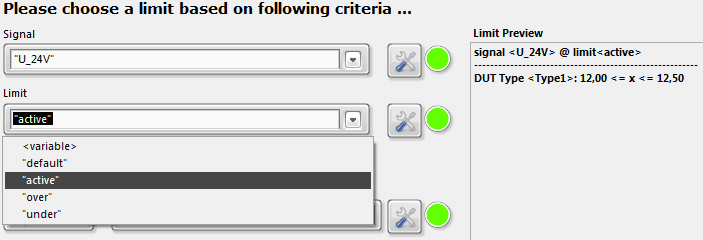
1.1.4.8.1.1Dynamic Limits
By pressing the "tool button" to the right of the signal or limit drop down boxes, a TestStand expression editor window will open.
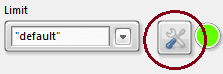
There you can select a TestStand variable from Locals, Parameters, FileGlobals, etc. and/or specify a more complex expression which determines the signal and/or limit name dynamically. As a result, the limit preview will not show all possible limits, since now the step does not specify one exact limit.
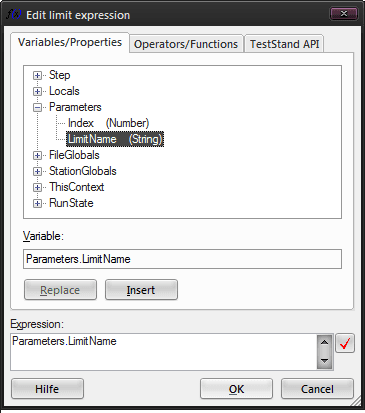


LTT limit steps containing expressions for signal and/or limit name are called dynamic limits. The step name will not contain an error number but a [???] instead, since many are possible. The step name will also contain <variable> for that part which is an expression. However, when you run the testplan the step will update to the correct limit, name and error number, depending on the value of the provided expression.
If the expression for a dynamic limit does not evaluate to an existing signal/limit name you will get a limit not found error and the station will stop.
Besides the LTT limit test you can—of course—still use all other TestStand standard limit tests.
Standard Limit Tests
Besides the LTT limit test you can - of course - still use all other TestStand standard limit tests.
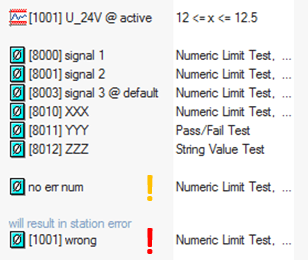
When using standard limit tests you can not easily access GUI configured limits (XML). Read here about how to do it.
In the picture above you see some examples of TestStand standard limit tests. Besides of the step name starting with an error number in square brackets, you are free to name your limit test step what you like. Yet, you are encouraged to name the step according to the pattern {signal name} @ {limit name} if applicable.
When using standard limit tests you still should supply at least an error number in [square brackets] at the beginning of the step name. Like with the error number you configure in GUI's F5 dialog, you need to make sure not to use duplicate error numbers.
Standard limit tests with error numbers will be shown in GUI's F6 dialog, where you can provide an error limit for them. Please be aware, that those TestStand only error numbers get added to the GUI but not removed if you remove them in TestStand. However, you can manually remove them in F6 dialog.
The limit test step with the yellow exclamation mark (!) in the picture above is still valid, however you will not be able to configure an error limit in GUI's F6 dialog, since it has no error number.
The limit test step with the red exclamation mark (!) in the picture above is invalid and will result in an error, which will stop the station. The reason is that this limit test step is using an error number [1001] which is already in use by a different limit test step.
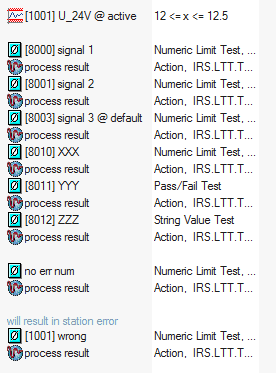
If you run your LTT testplan in TestStand you will notice some "process result" steps inserted after each TestStand standard limit test. Those are automatically inserted by the LTT process model and are needed for the result processing. If they bother you, you can remove them via TestStand menu Configure > Remove Result Processing Steps.

Manual Limit Query
In some situations you might need to query a GUI configured limit (XML) without using the LTT limit test step.
Normally you do NOT need to do this.
TODO
Result Processing
Custom Step Types
TestStand comes along with a set of default step types, like action, if-statement, numeric limit test and so on. It also provides the possibility to create custom step types.
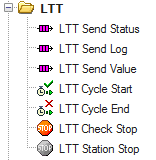
Sync
Send Status
(The file is empty)
Send Status
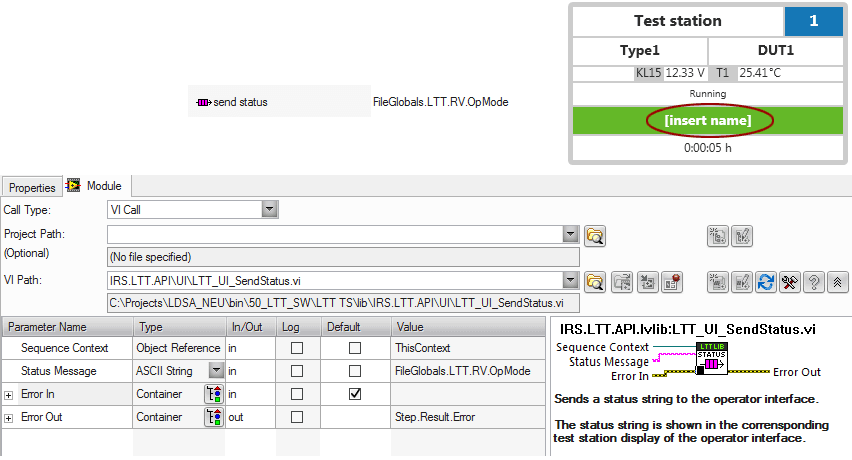
With the LTT Send Status step type you are able to send an arbitrary string to the station display.
Send Log
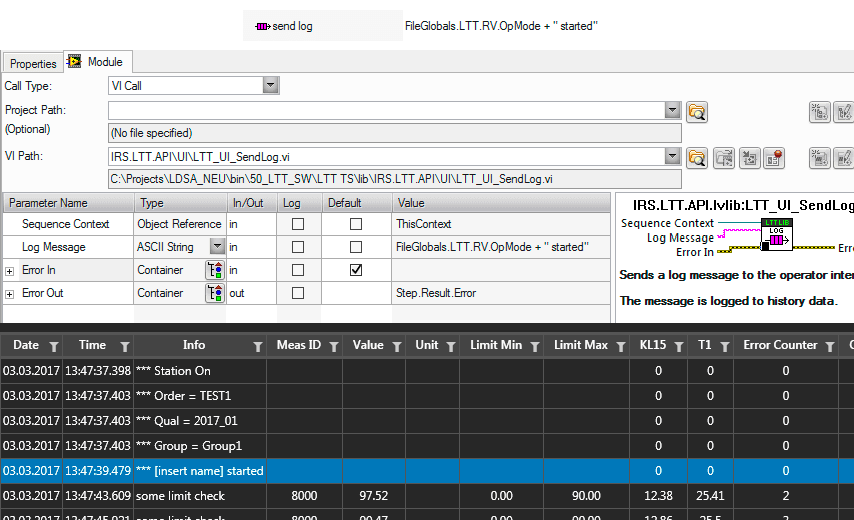
With the LTT Send Log step type you are able to send an arbitrary string to the history file.
Send Value / String Value
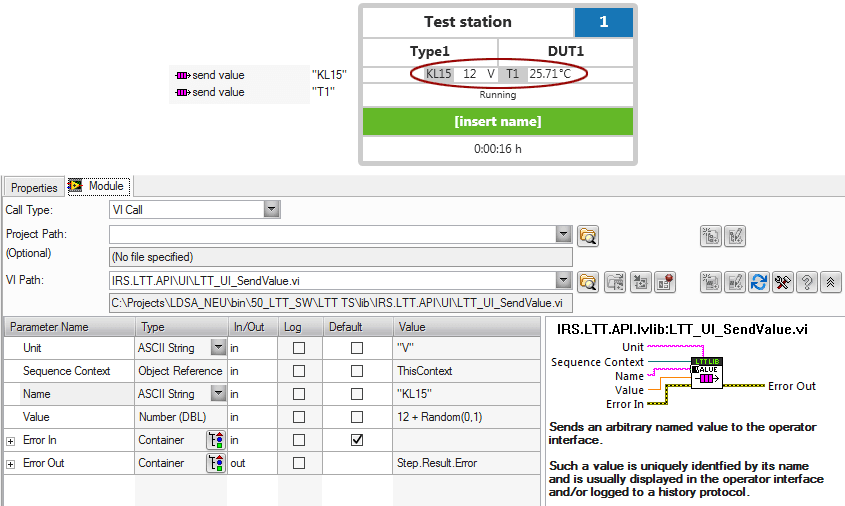
With the LTT Send Value step type you are able to send one or more named values to the station display. We also call those LTT runtime values.
For send value to work correctly it is important to name the values consistently throughout the whole testplan.
Optionally, you can configure one or more of those values as additional history columns.
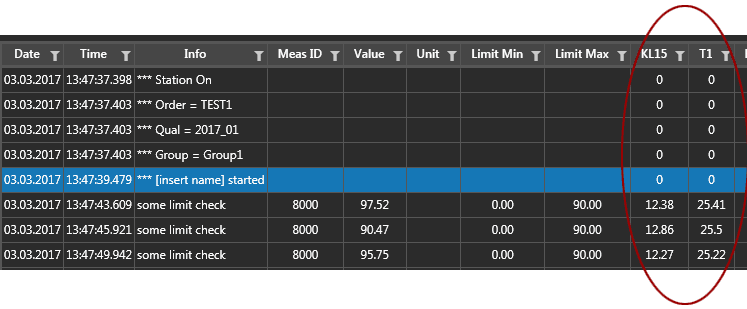
To do so, you need to edit the history configuration file and add a custom column for each runtime value you want to have as a history column.
It is important that the custom column name is exactly the same as the value name used in this step type.
In combination with history column configuration there are 3 different usage scenarios for LTT runtime values possible:
| Scenario | Outcome |
|---|---|
| Without custom column entry | Values are displayed in station display only. |
| With custom column entry | Values are displayed in station display and history file. |
With custom column entry (ShowInStationPanel="false") | Values are displayed in history file only. |
Cycle Start / End
The LTT Cycle Start and LTT Cycle End step types should be placed at the setup / cleanup of each operation mode sequence. That way the cycle counter will increment by one each time the operation mode sequence has passed through.
Of course, when the cycle counter should increment depends on your concrete testplan. For example, if your operation mode sequence never leaves (not recommended) the cycle end call should be placed inside the loop of your operation mode.
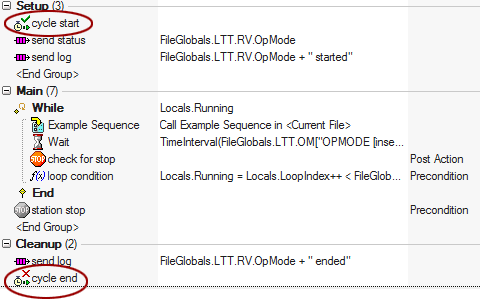
The cycle counter is available as a TestStand variable: FileGlobals.LTT.RV.Cycles.
The cycle counter is also added as a separate history column per default.
Only cycle end is needed to increment the cycle counter. You only need to place a cycle start step at the beginning of your cycle if you configure data recording to record every x minutes. Read more about data recording.
Check Stop
In your testplan you can place a LTT Check Stop check wherever you want. It checks if there is a stop request from the user interface, initiated by the user pressing F1 or F8. If this is the case, the step will jump to the cleanup section of the currently executing TestStand sequence.
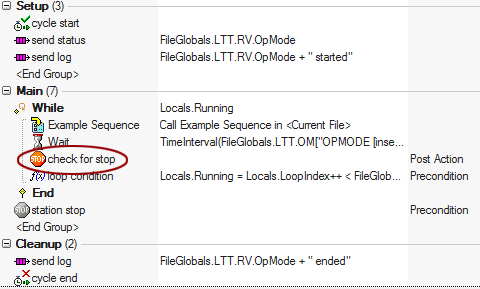
A check for stop is necessary to react to user stop requests and TCC value changes. By default, the only check for stop is done in MainSequence. This means:
- The test execution will only stop after an operation mode sequence returns, which can take a long time or not happen at all.
- The testplan can only react to a TCC value change when the current operation mode is finished.
Both may or may not be desired behavior.
Be aware that LTT Check Stop only jumps to cleanup of the current sequence. If you are in some nested sequence you will need to place a LTT Check Stop in each sequence all way up to your operation mode sequence entry point.
Station Stop
In your testplan you can place a LTT Station Stop whenever you want to actively stop the test execution of this station. Of all stop criteria, this is the only active one, where you, the testplan developer, decide when to stop. That's also the reason why a station stop is usually accompanied with a step precondition.
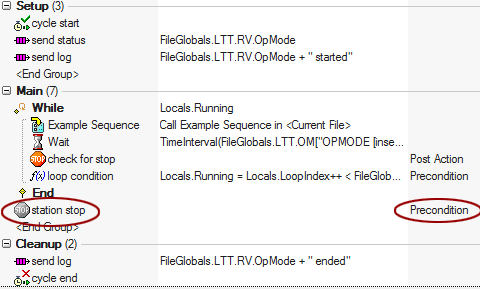
Normally, there is rarely a need to actively stop a test from within the testplan. However, if you do so, be aware that the station stop does the same as if a user would have pressed F1 or F8. You still need a check for stop step hierarchy to actually stop the execution.