Diese Seite gibt es noch nicht auf Deutsch, daher wird die englische Fassung angezeigt.
The purpose of a LTT testplan is to test DUT outputs (signals) against certain limits. Hence, the limit test is the most important TestStand concept for LTT.
TestStand offers 3 standard limit test types:
- numeric limit test
- string limit test
- pass/fail test
The LTT software adds a fourth type of limit test - the LTT limit test. The LTT limit test is a combination of the numeric and string limit tests and allows limits to be configured by XML file. That way it is easily possible to change limits without changing the the testplan itself. Additionally the LTT limit test step provides a limit selection panel in TestStand, where you can easily select the signal and limit you want to test.
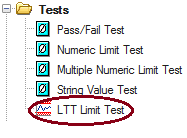
LTT Limit Tests
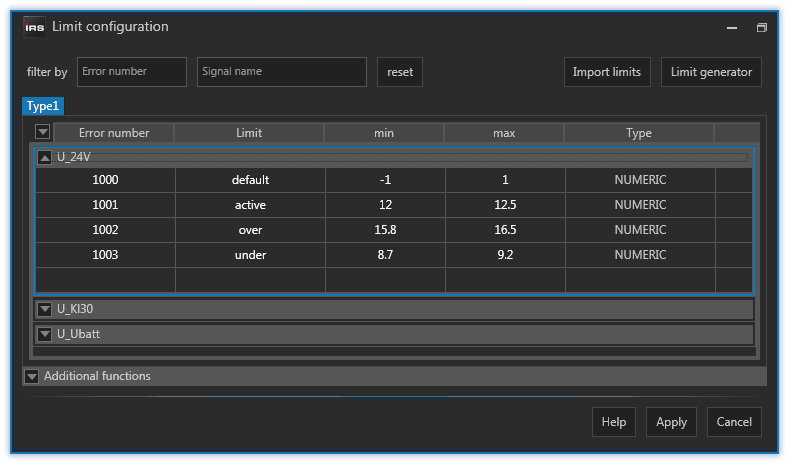
You first need to configure signals and limits in GUI before you can use the TestStand limit selection panel.
For this chapter we assume the following configuration:
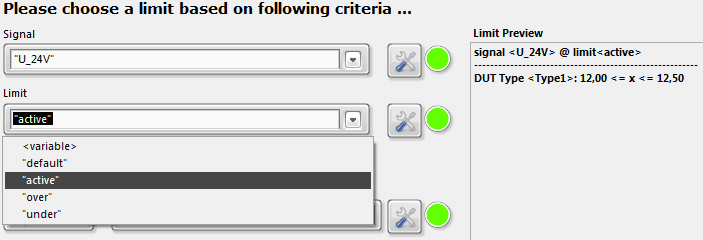
In TestStand you can place a LTT Limit Test step. A dialog will appear.
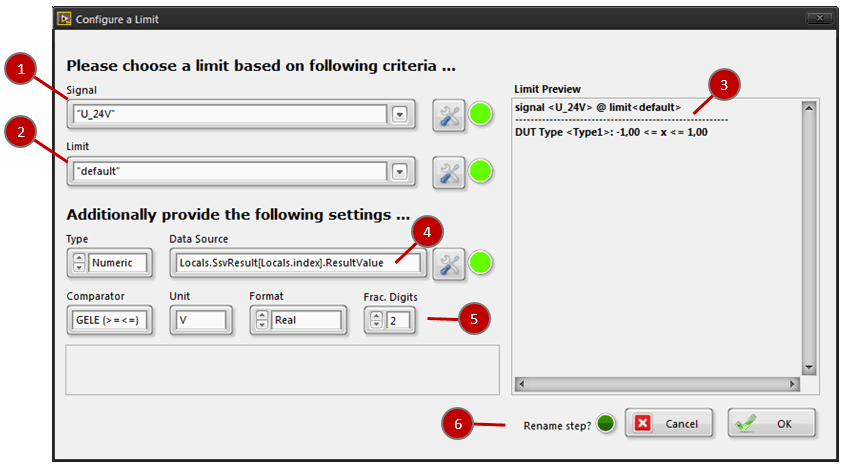
A dialog will appear where you:
- Select a signal from the drop down box
- Select a limit from the drop down box
- See a preview of the selected limit for the selected signal for each DUT type
- Provide a data source, typically a TestStand variable holding the value to be tested
- Optionally provide unit, precision and comparator, just like in the standard TestStand numeric limit test
- Check the "Rename Step?" (recommended) and click OK
The inserted step will be renamed to the selected signal/limit. It will also contain the unique error number which you configured for that signal/limit.

A limit test step name in a LTT testplan—no matter if standard numeric limit test or LTT limit test—should always contain an error number in [square brackets] at the beginning of the step name. Optionally the step name could further follow the format {signal name} @ {limit name}.
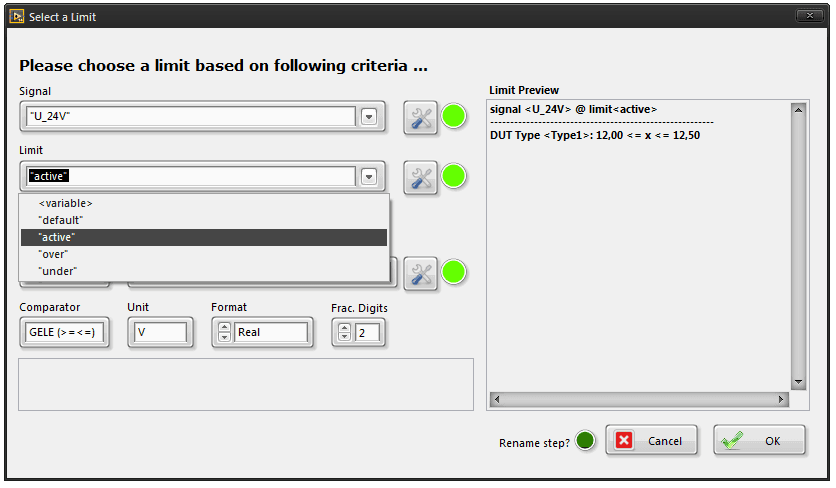
If you select a LTT limit step and click on the edit button or press Ctrl + E, the limit selection dialog will appear again. You can choose another signal and/or limit and the step will adapt to your settings.
1.1.4.8.1.1Dynamic Limits
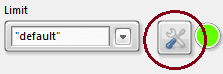
By pressing the "tool button" to the right of the signal or limit drop down boxes, a TestStand expression editor window will open.
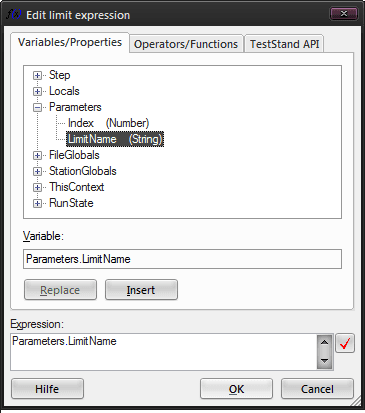
There you can select a TestStand variable from Locals, Parameters, FileGlobals, etc. and/or specify a more complex expression which determines the signal and/or limit name dynamically. As a result, the limit preview will not show all possible limits, since now the step does not specify one exact limit.


LTT limit steps containing expressions for signal and/or limit name are called dynamic limits. The step name will not contain an error number but a [???] instead, since many are possible. The step name will also contain <variable> for that part which is an expression. However, when you run the testplan the step will update to the correct limit, name and error number, depending on the value of the provided expression.
If the expression for a dynamic limit does not evaluate to an existing signal/limit name you will get a limit not found error and the station will stop.
Besides the LTT limit test you can—of course—still use all other TestStand standard limit tests.
Standard Limit Tests
Besides the LTT limit test you can - of course - still use all other TestStand standard limit tests.
When using standard limit tests you can not easily access GUI configured limits (XML). Read here about how to do it.
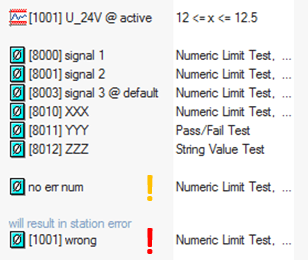
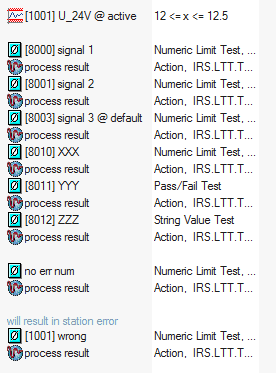
In the picture above you see some examples of TestStand standard limit tests. Besides of the step name starting with an error number in square brackets, you are free to name your limit test step what you like. Yet, you are encouraged to name the step according to the pattern {signal name} @ {limit name} if applicable.
When using standard limit tests you still should supply at least an error number in [square brackets] at the beginning of the step name. Like with the error number you configure in GUI's F5 dialog, you need to make sure not to use duplicate error numbers.
Standard limit tests with error numbers will be shown in GUI's F6 dialog, where you can provide an error limit for them. Please be aware, that those TestStand only error numbers get added to the GUI but not removed if you remove them in TestStand. However, you can manually remove them in F6 dialog.
The limit test step with the yellow exclamation mark (!) in the picture above is still valid, however you will not be able to configure an error limit in GUI's F6 dialog, since it has no error number.
The limit test step with the red exclamation mark (!) in the picture above is invalid and will result in an error, which will stop the station. The reason is that this limit test step is using an error number [1001] which is already in use by a different limit test step.
If you run your LTT testplan in TestStand you will notice some "process result" steps inserted after each TestStand standard limit test. Those are automatically inserted by the LTT process model and are needed for the result processing. If they bother you, you can remove them via TestStand menu Configure > Remove Result Processing Steps.

Manual Limit Query
In some situations you might need to query a GUI configured limit (XML) without using the LTT limit test step.
Normally you do NOT need to do this.
TODO