Diese Seite gibt es noch nicht auf Deutsch, daher wird die englische Fassung angezeigt.
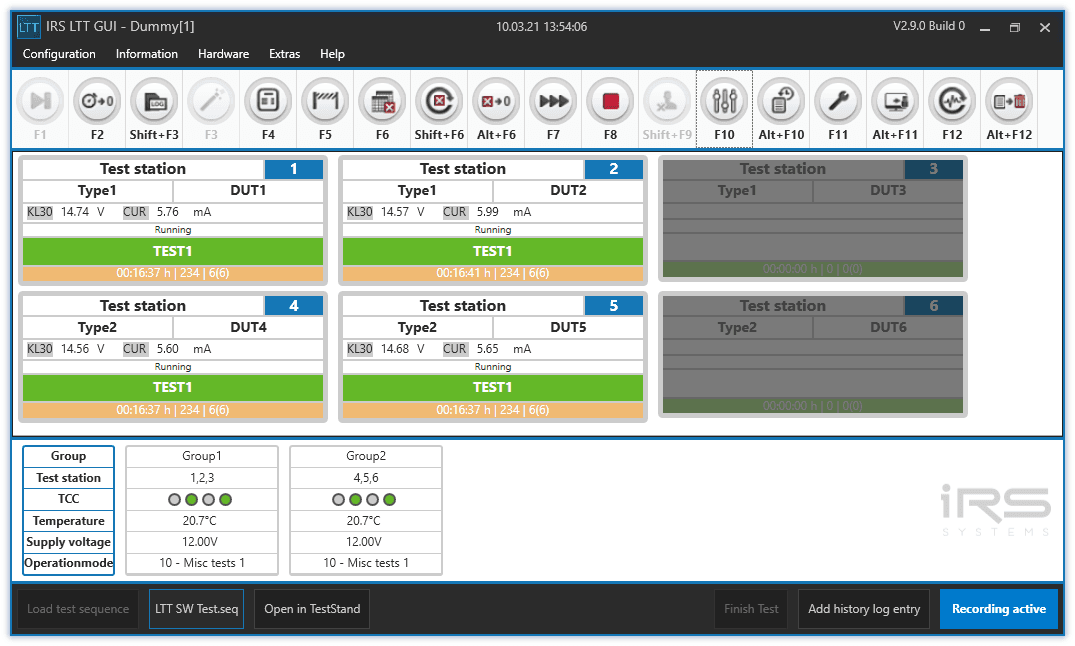
The main window contains: - assigned DUT name and type - current test step - current status - current runtime - current step runtime - temperature chamber contact status - power supply voltages - chamber temperatures - current operation mode
Title
The window title shows some basic informations about the software.

- Left: IRS LTT GUI + [Project name] + [LTT number] (as defined in ltt_main_config.xml)
- Middle: current date and time
- Right: Program version
Please note that all configurations are stored under the given project name. If you change the project name you basically start a new configuration. Read chapter Configuration more details.
Menu
From the menu you can access all functions of the LTT software. The most important ones are also accessible from the Toolbar below.

Toolbar
The toolbar offers the most important program functions as buttons with keyboard shortcuts. All those functions are also accessible through the Menu.


Station Display
The test station display is the central part of the main window and shows the configured test stations as a rectangle, which contains various information about the individual test stations.
A test station represents the physical location where a device under test (DUT) can be connected to the LTT. The LTT may have more than one test station.
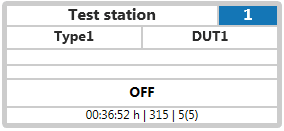
- test station number (more info)
- DUT type and name (more info)
- runtime values (more info)
- requested state (e.g. start requested, stop requested)
- custom status message or error text (more info)
- current runtime | cycle counter | error counter(s) (more info)
A test station display can have the following appearances:
 Stopped test station Status text is "OFF". Runtime values are not displayed.
 Running test station Status text und runtime values are updated from TestStand. Runtime gets updated periodically.
 Error limit reached Status text is "error limit reached [nnnn]", where [nnnn] is the error number (more info) of the corresponding limit test, whose error limit is reached. A test station stops if a limit test has reached its error limit. Details can be found in history log.
 Limit not found Status text is "limit not found". The test station stops if a limit test step cannot find its limit. Details can be found in history log. See troubleshooting for further explanations.
 Testplan error Status text is "testplan error". The test station stops if there is an error during TestStand execution (e.g. syntax error). The exact error reason is shown as a tooltip if the mouse pointer is moved over the status text. Further details can be found in history log. See troubleshooting for further explanations.
 GUI error The test station stops if there is an error in GUI software. This can be due to a software bug but also due to invalid data sent from TestStand to GUI. The exact error reason is shown as a tooltip if the mouse pointer is moved over the status text. Further details can be found in history log. See troubleshooting for further explanations.
Group display
The test groups display is located at the bottom part of the main window.
A test group is a logical container which groups one or more DUT's together with one or more power supplies and temperature sensors.
- How to configure test groups?
- How to assign DUT's (test stations) to a test group?
You need to create at least one test group. More than one test group are usually only needed when you want to run different sets of DUT's with different supply voltages in parallel.
The test group display shows various test group related information:
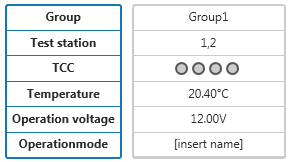
- group name
- assigned test stations
- current TCC value (more info)
- current temperature (more info)
- current supply voltage (more info)
- currently mapped operation mode (more info)
The displayed TCC input indicators for each group are determined by the TCC mask which is defined in the project wizard. If you move your mouse cursor over such an indicator, a tooltip appears, showing the TCC indicator index. The index goes from 1 to 8 (left to right).
Group display
The test groups display is located at the bottom part of the main window.
A test group is a logical container which groups one or more DUT's together with one or more power supplies and temperature sensors.
- How to configure test groups?
- How to assign DUT's (test stations) to a test group?
You need to create at least one test group. More than one test group are usually only needed when you want to run different sets of DUT's with different supply voltages in parallel.
The test group display shows various test group related information:
- group name
- assigned test stations
- current TCC value (more info)
- current temperature (more info)
- current supply voltage (more info)
- currently mapped operation mode (more info)
The displayed TCC input indicators for each group are determined by the TCC mask which is defined in the project wizard. If you move your mouse cursor over such an indicator, a tooltip appears, showing the TCC indicator index. The index goes from 1 to 8 (left to right).
Status display
The status bar at the bottom of the main window contains a button for loading a TestStand sequence file on the left. Once a TestStand sequence file is loaded it also displays the name of that sequence file.

If you have an invalid or incomplete configuration the load button is disabled.
On the right, you will see an indicator whether measurement recording is active or not. By clicking on that indicator the Data Recording dialog opens.