Diese Seite gibt es noch nicht auf Deutsch, daher wird die englische Fassung angezeigt.
In this dialog you can define limits for the signals you have defined in project wizard.
You have to go through the project wizard first, before you can configure limits.
Here are some quick facts:
- There are separate limit definitions for each DUT type.
- A signal can have multiple limits.
- Each limit has an unique numeric identifier (the error number) and a name.
- The error number must be unique within the same DUT type.
- The limit name must be unique within the same signal.
- It is possible to define numeric and string limits.
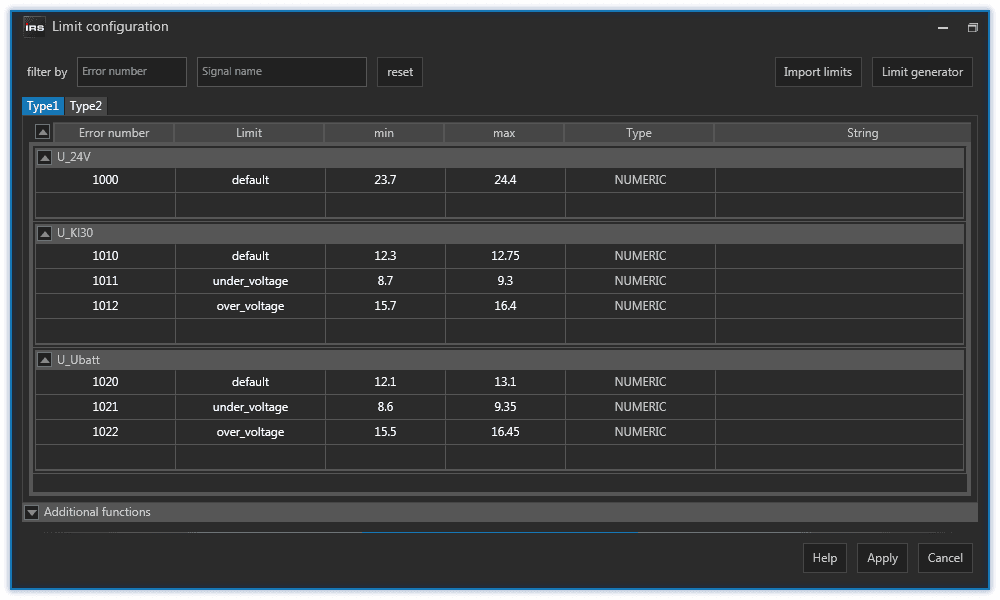
When you open the F5 dialog, you see near the top of the dialog a tab for each DUT type you have defined in project wizard. In each tab, the signals you have defined in project wizard are listed. If you expand those signals (small down arrow), you will see the limits defined for each signal. In case you have a newly setup LTT there are no limits yet.
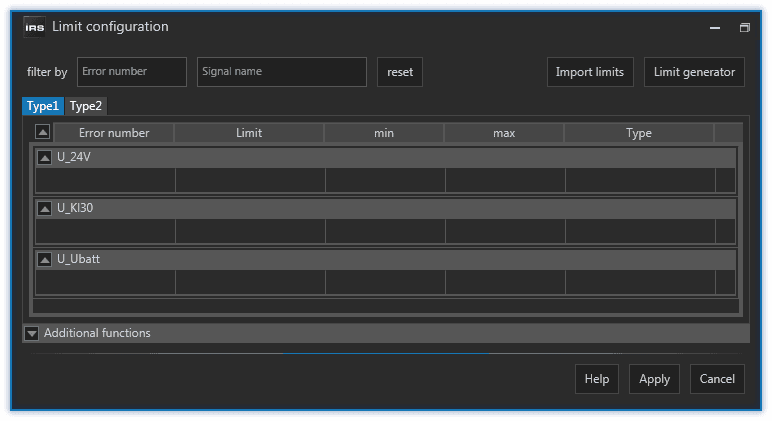
To define a limit, simply click in an empty row below an expanded signal. You have to provide a unique error number and a unique limit name. You have to check by yourself which error number is unused, but the dialog will not allow you to apply any changes if there are duplicate error numbers or limit names.
A limit error number must be unique within the same DUT type. A limit name must be unique within the same signal. You are responsible!
The preset limit name is default, but you can change it to whatever you want. The idea is, to provide multiple limits for the same signal, because the signal can be tested under different circumstances / in different contexts. For example, you have a default limit for a signal when it is not stimulated / active. That limit might be around 0 V, depending on your signal type. Then you have a limit for the case, when the signal is stimulated / active. A possible limit value could be around 12 V and the limit could be named active. Additionally you may want to test the signal under different stimulation levels, for example under voltage. You could create another limit name under_voltage with a different limit range.
There can be multiple limits per signal, depending on in how many different scenarios you want to test the signal. Read about Limit Tests to learn how to select and perform a specific limit test.
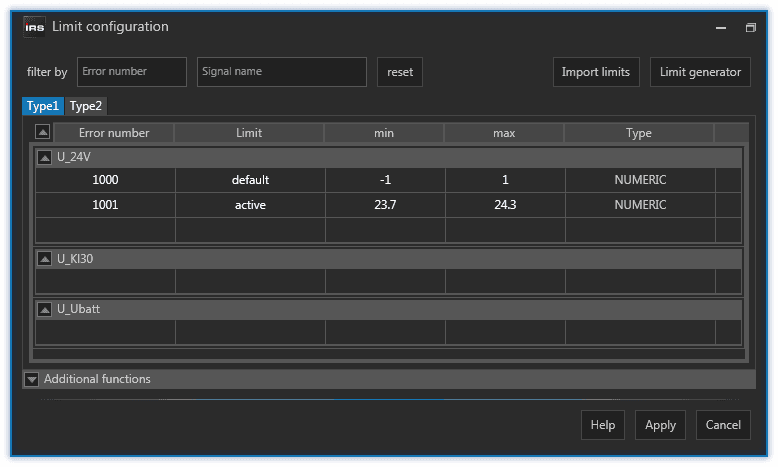
It is a good practice to keep numeric gaps between the error numbers for each signal. That way, you can later add additional limits to a signal while having a continuous numeration within that signal. A numeric gap of 10 should be sufficient for most cases.
Limit Generator
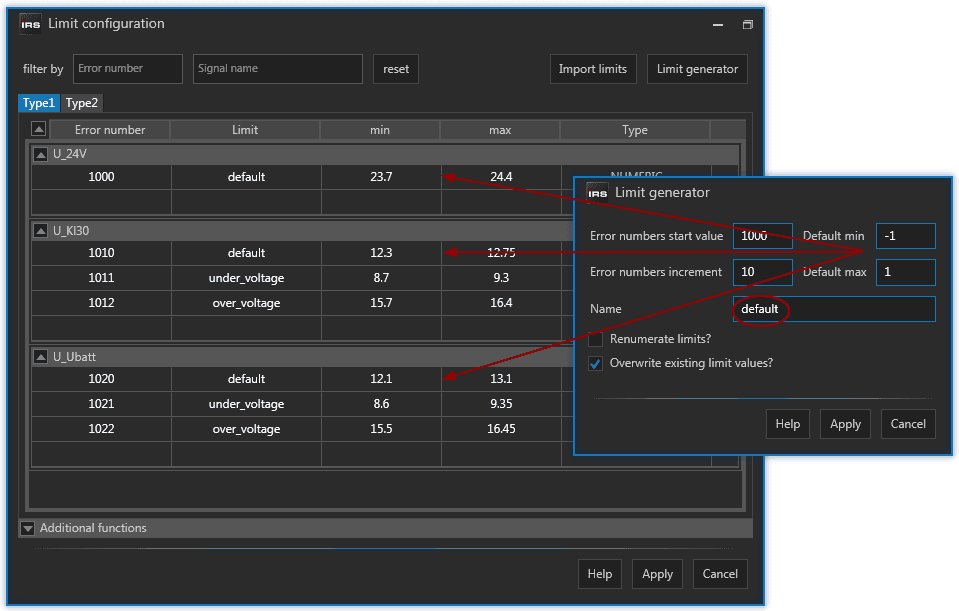
Instead of typing each limit manually, which can be a tedious work if you have many signals, you can use the limit generator, which you launch with the button at the right top corner.
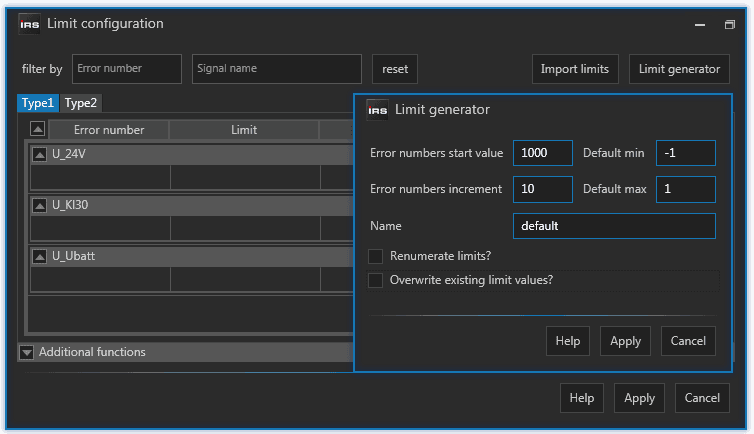
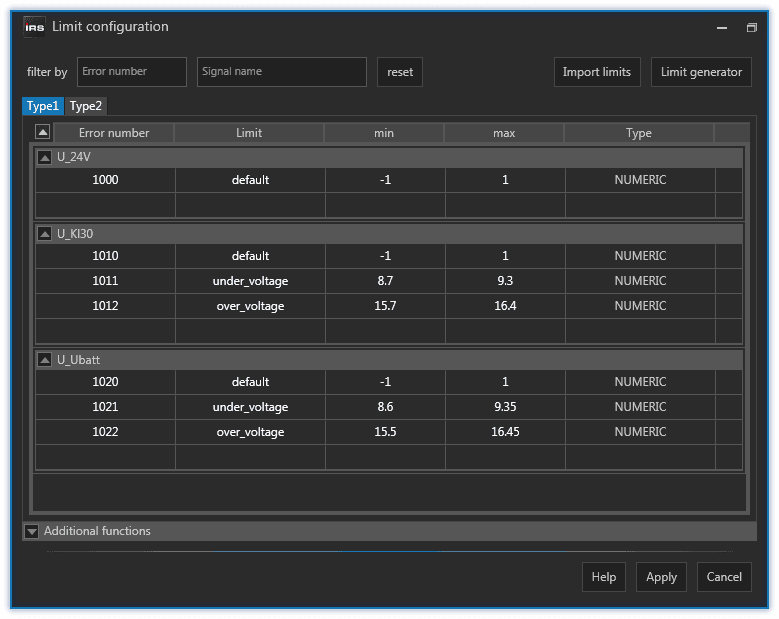
With the limit generator you create a limit with the provided name, min and max value for every signal and every DUT type. As for the error numbers, you choose a starting number and an increment (remember the numeric gap). If you apply the generator like in the picture above to an empty limit configuration, you will get the following result.
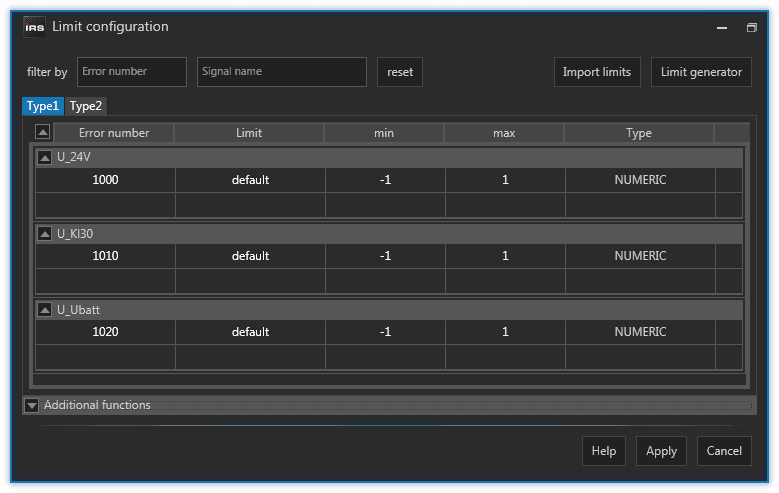
Afterwards, you can adjust the limit values if needed, which is altogether a faster way of creating limits than doing it one by one.
Limit Renumerate
Assume you have the following limit configuration:
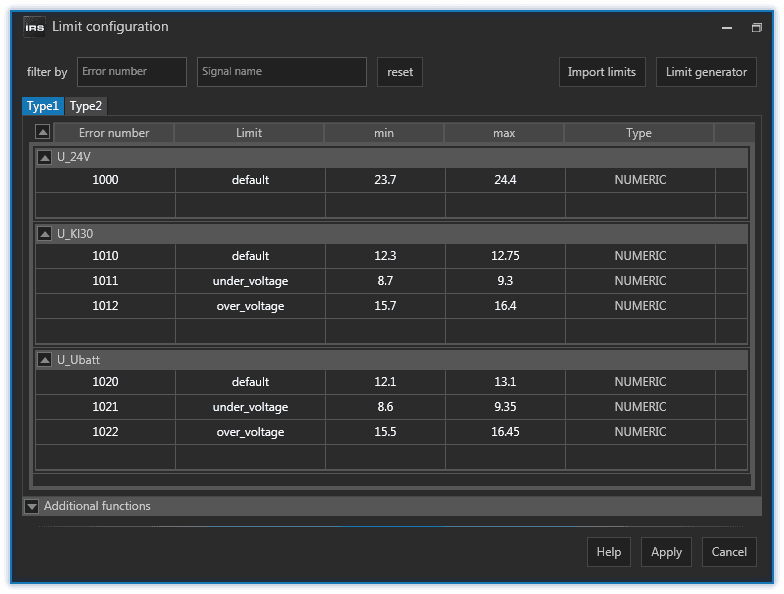
Open the limit generator and enable the Renumerate limits option.
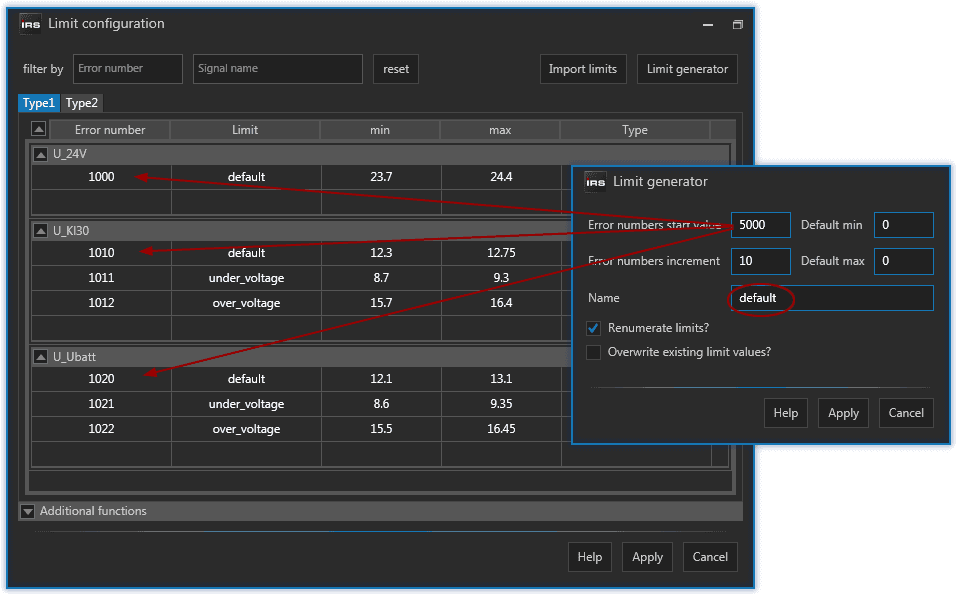
That way you can enter a different error starting number and increment together with a limit name. The min and max values are ignored in that case. If you apply, all limits with the provided name will be renumerated, starting from the provided value with the provided increment.
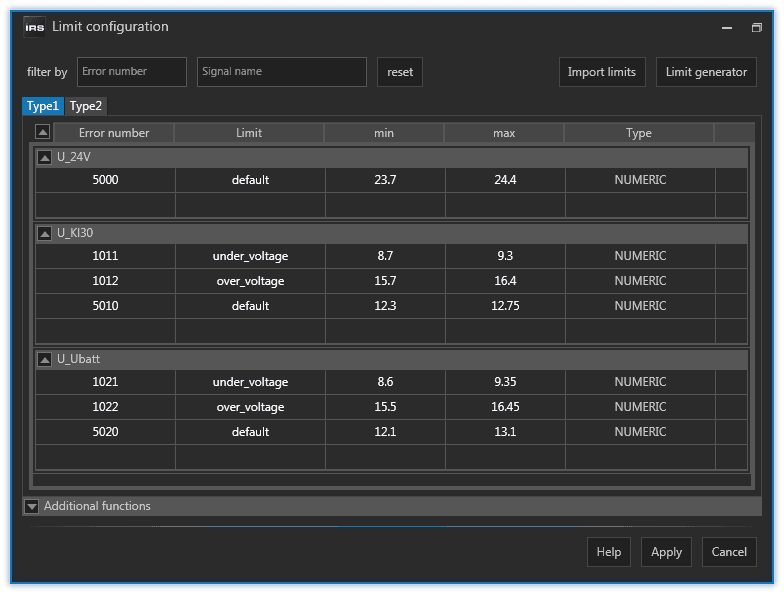
Be careful to avoid collisions with existing error numbers. The generator will tell you if this is the case and the numbers will not be applied.
Limit Overwrite
Assume you have the following limit configuration:
Open the limit generator and enable the Overwrite option.
That way you can enter different min and max values together with a limit name. The error number and increment values are ignored in that case. If you apply, all limits with the provided name will be set to the new min and max values.
You can use the renumerate and overwrite option in combination.
Limit Copy
If you setup your limit configuration for one DUT type and want to copy it to the other DUT types you can do so by expanding the Additional functions at the bottom of the dialog.
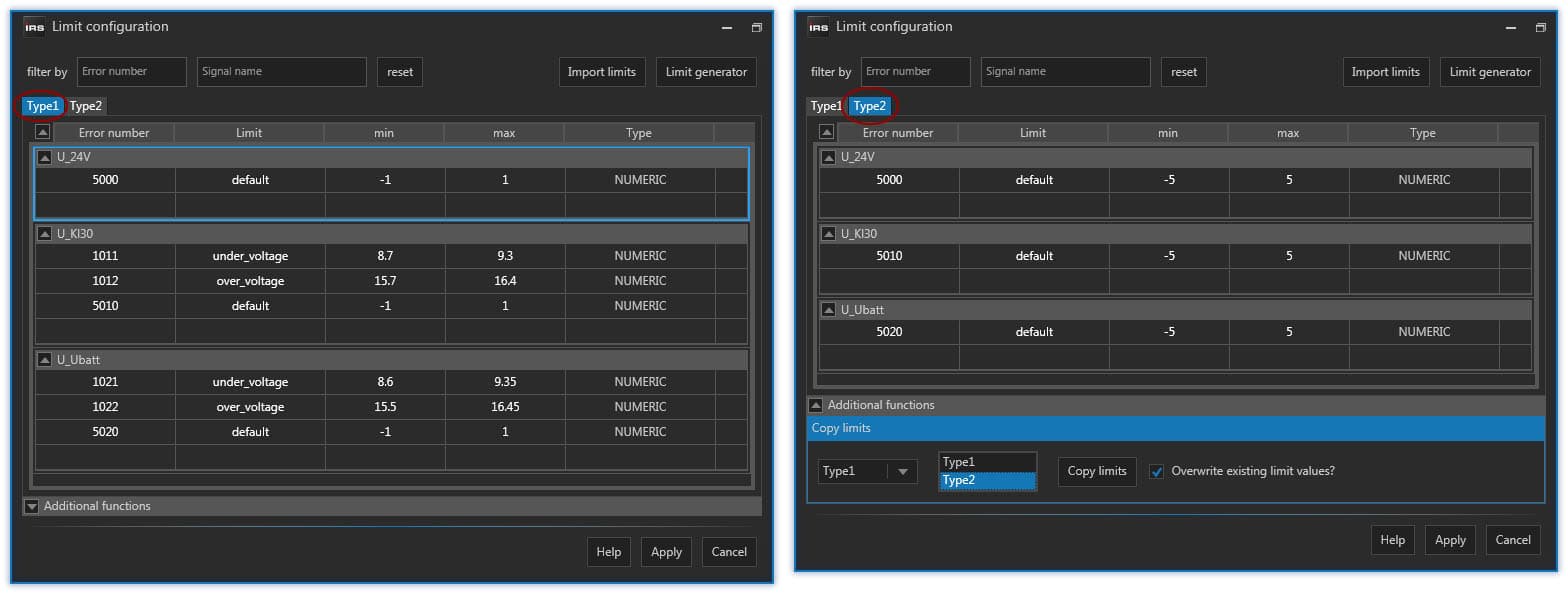
There you choose the source DUT type from the left combo box and one or more destination DUT types from the list to the right. If you click on the Copy limits button all limits, including their min and max values are copied to the selected DUT types.
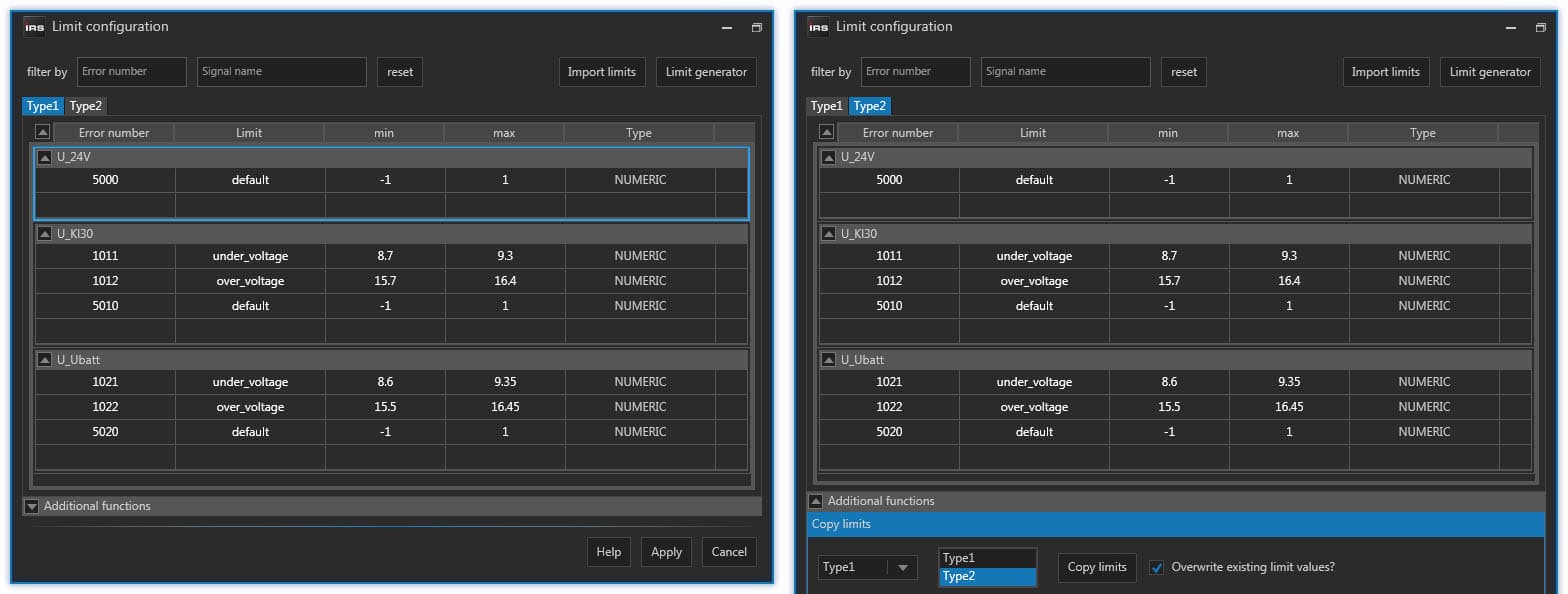
The copy limits function adds limits from a source DUT type, which do not exist in the destination DUT type. If the overwrite limits option is active, then existing limits in destination DUT type will be overwritten with the ones from source DUT type.
Limit Import
When you have more than one LTT and want to copy the limits from one LTT to another one, then use the Import limits function.
First, you have to copy the 50_LTT_SW\LTT Limit Files folder, containing the limits you want to import on another LTT, to the other LTT, but not at the same location!
Overwriting the limit configuration XML files of one LTT with those from another will not transfer the limits!
Assume you currently have the following limit configuration:
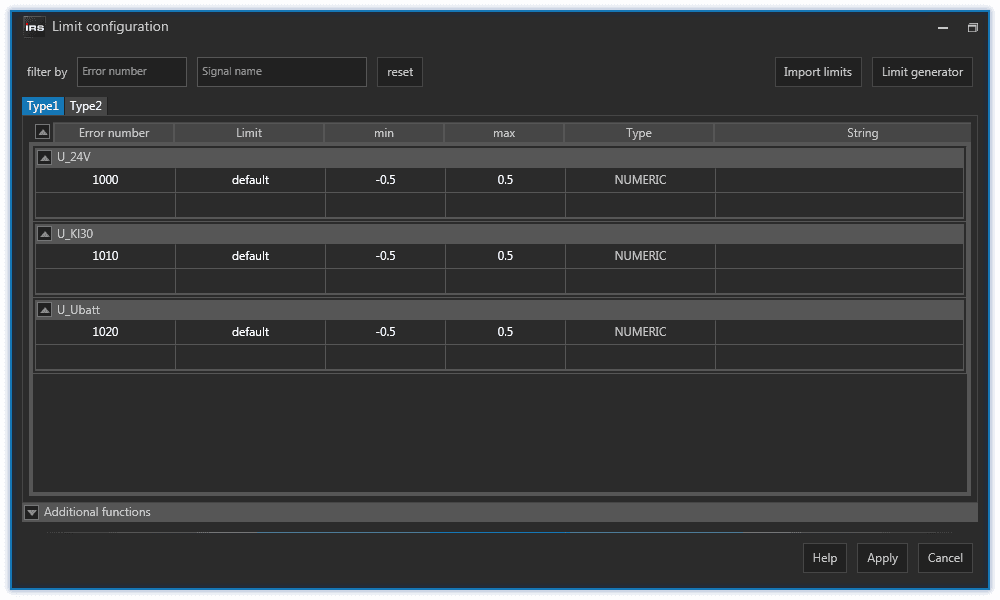
And you want to import those limits from the other LTT:
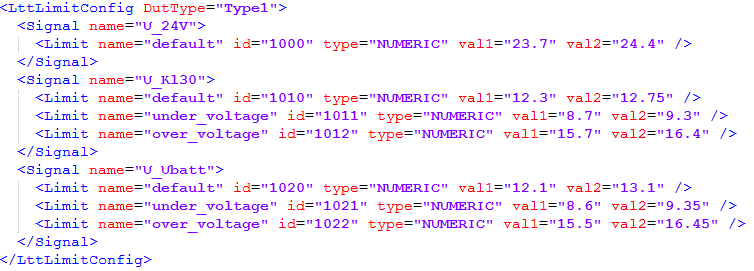
The best praxis is to copy the limit configuration folder from one LTT to the Desktop of the other LTT. Once you have the limits folder copied to the target LTT, you can press the Import limits button in the top right corner of the dialog. A folder selection dialog will prompt you the select the limit files folder to import.
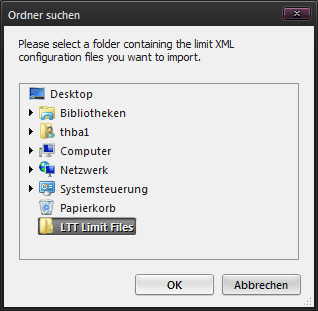
All limit files (DUT types) from the import folder will be imported as long as there is a matching DUT type on the target LTT. If you want to import a specific DUT type only, then delete all other limit configuration files from the import folder.
After you have selected the import folder the limit import is performed. Once it is finished it will display a summary:
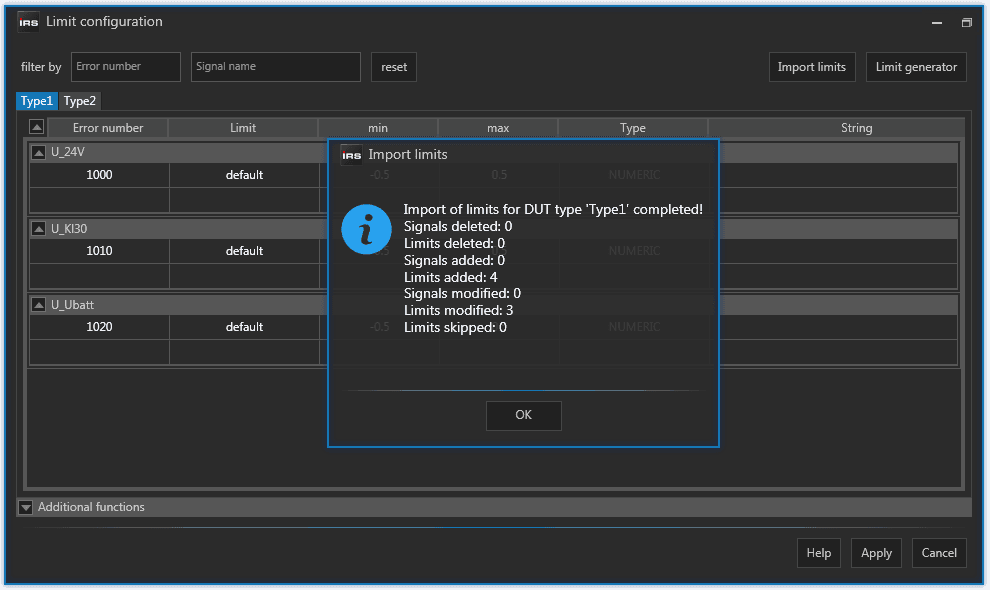
Be aware that importing limits will remove existing limits if they are not present in the imported limits.
After the import the limit configuration looks like this: