Diese Seite gibt es noch nicht auf Deutsch, daher wird die englische Fassung angezeigt.
The project wizard guides you through the most basic settings of your individual LTT project and is usually performed only one time during the initial setup of your LTT.
You need a password to enter the project wizard. Ask IRS for the password.
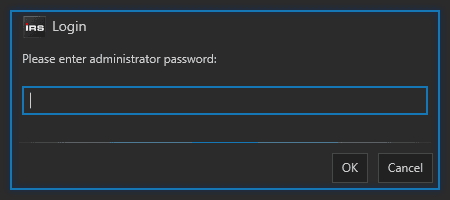
The project wizard is composed of 4 steps:
- Definition of test stations
- Definition of DUT types
- Definition of test groups (and the assignment of power supplies / temperature sensors to that groups)
- Definition of signals (and the assignment of those signals to individual DUT types)
Test Station Configuration
A test station represents the physical location where a device under test (DUT) can be connected to the LTT. The LTT may have more than one test station. You need to define at least one test station.
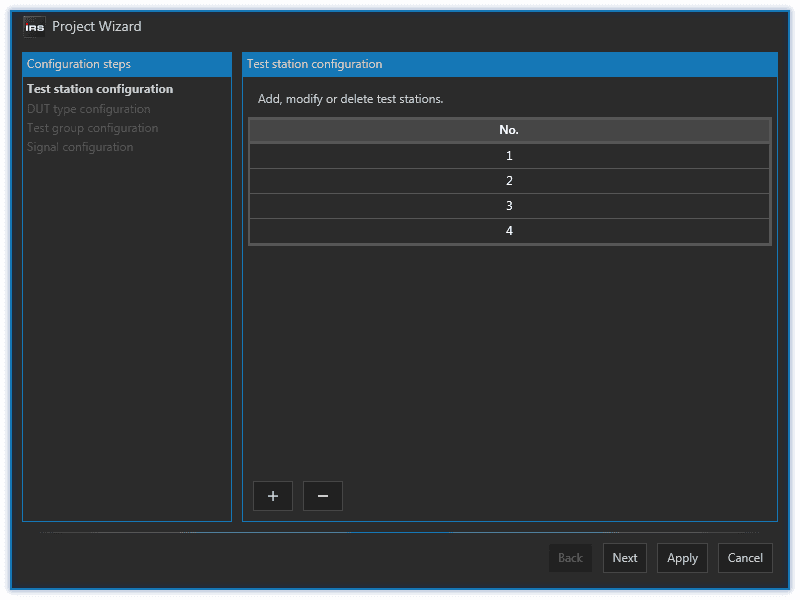
To add test stations, simply click on the ➕ button. To remove them click on the ➖ button. You can however only add/remove stations at the end of the list, not in between. The stations are numbered automatically, starting from 1. You are free to change the number to something else at any time.
The number of stations determine how many parallel executions of the later loaded TestStand sequence file will be started. Each TestStand execution serves one DUT. The test station index is used to distinct between those executions in any form of display and file output. In TestStand you can access the current station index through a TestStand variable.
1.1.3.2.2.1.1MesSy V2
If you use a MesSy V2 within your LTT, which is the standard case, the test station index defined in GUI relates to the station index defined in the MesSy configuration file.
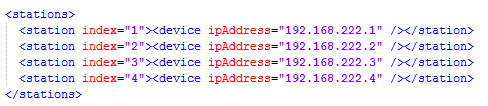
As you can see in the picture above, each station index maps to a single MesSy with a given IP address. However there are more advanced station configurations possible, which are not part of this documentation. Refer to the comment section inside of the example MesSy configuration file for more informations.
If you create more stations than you have defined in your MesSy configuration, the GUI will show you a warning.
1.1.3.2.2.1.2MesSy V1
If you want to use MesSy V1 you first have to change several other parameters as well. After restarting the GUI the test station configuration dialog will look like this.
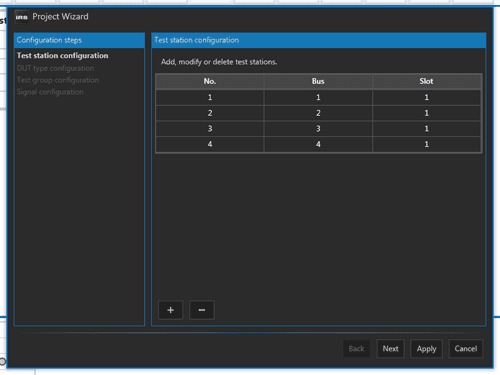
Bus represents the last digit of the IP address of the MesSy to which this station is connected. The preceding part of the IP address is defined in MesSy configuration file (for example 192.168.222). A bus number of 3, for example, means, that this station is connected to the MesSy with the IP address 192.168.222.3.
Slot is a number to distinguish between multiple DUTs connected to one MesSy. It defaults to 1 and only needs to be changed if there are more DUTs connected to one MesSy. In fact, the combination of bus/slot must always be unique.
Read more about the usage of station ID or bus/slot in chapter MesSy Integration.
DUT types configuration
A DUT type represents a specific variant of your devices under test. You need to define at least one DUT type.
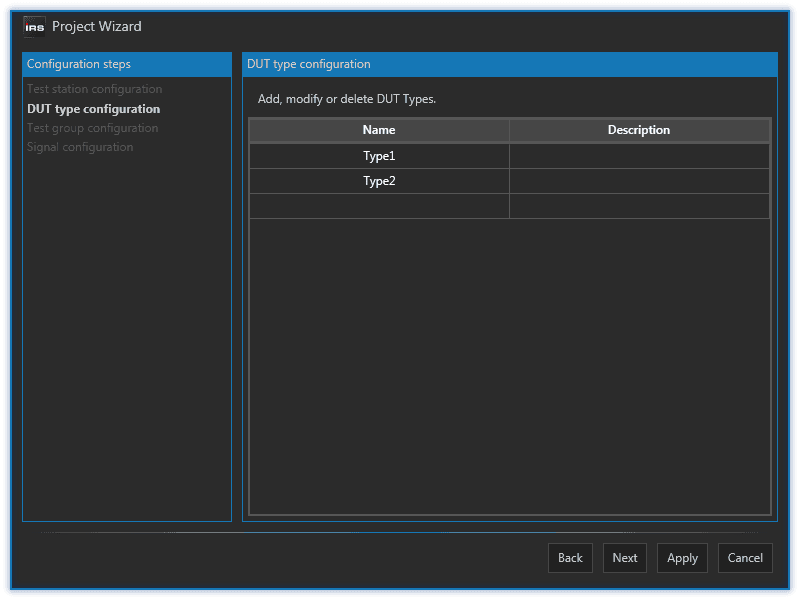
To add a DUT type simply click on an empty row in the grid and type a name. Description is optional.
To delete a DUT type select a row and press the DEL key on your keyboard.
Later, when you configure your test, you assign each DUT a DUT type. The DUT type also determines which set of limits to use for that DUT, since each DUT type has its own set of limits.
Test Groups Configuration
A test group is a logical container which groups one or more DUT's together with one or more power supplies and temperature sensors. You need to define at least one test group.
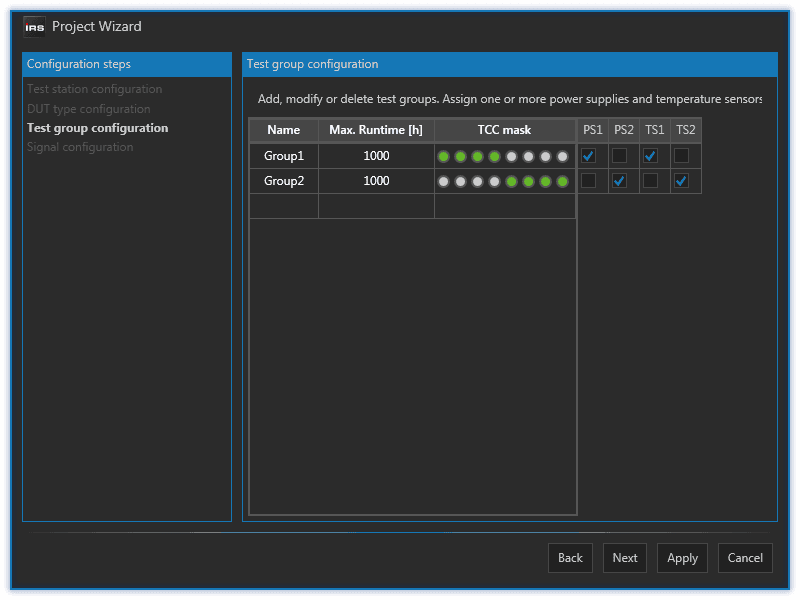
To add a test group simply click on an empty row in the grid and type a name. To delete a test group select a row and press the DEL key on your keyboard.
The Max. Runtime parameter is the desired runtime in hours of the tests running under this group. You can later change this parameter in the F10 - test parameter configuration dialog.
The TCC mask determines, which of the total of 8 TCC inputs you want to use for this group. You can use all 8 inputs or just a subset of them. You can also use the same inputs in multiple groups. The TCC mask determines, which TCC indicators are displayed for each group in main window's group display or in the F10 - test parameter configuration dialog.
If you move your mouse cursor over such an TCC input indicator, a tooltip appears, showing the TCC indicator index. The index goes from 1 to 8 (left to right).
Finally you assign one or more of the available power supplies (PS) and temperature sensors (TS) to each group. Those are defined in the module configuration file, which you need setup before running the project wizard. Multiple power supplies and temperature sensors are differentiated by a 1-based index following its fixed prefix (PS or TS). In TestStand you can refer to those power supplies and temperature sensors by using that index.
Signals definition
A signal is an analog output of your device under test or any other DUT related data you want to evaluate through a limit test (for example a CAN message).
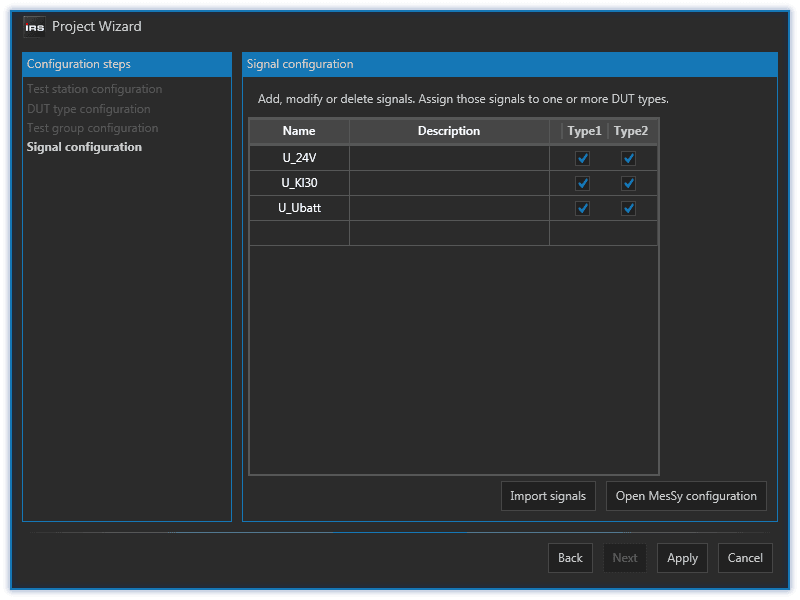
To add a signal simply click on an empty row in the grid and type a name. Description is optional.
To delete a signal select a row and press the DEL key on your keyboard.
You assign a signal to one more DUT types (which you have defined previously). By default, each created signal is assigned to all available DUT Types. In most cases this common but it may happen, that one variant of your DUT has less/different analog outputs than another one.
Usually you want to evaluate all analog DUT outputs which are defined in the MesSy configuration file. Therefore you can import the signals defined there.