Diese Seite gibt es noch nicht auf Deutsch, daher wird die englische Fassung angezeigt.
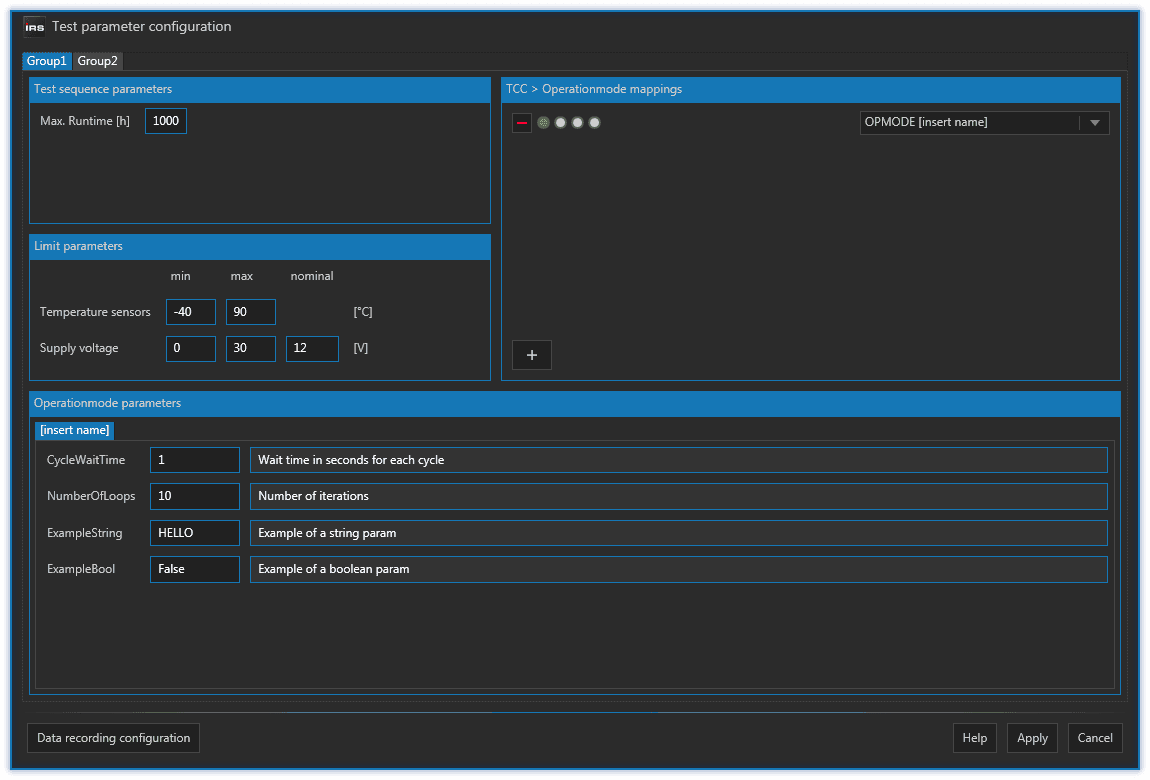
In this dialog you can do several things:
- set the maximum runtime your your test run
- set the minimum and maximum temperature of your temperature sensor(s)
- set the minimum, maximum and nominal voltage of your power supply/ies
- defined TCC <> operation mode mappings
- set operation mode parameters
All those settings are provided per test group.
You first need to define one or more test groups in project wizard before you can use this dialog.
Runtime
When a test station reaches the runtime you entered here it will automatically stop.
Temperature and voltage limits
A test station will stop with a system error if one of those limits are violated.
- Read more about operation mode mappings
- Read more about operation mode parameters
Operation Mode Mappings
You can add an operation mode mapping by pressing the button in the operation mode mapping section of the F10 dialog.
You need a password to add or remove operation mode mappings. Ask IRS for the password.
You need to load your testplan before you can map to operation modes of that testplan.
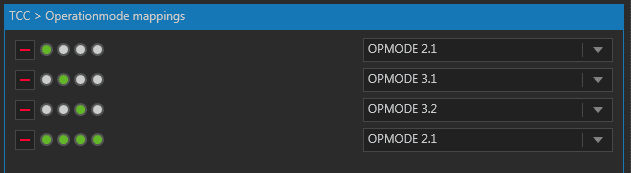
Each operation mode mapping consists of 1 to 8 round TCC input indicators and a drop down box. The TCC input indicators represent the value of the TCC hardware (or the simulated one).
The displayed TCC input indicators for each group are determined by the TCC mask, which is defined in the project wizard. If you move your mouse cursor over such an indicator, a tooltip appears, showing the TCC indicator index. The index goes from 1 to 8 (left to right).
In the drop down box you can select an operation mode sequence from the currently loaded testplan. You can add as many operation mode sequences as you want and select a corresponding TCC input pattern (like binary). You even can have multiple TCC patterns map to the same OM sequence. You should avoid, however, using the same TCC pattern for more than one OM.
With an operation mode mapping, you map a certain TCC input pattern to a single operation mode sequence of your testplan.
Once you have configured your TCC operation mode mappings you can run your testplan and it will execute that operation mode sequence, which is configured for the current TCC value.
You can see the currently mapped operation mode in the main window's group display. If this display is empty, no valid mapping exists for the current TCC value and the testplan will execute a fallback sequence.

The main window will display a warning message if there is no valid operation mode mapping at all and you are not allowed to start the loaded testplan.
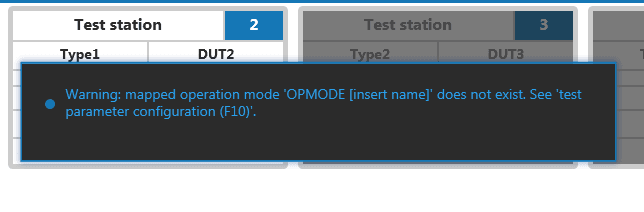
This can happen if you
- have not configured any mapping yet
- changed the name of the operation mode sequence or deleted the sequence
Operation Mode Parameters
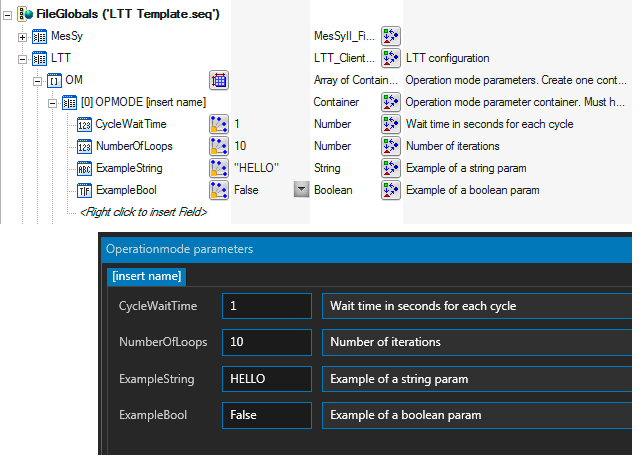
You can change operation mode parameter values in the operation mode parameters section of the F10 dialog. There is a tab for each operation mode defined in your testplan.
You need to load your testplan before you can see and change operation mode parameters.
The operation mode parameters are defined in your testplan, so you cannot add or remove parameters here. In this dialog you only change the current values of those operation mode parameters.
You can update operation mode parameters even if if testplan is already running.