Diese Seite gibt es noch nicht auf Deutsch, daher wird die englische Fassung angezeigt.
Main Configuration
Click to open the main configuration file ltt_main_config.xml.
The main configuration file contains:
- some flags to determine certain behaviours
- some LTT settings like project name and cabinet number
- some GUI settings for display purposes
- some paths
- database configuration
- backup settings (read more)
Please note, not all parameters are explained. Only those you are meant to change. Undocumented parameters are for internal purposes only.
1.1.2.1.1Flags
| Parameter | Explanation |
|---|---|
| AutoUpdateTestPlan | If set to true any loaded testplan will be converted to a newer version if necessary. This feature is disabled by default. Please do not activate this feature if not told to do so. Updating will modify your TestStand sequences, which will require a proper license. If you only have a TestStand base deployment license it will fail. |
| AutoLoadTestplan | If set to true the last loaded testplan will load automatically after GUI startup. |
| AutoStartTestplan | If set to true the last loaded testplan will start automatically once it is loaded. |
| AutoSaveOverview | If set to true an error overview will be saved automatically after each station stop. Read more. |
| UseBatchPerGroup | If set to true all default synchronization steps (like batch or SYNC) will synchronize all stations in a group. If set to false the synchronization is global. Read more. |
| StationRuntimeControlledByTestplan | If set to true the runtime does not start counting immediately when you start a station from GUI (see here). Instead, the runtime is controlled by the test sequence by calling a certain VI (see here). |
| MaxRuntimeStopBehaviour | Possible values: Terminate (default) and Stop. By default when the max. runtime is reached the station will be stopped by a terminate. This means the sequence will stop immediately after the currently executed step (still doing cleanup stuff). If you want to finish the current cycle, even the max. runtime was reached, you can switch to the Stop-method, which will stop the sequence when the next check for stop step is reached or the operation mode sequence has finished. |
| MaxErrorStopBehaviour | Possible values: Terminate (default) and Stop. By default when a runtime error occurs the station will be stopped by a terminate. This means the sequence will stop immediately after the currently executed step (still doing cleanup stuff). If you want to finish the current cycle, even a runtime error happened, you can switch to the Stop-method, which will stop the sequence when the next check for stop step is reached or the operation mode sequence has finished. |
1.1.2.1.2LttSettings
| Parameter | Explanation |
|---|---|
| ProjectName | The project name determines the name of the configuration database, which is used to store any other configuration data not stored in files. The project name is also displayed in the title bar of the LTT GUI main window. If you change the project name the configuration database of that project is loaded upon next start of the LTT GUI or a new, empty configuration database will be created. |
| LttNumber | If you have more than one LTT running a certain project you can provide a numbering to distinguish those LTT's. The LTT number is appended to the project name in the title bar of the LTT GUI main window. |
| MessyVersion | You need to set the version of the MesSy you are using. |
1.1.2.1.3Paths
Do not change any of the paths.
1.1.2.1.4GuiSettings
| Parameter | Explanation |
|---|---|
| TestStationDisplayWidth | The numeric value is the display width in pixels of a test station box in main window. The width affects, depending on your screen resolution, how many stations are fitting side by side horizontally. You may want to adjust this width depending on your screen resolution and on how many stations you want to see side by side in one row. You also may want to adjust this width for a better display of runtime values inside each station box. |
| NumColumnsForRuntimeValues | Determines the number of columns used to display runtime values inside each station box. Depending on the string length of your runtime value names and the amount of runtime values, you may want to change this value for a better display result. |
1.1.2.1.5BackupSettings
Module Configuration
Click to open the module configuration file
ltt_module_config.xml.
For training or demonstration purposes you can take the default module configuration and go on with your setup.
The module configuration's main purpose is to configure the drivers for LTT standard hardware, which is:
- power supplies (for the DUT's)
- temperature sensors (for climatic chambers)
- temperature chamber contact (TCC) (digital I/O)
- uninterruptible power supply (UPS)
Each LTT hardware is configured by a <Module name="xxx"></Module> block. The name attribute determines the type of hardware and the concrete instance of it.
A LTT can have multiple instances of a power supply and/or temperature sensor, but only one TCC and UPS.
The name attribute value is composed of a predefined prefix and an optional index number starting with 1. The index number is mandatory for those hardware modules, which are able to have more than one instance, even if only one instance is used.
| Prefix | Type of hardware | More than one possible? |
|---|---|---|
| PS | power supply | yes |
| TS | temperature sensor | yes |
| TCC | temperature chamber contact (digital I/O) | no |
| UPS | uninterruptible power supply unit | no |
After installation there is a default module configuration, containing 2 simulated power supplies and 1 simulated temperature sensor.
Each module has at least a path parameter, which is mandatory and pointing to the driver file for this module. A module driver is a file with the extension .lvlibp. All so far existing module drivers are located at
50_LTT_SW\LTT TS\lib\IRS.Mod
The path to the module driver should be provided relative to the 50_LTT_SW\LTT TS folder.
Each module type comes with a default simulation driver. That way you can run the LTT SW without having any actual hardware.
Any other parameter a module may need is provided in form of a <Parameter name="xxx" value="yyy"/> block. The parameters of each possible module type are explained in the following sub chapters.
PS Module
All power supply (PS) modules have the following mandatory standard parameters:
| Parameter | Meaning | Examples |
|---|---|---|
| Resource | The connection information needed to connect to this device. Depending on the type of device this can be a COM port, a GPIB address, an IP address or something else. Most drivers are based on VISA, which brings its own syntax to provide a GPIB or IP address. The VISA resource names can usually be looked up in NI Max. | COM1 |
| NominalVoltage | The initial voltage which should be set during device initialization. | 12.0 |
| MinVoltage | The lower voltage limit in V. This value can be changed through the LTT GUI. The GUI will stop all running tests if this limit will be violated. | 0 |
| MaxVoltage | The upper voltage limit in V. This value can be changed through the LTT GUI. The GUI will stop all running tests if this limit will be violated. | 19.0 |
| CurrentLimit | The max. current the power supply will regulate to in current mode (CC). This value can be changed through the LTT GUI. If the actual load is greater than this current the voltage will drop, leading to malfunctions. | 100 |
Depending on the specific PS module, there might be additional parameters, which are described here.
Per default a power supply configured here is controlled by the underlying LTT software layer. This means the PS is automatically initialized and configured to the provided parameters. Nevertheless, in your testplan you can still change voltage and/or current during runtime, as well as access the latest values read from that PS (see here). But you have no control over when the PS is initialized/closed and when the output is turned on/off.
1.1.2.2.1.1TestStand-only control
There are situations in which you might need more control over your power supply from within TestStand. For such situations you can provide the tsonly="true" attribute to the Module node.
<Module name="PS1" tsonly="true">
...
</Module>
If you do so, you are in charge of initializing, setting and closing the power supply properly. Read here to learn how to do.
You can access the PS control panel through GUI and also via TestStand. However, the control panel is not available for self-controlled (
tsonly="true") power supplies.
Driver Specific Parameters
Some power supply drivers have additional parameters besides the standard ones described in here.
1.1.2.2.1.2.1Delta.PSC232
| Parameter | Meaning | Examples |
|---|---|---|
| Address | This parameter is mandatory. It specifies the internal device address (not to be confused with the COM port). | 1 4 6 |
| Baud Rate | This parameter is mandatory. It specifies the baud rate for the communication. | 9600 19200 |
1.1.2.2.1.2.2EA.PSI800R
| Parameter | Meaning | Examples |
|---|
1.1.2.2.1.2.3Model
| Parameter | Meaning | Examples |
|---|---|---|
| Model | This parameter is mandatory. It specifies the Model of the Power Supply. | PSI800R PS80002U_3U |
1.1.2.2.1.2.4Keysight.E363X
| Parameter | Meaning | Examples |
|---|---|---|
| Data Bits | This parameter is mandatory. It specifies the Data bits. | 8 7 |
| Parity | This parameter is mandatory. It specifies the Parity bit. | odd even mark |
| Flow | This parameter is mandatory. It specifies the Serial Flow Control. | xon/xoff dtr/dsr |
| Baud Rate | This parameter is mandatory. It specifies the baud rate for the communication. | 9600 19200 |
1.1.2.2.1.2.5Kniel
| Parameter | Meaning | Examples |
|---|
1.1.2.2.1.2.6Kniel.New
| Parameter | Meaning | Examples |
|---|---|---|
| Node | This parameter is optional. It specifies the internal device address (not to be confused with the COM port). | 1 |
| Baud Rate | This parameter is mandatory. It specifies the baud rate for the communication. | 9600 19200 |
1.1.2.2.1.2.7Sim
| Parameter | Meaning | Examples |
|---|---|---|
| SimulateInitError | This parameter is optional. It specifies if a Error should occur while initialization | True False |
1.1.2.2.1.2.8TDK.Gensys
| Parameter | Meaning | Examples |
|---|---|---|
| Address | This parameter is mandatory if the PS is connected via a COM port. It specifies the internal device address (not to be confused with the COM port). | 1 4 6 |
| Baud Rate | This parameter is mandatory if the PS is connected via a COM port. It specifies the baud rate for the communication. | 9600 19200 |
1.1.2.2.1.2.9TDK.GensysPlus
| Parameter | Meaning | Examples |
|---|---|---|
| Address | This parameter is mandatory if the PS is connected via a COM port. It specifies the internal device address (not to be confused with the COM port). | 1 3 6 |
| Baud Rate | This parameter is mandatory if the PS is connected via a COM port. It specifies the baud rate for the communication. | 9600 19200 |
1.1.2.2.1.2.10TDK.LambdaZ
| Parameter | Meaning | Examples |
|---|---|---|
| Address | This parameter is mandatory if the PS is connected via a COM port. It specifies the internal device address (not to be confused with the COM port). | 1 3 6 |
| Baud Rate | This parameter is mandatory if the PS is connected via a COM port. It specifies the baud rate for the communication. | 9600 19200 |
TCC Module
The standard TCC module is a NI PCI-6503 24 channel digital in/out card. The 24 channels are grouped by 3 ports á 8 lines. This card is also used for the UPS. For the TCC port 0 / lines 0 - 7 is used. For the UPS port 1 / line 0 is used.
A temperature chamber contact module has the following mandatory standard parameters:
| Parameter | Meaning | Examples |
|---|---|---|
| Resource | The connection information needed to connect to this device. | cDAQ1Mod1/port0/line0:7 |
| Inverted | Indicated whether the digital inputs are inverter or not. The standard LTT TCC hardware has inverted inputs. | true / false |
| LastSimValue | This parameter is used by the simulation driver to store the last simulated value. You change this value via the TCC control panel. | 1 |
You can access a TCC control panel through GUI and also via TestStand.
TS Module
A temperature sensor (TS) module has the following mandatory standard parameters:
| Parameter | Meaning | Examples |
|---|---|---|
| Resource | The connection information needed to connect to this device. Depending on the type of device this can be a COM port, a GPIB address, an IP address or something else. Most drivers are based on VISA, which brings its own syntax to provide a GPIB or IP address. The VISA resource names can usually be looked up in NI Max. | COM1 |
| MinTemp | The lower temperature limit in °C. This value can be changed through the LTT GUI. The GUI will stop all running tests if this limit will be violated. | -41 |
| MaxTemp | The upper temperature limit in °C. This value can be changed through the LTT GUI. The GUI will stop all running tests if this limit will be violated. | 120 |
Depending on the specific TS module, there might be additional parameters, which are described here.
You can access the TS control panel through GUI and also via TestStand..
Driver Specific Parameters
Some temperature sensor drivers have additional parameters besides the standard ones described in here.
1.1.2.2.3.1.1PMA280
| Parameter | Meaning | Examples |
|---|---|---|
| Baud Rate | An optional parameter providing the baud rate for the PMA280 module. If not provided 9600 is the default baud rate. | 9600 19200 |
| Timeout [ms] | An optional parameter specifying the communication timeout for the PMA280 module. There are cases where you need to increase the default communication timeout, otherwise it will lead to sporadic timeout errors. If you connect via Windows Remote Desktop it is recommended to set a timeout value of 3000. | 1000 2000 3000 |
UPS
The "uninteruptable power supply" (UPS) module is responsible for reacting to power failure by shuting down the LTT software while the UPS provides battery voltage. The UPS module is actually no driver for a UPS but a driver for a digital input card, which will be set when the overall LTT power supply fails.
The standard UPS module is a NI PCI-6503 24 channel digital in/out card. The 24 channels are grouped by 3 ports á 8 lines. This card is also used for the TCC. For the UPS port 1 / line 0 is used. For the TCC port 0 / line 0 - 7 is used.
An uninterruptible power supply has the following mandatory parameters:
| Parameter | Meaning | Examples |
|---|---|---|
| Resource | The connection information needed to connect to this device. The UPS uses the same hardware as the TCC, hence the resource string is similar. The default port for the UPS is port1. Also: do not write "/lines0:7" after port1, like for the TCC module. | cDAQ1Mod1/port1 |
| TriggerValue | The value of the digital inputs (8 bits), by which a power loss should be triggered. For non-inverted DI this is 1. For inverted DI this is 254. | 254 |
| Interval | The time in milliseconds by which the hardware should be checked for a power failure. | 500 |
| MsToWaitBeforeShutdown | Optional: time to wait before shutting down the GUI (testplan stops immediately!). Default: 60000 = 1 minute | 60000 |
MesSy Configuration
Click to open the MesSy configuration file ltt_messy_config.xml.
The MesSy signal configuration is where your DUT outputs and inputs are mapped to the corresponding MesSy inputs and outputs. You need to adjust this configuration depending on how your DUT's are connected to the LTT.
For training or demonstration purposes you can take the default MesSy configuration and go on with your setup.
The definition of the MesSy analog inputs are important for the signal definitions in LTT GUI's project wizard.
The file format for the MesSy signal configuration is different in MesSy V2 compared to MesSy V1. Depending on what you have selected during installation, the configuration file is for that MesSy version. If you want to switch to other MeSy versions read about changing the MesSy version.
You can find an example MesSy signal configuration file with all possible features and explanatory comments here:
- 50_LTT_SW\LTT TS\lib\IRS.MesSy\SignalConfig.Example.xml
- 50_LTT_SW\LTT TS\lib\IRS.MesSy\V1\SignalConfig.Example.xml
Changing MesSy Version
The new LTT software can be used with both MesSy V2 and MesSy V1. During installation you have to choose for one option but you can switch to the other MesSy version at any time afterwards.
Before you setup the MesSy version in LTT software make sure that LTT GUI is closed.
To switch from one MesSy version to the other you need to perform some configuration changes in different places. The following table describes those changes.
| Location of change | What to change |
|---|---|
| ltt_main_config.xml | Change the parameter <MessyVersion>X</MessyVersion> to: |
- 1 for MesSy V1
- 2 for MesSy V2 |
| ltt_messy_config.xml | The MesSy signal mapping file has a different format for MesSy V2 compared to MesSy V1.
You will find an example signal configuration for MesSy V1 here: 50_LTT_SW\LTT TS\examples\ltt_messy_config_V1.xml
You will find an example signal configuration for MesSy V2 here: 50_LTT_SW\LTT TS\examples\ltt_messy_config_V2.xml
Depending on what you have chosen during installation, one of those signal configuration files is copied to 50_LTT_SW\LTT Config\ltt_messy_config.xml for use in a LTT testplan.
If you want to create a testplan for the other version of MesSy, simply copy the corresponding MesSy signal configuration file from 50_LTT_SW\LTT TS\examples\ to 50_LTT_SW\LTT Config\ltt_messy_config.xml. | | LTT Template.seq | With the LTT installer there comes a LTT template sequence file - one for each MesSy version.
You will find the LTT template sequence file for MesSy V1 here: 50_LTT_SW\LTT TS\lib\IRS.MesSy\V1\LTT Template.seq
You will find the LTT template sequence file for MesSy V2 here: 50_LTT_SW\LTT TS\lib\IRS.MesSy\LTT Template.seq
Depending on what you have chosen during installation, one of those template sequence files is copied to 50_LTT_SW\LTT TS\LTT Template.seq.
If you want to create a testplan for the other version of MesSy, simply copy the corresponding template sequence file to 50_LTT_SW\LTT TS\LTT Template.seq. | | LTT GUI - Project Wizard (F3) | Open the project wizard in LTT GUI and go to Test Station Configuration. Read the corresponding chapter for more informations. |
For TestStand integration read chapter MesSy Integration.
History Configuration
Click to open the history configuration file ltt_history_config.xml. Be aware that after a fresh installation, this file is not present and will be created after you start the LTT GUI for the first time.
For training or demonstration purposes you can take the default history configuration and go on with your setup.
The history configuration defines what columns and in which order they should be written to the history files.
The LTT GUI creates a so called history log file for every station (DUT) and test order. The main purpose of the history files is to log failed limit tests during test execution. But also other generic status information will be logged to the history files. You can create custom history log entries by yourself from any TestStand sequence.
Each history log entry is put into a separate line in the history file and is accompanied by a number of auxiliary information, such as date, time, climatic chamber temperature and so on.
You can choose what additional information are logged with each log entry and in which order they should appear in the file.
1.1.2.4.1Available Column IDs
There is a predefined set of available data, which you can pick by using a certain identifier. The following table gives a list of all possible data you can pick.
| ID | Meaning |
|---|---|
| DATE | The current date. |
| TIME | The current time. |
| INFORMATION | The actual log message. This is either an error message (limit or runtime error) or a custom log message (how to create a log entry?). |
| MEASUREMENT_VALUE | The actual measurement value, in case this log entry is a limit error. |
| MEASUREMENT_UNIT | The measurement value unit, in case this log entry is a limit error. |
| LIMIT_MIN | The measurement value min. limit, in case this log entry is a limit error. |
| LIMIT_MAX | The measurement value max. limit, in case this log entry is a limit error. |
| MEASUREMENT_ID | The measurement ID, in case this log entry is a limit error (more info). |
| ERROR_COUNTER | The count of how many times this measurement already had a limit violation (more info). |
| OPERATION_MODE | The current operation mode (more info). |
| STATUS | The current station status (more info). |
| TEST_CYCLES | The current test cycle (more info). |
| TCC | The current TCC value (more info). |
| DUT_VOLTAGE | The current DUT voltage (more info). |
| CHAMBER_TEMPERATURE | The current climatic chamber temperature (more info). |
| CHAMBER_HUMIDITY | The current climatic chamber humidity. This value is only available if your temperature sensor also supports measuring humidity (for example the Omega iThx) (more info). |
| STEP_TIME | The time passed since the station status was last updated (more info). |
| TOTAL_TEST_TIME | The time this test had run in total so far. |
| ELECTRICAL_TEST_TIME | The time this test had run in total so far, but only in electrically active operation modes (more info). |
| TEST_STATION | The test station index (more info). |
| DUT_NAME | The DUT name (more info). |
| DUT_TYPE | The DUT type (more info). |
| CABLE_ID | The cable ID (more info). |
| VIBRATION_AXIS | The vibration axis, if applicable (more info). |
| COMMENT | A custom comment, which can be set afterwards (more info). |
| CUSTOM | Used for custom columns (see below) |
For each history column you write a line
<HistoryColumn ID=[SOME_ID] name="MyColumnHeader" />
where you set the ID to one of those in the table above and provide a name for the column header. The default history configuration already contains all available columns in a certain order. You can change the order and/or maybe remove some unwanted columns or add additional custom columns.
1.1.2.4.2Format Specifier
You can also add an optional format attribute to each HistoryColumn entry.
<HistoryColumn ID=[SOME_ID] name="MyColumnHeader" format="F2" />
The following format specifier are available:
| ID | Meaning |
|---|---|
| Fx | Floating point number with x digits after the decimal separator, examples: F1, F2, F3 |
| D | Decimal number |
| dd.MM.yyyy | date format |
| HH:mm:ss.fff | time format |
If no format is specified, string is assumed.
1.1.2.4.3History File Split Size
Usually history files will be split into several chunks if the file size exceeds a certain limit. The default file split size is 1 MB (1048576 bytes). You can change this value by adding a size_limit attribute to the top level <LttHistoryColumnConfig> element.
<LttHistoryColumnConfig size_limit=10485760>
The above will set the file split size to 10 MB.
1.1.2.4.4History File Column Separator
By default the history columns are separated by a semicolon ;. You can change the column separator with the following attribute:
<LttHistoryColumnConfig separator="|">
The above will set | as a column separator.
1.1.2.4.5Custom Columns
You can define any number of custom columns for the history files. To do so add HistoryColumn entries with the ID CUSTOM. The provided name will be the column header.
<HistoryColumn ID="CUSTOM" name="HV Voltage" />
<HistoryColumn ID="CUSTOM" name="HV Current" />
<HistoryColumn ID="CUSTOM" name="U_Kl30_Sense" format="F2" ShowInStationPanel="false" />
Custom columns get their values from TestStand. Those so called runtime values are displayed in GUI for each station display as well as inserted into the history file's custom column with the matching name.
If you do not want to have such a runtime value to be displayed in GUI but only be shown in history file you can add a
ShowInStationPanel="false"attribute to thatHistoryColumnelement.
Generated Files
The following configuration files are generated through the GUI and not meant to be edited manually. Any manual changes to those files will be overwritten by the next GUI start or stop.
The purpose of the generated configuration files is mainly documentation, and in case of limit files, exchange. The files are also used by any LTT TestStand sequence file, rather than accessing the information from the configuration database.
Limits Configuration
You will find the limit configuration files at
[Install Location]\50_LTT_SW\LTT Limit Files.
<LttLimitConfig DutType="Type1">
  <Signal name="U_24V">
    <Limit name="default" id="1000" val1="-1" val2="1" />
    <Limit name="active" id="1001" val1="12" val2="12.5" />
    <Limit name="over" id="1002" val1="15.8" val2="16.5" />
    <Limit name="under" id="1003" val1="8.7" val2="9.2" />
  </Signal>
  <Signal name="U_Kl30">
    <Limit name="default" id="1010" val1="0" val2="90" />
  </Signal>
  <Signal name="U_Ubatt">
    <Limit name="default" id="1020" val1="0" val2="90" />
  </Signal>
</LttLimitConfig>
In the F5 - limit configuration dialog you can configure limits for every signal defined in the signals definition dialog. Limits are defined per DUT type, so you can have different limits for the same signal in different DUT types. For that reason you will find in the above folder different limits configuration files, one for each DUT type. The files will have a file name with the following pattern: limits_for_[DUT type name].xml.
Limit configuration files are only present if you have actually configured some limits for a DUT type. After a fresh installation the LTT Limit Files folder is empty.
All limits are stored in configuration database, but are also exported to XML. The Action Logs mechanism use those files as a form of documentation of the parameter changes over time. The exported limit configuration files are also used to transfer limits from one LTT to another (more info).
Do not make any changes in this files as they will be overwritten by the GUI.
Recording Configuration
Click to open the recording configuration file
ltt_recording_config.xml.
The recording configuration file is an automatically generated file and contains all settings made in the Data Recording dialog.
Do not make any changes in this file as they will be overwritten by the GUI.
Test Configuration
Click to open the test configuration file ltt_test_config.xml.
The test configuration file is an automatically generated file and contains all settings made in the F10 - test parameter configuration and F11 - test configuration dialogs. It also contains some settings from the F3 - project wizard.
All test configuration settings are stored in configuration database, but are also exported to XML. The Action Logs mechanism use this file as a form of documentation of the parameter changes over time.
The LTT TestStand process model also uses some of those informations for its own purpose.
As a summary, you will find in the test configuration file the following informations:
- what DUT types are available?
- what test groups are available?
- how many test stations are present and what test orders / DUT's are configured for them?
- what operation modes are available and what parameters do they have (per test group)?
- what operation mode <> TCC mappings are configured?
- what power supplies / temperature sensors are assigned to what test group?
Do not make any changes in this file as they will be overwritten by the GUI.
Configuration Manager
The configuration manager is your central point to save and restore LTT GUI configurations.
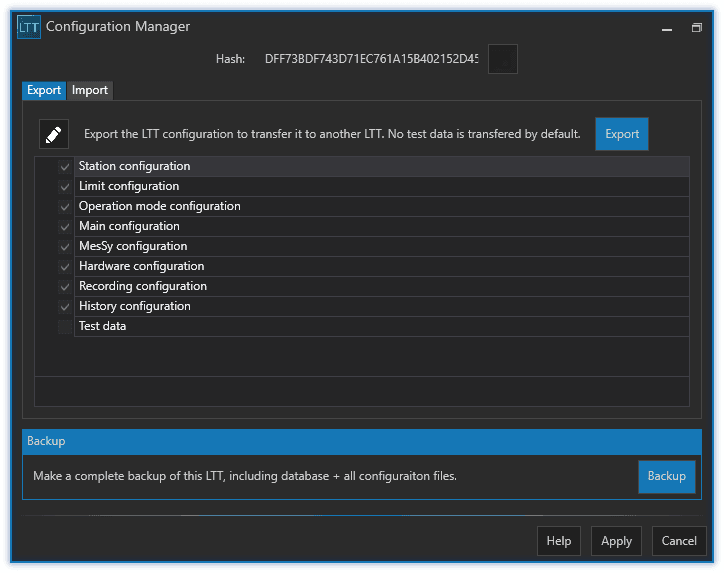
There are 3 common use cases:
- backup an existing LTT configuration for a project
- export a LTT configuration to transfer it from one LTT to another
- switch between different projects
1.1.2.6.1Backup

By making a backup you create a snapshot of your current LTT configuration. You can later revert to that backup configuration anytime. The backup will include the following data:
- station configuration (number of stations, DUT types, groups, signals)
- limit configuration
- operation modes + parameters
- main configuration (ltt_main_configuration.xml)
- MesSy configuration (ltt_messy_config.xml)
- hardware configuration (ltt_module_config.xml)
- recording configuration (ltt_recording_config.xml)
- history configuration (ltt_history_config.xml)
- all test related data
- DUT's
- test orders
- error counters
1.1.2.6.2Export
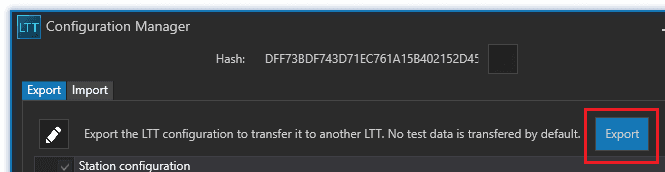
The Export button will save the same configuration as Backup but without test related data. This is useful if you want to transfer the configuration from LTT to another of the same kind.
1.1.2.6.3Import

To import a configuration just select a previously exported configuration zip file.
Your current configuration will be irreversibly overridden! The GUI will be automatically restarted.
1.1.2.6.4Switch projects
With the help of the configuration manager you can even switch between 2 or more completely different projects (with different DUT types, DUT's, signals, limits, etc.).