Each dialog can be canceled by pressing ESC. All changes made in a dialog only take effect, when the dialog is closed through the Apply button.
F2 Reset Errors
In this dialog you can reset certain things related to individual test stations. You can select what to reset and which stations to reset. The dialog can be opened through different buttons / key combinations. Each type of invocation results in different reset options to be preset. Despite of the preset options you are free to change them after the dialog has opened.
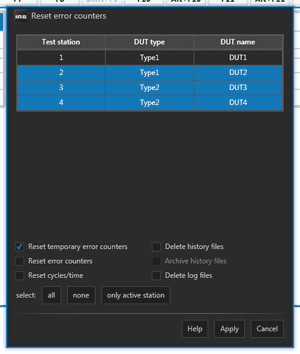
Use F2 to reset the temporary error counters. Use Alt+F6 to clear all station data (incl. history data). Use Alt+F12 to only clear the history data.
| Function | Description |
|---|---|
| Reset temp. error counters | Resets the temp. error counters of the current test order of the selected stations. |
| Reset error counters | Resets the error counters of the current test order of the selected stations. |
| Reset cycles / time | Resets the runtime and the cycle counter of the current test order of the selected stations. |
| Delete history files | Deletes all history files of the current test order of the selected stations. |
| Archive history files | Archives all history files of the current test order of the selected stations. |
| Delete log files | Deletes all log files of the selected stations. |
The "Archive history files" function is only selectable if the dialog is opened through the corresponding button inside the Alt-F10 dialog.
F3 - project wizard
The project wizard guides you through the most basic settings of your individual LTT project and is usually performed only one time during the initial setup of your LTT.
You need a password to enter the project wizard. Ask IRS for the password.
The project wizard is composed of 4 steps:
- Definition of test stations
- Definition of DUT types
- Definition of test groups (and the assignment of power supplies / temperature sensors to that groups)
- Definition of signals (and the assignment of those signals to individual DUT types)
Test Station Configuration
A test station represents the physical location where a device under test (DUT) can be connected to the LTT. The LTT may have more than one test station. You need to define at least one test station.
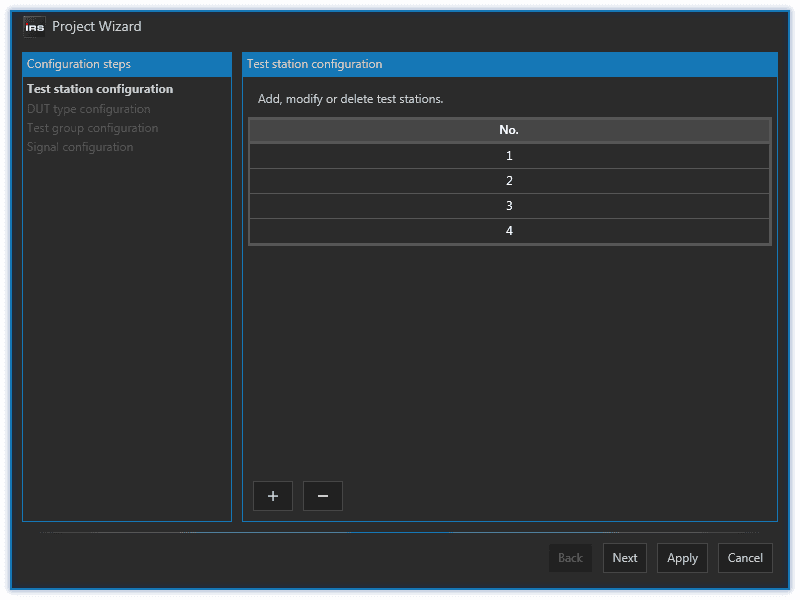
To add test stations, simply click on the ➕ button. To remove them click on the ➖ button. You can however only add/remove stations at the end of the list, not in between. The stations are numbered automatically, starting from 1. You are free to change the number to something else at any time.
The number of stations determine how many parallel executions of the later loaded TestStand sequence file will be started. Each TestStand execution serves one DUT. The test station index is used to distinct between those executions in any form of display and file output. In TestStand you can access the current station index through a TestStand variable.
1.1.3.2.2.1.1MesSy V2
If you use a MesSy V2 within your LTT, which is the standard case, the test station index defined in GUI relates to the station index defined in the MesSy configuration file.
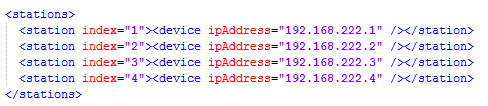
As you can see in the picture above, each station index maps to a single MesSy with a given IP address. However there are more advanced station configurations possible, which are not part of this documentation. Refer to the comment section inside of the example MesSy configuration file for more informations.
If you create more stations than you have defined in your MesSy configuration, the GUI will show you a warning.
1.1.3.2.2.1.2MesSy V1
If you want to use MesSy V1 you first have to change several other parameters as well. After restarting the GUI the test station configuration dialog will look like this.
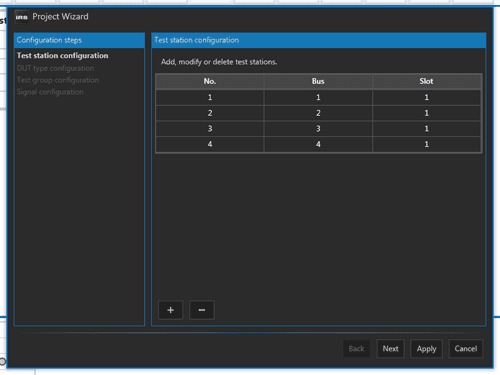
Bus represents the last digit of the IP address of the MesSy to which this station is connected. The preceding part of the IP address is defined in MesSy configuration file (for example 192.168.222). A bus number of 3, for example, means, that this station is connected to the MesSy with the IP address 192.168.222.3.
Slot is a number to distinguish between multiple DUTs connected to one MesSy. It defaults to 1 and only needs to be changed if there are more DUTs connected to one MesSy. In fact, the combination of bus/slot must always be unique.
Read more about the usage of station ID or bus/slot in chapter MesSy Integration.
DUT types configuration
A DUT type represents a specific variant of your devices under test. You need to define at least one DUT type.
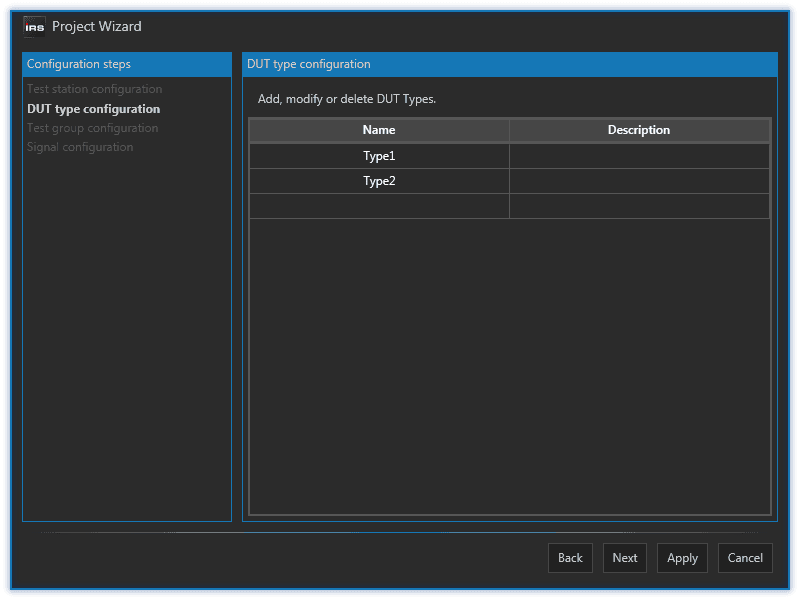
To add a DUT type simply click on an empty row in the grid and type a name. Description is optional.
To delete a DUT type select a row and press the DEL key on your keyboard.
Later, when you configure your test, you assign each DUT a DUT type. The DUT type also determines which set of limits to use for that DUT, since each DUT type has its own set of limits.
Test Groups Configuration
A test group is a logical container which groups one or more DUT's together with one or more power supplies and temperature sensors. You need to define at least one test group.
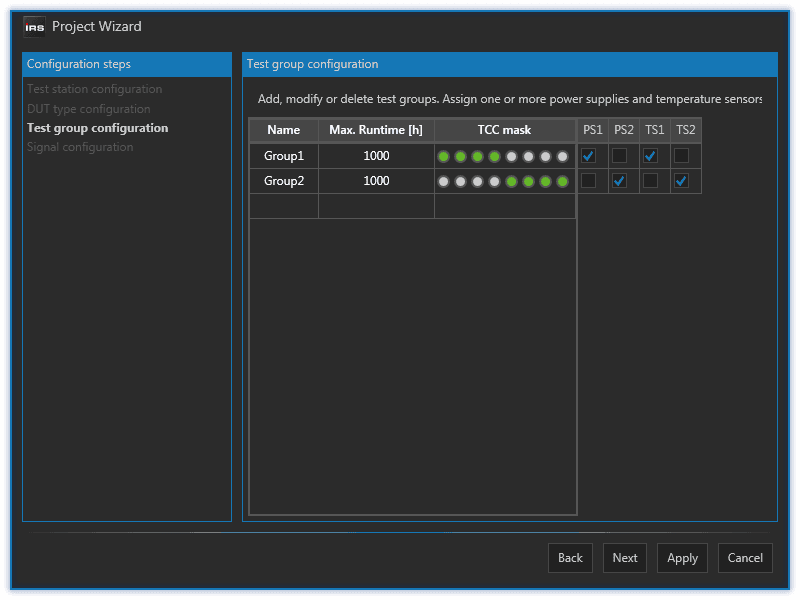
To add a test group simply click on an empty row in the grid and type a name. To delete a test group select a row and press the DEL key on your keyboard.
The Max. Runtime parameter is the desired runtime in hours of the tests running under this group. You can later change this parameter in the F10 - test parameter configuration dialog.
The TCC mask determines, which of the total of 8 TCC inputs you want to use for this group. You can use all 8 inputs or just a subset of them. You can also use the same inputs in multiple groups. The TCC mask determines, which TCC indicators are displayed for each group in main window's group display or in the F10 - test parameter configuration dialog.
If you move your mouse cursor over such an TCC input indicator, a tooltip appears, showing the TCC indicator index. The index goes from 1 to 8 (left to right).
Finally you assign one or more of the available power supplies (PS) and temperature sensors (TS) to each group. Those are defined in the module configuration file, which you need setup before running the project wizard. Multiple power supplies and temperature sensors are differentiated by a 1-based index following its fixed prefix (PS or TS). In TestStand you can refer to those power supplies and temperature sensors by using that index.
Signals definition
A signal is an analog output of your device under test or any other DUT related data you want to evaluate through a limit test (for example a CAN message).
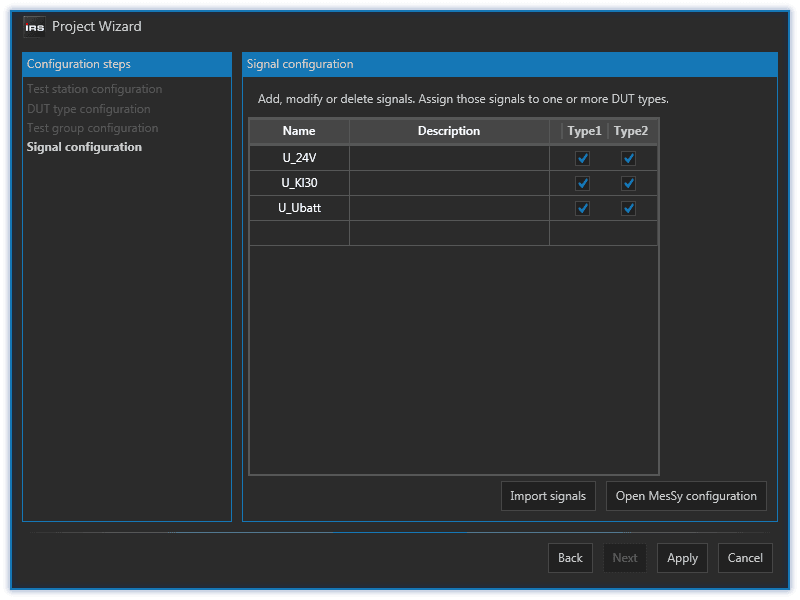
To add a signal simply click on an empty row in the grid and type a name. Description is optional.
To delete a signal select a row and press the DEL key on your keyboard.
You assign a signal to one more DUT types (which you have defined previously). By default, each created signal is assigned to all available DUT Types. In most cases this common but it may happen, that one variant of your DUT has less/different analog outputs than another one.
Usually you want to evaluate all analog DUT outputs which are defined in the MesSy configuration file. Therefore you can import the signals defined there.
Shift F3 - action log
F4 - station overview
F5 Limit Configuration
In this dialog you can define limits for the signals you have defined in project wizard.
You have to go through the project wizard first, before you can configure limits.
Here are some quick facts:
- There are separate limit definitions for each DUT type.
- A signal can have multiple limits.
- Each limit has an unique numeric identifier (the error number) and a name.
- The error number must be unique within the same DUT type.
- The limit name must be unique within the same signal.
- It is possible to define numeric and string limits.
When you open the F5 dialog, you see near the top of the dialog a tab for each DUT type you have defined in project wizard. In each tab, the signals you have defined in project wizard are listed. If you expand those signals (small down arrow), you will see the limits defined for each signal. In case you have a newly setup LTT there are no limits yet.
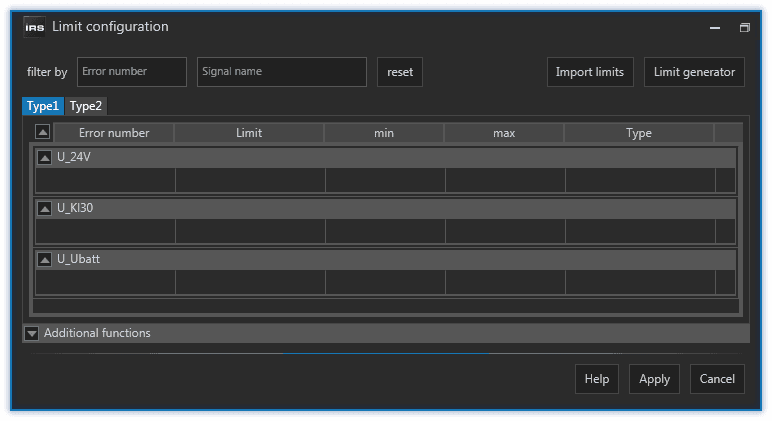
To define a limit, simply click in an empty row below an expanded signal. You have to provide a unique error number and a unique limit name. You have to check by yourself which error number is unused, but the dialog will not allow you to apply any changes if there are duplicate error numbers or limit names.
A limit error number must be unique within the same DUT type. A limit name must be unique within the same signal. You are responsible!
The preset limit name is default, but you can change it to whatever you want. The idea is, to provide multiple limits for the same signal, because the signal can be tested under different circumstances / in different contexts. For example, you have a default limit for a signal when it is not stimulated / active. That limit might be around 0 V, depending on your signal type. Then you have a limit for the case, when the signal is stimulated / active. A possible limit value could be around 12 V and the limit could be named active. Additionally you may want to test the signal under different stimulation levels, for example under voltage. You could create another limit name under_voltage with a different limit range.
There can be multiple limits per signal, depending on in how many different scenarios you want to test the signal. Read about Limit Tests to learn how to select and perform a specific limit test.
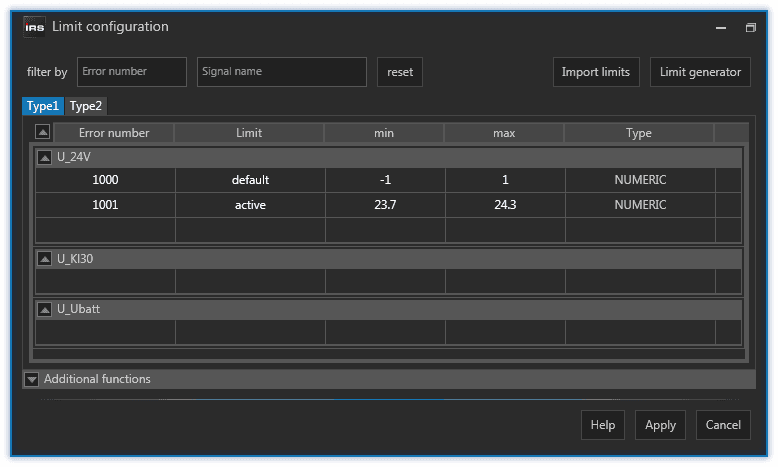
It is a good practice to keep numeric gaps between the error numbers for each signal. That way, you can later add additional limits to a signal while having a continuous numeration within that signal. A numeric gap of 10 should be sufficient for most cases.
Limit Generator
Instead of typing each limit manually, which can be a tedious work if you have many signals, you can use the limit generator, which you launch with the button at the right top corner.
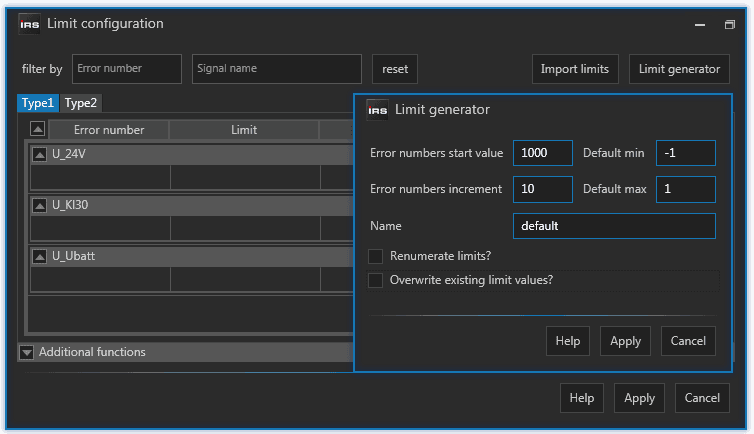
With the limit generator you create a limit with the provided name, min and max value for every signal and every DUT type. As for the error numbers, you choose a starting number and an increment (remember the numeric gap). If you apply the generator like in the picture above to an empty limit configuration, you will get the following result.
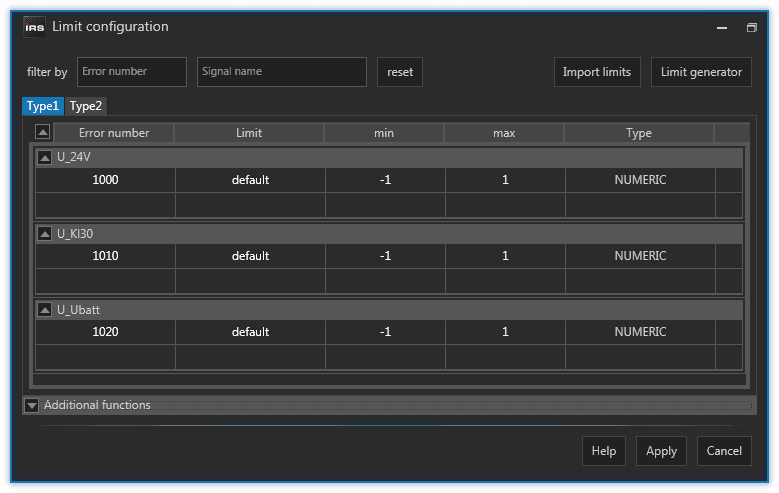
Afterwards, you can adjust the limit values if needed, which is altogether a faster way of creating limits than doing it one by one.
Limit Renumerate
Assume you have the following limit configuration:
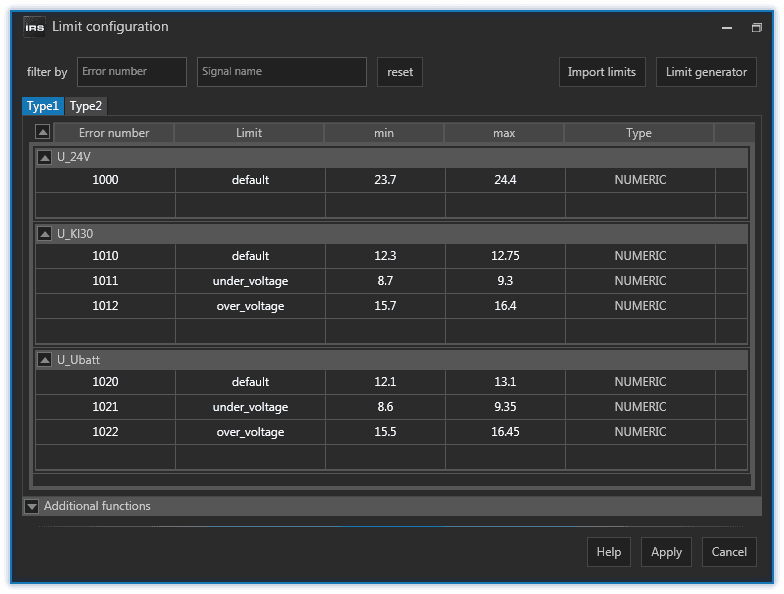
Open the limit generator and enable the Renumerate limits option.
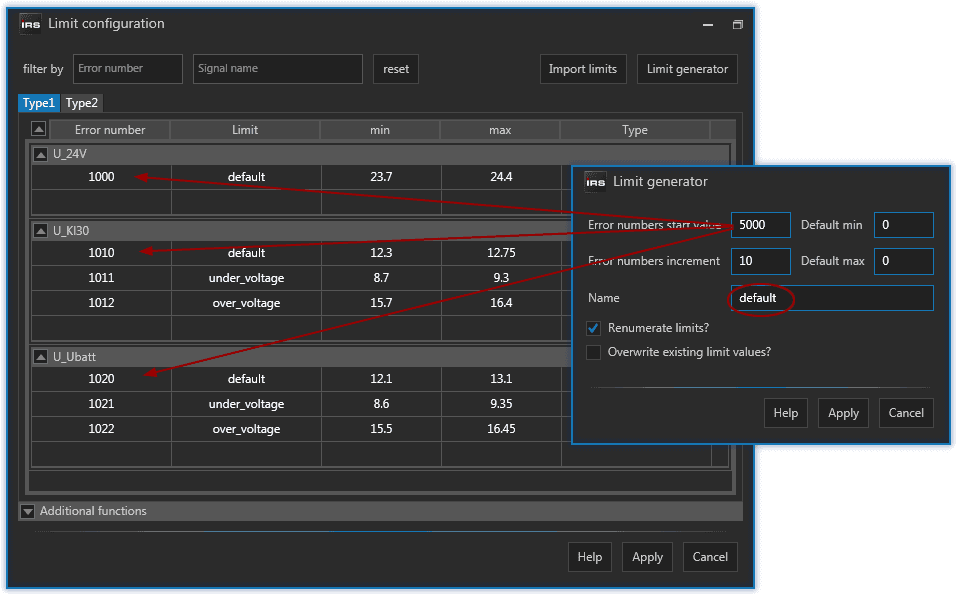
That way you can enter a different error starting number and increment together with a limit name. The min and max values are ignored in that case. If you apply, all limits with the provided name will be renumerated, starting from the provided value with the provided increment.
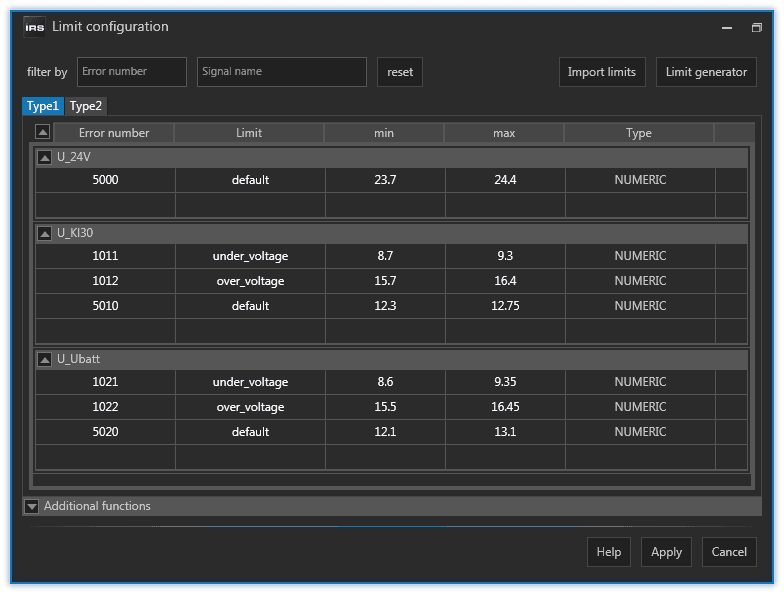
Be careful to avoid collisions with existing error numbers. The generator will tell you if this is the case and the numbers will not be applied.
Limit Overwrite
Assume you have the following limit configuration:
Open the limit generator and enable the Overwrite option.
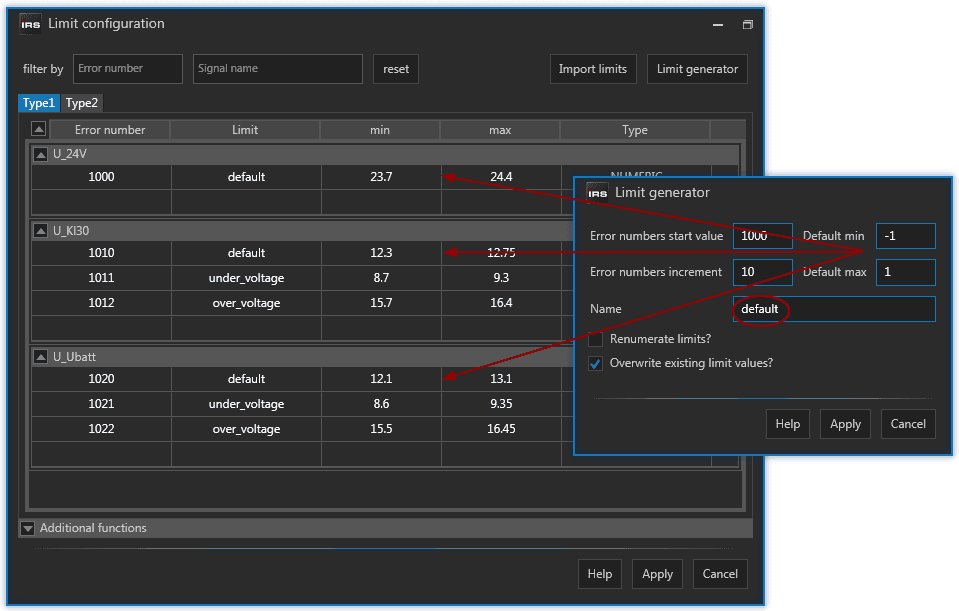
That way you can enter different min and max values together with a limit name. The error number and increment values are ignored in that case. If you apply, all limits with the provided name will be set to the new min and max values.
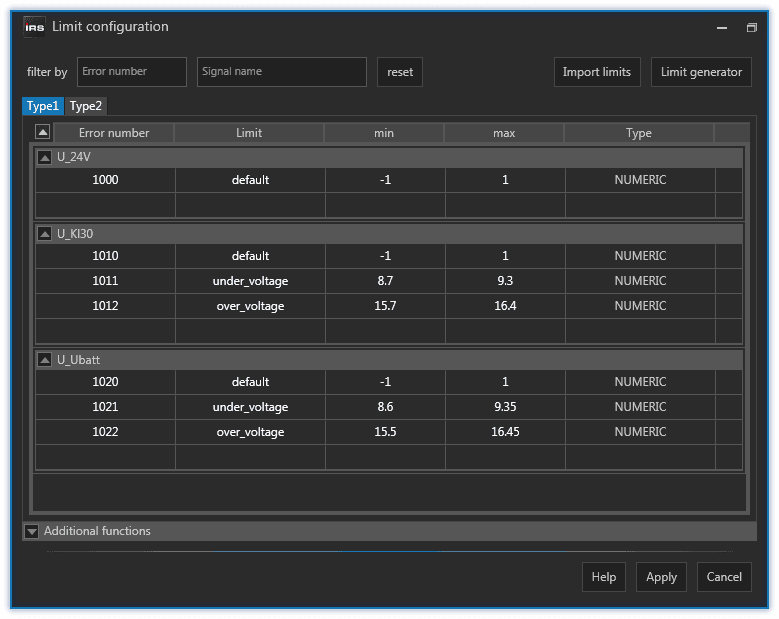
You can use the renumerate and overwrite option in combination.
Limit Copy
If you setup your limit configuration for one DUT type and want to copy it to the other DUT types you can do so by expanding the Additional functions at the bottom of the dialog.
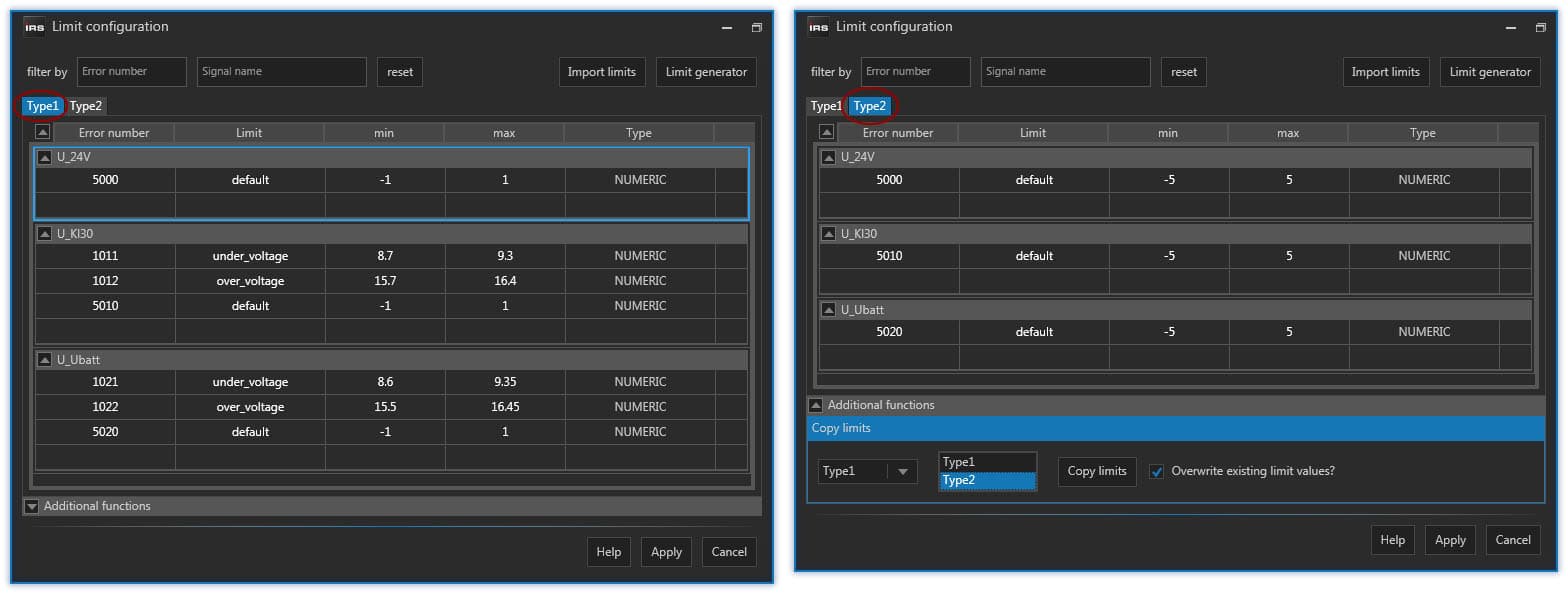
There you choose the source DUT type from the left combo box and one or more destination DUT types from the list to the right. If you click on the Copy limits button all limits, including their min and max values are copied to the selected DUT types.
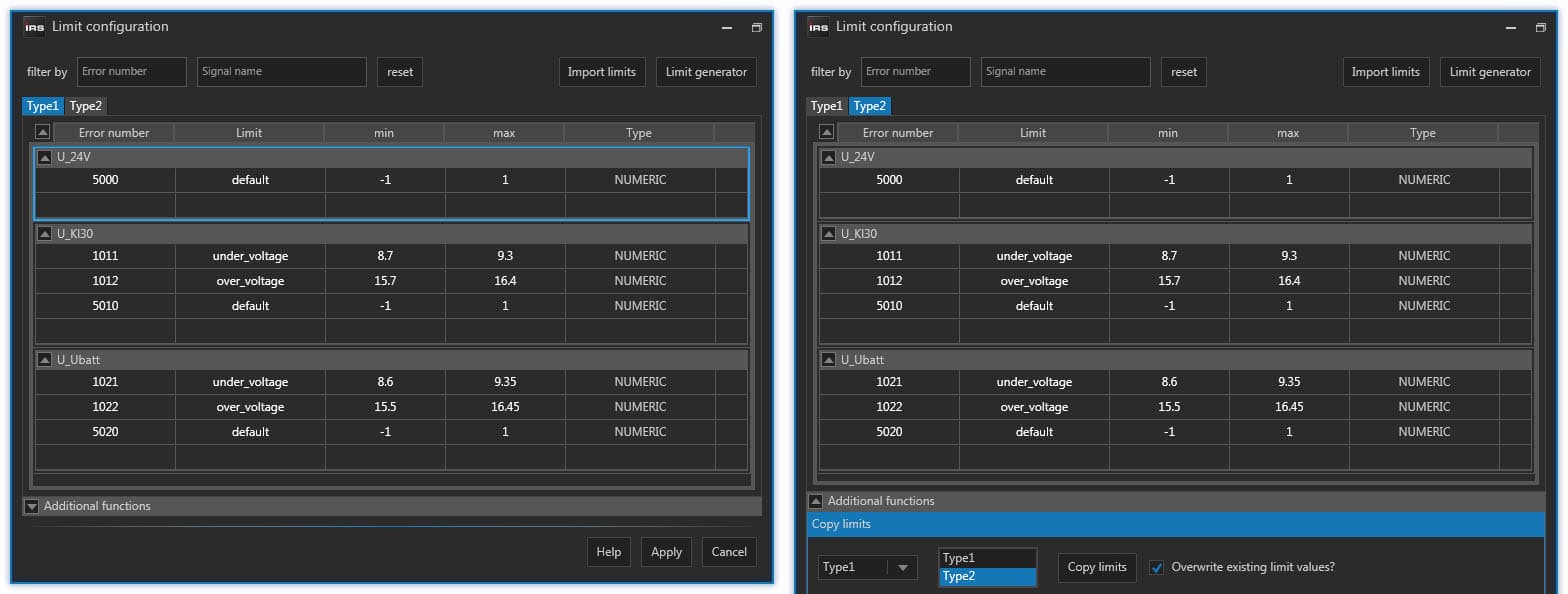
The copy limits function adds limits from a source DUT type, which do not exist in the destination DUT type. If the overwrite limits option is active, then existing limits in destination DUT type will be overwritten with the ones from source DUT type.
Limit Import
When you have more than one LTT and want to copy the limits from one LTT to another one, then use the Import limits function.
First, you have to copy the 50_LTT_SW\LTT Limit Files folder, containing the limits you want to import on another LTT, to the other LTT, but not at the same location!
Overwriting the limit configuration XML files of one LTT with those from another will not transfer the limits!
Assume you currently have the following limit configuration:
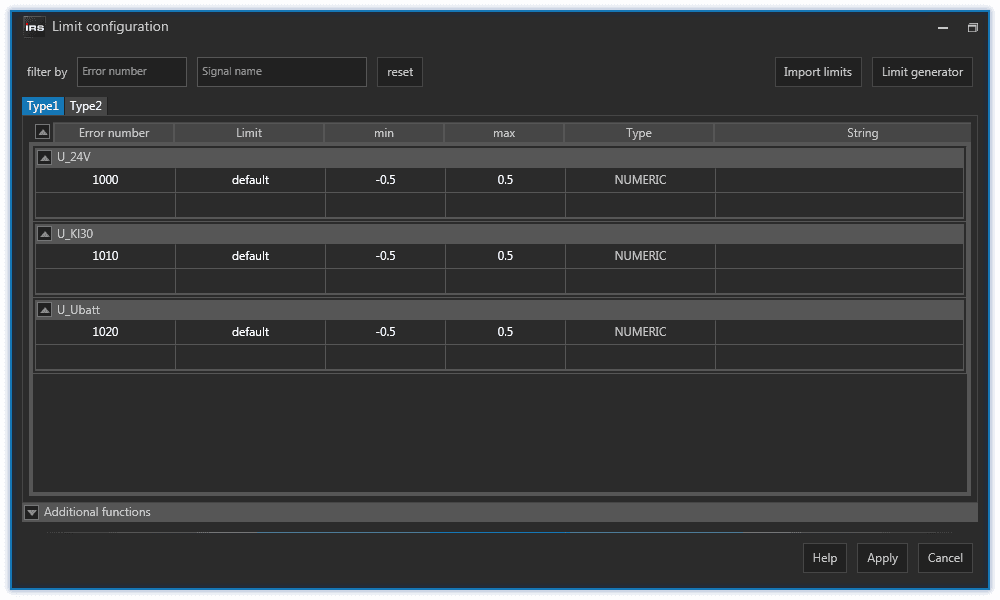
And you want to import those limits from the other LTT:
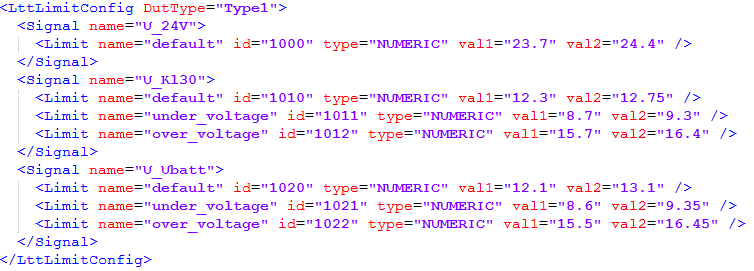
The best praxis is to copy the limit configuration folder from one LTT to the Desktop of the other LTT. Once you have the limits folder copied to the target LTT, you can press the Import limits button in the top right corner of the dialog. A folder selection dialog will prompt you the select the limit files folder to import.
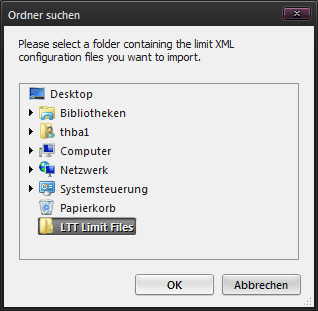
All limit files (DUT types) from the import folder will be imported as long as there is a matching DUT type on the target LTT. If you want to import a specific DUT type only, then delete all other limit configuration files from the import folder.
After you have selected the import folder the limit import is performed. Once it is finished it will display a summary:
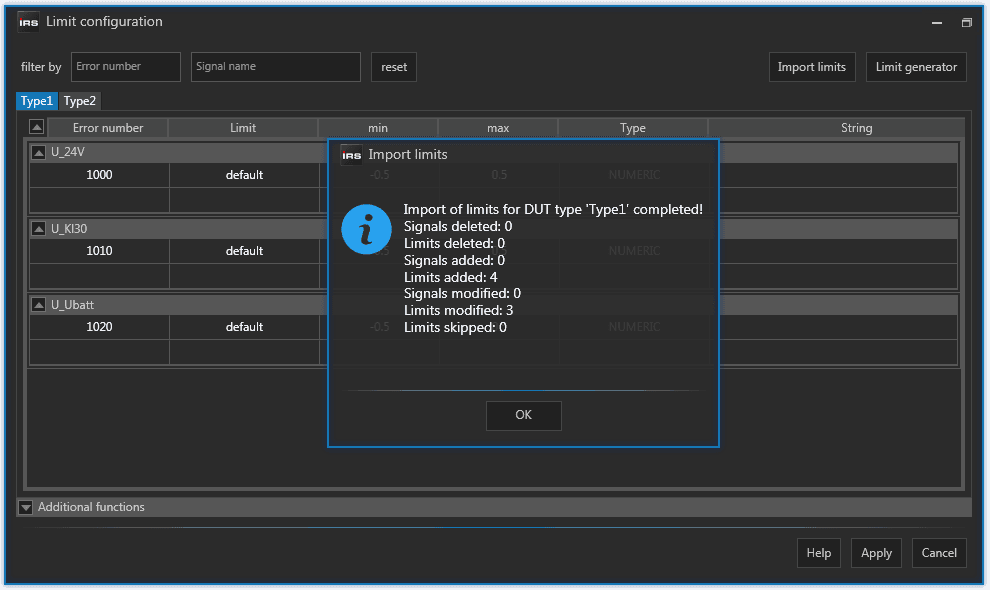
Be aware that importing limits will remove existing limits if they are not present in the imported limits.
After the import the limit configuration looks like this:
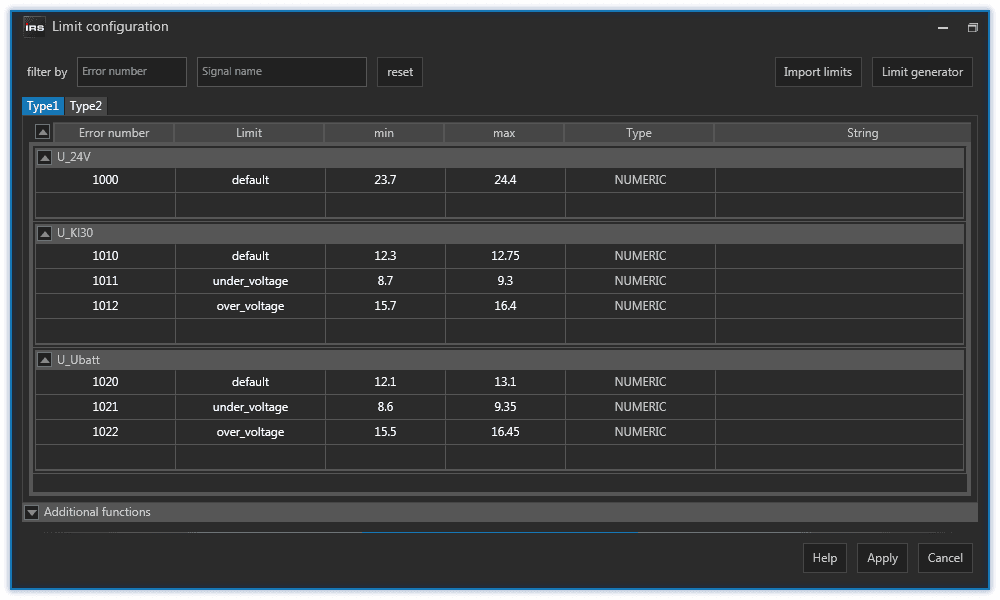
F6 - error configuration
Shift F6 - error live display
F10 - test parameter configuration
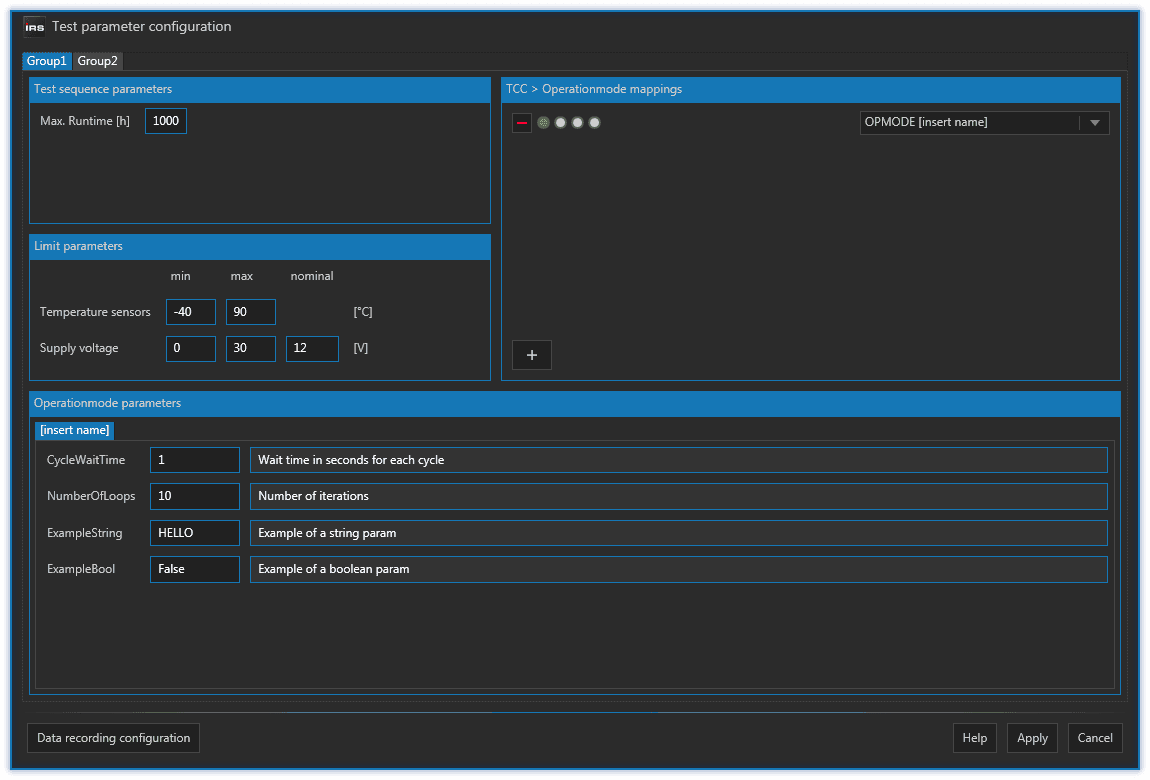
In this dialog you can do several things:
- set the maximum runtime your your test run
- set the minimum and maximum temperature of your temperature sensor(s)
- set the minimum, maximum and nominal voltage of your power supply/ies
- defined TCC <> operation mode mappings
- set operation mode parameters
All those settings are provided per test group.
You first need to define one or more test groups in project wizard before you can use this dialog.
Runtime
When a test station reaches the runtime you entered here it will automatically stop.
Temperature and voltage limits
A test station will stop with a system error if one of those limits are violated.
- Read more about operation mode mappings
- Read more about operation mode parameters
Operation Mode Mappings
You can add an operation mode mapping by pressing the button in the operation mode mapping section of the F10 dialog.
You need a password to add or remove operation mode mappings. Ask IRS for the password.
You need to load your testplan before you can map to operation modes of that testplan.
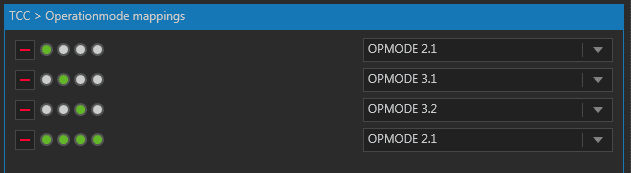
Each operation mode mapping consists of 1 to 8 round TCC input indicators and a drop down box. The TCC input indicators represent the value of the TCC hardware (or the simulated one).
The displayed TCC input indicators for each group are determined by the TCC mask, which is defined in the project wizard. If you move your mouse cursor over such an indicator, a tooltip appears, showing the TCC indicator index. The index goes from 1 to 8 (left to right).
In the drop down box you can select an operation mode sequence from the currently loaded testplan. You can add as many operation mode sequences as you want and select a corresponding TCC input pattern (like binary). You even can have multiple TCC patterns map to the same OM sequence. You should avoid, however, using the same TCC pattern for more than one OM.
With an operation mode mapping, you map a certain TCC input pattern to a single operation mode sequence of your testplan.
Once you have configured your TCC operation mode mappings you can run your testplan and it will execute that operation mode sequence, which is configured for the current TCC value.
You can see the currently mapped operation mode in the main window's group display. If this display is empty, no valid mapping exists for the current TCC value and the testplan will execute a fallback sequence.

The main window will display a warning message if there is no valid operation mode mapping at all and you are not allowed to start the loaded testplan.
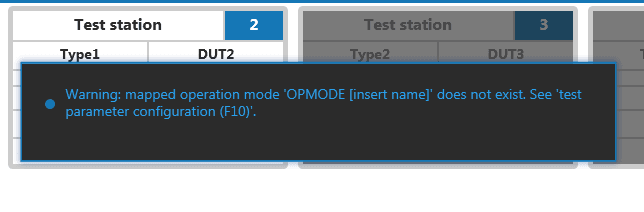
This can happen if you
- have not configured any mapping yet
- changed the name of the operation mode sequence or deleted the sequence
Operation Mode Parameters
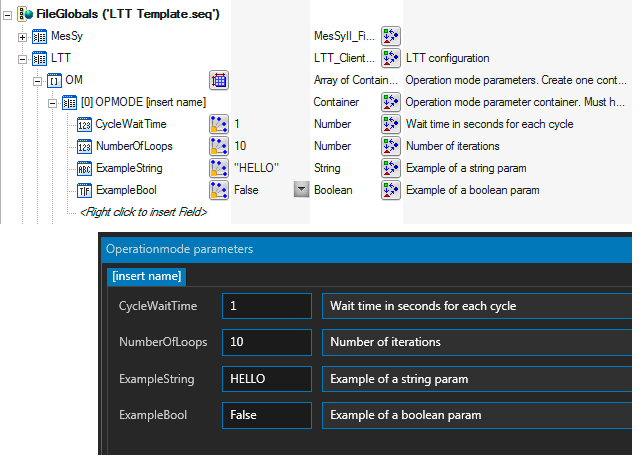
You can change operation mode parameter values in the operation mode parameters section of the F10 dialog. There is a tab for each operation mode defined in your testplan.
You need to load your testplan before you can see and change operation mode parameters.
The operation mode parameters are defined in your testplan, so you cannot add or remove parameters here. In this dialog you only change the current values of those operation mode parameters.
You can update operation mode parameters even if if testplan is already running.
Alt F10 - history data
F11 - test configuration
In this dialog you assign your devices under test to the individual test stations.
You first need to define one or more test stations in project wizard before you can use this dialog.
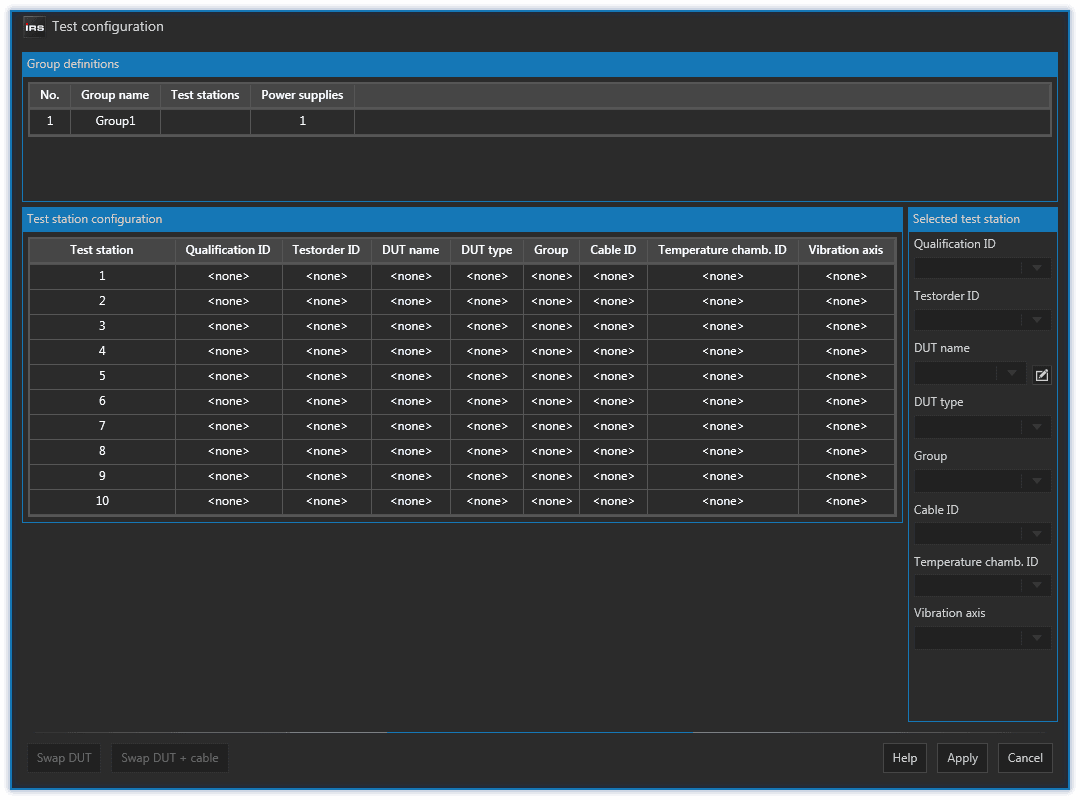
You first need to define one or more DUT's in DUT management dialog before you can assign them to test stations.
The best practice procedure to configure your test stations is as follows:
- Make sure you have created the DUT's you want to assign
- If not, create them in DUT management dialog.
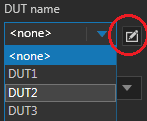
- If not, create them in DUT management dialog.
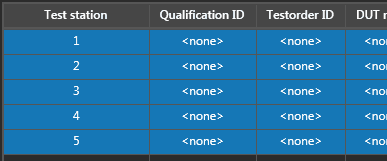
- Multi-select all stations you want to configure
- Select first station
- Press and hold shift key
- Select last station
- To select non-consecutive stations hold down ctrl key while selecting each station.
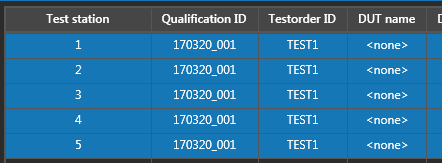
- Choose / enter the common for all settings
- Those typically are test order ID, qualification ID, DUT type, Group and chamber ID
- Qualification ID is optional
- Chamber ID is optional
- Vibration axis is optional
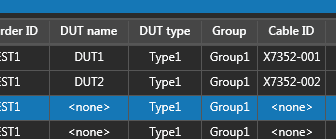
- Select each individual station and choose / enter the individual settings
- Those typically are DUT name and cable ID.
- Selection will jump to next row if you enter DUT name and current row is complete.
- Cable ID is optional and should be entered first, otherwise the selection might jump to next row.
- Press Apply
DUT management
Before you can assign DUT's to test stations you need to define DUT's by their serial numbers / names.
Open the DUT management dialog by pressing the small button next the the DUT name drop down field in F11 dialog.
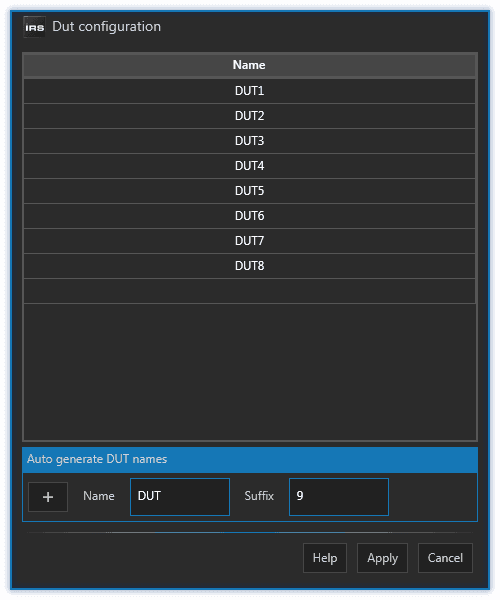
Just enter a name prefix and a numeric suffix and press the button.
You can delete individual DUT's by selecting them and pressing the del key.
Alt F11 - data transfer
TODO