# SSV Editor User Interface
URL: https://irs.systems/en/docs/ssv/ssv-editor-user-interface

## Dock Panels
The user interface uses a dock panel system, which allows the user to customize it to adapt to different use cases or screen resolutions. Almost every pane (sub-window) can be dragged around, made floating, dock to each other or over another: simply drag the title bar of a pane and drag it to its destination. If no other window is under the cursor, the window will become floating. You will see a cross of blue icons when dragging over another window. Drop the window on the appropriate icon to dock it to the left, right, top or bottom side or drop it in the middle to create a tab overlay.

**Example**
In this picture, the window explorer is floating with the window explorer docked on its right side. The Trigger Setup pane is docked to the right of the Channel Explorer and also Log right to Configuration Report.

## Toolbar

(from left to right)
**New Project**
Creates a new project
**Open Project**
Opens an existing project
**Save Project**
Save the current project
**Save Project As...**
Save the current project to a new location and keeps that location
**Channel Explorer**
Opens the Channel Explorer pane, if not already open
**Trigger Setup**
Opens the Trigger Setup pane, if not already open
**WindowSet Editor**
Opens the Window Set Editor pane, if not already open
**Window Set Data**
Opens the Window Set Data pane, if not already open
**Window Explorer**
Opens the Window Explorer pane, if not already open
**Capture untriggered data**
Creates a snapshot of all enabled channels in project (see Options for default setting) without applying any trigger settings
**Capture triggered data**
Creates a snapshot of all enabled channels in project (see Options for default setting) with actual trigger settings
**Run test**
Activates the current project settings to hardware, waits the specified delay time and returns the test results and recorded channel data
**Command**
Selects the command to perform when pressing the "Execute" button
**Channel Selection**
Selects the channels that will be included in the recorded TDMS file (all / selected)
**Execute button**
Executes the selected command (same like pressing Capture (un)triggered / Run Test buttons)
### Channel Explorer
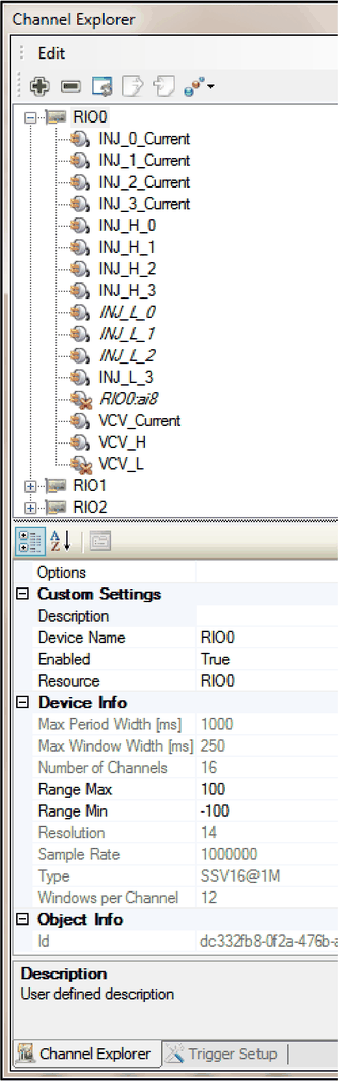
The Channel Explorer allows you to add new hardware to your project and to configure all relevant settings for each device and channel.
Only whole devices can be added or removed, adding a single channel is (also physically) not possible.
Channels are displayed in a tree view under their devices and sorted either by name or channel number. Press the sort button to change the sort order.

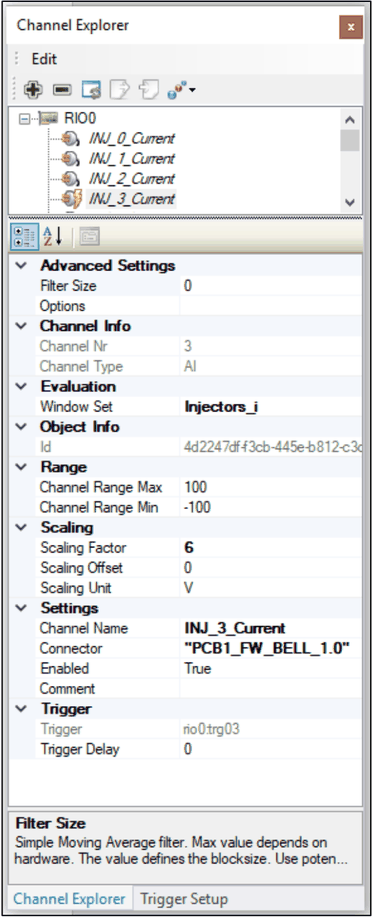
Select a channel or device from the tree view and use the property editor to configure details. When selecting a channel, the window editor will also automatically update the display to show the associated window set (if any) and recorded channel preview data (if available)
> **Note**
> To add functions to a window set, the window set has to be assigned to at least one channel of a device! To assign a window set, select an existing set in channel properties (Evaluation / Window Set). See picture below!
**Status information**
The channel name is displayed in different styles for special status values:
- **Bold**: highlights channels that use the currently displayed window set
- *Italic*: channel is unused (has no window set assigned)
- Red: recorded channel (open TDMS file) has reported an error
- Green: recorded channel (open TDMS file) has no error

The Property Editor allows you to edit certain channel parameters. Read only properties are grayed out.
For a detailed description of all available properties, see chapters [Device](/en/docs/ssv/ssv-concept#device) and [Channel](/en/docs/ssv/ssv-concept#channel)
**Editor view samples**
Channel Explorer with device infoChannel explorer with channel info
#### Export channel settings

**Generates a text file with channel settings** for editing in an external tool (e.g. Excel)
Refer to [Import channel settings](/en/docs/ssv/ssv-editor-user-interface#import-channel-settings) for syntax definition.
#### Import channel settings
Press the import button to import channel settings from a text file

Expected file format:
One line per channel, consisting of semicolon separated columns:
- `:`
- ``
- ``
- ``
Only matching rows will be changed, unknown or missing channels will be ignored
**Example**
```text
RIO0:0;RIO0:AI00;A85;PinMatrix:3A3, AUX:1c
RIO0:1;RIO0:AI01;A2;PinMatrix:3A9, AUX:3c
RIO0:2;RIO0:AI02;A43;PinMatrix:3A15, AUX:5c
RIO0:3;RIO0:AI03;A1;PinMatrix:3A21, AUX:7c
RIO0:4;RIO0:AI04;A64;PinMatrix:3A27, AUX:9c
RIO0:5;RIO0:AI05;A22;PinMatrix:3A33, AUX:11c
RIO0:6;RIO0:AI06;A65;PinMatrix:3A39, AUX:13c
RIO0:7;RIO0:AI07;A23;PinMatrix:3A45, AUX:15c
RIO0:8;RIO0:AI08;;PinMatrix:3A51, AUX:17c
RIO0:9;RIO0:AI09;PCB1_FW_BELL_1.0;
RIO0:10;RIO0:AI10;PCB1_FW_BELL_1.1;
RIO0:11;RIO0:AI11;PCB1_FW_BELL_1.2;
```
### Trigger Setup
**Navigation**
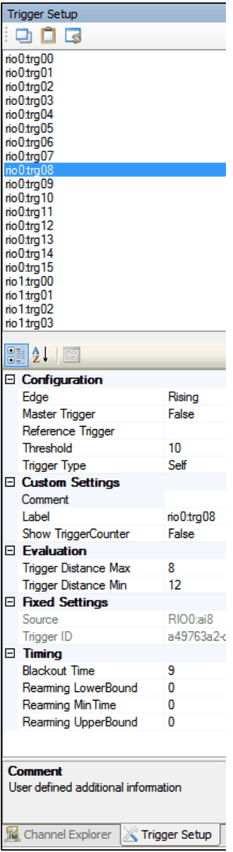
Use Trigger Setup to configure the highlighted trigger.
When the channel selection changes, the corresponding trigger is also selected automatically
> **Tip**
> Drag and dock the trigger window tab right to the channel explorer to allow easier editing during trigger setup:

**Toolbar buttons**
To copy settings between triggers, use the copy and paste toolbar buttons. Every user defined setting is transferred to the new trigger, except fixed properties like id, channel nr, trigger source etc.
Select the source trigger and press copy (1st button) to copy the settings to the clipboard
Select the destination trigger press paste (2nd button)
Use the third toolbar button to automatically adapt the generic trigger labels to their corresponding channel labels (plus additional `trg_` prefix).
**Property Editor**
For a detailed description of all available trigger parameters see chapter [Trigger](/en/docs/ssv/ssv-concept#trigger).
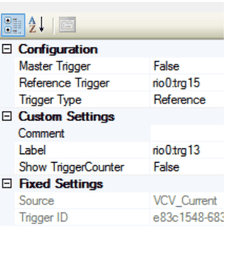
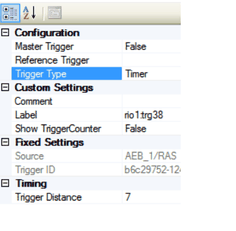
Depending on the selected trigger type, the property editor will show a different set of parameters:
Trigger Type "Self"Trigger Type "Reference"Trigger Type "Timer"
### Window Explorer
The window explorer is used to configure [Window Sets](/en/docs/ssv/ssv-concept#window-sets), [Analysis Windows](/en/docs/ssv/ssv-concept#analysis-windows) and [Analysis Functions](/en/docs/ssv/ssv-concept#analysis-functions)

It is divided into four sections:
- [Window Set Tree](/en/docs/ssv/ssv-editor-user-interface#window-set-tree)
- [Window Boundary Control](/en/docs/ssv/ssv-editor-user-interface#window-boundary-controls)
- [Comment Editor](/en/docs/ssv/ssv-editor-user-interface#comment-editor)
- [Property Editor](/en/docs/ssv/ssv-editor-user-interface#property-editor)
All controls are generally bidirectionally data bound to the currently selected WindowSet/Window/Function, that means any change from outside (e.g. moving window by mouse) is instantly reflected in the associated controls and vice versa.
#### Toolbar
**Window Explorer Toolbar functions**
(from left to right)
***New Window Set***
Creates a new window set
***Delete Window Set***
Deletes the selected window set and removes all windows
***New Window***
Creates a new window to the currently selected window set in the center of the current view
***Delete Window***
Deletes the selected window and all of its functions
***Move item up***
Moves the selected WindowSet / Window / Function one position upwards, if it is not already the topmost. Note that the selection may change after this action!
***Move item down***
Moves the selected WindowSet / Window / Function one position downwards, if it is not already the last. Note that the selection may change after this action!
#### Window Set Tree
The window set tree displays the hierarchy of all available window sets, windows and functions in a tree view.
#### Context Menus
The context menu depends on the selected item
**Window Set Context Menu**

***Delete Window Set***
Deletes the selected Window Set
***Add Window Set***
Adds a new Window Set
***Copy this Window Set***
Creates a deep copy of the selected window set and creates also copies of all contained windows and functions
**Window Context Menu**

***Locked***
Toggles the window locking (see [Locking Windows](/en/docs/ssv/ssv-editor-user-interface#locking-windows))
***Zoom to window***
Zooms the current view to this window
***Create copy***
Creates a copy of the selected window including all functions. Copy will have the same name plus "_copy"
***Delete function***
Deletes the selected function from the window
Note: only available if any function is already assigned
***Add function***
Adds the selected function to the window
Note: only available if WindowSet is assigned to a channel and if not, already all available functions were assigned to the window
#### Window Boundary Controls
The window boundary controls allow a more exact positioning of the window than via mouse control.
However, please note that due to hardware restrictions and internal rounding errors, the defined times and levels cannot be guaranteed to exactly fit to real life situation (e.g. setting a limit to exactly 10.000 V may have a small offset due to hardware ADC resolution)
#### Comment Editor
This window allows adding a comment for this window for reporting purposes
#### Property Editor
The upper part of the property editor allows detailed editing of the selected item (WindowSet / Window / Function)
The lower part of the property editor shows context help for the selected property.
### WindowSet Editor
The WindowSet Editor is a graph view combined with a window editor overlay. It is used to preview channel data and configure window regions.
The editor can show one channel including one window set simultaneously.
Channel and/or window set change accordingly to the last selection in [Channel Explorer](/en/docs/ssv/ssv-editor-user-interface#channel-explorer) or [Window Explorer](/en/docs/ssv/ssv-editor-user-interface#window-explorer).

#### Toolbar Buttons
(from left to right)

***Add window***
Adds a new window with default size in the center of the visible area
***Remove window***
Removes the currently selected window
***Remove all windows***
Removes all windows of the currently displayed window set
***Zoom (auto fit) (multiple modes)***

***Fit to all (auto)***
Zooms automatically to a view where all windows and the complete measured signal are visible
***Fit to window***
Zooms to currently selected window (also available from Window Explorer)
***Fit to window set***
Zooms to a view where all windows of the current window set are visible, regardless to graph data dimensions
***Fit to graph***
Zooms to a view where the recorded data fits completely, even if not all windows are visible
***Fit to hardware***
Zooms to hardware capabilities (max sample buffer size and voltage range)
***Zoom in***
Zooms in by factor 2
***Zoom out***
Zooms out by factor 0.5
***Show/Hide Cursor (toggle)***
Shows or hides the graph cursor (only applicable if graph data exists)
***Reset all view settings***
The last zoom action is internally stored for each channel. This button removes all of these view settings and auto fit will be applied next time the channel is viewed.
***Save screenshot***
Creates a screenshot of the current view and saves it to a file. Note that this differs from a normal screenshot tool, as you can define the output resolution in [Options / Report Settings](/en/docs/ssv/ssv-editor-user-interface#options).
***Overlay plots (toggle)***
***Show data points***
***Visible plots slider***
#### Zooming and moving the graph
The graph view can easily be moved and zoomed by the mouse while holding the shift / ctrl key. Note that the window editor pane must be already active.
**Moving visible area**
Hold the `Ctrl` key (mouse cursor will change to hand symbol), then drag the graph.

**Zooming by selection**

Hold the `Shift` key (mouse cursor will change to magnifying glass), then select a rectangle area with the mouse. After releasing the button, the graph will zoom to this selection.
**Zooming by mouse wheel**
Move the mouse wheel while holding the `Shift` key will zoom in/out by 20% per step around the current mouse position.
**Zooming by buttons**
Zooming is also possible using the zoom buttons of the toolbar. Refer to [WindowSet Editor](/en/docs/ssv/ssv-editor-user-interface#windowset-editor) for details.
#### Resize Windows
Resizing windows is performed by clicking the window at its border or corner. This works even if the destination window is not selected or behind another overlaid window. A selection algorithm automatically selects the window whose border has the lowest distance to the cursor position!
Windows can also be resized by using the numeric controls of [Window Explorer](/en/docs/ssv/ssv-editor-user-interface#window-explorer).

#### Move Windows
Moving windows is performed by clicking the window in its center(!). This works even if the destination window is not selected or behind another overlaid window. A selection algorithm automatically selects the window which center has the lowest distance to the cursor position!
Windows can also be moved by using the numeric controls of [Window Explorer](/en/docs/ssv/ssv-editor-user-interface#window-explorer).

#### Context Menu
Right click a window to open the context menu:

The context menu provides some frequently used tasks for the currently selected window:
**Lock**
Click to toggle locked status
**Zoom to window**
Click to zoom around this window
**Create copy**
Creates a copy of this window including all functions and parameters at the current position, but with new unique Ids for window and functions.
**Delete Window**
Removes the window
**Delete function**
Removes an existing window function (if any defined)
**Add function**
Adds a window function. Note that no function will be displayed until the window set is applied to a channel (because the available functions are defined by the device)
#### Locking Windows
To avoid unintended editing of windows by mouse, each window can be protected against movement (=Locked).
> **Note**
> Locking does not prevent from editing the window in Window Explorer! The window can still be edited by numeric controls or even deleted!
To lock a window, use the window context menu and check the "Locked" option, or set the lock in the [Window Explorer](/en/docs/ssv/ssv-editor-user-interface#window-explorer)

#### Enabling / Disabling Windows
Enabling / Disabling a window can only be performed from Window Explorer. A disabled window remains in the configuration but will not perform any function. Disabled windows are displayed with a "bricked" fill:

#### Cursor
Cursors allow the user to select points on a plot and obtain coordinate information. An activated cursor will show up as orange cross over the complete graph and can be dragged along the currently active plot (if any). It is bound to the graph. Drag it either directly at the crossing or a single axis. An indicator at the crossing displays information about X and Y coordinates (time in ms and measurement value)
The cursors can be switched on / off using the toolbar button.

#### Creating Screenshots
Press the camera button to save a bitmap picture (PNG format) of the current view. The picture resolution can be configured in project settings.
#### Plot Overlays
Depending on the [multi plot mode](/en/docs/ssv/ssv-editor-user-interface#options) (overlay/single), the "Visible Plots" slider defines either how many captured periods of the signal are shown simultaneously or selects the current period, if more than one is recorded.
### Log
The log window is used to output system and progress messages and test result reports:
Depending on the global setting "[Source Query Mode](/en/docs/ssv/ssv-editor-user-interface#project-settings)", the "Source" column is either reported as resource specification or using the channel labels.

### Configuration Report
The Configuration report creates an HTML report of the current project configuration, including information about all
- Devices
- Available Functions
- Channels
- Trigger Settings
- Window Sets
- Windows
- Functions
To provide a better overview, many items are collapsed and hidden. Click on the [+] link in front of an item to expand the details tables.
Click on [expand all] or [collapse all] to do this for all switchable content of the report.
You can also copy and paste the content to e.g. MS Word or Excel and also save and print the report.

### Window Set Data
The window set data editor provides a hierarchic tabular view of a single window set. Changing the selection will also update the content for the table below.

> **Hint**
> This editor is auto-hidden and located at the rightmost edge of the SSV project editor. A click on the needle icon disables the auto-hiding. It can, as all other panes, also be [docked](/en/docs/ssv/ssv-editor-user-interface#dock-panels) to almost any other position within the editor.

### Project Settings
Allows definition of project settings and attributes.

**Source Query Mode**
Defines the query method reference a source string in a result.
- *Label*: The custom defined labels for devices and channels are used.
- *Resource*: Internal resource names are used, labels will have no impact
### Options
This dialog configures application wide settings (per windows user!)

**Application Settings**
***Max Plots***
Specified maximum number of overlaid plots to avoid performance problems e.g. when inappropriate trigger settings are applied
***Multi plot mode***
Specifies how multiple periods of a recorded signal are displayed. "Overlay" shows (up to) all periods simultaneously, "Single" shows only one period, depending on the current position of the "Visible Plots" slider
***Open last project at startup***
If true, the last project is always loaded at startup. Otherwise the editor starts with an empty project.
***Template Folder***
Path to device templates. This path is usually set by the installation tool and doesn't need to be changed.
**Plugins**
***DAQ Duration***
Defines the recording time for all channels (preview functions).
***DAQ Simulation Mode***
If true, the data acquisition is simulated without hardware access.
***DAQ Storage Path***
Full path to temporary TDMS file for preview data
***DAQ Timeout***
Sets the maximum time allowed to fetch data to prevent application hang in case of hardware issues.
***DAQ wait time***
Defines the delay that is applied between activation of configuration and start of sampling. Set this value to match at least one period of your measurement signal, otherwise the window functions will contain no data for the first cycles (or report an error).
**Report Settings**
***Picture Height***
Picture height in pixels for report generator and screenshot tool.
***Picture Width***
Picture width in pixels for report generator and screenshot tool.