# Getting Started / Workflow
URL: https://irs.systems/en/docs/ssv/getting-started
The configuration of SSV modules is best explained with a typical workflow in a test project:
- Select appropriate SSV modules for your test scenario
- Setup wiring
- Setup SSV software configuration using SSV Project Editor
- [Configure modules](/en/docs/ssv/getting-started#configure-hardware)
- [Preview untriggered data](/en/docs/ssv/getting-started#capture-untriggered-snapshot)
- [Setup triggers](/en/docs/ssv/getting-started#setup-triggers)
- [Preview triggered data](/en/docs/ssv/getting-started#capture-triggered-snapshot)
- [Create analysis windows and functions](/en/docs/ssv/getting-started#add-analysis-windows)
- [Assign window sets to channels](/en/docs/ssv/getting-started#assign-window-set-to-channel-s)
- [Preview test results](/en/docs/ssv/getting-started#perform-test)
- Use the created configuration with LabVIEW or .NET API in your test system:
1. Load configuration file(s) (XML)
2. Activate configuration (Download to FPGA => SSV starts)
3. Execute test scenarios (or just wait)
4. Periodically fetch evaluated results from SSV
- Check for errors
- Store recorded waveform in case of detected errors
- Evaluate measurements
5. Clear SSV error counters
6. Repeat with 4.
## Creating an SSV Project

To create a new project, use the menu "File/New Project" or the toolbar button
Use menu "[Edit/Project Settings](/en/docs/ssv/ssv-editor-user-interface#project-settings)" to define name, description and query mode.
## Configure Hardware
Register the installed hardware by adding a new device using [Channel Explorer](/en/docs/ssv/ssv-editor-user-interface#channel-explorer).
Configure the new device (provide a label, assign the hardware resources and range)
Repeat this step for all installed devices.
### Add device - SSV sbRIO module

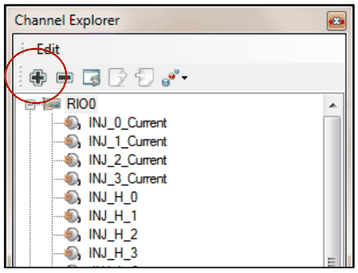
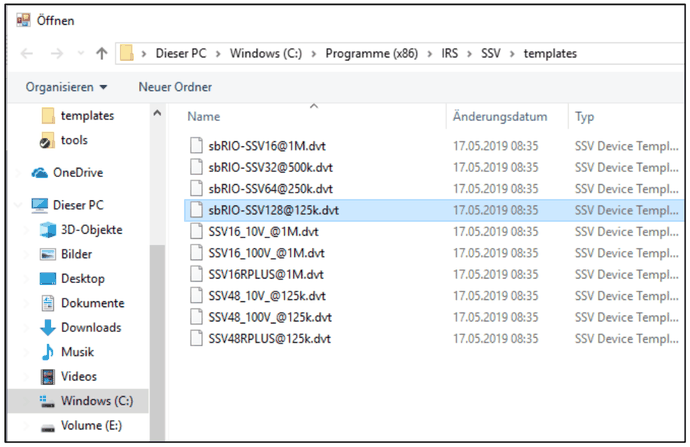
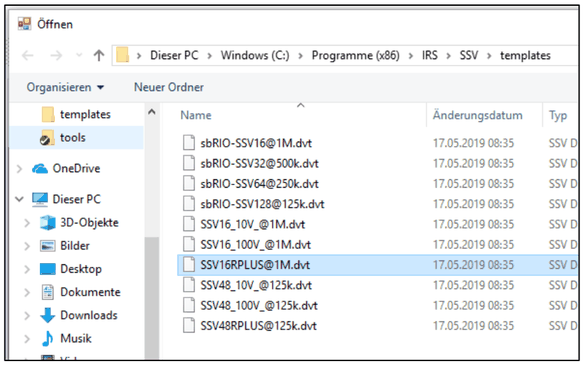
To **add a new device**, click on the green plus button, then select the template matching to your hardware:
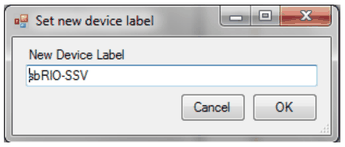
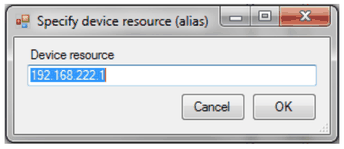
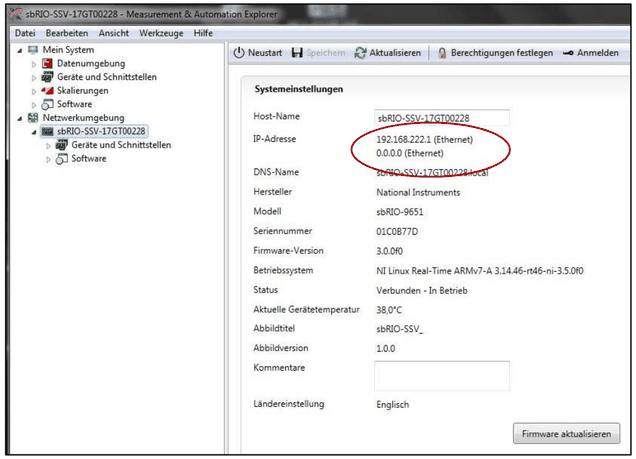
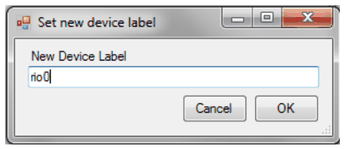
1. Add new device2. Choose new module3. Set new device label (freely selectable)4. IP address must be identical to NI MAX (or its alias name)!IP address NI MAX
### Add device - SSV FlexRIO module

To **add a new device**, click on the green plus button, then select the template matching to your hardware:
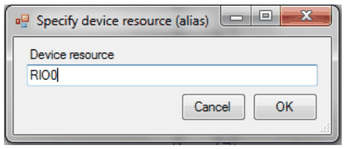
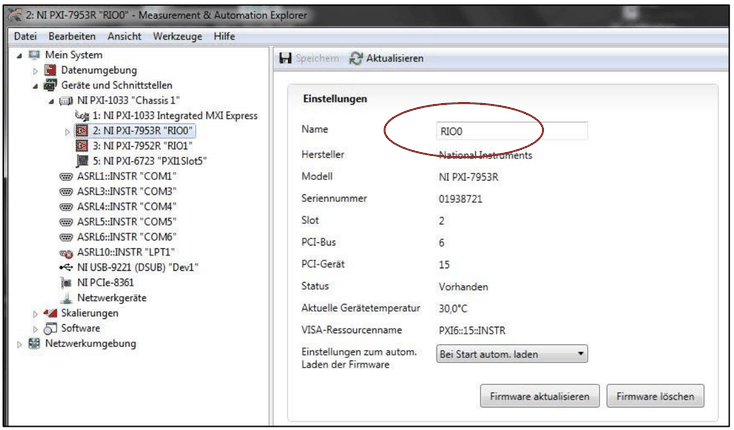
1. Add new device2. Choose new module3. Set new device label (freely selectable)4. Device resource must be identical to NI MAX (or its alias name)!Name NI MAX
### Remove device

To remove a device select it and click on the green minus button. This completely removes the selected device and all associated channel and trigger settings. Window settings will not be affected.
## Capture untriggered snapshot
Before first use, set the application options correctly (Edit/Options) to define the data acquisition tool, sample duration and path
Perform “Capture untriggered” command from the toolbar. Each channel will show the capture data when clicked.

## Setup triggers
Having information about the signal curve, it is now time to analyze the signal and define appropriate triggers for each channel. Refer to “[Triggers](/en/docs/ssv/ssv-concept#trigger)” chapter for details.

## Capture triggered snapshot
To test the triggering, perform a “[Capture triggered](/en/docs/ssv/ssv-editor-user-interface#toolbar)” command. Ideally, each channel will now contain one or multiple cycles of the triggered signal. These iterations can also be overlaid (using the “Visible Plots” slider) to check the signal jitter.

Comparing multiple periods and jitter of your signal using the "[Visible Plots](/en/docs/ssv/ssv-editor-user-interface#plot-overlays)" slider:

## Create Window Sets
Before you can define AnalysisWindows for a measurement, you must define a WindowSet and assign this set to the channel.
See also [Window Sets](/en/docs/ssv/ssv-concept#window-sets).
**Adding new window sets**
Click on the toolbar button to create a new window set:

**Rename Window Set**
Use the Property Editor or `F2` to rename the new Window Set.
**Deleting a window set**
Click on the red cross in toolbar or use the context menu to remove a window set:

This will delete also all windows of this window set.
Note that all existing references to channels will be removed before the window set is deleted.
In order to just deactivate a window set, simply remove its reference in channel setup. It is not required to use every existing window set.
## Add Analysis Windows
When the trigger definition is finished, analysis windows and functions can be assigned.

Simply [create a window set](/en/docs/ssv/ssv-editor-user-interface#window-set-tree) and [add new windows](/en/docs/ssv/ssv-editor-user-interface#windowset-editor) upon the signal curve to define areas of interest. These [analysis windows](/en/docs/ssv/ssv-concept#analysis-windows) identify a start and end point relative to the trigger point. Each window set can contain up to 10 (depends on selected hardware) windows. Each channel can use its own window set or use an existing from another channel, if the signal is similar.
Repeat this for all relevant channels.
As soon as a window set is [assigned to a channel](/en/docs/ssv/ssv-editor-user-interface#channel-explorer), some or all supported [analysis functions](/en/docs/ssv/ssv-concept#analysis-functions) can be added to the window. After configuration of the function parameters, your project setup is complete and [ready to run](/en/docs/ssv/ssv-editor-user-interface#toolbar). This configuration will be downloaded to the defined devices and perform autonomous real-time analysis according to your configuration.

## Add Analysis Functions
To add or remove functions to the window, use either [Window Explorer](/en/docs/ssv/ssv-editor-user-interface#window-explorer) or the [Window Context](/en/docs/ssv/ssv-editor-user-interface#context-menu) menu.
Each window has a fixed (hard wired) set of supported functions (defined by selected hardware). Adding a function in fact just activates the evaluation on the board.
> **Note**
> To add functions to a window set, the window set has to be assigned to at least one channel of a device! To assign a window set, select an existing set in channel properties!


## Assign Window Set to channel(s)
To use a window set, simply select an existing window set name for the "Window Set" property in [Channel Explorer](/en/docs/ssv/ssv-editor-user-interface#channel-explorer).
To remove the assignment, clear the text.
## Perform test
To get a preview of the analysis function results, the intermediate configuration can be tested at any time during setup.
Perform a “[Run test](/en/docs/ssv/ssv-editor-user-interface#toolbar)” command to try out the configuration. This will do another data acquisition as well as adding the evaluated results to the “Log” window.

## Check Report
The "Run Test" function will also generate a report including all test functions, including measurement values and limits.
Analyze the report to find critical issues:

## Save Project
Use “Save configuration (as…)” to save the complete configuration data as a single (XML) file.
The saved project file can now be used e.g. in a test sequence [using the provided SSV API.](/en/docs/ssv/ssv-concept#using-the-api)