# Real Time System
URL: https://irs.systems/en/docs/resolver-simulation/real-time-system
The software for the real time system controls the device according to the values it gets from network interface (Shared Network Variables).
Note: It is also possible to control the FPGA without using the real time system. The user may design his own application.
## Network interface (Shared Network Variables)
To control the simulation the real time system is communicating with the host application by using a technique called “Shared Network Variables”. These are containers of variables which can be accessed by a special network address. The containers are located in the RT folders (“RT_ResSi” or “RT_RVDT”):
- **ResSi_Variables.lvlib / RVDT_Variables.lvlib:** Contains non channel related variables like FPGA version
- **ResSi_Variables_x.lvlib / RVDT_Variables_x.lvlib:** Contains channel related variables where x represents the channel number (each channel will have its own file).
### Access a variable from host computer
To access a variable from a remote system, the developer can use the VI “RT_PC_ResSi_NetVarPathGen.vi” (“RT_PC_RVDT_NetVarPathGen.vi” respectively) located in “RT_ResSi/Share” (“RT_RVDT/Share” respectively) together with a “Read Variable” or “Write Variable” control.
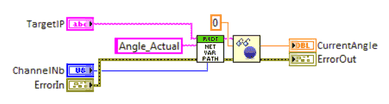
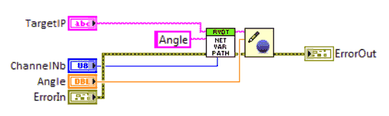
PC example for reading the actual angle and for writing a new angle in RVDT simulator mode:
Figure 19: Example for reading a network variable (PC)Figure 20: Example for writing a network variable (PC)
- TargetIP: RIO ip address or hostname
- Angle_Actual / Angle: Name of the desired variable in “RVDT_Variables_x.lvlib”
- ChannelNb: Channel number -> x (if x = 255, access goes to “RVDT_Variables.lvlib”)
### Adding a new channel
Example for RVDT channel 1:
1. If not done, add the new channel to the FPGA code (see [FPGA – Adding a new channel](/en/docs/resolver-simulation/labview-project-and-fpga#adding-a-new-channel))
2. Create copy of “ResSi_Variables_0.lvlib” and rename to “ResSi_Variables_1.lvlib” (this step cannot be done in project explorer, instead use windows explorer)
3. Update FPGA reference
- Open “RT_RVDT/RT_RVDT_Thread.vi”
- Right click on “RefnumIn” and select “Open Type Def.”
- Right click on “Reference” and choose “Configure FPGA VI Reference…”
- Click on “Import from bitfile…”, browse to the required bit file located in “FPGA Bitfiles” and open it
- Save everything
4. Update build specification and rebuild
- Right click on “RIO-System/Build_Specification/RT_RVDT” -> Properties
- Select “Source Files” on right side
- Browse to “RT_RVDT/RVDT_Variables_1.lvlib” and add it to section “Always Included”
- Rebuild and flash (“Run as startup”)
## Resolver simulation (RT_ResSi)
Not described in manual V3.0. See [Resolver Mode Software](/en/docs/resolver-simulation/resolver-mode-software) (from manual V2.2).
## RVDT simulation (RT_RVDT)
This section describes the real time system for RVDT simulation mode.
### Control interface (RVDT_Variables)
Like told in section [Network interface](/en/docs/resolver-simulation/real-time-system#network-interface-shared-network-variables) the RVDT simulation will be controlled by network shared variables. The following table describes them:
| Variable | Type | Access | Description | Unit |
| --- | --- | --- | --- | --- |
| FPGA_Version (common) | UInt32 | r | HEX coded FPGA compilation date: Format: 0xYYYYMMDD | |
| Angle | Double | r/w | Simulation angle in degree | ° |
| Angle_Actual | Double | r | Current simulation angle in degree | ° |
| Angle_DegreePerSec | Double | r/w | Moving speed to new angle position | °/sec |
| Angle_Max | Double | r/w | Maximum angle swing (absolute value): Angle where the difference output signal is at his maximum amplitude set up by “LUT_Amplitude” and PGA. | ° |
| LUT_Amplitude | Double | r/w | Maximum amplitude of the differential output signal relative to the excitation signal amplitude multiplied with PGA (see “LUT_Write”). | % |
| LUT_Calibration | CTL[1] | r/w | Calibration settings (see “LUT_Write”) | |
| LUT_Write | Boolean | r/w | Set to update the lookup tables with new data calculated with the values in “LUT_Amplitude” and “LUT_Calibration”. True: Start update process (set by user). False: Update process finished (set by RT) | |
| PGA | UInt8 | r/w | PGA setting (Range: 0…7): `Û_OUT = 0.078125 * 2^PGA * Û_LUT` | |
| SaveConfig | Boolean | r/w | Set to permanently save current configuration and angle setup in real time system flash memory (it will be loaded on every start up). True: Start saving process (set by user). False: Saving process finished (set by RT) | |
**CTL[1] -> RT_PC_RVDT_LUT_Calibration.ctl**
| Variable | Type | Description | Unit |
| --- | --- | --- | --- |
| SineAmplitude_%, CosineAmplitude_% | Double | Amplitude correction factors for lookup table (see “LUT_Amplitude”): `Amplitude_LUT = "LUT_Amplitude" * x` | % |
| SineDCOffset_%, CosineDCOffset_% | Double | LUT DC offset correction amplitude relative to the excitation signal amplitude multiplied with PGA: `Amplitude_LUT = "LUT_Amplitude" + x` | % |
### RT_RVDT_Top.vi
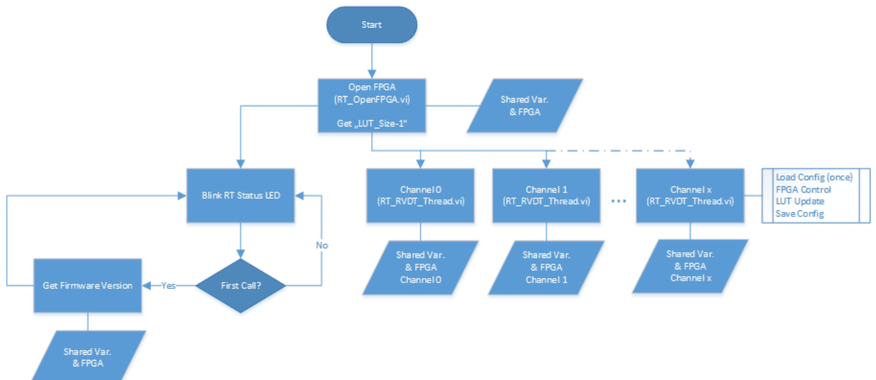
Top vi of the real time system in RVDT simulation mode.
Figure 21: RT_RVDT_Top.vi - Flow Chart
### RT_RVDT_Thread.vi
This vi is responsible for controlling the FPGA. It is called cyclic (100ms) from top vi for each available channel on FPGA (parallel as multi thread).

- LUT_Size-1: Last index of the lookup tables (get it from FPGA)
- ChannelNb: Channel number
- ResSi_Values: Connect to FPGA “ResSi_Values” array element at index defined by “ChannelNb”
- ResSi_Settings: Connect to FPGA “ResSi_Settings” array element at index defined by “ChannelNb”
### RT_RVDT_SaveCfg.vi & RT_RVDT_LoadCfg.vi
These are used for saving the current configuration to flash memory and for loading it again.
### RT_PC_RVDT_LUT_ValueWrite.vi
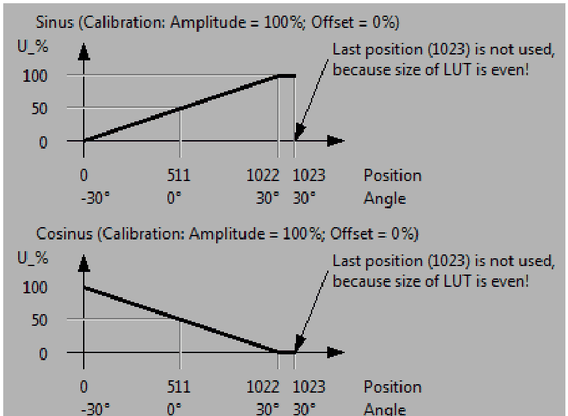
With this vi the update data for the lookup tables will be created. It takes the amplitude (LUT_Amplitude) and the calibration settings (LUT_Calibration) as input parameters and generates the lookup table data for both tables. The following diagram shows example data (LUT-Size = 1024; Max. Angle = +-30°; LUT_Amplitude = 100%):
Figure 22: RVDT LUT Example Data Diagram